Made in Europe, buy from Europe.
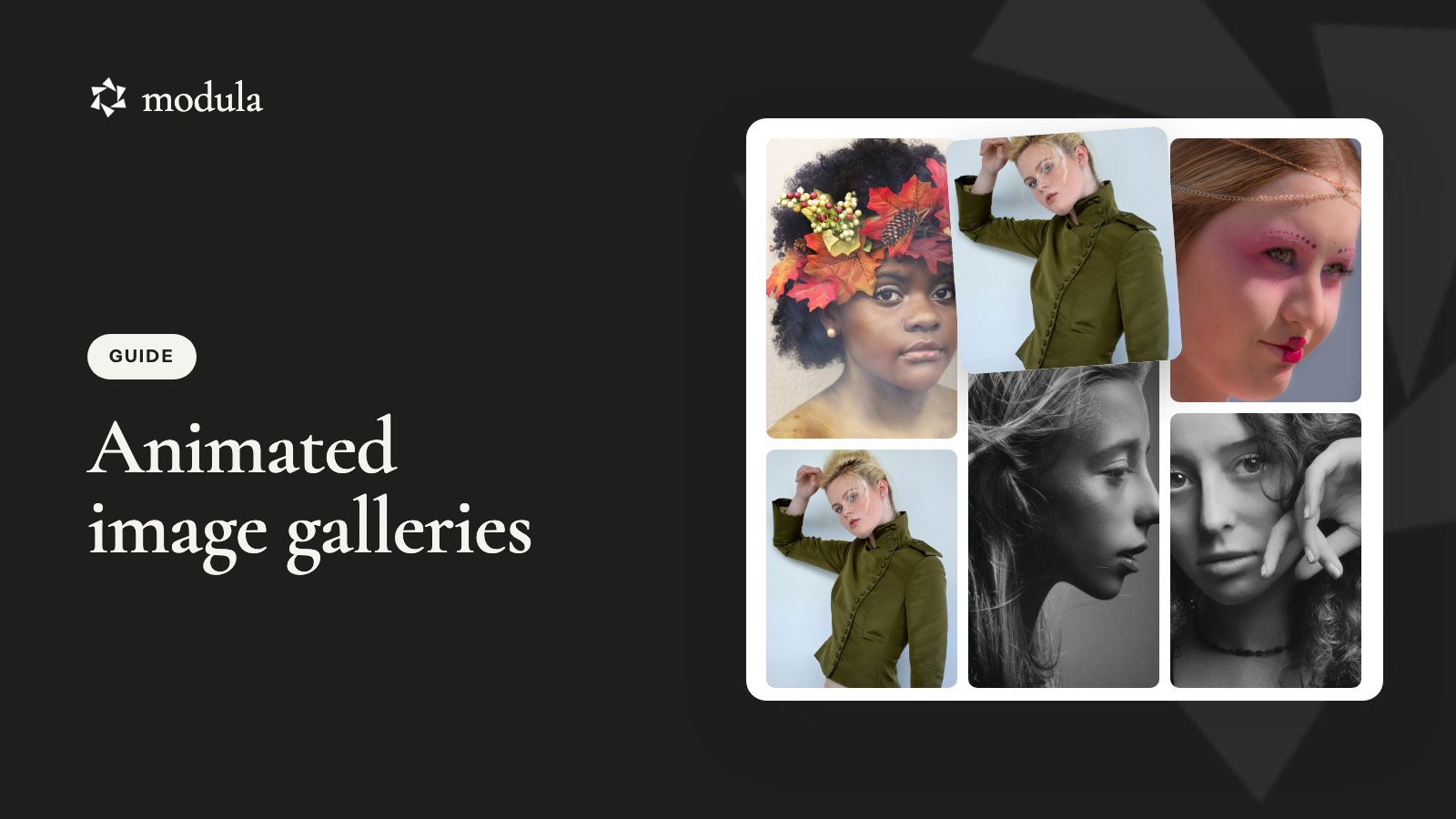
Your photos are good. But the grid just sits there, and people scroll right past it.
A little motion changes that. Photos that slide into place or lift under the mouse make people stop and look. Too much motion does the opposite, so the real skill is picking the right one.
The short answer
WordPress’s own Gallery block has no animation settings, so an animated image gallery needs a plugin. We make Modula (160,000+ active installations). Its Motion section does the job in a couple of minutes, with no code. (This animates a gallery. It won’t turn one photo into a GIF.)
To create an animated image gallery in WordPress:
- Go to Modula → Content, click New gallery and add photos with + Add.
- Open Motion in the left rail.
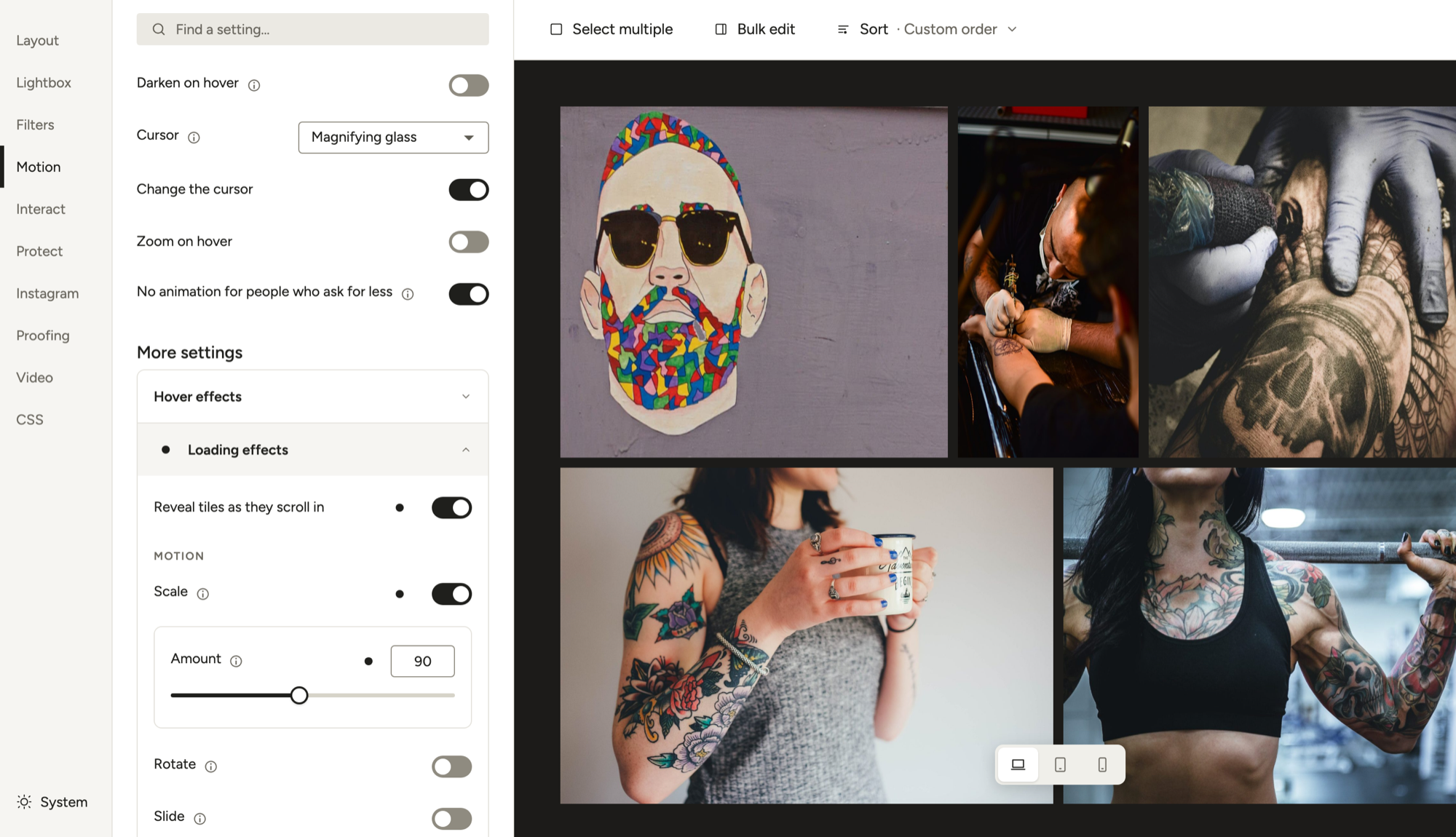
- Under Loading effects, turn on Scale or Reveal tiles as they scroll in.
- Pick a Hover effect.
- For photos that change on their own, use a Slider with Autoplay or the full-screen lightbox slideshow.
The kinds of gallery animation
Gallery animations come in five kinds, and Modula 3.0 sets each one in its own place.
| Kind | What visitors see | Where | Plan |
|---|---|---|---|
| Entrance | Photos scale, turn or slide in as they load | Motion → Loading effects | Scale free. Rotate and Slide: any Pro plan |
| Hover | A photo lifts, zooms softly or reveals its caption | Motion → Hover | 5 presets free, the rest Pro |
| On their own | Slides advance, the center photo changes, stories play | Slider, Showcase or Story layout | Slider: Trio and up. Others: any Pro plan |
| On scroll | Columns drift at different speeds | Parallax layout → Scroll effect | Any Pro plan |
| Lightbox | A slideshow, or a zoom or fade as it opens | Lightbox | Any Pro plan |
Good to know
Let one motion lead. If photos spin in, lift under the mouse and a slider autoplays above them, nothing stands out. Pick the star and keep the rest quiet.
Pick a motion that fits your photos
Modula 3.0 has 4 loading effects and 14 hover presets, but the right pair depends on why people are looking. Our picks:
- A wedding or portrait set. Reveal tiles as they scroll in with a light Scale, and Lift on hover. People came to linger over these 40 favorites, so let each one arrive.
- A product grid. No loading effect, and Balanced reveal on hover. Shoppers scanning 12 items don’t want to wait, but they do want the name.
- A travel or blog gallery. Reveal tiles as they scroll in, and Captions only, so the caption tells the story.
- A portfolio. Scale plus a small Rotate (Pro), and Center hero on hover. It feels like prints laid out on a table.
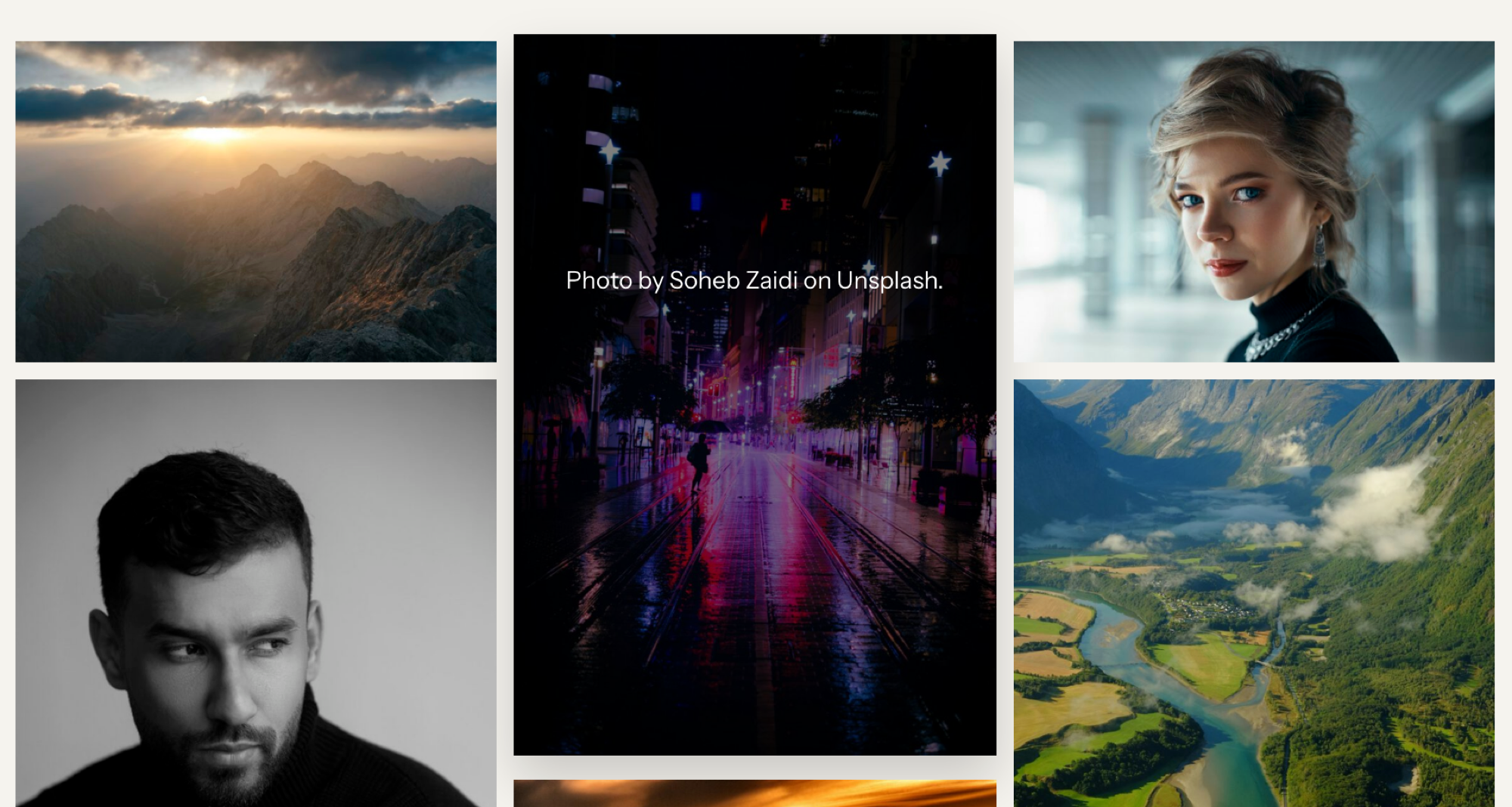
- Night or film photos. Reveal tiles as they scroll in, and Cinematic dark (Pro), a slower, darker reveal made for big tiles.
Add an entrance animation
In Modula, you add an entrance animation under Motion → Loading effects, and each photo plays its own as it appears. Elementor’s entrance animation, by contrast, moves the whole gallery as one block.
Create the gallery
If Modula isn’t on your site yet, install it first. Go to Modula → Content, click New gallery, name it (say, Portraits) and add photos with + Add. Pick a layout under Layout → Type. The editor saves as you go.
Choose a loading effect
Open Motion and click Loading effects. They work on every layout except Slider, Showcase, Story, Parallax and Video gallery.
- Reveal tiles as they scroll in (free). Photos appear as visitors scroll to them, not all at once.
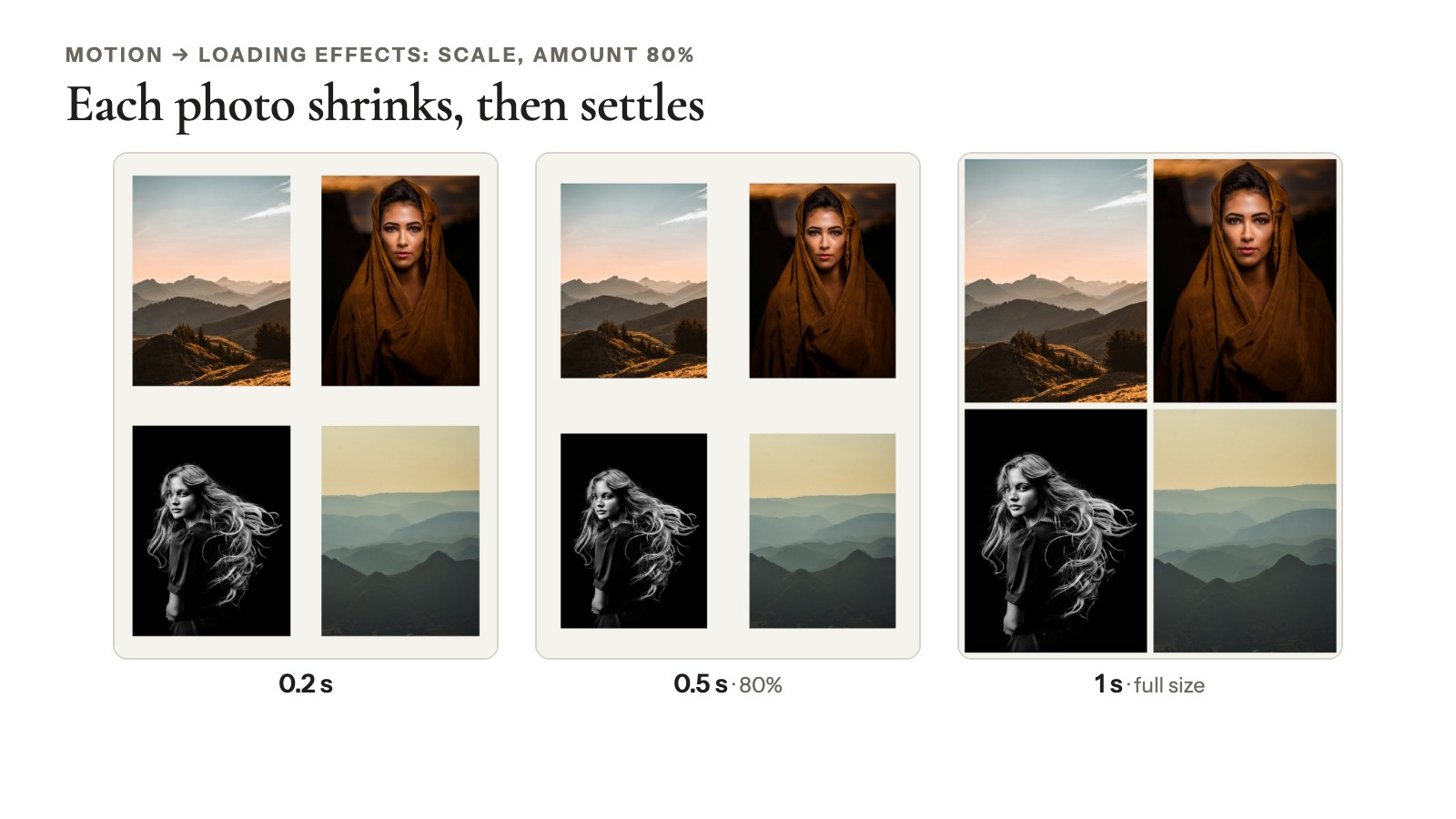
- Scale (free). Each photo briefly grows or shrinks as it appears, then settles at full size. Amount sets how far, and 100% means no change.
- Rotate (any Pro plan). Each photo twists by the Degrees you set, then settles.
- Slide (any Pro plan). Each photo shifts by the Horizontal and Vertical pixels you set, then settles.
You can combine them. Each lasts about a second and there’s no speed setting, so keep the amounts small: a little swell feels lively, a big one looks like a bounce.
Then click Embed for the shortcode or add the Modula Gallery block (how to insert galleries). Open the page and scroll to watch it play.
Add a hover effect
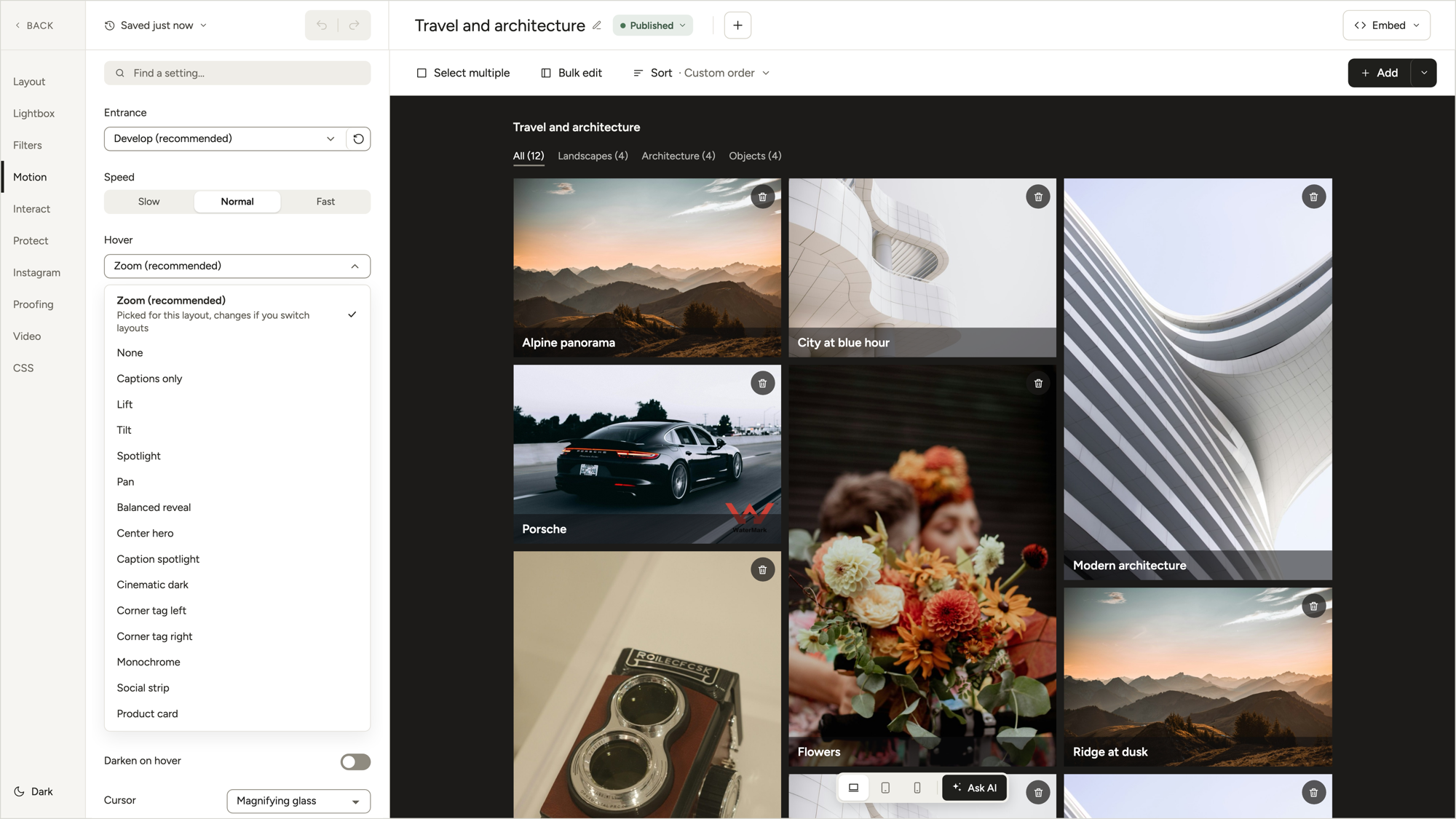
Modula’s hover effects (what a photo does under the mouse) sit under Motion → Hover. Pick one, then point at a photo in the preview to check it.
- Free: None, Captions only, Balanced reveal, Lift and Center hero.
- Modula Pro: 9 more, including Caption spotlight, Cinematic dark, Monochrome and Product card.
Darken on hover dims the photo under the mouse so its caption stays readable.
To give one photo its own effect, click it in the preview and pick a Hover effect. Modula Pro also lets you fine-tune a preset: how the photo moves and how the title and caption come in. Our image hover effects guide covers every preset.
Galleries that keep moving
Modula’s Slider, Showcase and Story galleries move on their own, Parallax moves as you scroll, and the lightbox can run a slideshow over any layout.
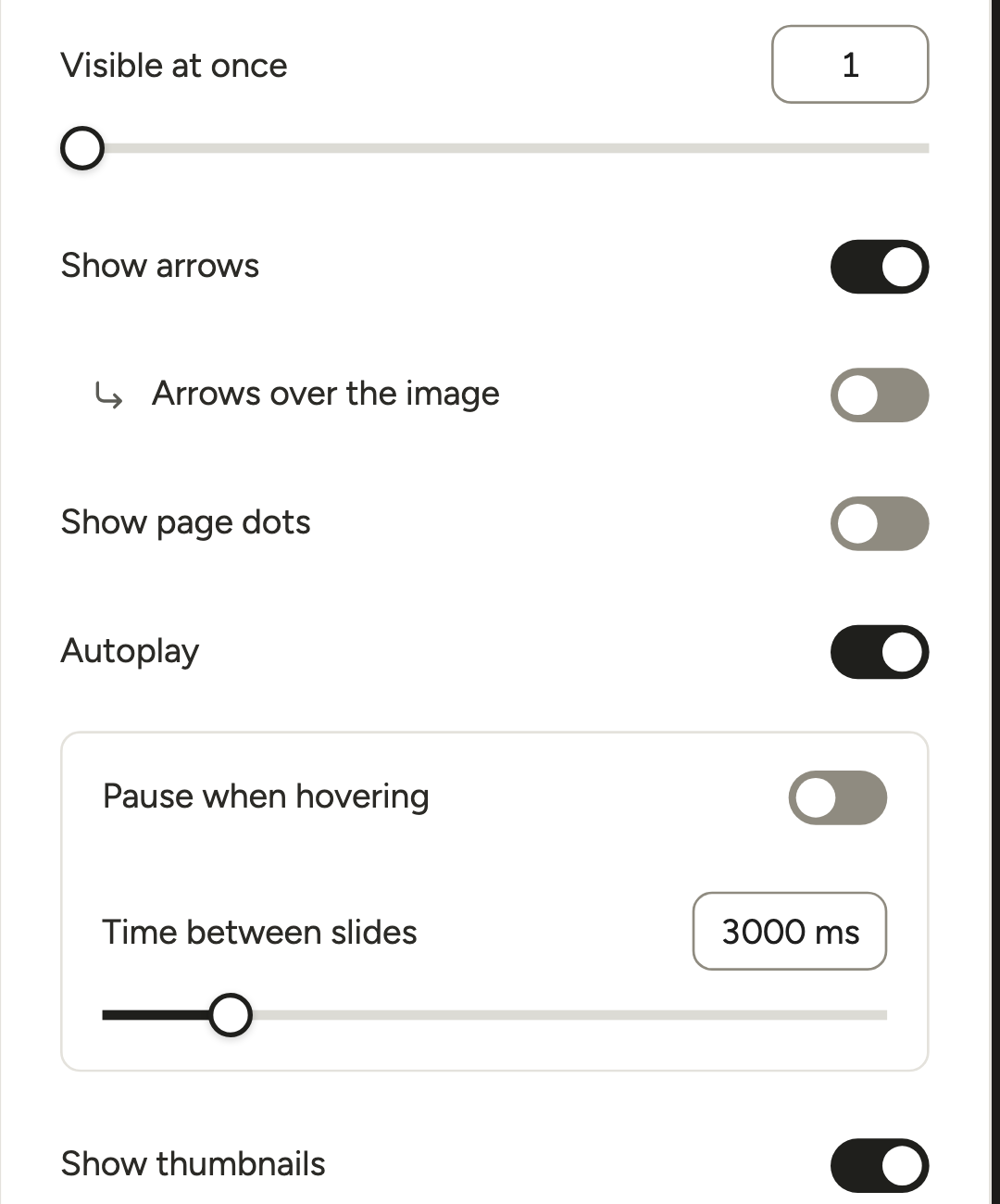
- Slider (Trio and up). Turn on Autoplay, then set Time between slides and Pause when hovering. More in our WordPress gallery slideshow guide.
- Showcase (any Pro plan). The center photo grows while its neighbors peek in. Autoplay moves the spotlight along.
- Story (any Pro plan). Photos play like Instagram stories.
- Parallax (any Pro plan). Columns drift at different speeds as you scroll. Scroll effect sets the feel: Calm, Balanced or Dynamic. See our scrolling gallery guide.
- Lightbox slideshow (any Pro plan). Keep your grid and switch on Lightbox → Enable slideshow (settings).
Go further with custom CSS
Custom CSS covers the gallery animations Modula’s built-in effects don’t. The editor’s CSS section takes rules for that gallery alone.
Stick to animating transform and opacity. web.dev (2020) recommends them because browsers can animate them smoothly. Our custom CSS help article shows where the rules go.
Keep your animated image gallery friendly
Friendly gallery motion is short, optional and never the only way to see something.
- Reduced motion is on by default. When a visitor’s device asks for less motion, Modula shows the gallery without effects. 97% of browsers in use support that setting (checked October 2026). Accessibility criterion WCAG 2.3.3 lists dizziness, nausea and headaches among the reactions motion can trigger.
- Give autoplay a pause. WCAG 2.2.2 (Level A) covers moving content that starts on its own, runs past five seconds and sits next to other content. It needs a way to pause, stop or hide it. Pause when hovering only helps mouse users. A lightbox slideshow that visitors start themselves is kinder.
- Plan for phones. Phones carried 58.99% of web traffic worldwide in September 2026, and they have no hover. Don’t hide captions behind one. Captions only keeps them on the photo.
Frequently asked questions
Yes. Free Modula has the Scale and Reveal tiles as they scroll in loading effects, five hover presets, Darken on hover, custom CSS and 7 of the 14 gallery types. Rotate, Slide, the other hover presets, Showcase, Story, Parallax and the lightbox slideshow need a Pro plan, from $39 for the first year ($78/year after). The Slider needs Trio or higher (plans).
Not reliably. Phones and tablets have no mouse, so most visitors there never see Modula’s hover effects. Loading effects still play. Pick Captions only to keep captions on the photo.
Yes. In that gallery, switch off the Loading effects and set Hover to None. Other galleries keep theirs. Visitors who get motion sick are covered too: when their device asks for less motion, Modula shows the gallery without effects. That setting is on by default.
Not inside grid cells: Modula doesn’t swap photos in place. The nearest is a Slider with Visible at once at 3 or 4 and Autoplay on, or a Showcase with Autoplay.