Made in Europe, buy from Europe.
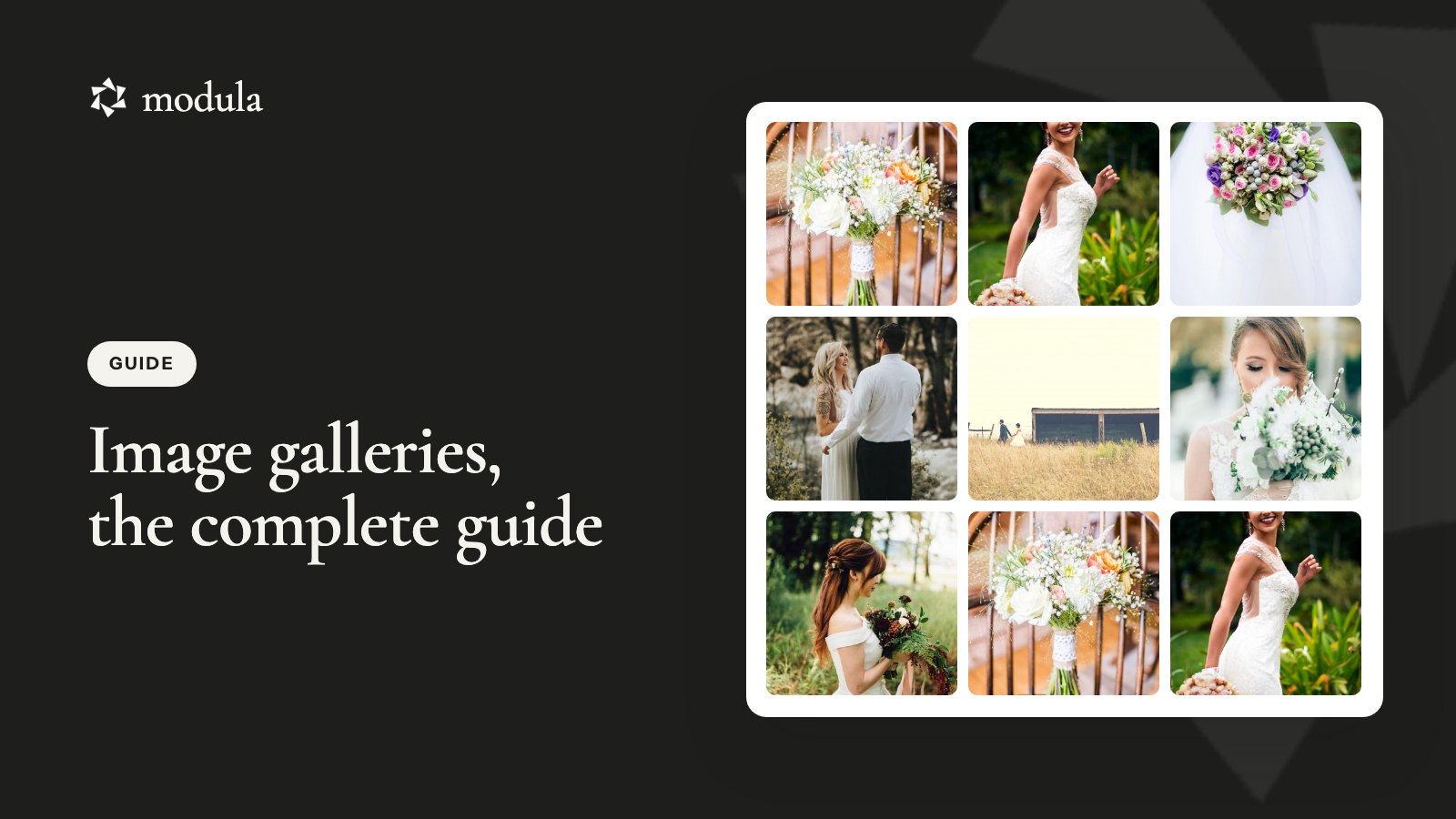
Ever wanted to share a batch of photos without turning your post into an endless scroll? That’s what an image gallery in WordPress is for.
A WordPress photo gallery lays your shots out in a tidy grid, and one click opens any of them large, in a lightbox.
There are two ways to create a gallery in WordPress:
- The Gallery block. It’s built in, free, and perfect for a handful of photos in one post.
- A gallery plugin like Modula. More layouts, more control over the lightbox, and galleries you can drop onto any page.
Below, you’ll build one gallery of travel photos both ways, so you can see exactly where the block stops and a plugin takes over.
🎬 Video: 90-second walkthrough, Gallery block then Modula 3.0
Why use a WordPress photo gallery?
A WordPress photo gallery puts a whole set of photos in one compact grid, so readers see them together instead of scrolling past each one.
Add ten photos to a post one by one, and WordPress stacks them one under the other. On a phone, where 59% of web browsing happens (StatCounter, September 2026), that post never seems to end.
A gallery also keeps the spacing even. Use one whenever you have photos that belong together:
- Travel posts: 18 shots from a weekend in Lisbon, side by side.
- Portfolios: a wedding photographer’s best 20 frames.
- Product photos: a potter’s 12 product shots, each mug from a few angles.
- Event recaps: the office party, the school play, the summer tournament.
Prepare your photos before you upload
Five minutes of photo prep before you upload is what keeps a WordPress gallery fast. Images are already the heaviest part of most pages.
The median home page loads 1,058 KB of images on desktop and 911 KB on mobile, more than any other kind of file (2025 Web Almanac). A gallery multiplies that.
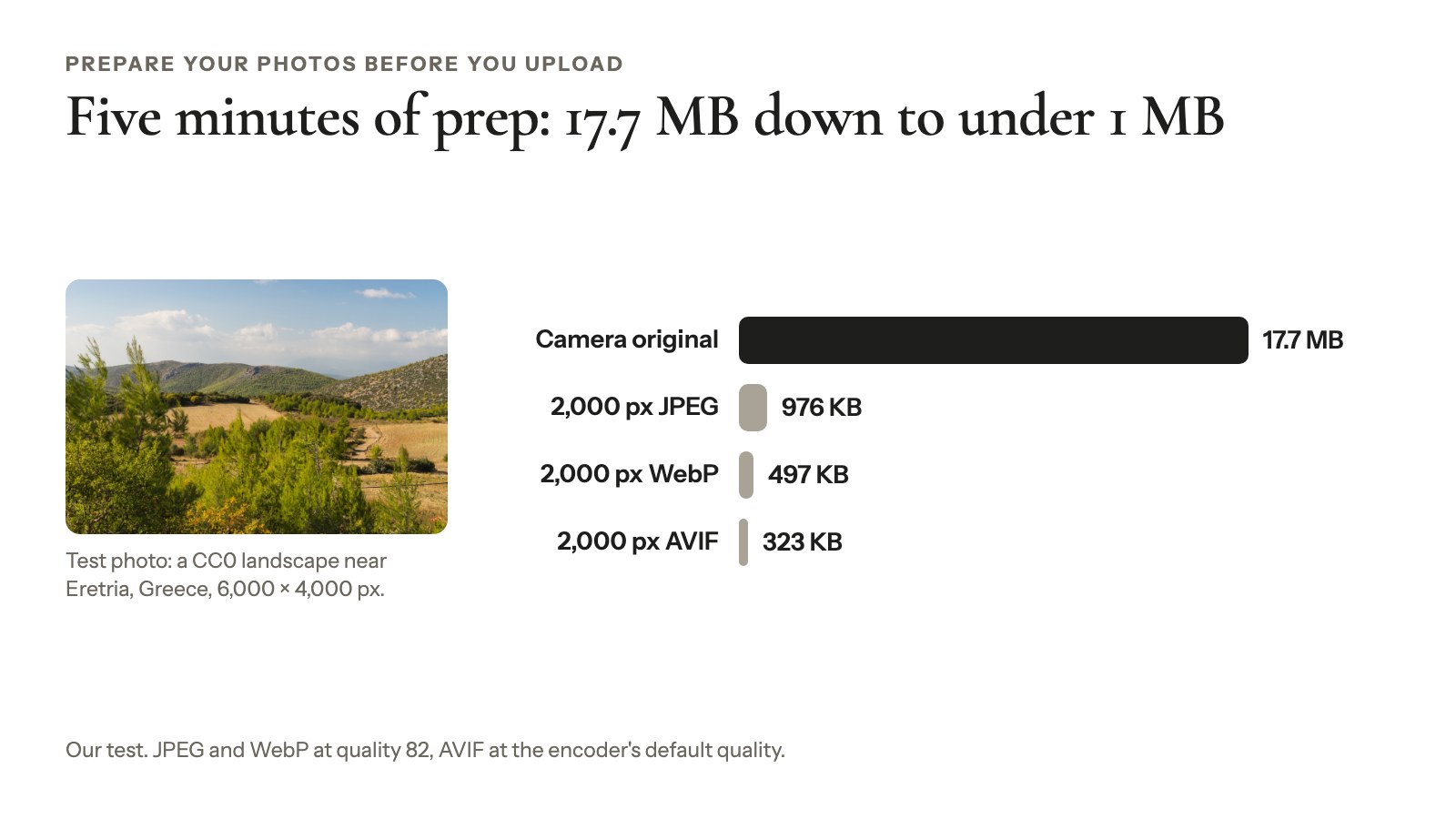
Run through this list first:
- Pick the right format. JPEG for photos, or WebP and AVIF for even smaller files if your host supports them (WordPress has accepted AVIF since version 6.5). Keep PNG for logos, screenshots and transparent graphics.
- Skip the camera originals. A 6,000-pixel-wide file is far more than any screen needs. As a rule of thumb, about 2,000 pixels on the long edge is plenty, even for a full-screen lightbox.
- Name files like a human.
lisbon-tram-28.jpgtells you (and Google) what’s in the picture.IMG_4821.jpgtells nobody anything. - Write alt text. One plain sentence about what’s in the photo, for screen readers and image search.
- Curate. Twelve great photos beat 80 OK ones. Leave out the near-duplicates.
Lazy loading is already covered: WordPress has done it by default since version 5.5, and so does Modula (Load images as people scroll is on out of the box). For more, see how to make gallery images load faster.
Create a gallery with the WordPress Gallery block
The WordPress Gallery block has come with every WordPress site since version 5.0 (December 2018), so there’s nothing to install. To build the travel gallery with the block:
- Open your post. Click the + at the top left, type gallery and pick Gallery. Faster: type
/galleryon an empty line and press Enter. - Click Upload to add photos from your computer, and they go straight into the gallery. You can also drag files onto the block.
- To use photos already on your site, click Media Library instead. Click the ones you want, then Create a new gallery. Drag them into order, add captions if you like, and click Insert gallery.
- Save or publish the post.

Done: the gallery works. Now make it look right.

Set the columns, crop and size
Select the gallery, and the sidebar on the right has the settings:
- Columns: 1 to 8. Three or four suits most photos.
- Crop images to fit: on by default, so the grid lines up. Turn it off to keep the edges of your panoramas.
- Aspect ratio: gives every photo the same shape, square for example.
- Randomize order: shuffles the photos on each page load.
- Resolution: the image size WordPress serves. Large, the default, is usually enough.
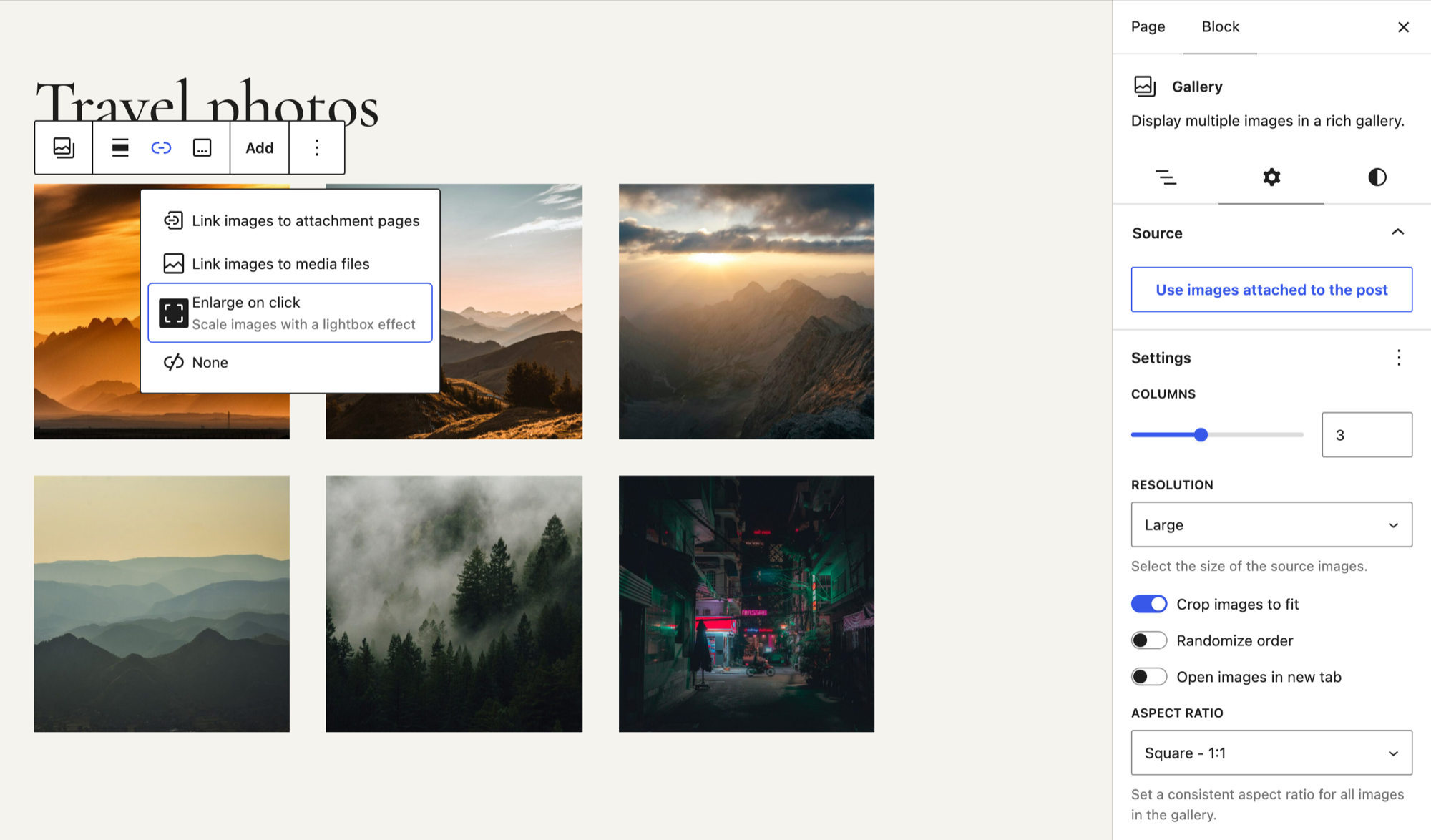
Turn on the gallery lightbox
Plenty of guides still say the Gallery block has no lightbox. It does.
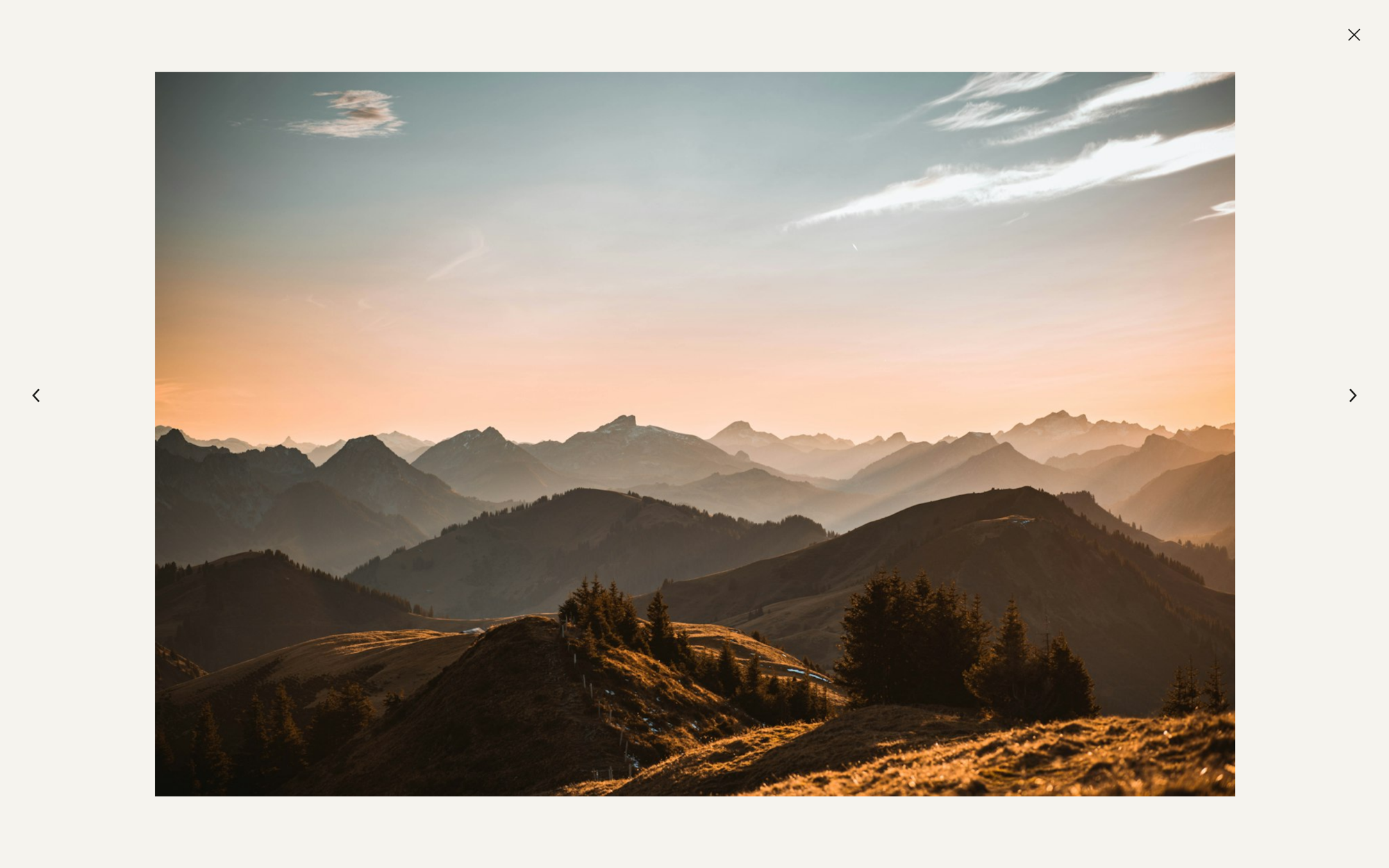
Click the Link icon in the block toolbar and choose Enlarge on click. Now a click on any photo opens it large over the page. Since WordPress 7.0, visitors can move through the whole gallery from there without closing it, like a slideshow.
Tip
A gallery that fills itself. On an empty Gallery block, click Use attached images. It shows every image you’ve uploaded to that post and adds new ones as you go. To pick or reorder photos by hand again, click Detach.
Edit the gallery later
Found three more photos from the trip? To edit a gallery in WordPress:
- Add photos: select the gallery and click Add in its toolbar.
- Reorder: drag a photo to a new spot.
- Captions and alt text: click a photo. The caption goes under it, alt text is in the sidebar.
- Remove a photo: click it and press Delete. The file stays in your Media Library.
In the Classic editor, the same gallery is the [gallery] shortcode, a bracketed tag WordPress swaps for the gallery; our gallery shortcode guide explains it.
Where the block stops
For 18 travel photos in one post, the block is all you need. Its limits show once galleries become a big part of your site:
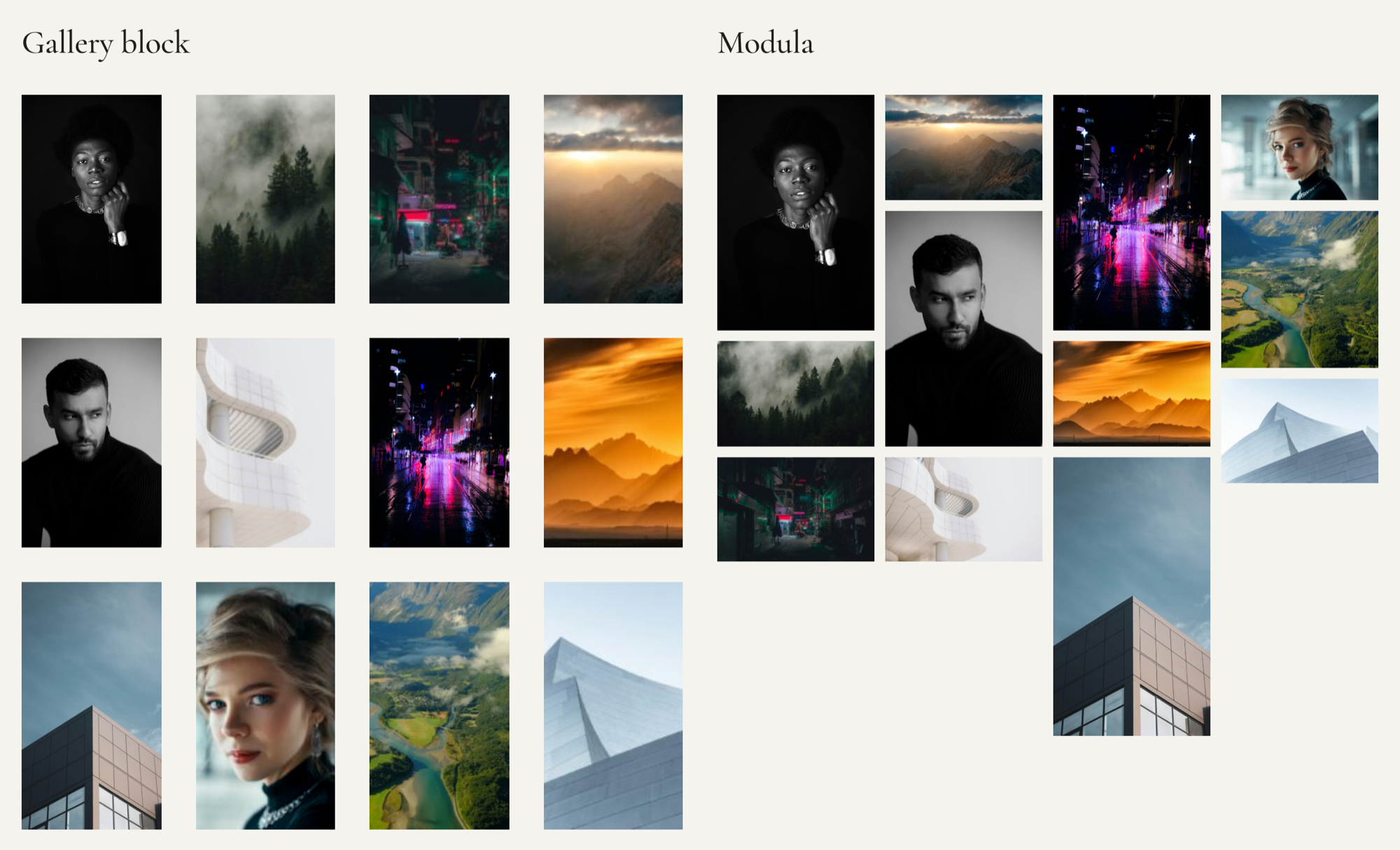
- Grid only. No masonry, justified rows, slider or carousel.
- One post at a time. To reuse it, you copy the block or save it as a synced pattern (a reusable block that updates everywhere).
- No filters or albums. A wedding photographer can’t let clients filter 300 proofs by “ceremony” and “reception”.
- No protection. No watermark or right-click protection, and a password can only lock the whole post.
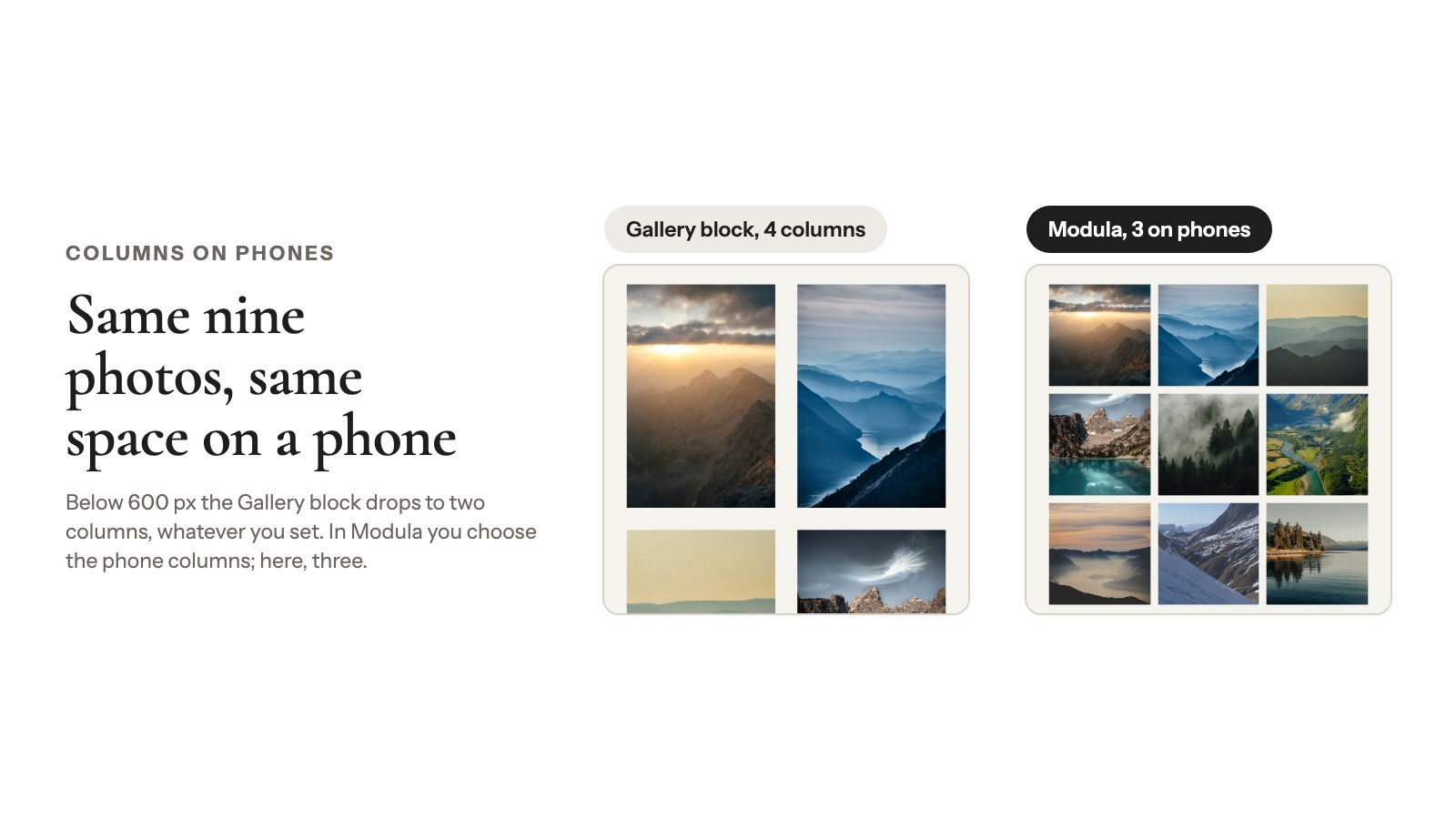
- Two columns on phones. Below 600 pixels wide, the block shows two, whatever you set (or one, if you picked a single column).
That’s where a gallery plugin earns its place.
Create a gallery with Modula
Modula, a free WordPress gallery plugin with 160,000+ active installations, lets you build each gallery once, in an editor with a live preview, and show it on any page.
It has a 4.7 out of 5 rating from 600+ reviews on WordPress.org (checked October 2026). We make it, so this part shows our own plugin.
Prefer to watch? The video shows the whole flow.
Install Modula
Go to Plugins → Add Plugin, search for Modula, click Install Now, then Activate. On a paid plan? Install Modula Pro and enter your license key too.
Start a new gallery and name it
Go to Modula → Content and click New gallery. The arrow next to it can start from a preset of saved settings instead (Business plan).
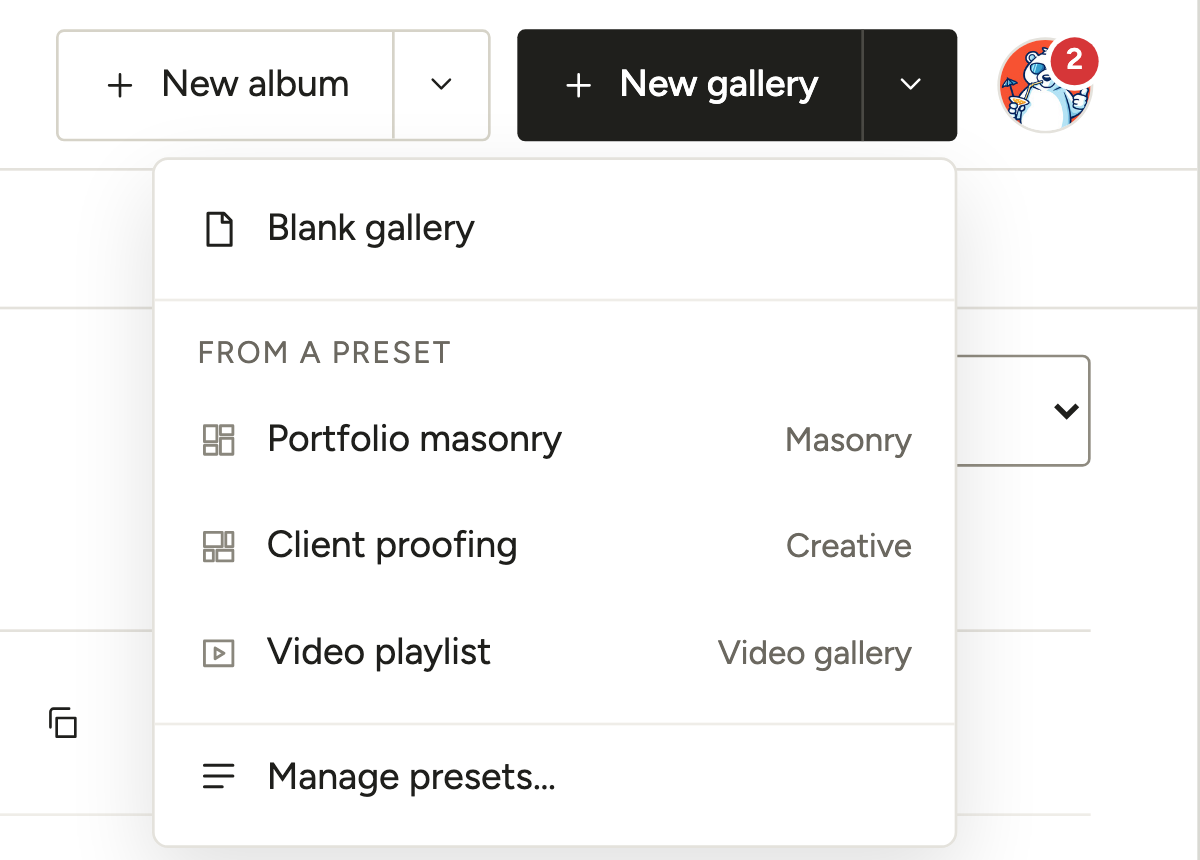
Click the pencil next to the gallery name and pick one you’ll recognize in six months. “Lisbon weekend” beats “Gallery 3” once you have twenty.
Add your images
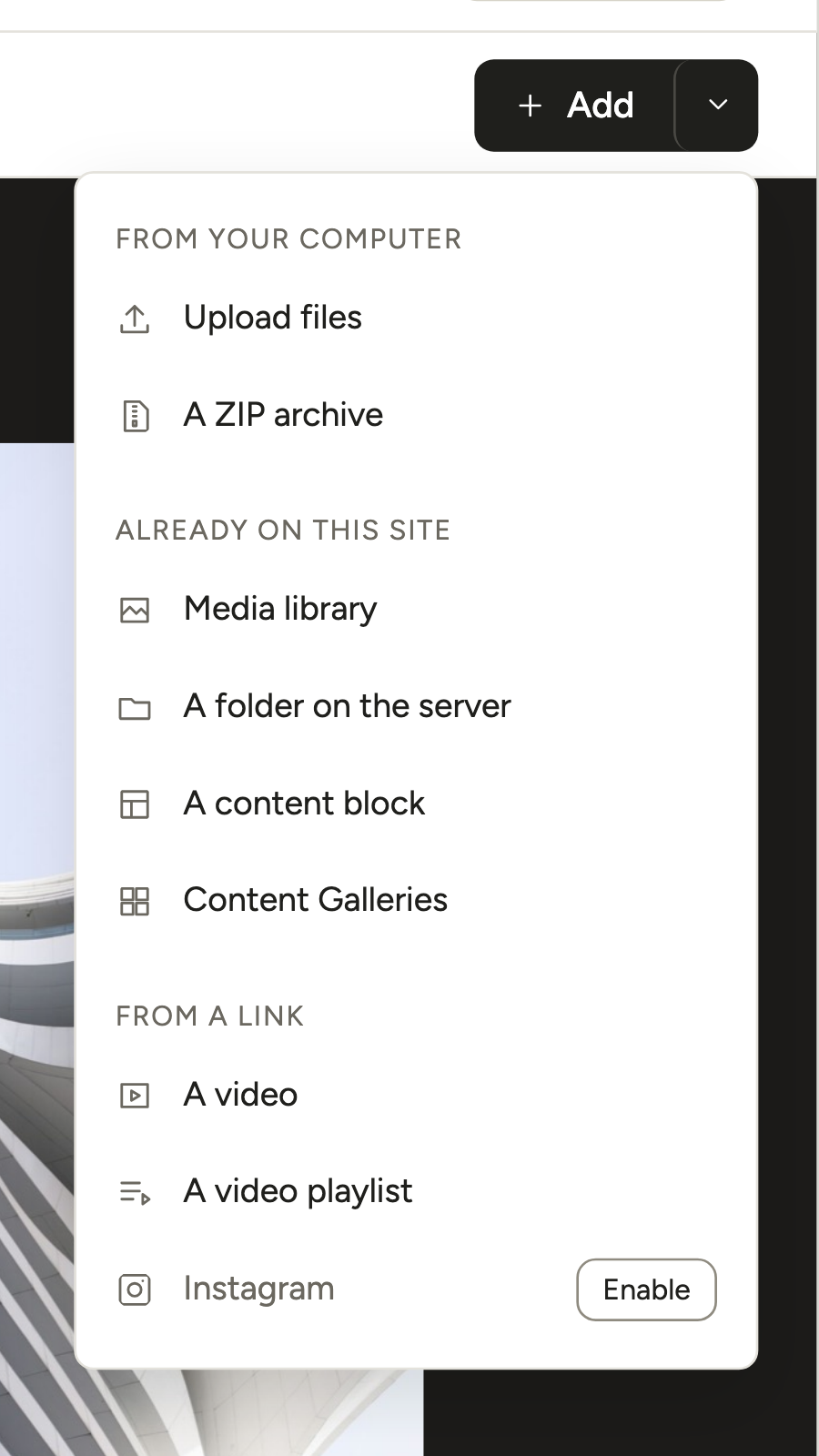
+ Add opens your Media library, for photos already on your site. The arrow next to it has Upload files for new ones, plus videos and Instagram if your plan includes them.
A ZIP archive and A folder on the server are Modula Pro only, and handy when a shoot arrives as 300 files.
Then tidy up:
- Reorder: with Modula Pro, open Sort and drag photos into place.
- Details: click a photo to add a title, alt text, a caption or a link.
- Bulk edit: fill in titles and alt text for every photo in one table.
- Remove: click the trash icon. The file stays in your Media Library.
Adding a big shoot? See how to add multiple images to a gallery.
Choose a layout
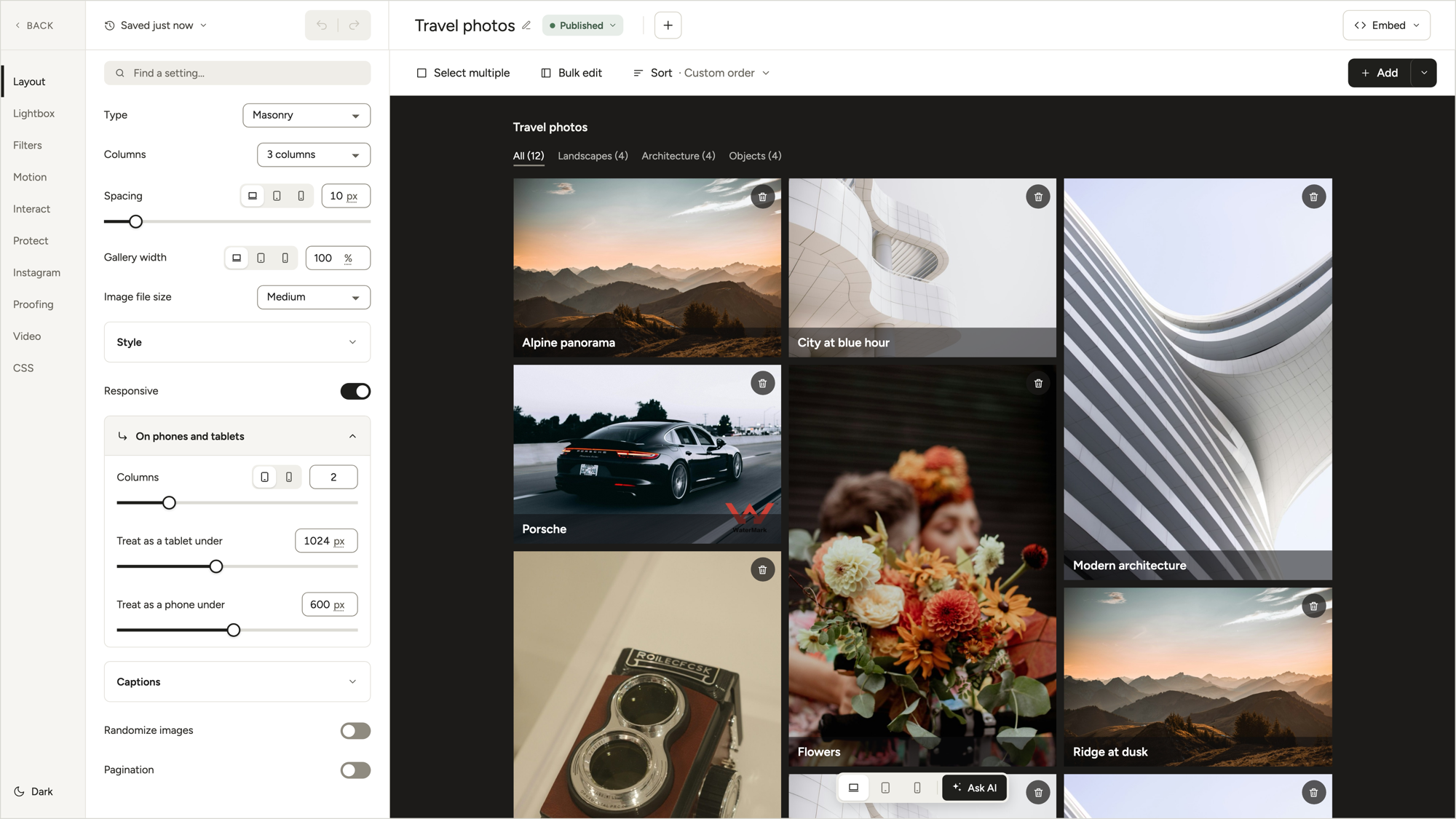
Open Layout in the left rail and choose a Type from Modula 3.0’s 16 gallery types. Eight are free: Masonry, Uniform grid, Fit grid, Justified grid, Custom grid, Tiles, Polaroid and Template.
Freeform, Bento, Parallax, BnB, Showcase, Story and Video gallery come with any Modula Pro plan, and Slider needs Trio or higher.
For travel photos, Masonry is a safe bet: tall and wide shots keep their shape instead of being cropped into squares.
Set Columns and Spacing, then click Mobile under the preview. Phones get 1 column and tablets 2 by default; change them under On phones and tablets.
Want a particular look? See our guides to a masonry gallery, a tiled gallery or a carousel, or all 16 types explained.
Choose what a click does
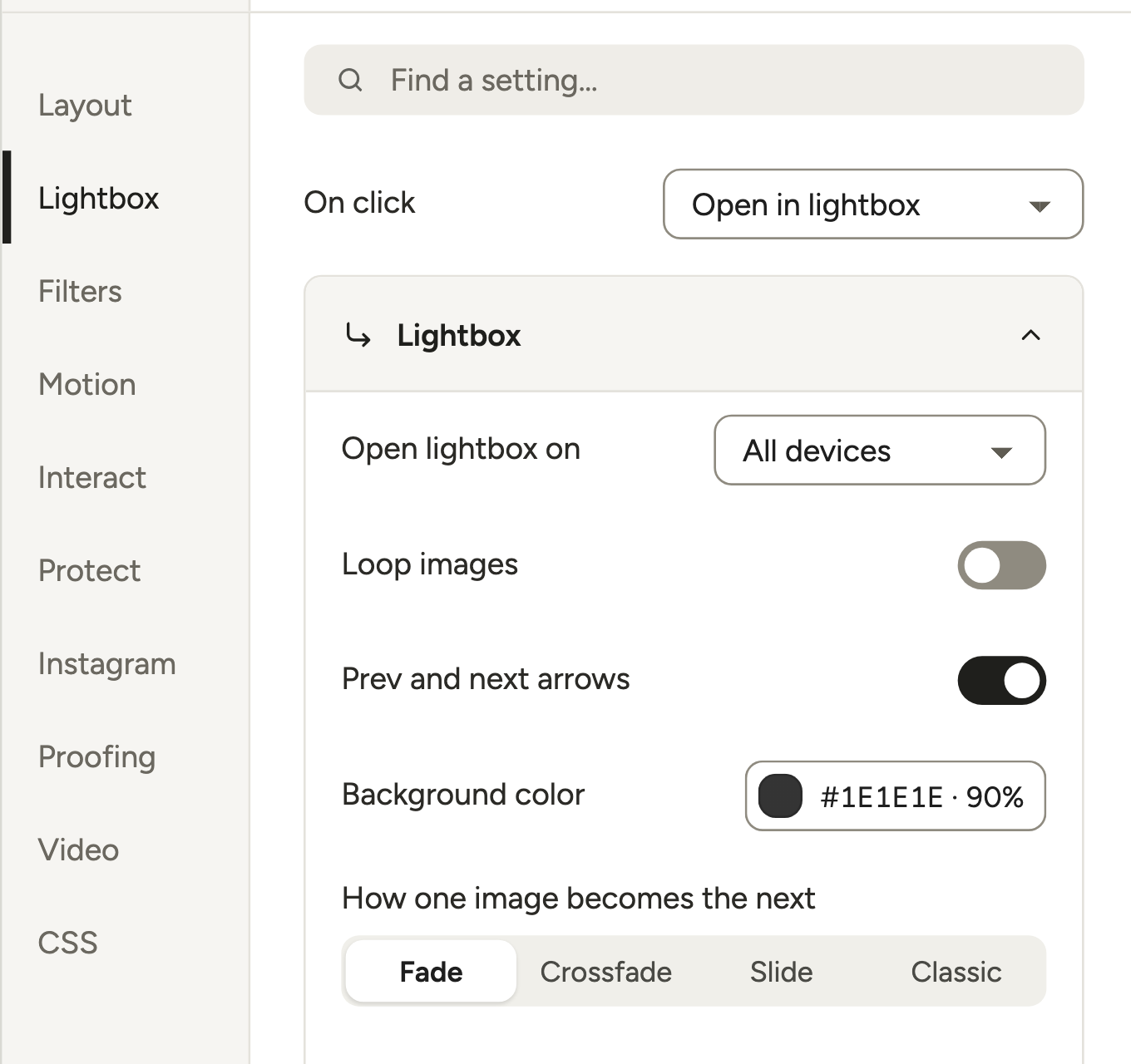
Clicks are set under Lightbox in the left rail, in the On click menu:
- Open in lightbox: the photo opens large, with arrows (and swiping on phones) to move through the gallery.
- Lightbox, or link when set: the lightbox, unless that photo has its own link.
- Go to URL: visitors go to the link you set on each photo.
- No link: the photos stay just photos.
Modula Pro adds more options below that: the background color, the transition and whether titles and captions show. To send some photos to a product page, see custom links for gallery images.
Publish it and add it to a page
When you’re done, click Save in the top bar (or press Cmd/Ctrl+S).
Good to know
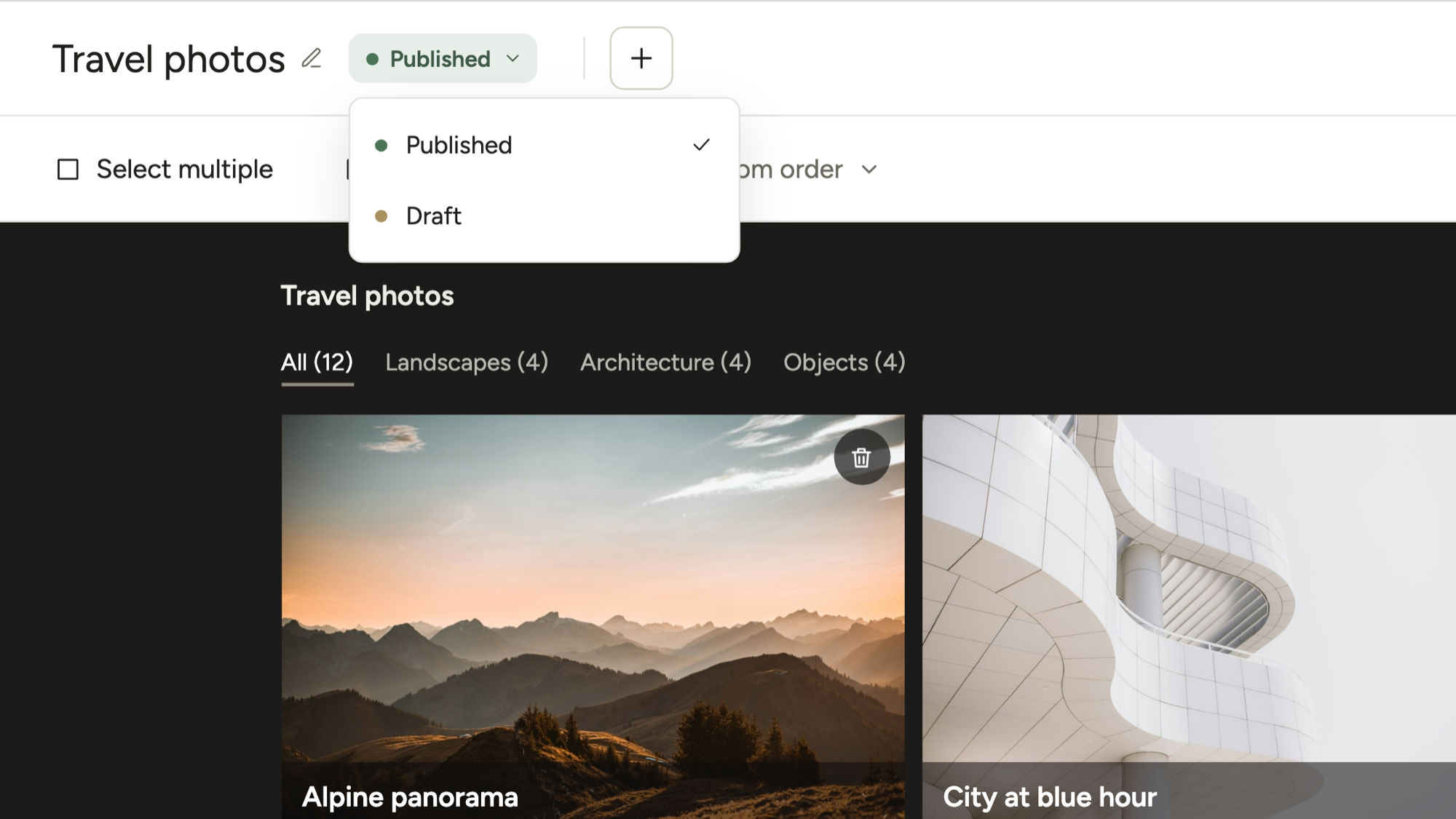
Don’t skip this: check the status. It sits next to the gallery name. If it says Draft, switch it to Published, or the gallery won’t show on your site.
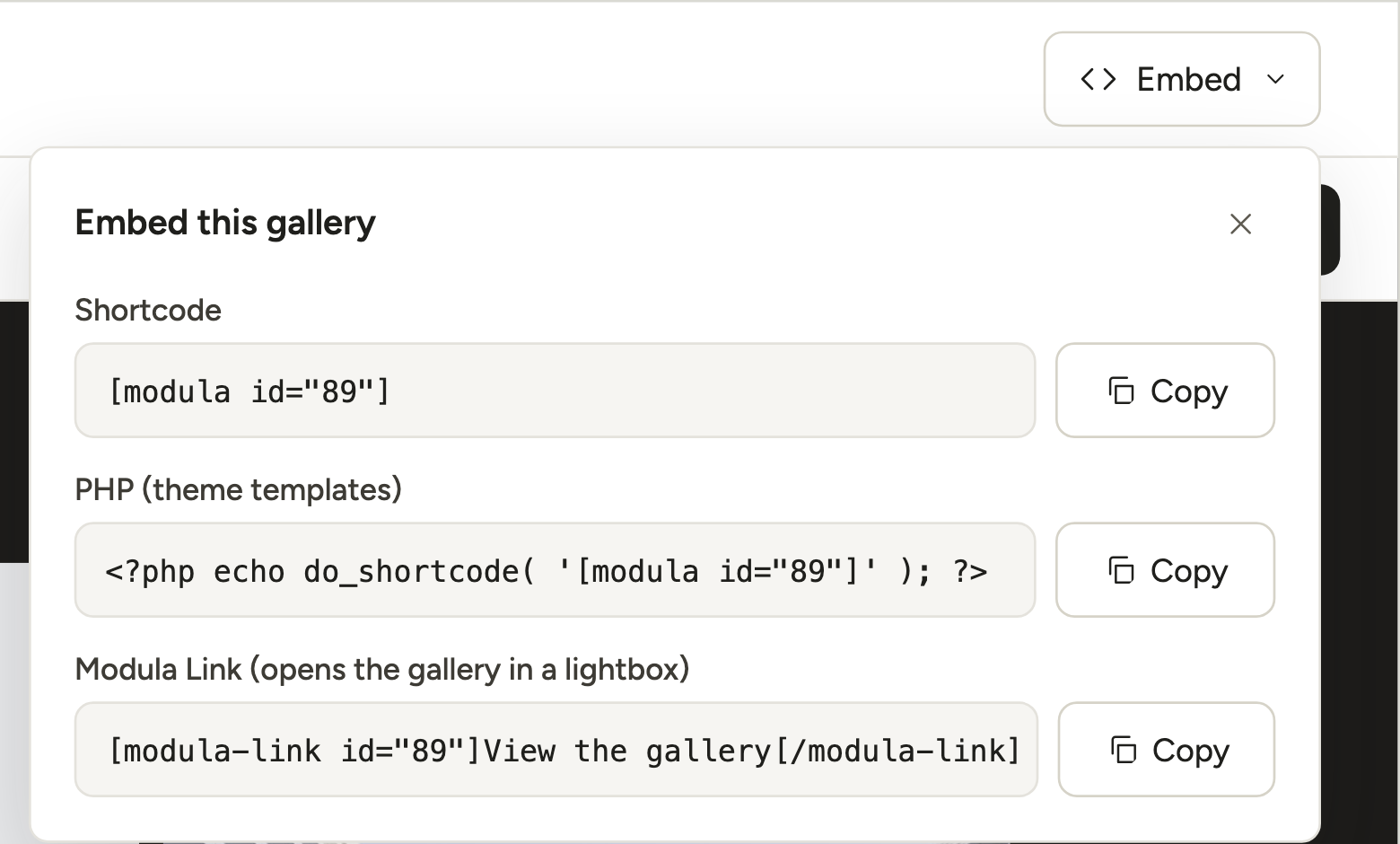
Then click Embed and copy the shortcode, something like [modula id="89"], into any page or post. Or add the Modula Gallery block and pick your gallery. There’s also an Elementor widget and modules for Divi and Beaver Builder; the shortcode guide covers them all.
Gallery block or Modula: which should you use?
Use the WordPress Gallery block for a few photos in one post, and a gallery plugin like Modula when galleries are a real part of your site. The table compares the two WordPress image gallery options (prices checked October 2026).
| What you need | Gallery block | Modula |
|---|---|---|
| Price | Free, part of WordPress | Free plugin; Pro from $39 for the first year ($78/year after) |
| Layouts | A grid of columns | 16 gallery types, 8 of them free |
| Lightbox | Enlarge on click, with next and previous (WordPress 7.0+) | Arrows and swiping free; Pro adds background, transitions, titles, captions and a slideshow; zoom on Business |
| Columns on phones | Two below 600 pixels (one if you set one column) | You choose for tablets and phones |
| Same gallery on several pages | Copy the block or use a synced pattern | One gallery, one shortcode |
| Filters | No | Starter plan and up |
| Albums, password protection | No | Trio plan and up |
| Watermark | No | Business plan |
- Pick the block if you post a few photos now and then and a clean grid with a lightbox is enough.
- Pick a plugin if galleries are the point of your site: a wedding portfolio, a photo studio, a shop full of product shots.
Every Modula plan has a 14-day money-back guarantee, and the pricing page shows what each one includes.
What to look for in a photo gallery plugin
The best photo gallery plugin is the one that fits the galleries you’ll build, and that might not be Modula. Check these first:
- Layouts you’ll use. Twenty layouts don’t matter if you only need masonry.
- A good lightbox. Arrows, captions, swiping on phones, an obvious close button.
- Speed and mobile. Lazy loading, sensible image sizes and separate columns for phones.
- A live preview. See the gallery while you build it, not after you publish.
- Room to grow. Video, filters, albums or protection, for when you need them.
- The renewal price. What year two costs, not just the first-year deal.
FooGallery and Photo Gallery by 10Web are worth a look too. Our roundup of the best WordPress gallery plugins compares the popular ones, with first- and second-year prices.
WordPress gallery not showing or looking wrong? Quick fixes
A WordPress gallery that won’t show or looks wrong usually has one of six causes, from a forgotten Draft status to oversized photos:
- It’s still a draft. Open the Modula gallery and set its status to Published.
- The shortcode is off. Copy it again from Embed instead of typing it. Paste it into a Shortcode block or a paragraph, not a Code block, which shows it as text.
- A caching plugin is in the way. Clear the cache. Still broken? Exclude Modula’s scripts from its “delay” or “combine JavaScript” options.
- Your theme clashes. Test the page with a default WordPress theme on a staging copy. If it looks right there, ask your theme’s support.
- It loads slowly. Nearly always oversized photos, since images are the heaviest part of most pages (2025 Web Almanac). Go back to the prep checklist. On the Trio and Business plans, Modula can also compress images and serve them from a CDN (servers close to your visitors).
- It’s cramped on phones. In Modula, set fewer columns under On phones and tablets. More in our mobile-responsive gallery guide.
Frequently asked questions
Yes. The Gallery block has been part of WordPress since version 5.0: add it, pick your photos, set the columns and choose Enlarge on click for a lightbox. You’ll want a plugin only for other layouts, filters, albums, protection or a gallery you reuse on several pages.
In the Gallery block, drag a photo to move it, or click it and press Delete. In Modula, click the trash icon to remove one; drag-and-drop reordering comes with Sort in Modula Pro. Either way, the file stays in your Media Library.
JPEG is better for photos: the files are much smaller, and you’ll rarely see a difference on screen. WebP and AVIF are smaller still, and WordPress has accepted AVIF since version 6.5 if your host supports it. Save PNG for logos, screenshots and graphics with a transparent background.
Yes. The free version includes 8 of Modula’s 16 gallery types, a lightbox with arrows and swiping, custom links, columns for phones and tablets, the Modula Gallery block and the shortcode. Modula Pro, from $39 for the first year, adds the other types plus video, filters, albums, protection and watermarks, depending on the plan.
Yes. With the Gallery block, set Link to Link images to media files: a click opens the full-size file, which visitors can save. For a proper download button, use Modula’s Download Images feature (Business plan). Our guide to downloadable galleries shows the setup.
Yes. With Modula, paste the gallery’s shortcode on as many pages as you like, and every page updates when you edit the gallery. With the Gallery block, copy the block to each page, or save it as a synced pattern so one edit updates every copy.