The gallery editor, taken apart.
Modula 3.0 replaces the old settings page with an editor that shows the real gallery while you work. Here is every piece of it, what it does, and why we built it that way.
01
Why we rebuilt it
The old way was really slow.
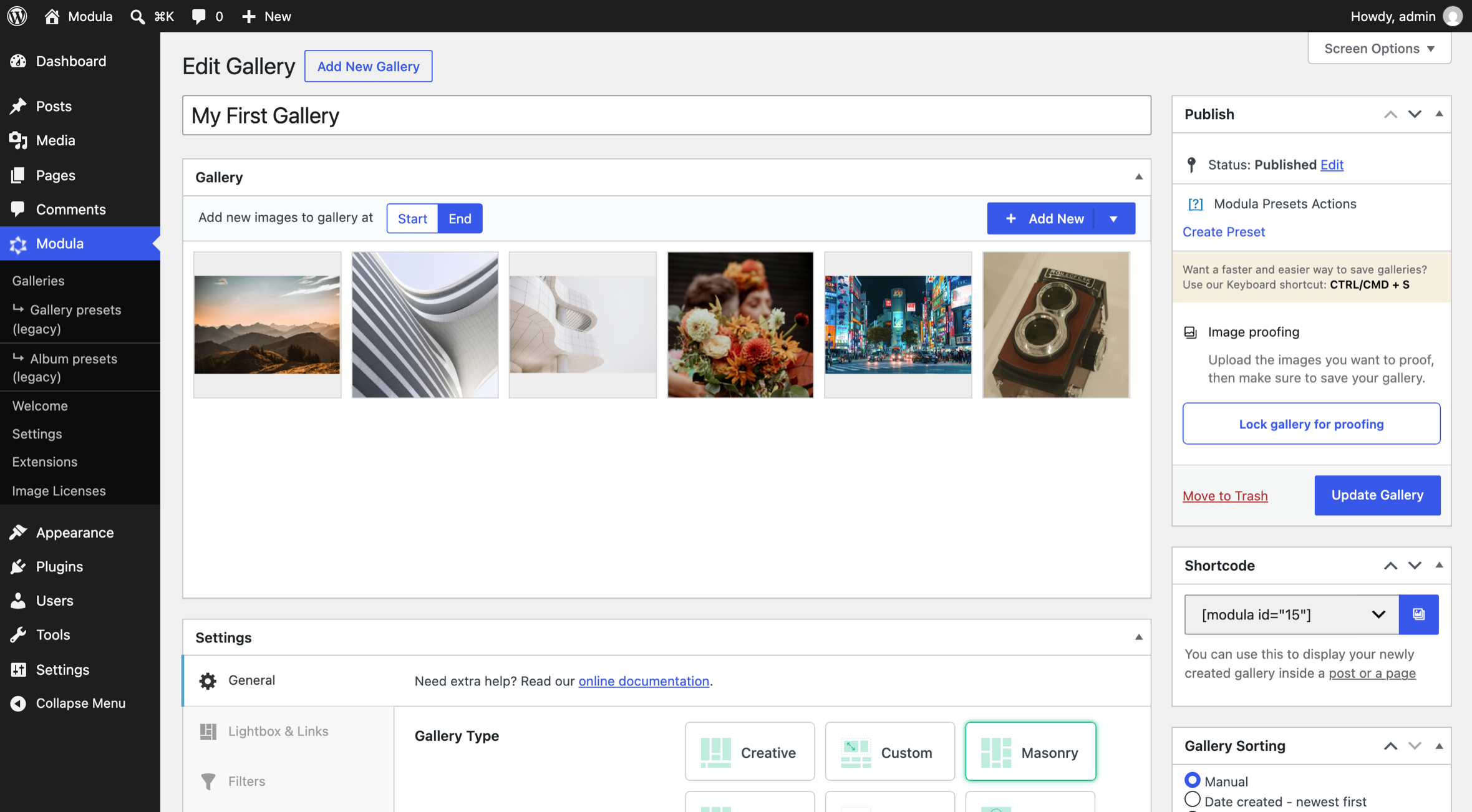
The old editor was a settings page, like in almost every WordPress gallery plugin. Ours worked that way for eight years.
Before
Now
Trips to the page and back, for one gallery
50→0
Minutes spent going back and forth
12:30→0:00
One trip: change a field, hit Update, open the page, look, go back. About fifteen seconds. A gallery needs fifty of them.
Live preview
From the team
“If the preview lies to you even once, you stop trusting it. So we made sure it never lies.”
The new editor stops the back and forth. You change a setting and the gallery changes next to it, in the same window, before you have time to wonder.
The Modula team on the live preview
02
Anatomy
Ten pieces on one screen.
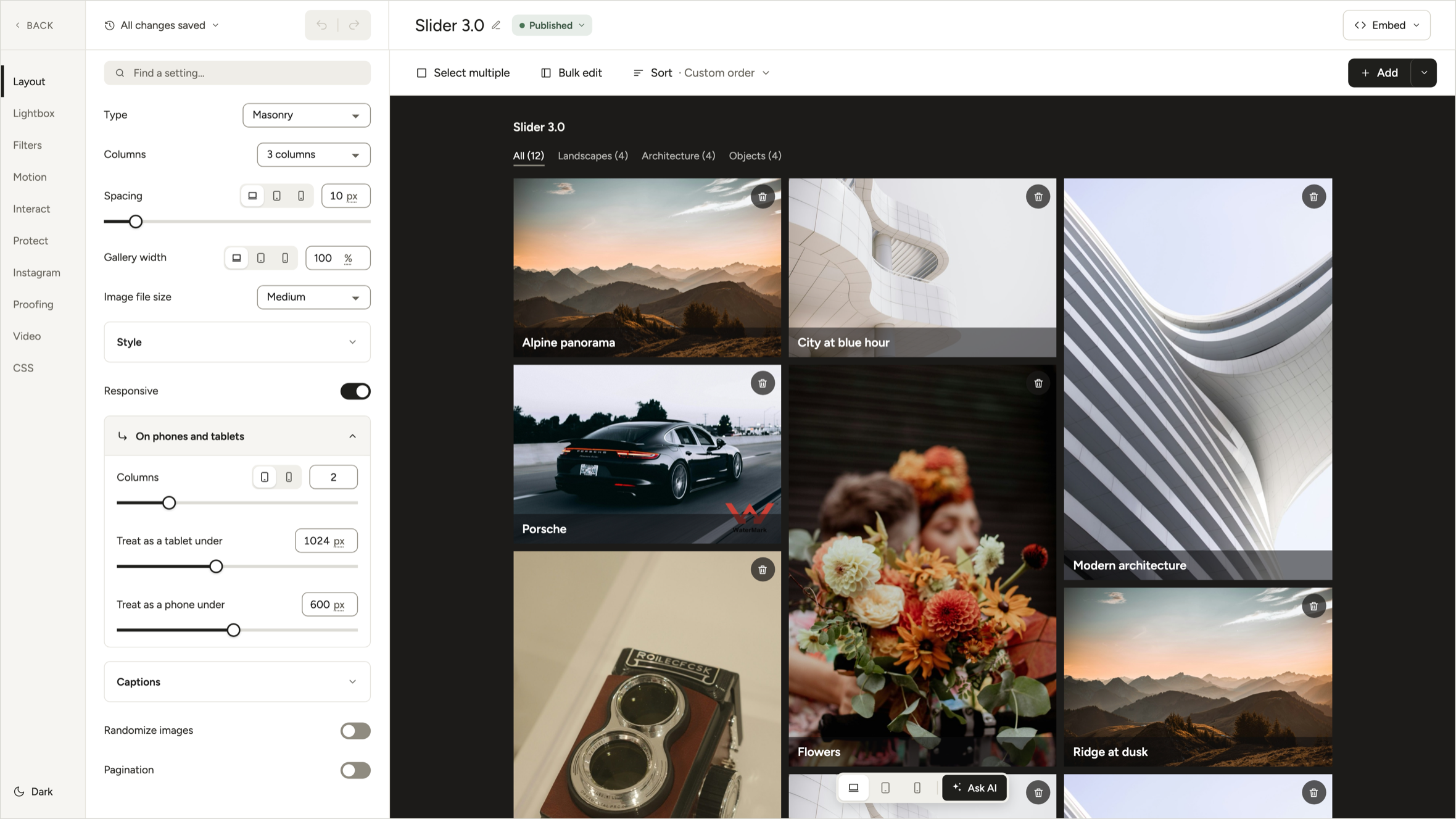
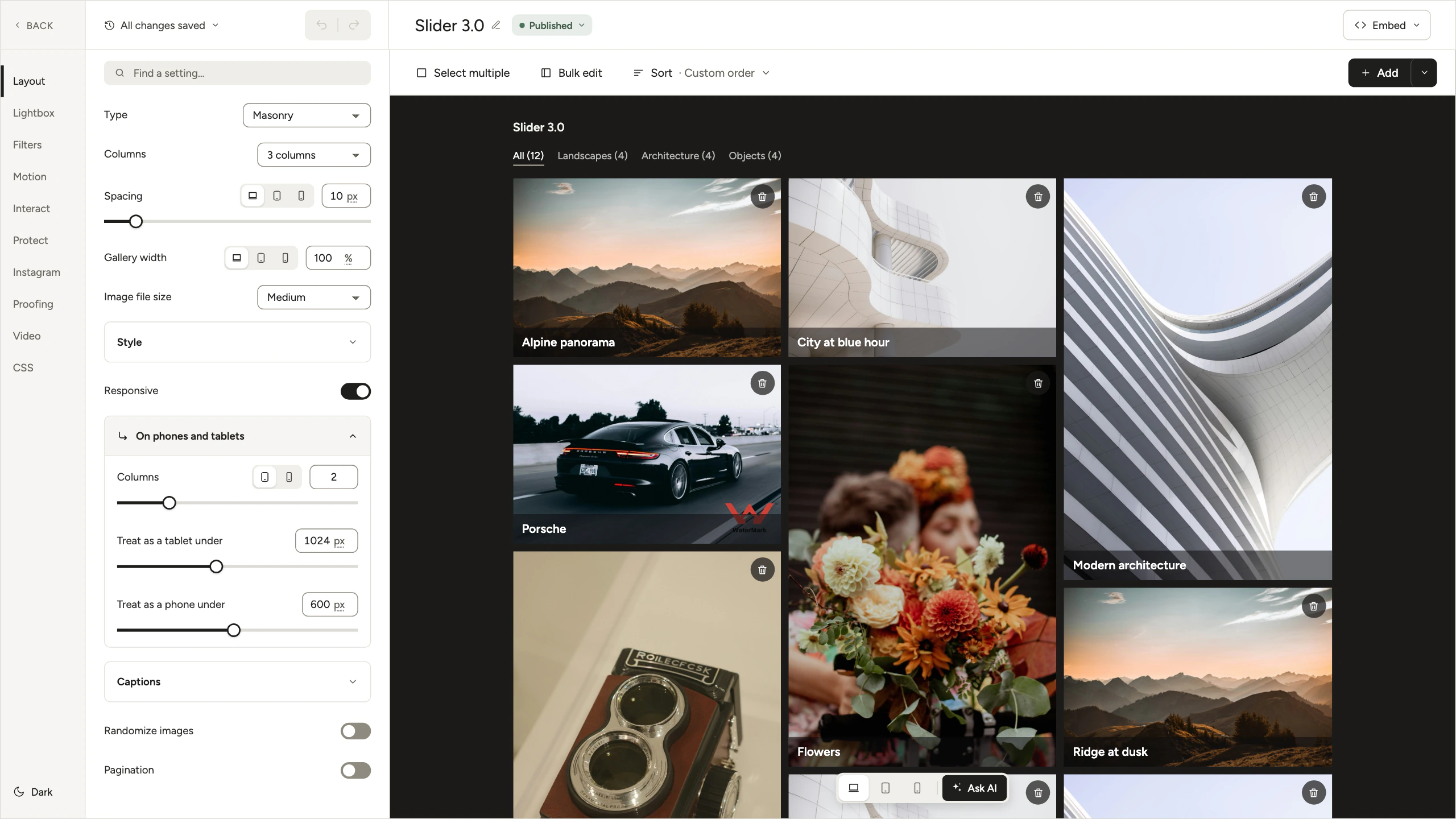
Settings on the left, the gallery on the right, and nothing in between. Every part has a short clip: click one and watch a cursor use it.
01
Ten parts
Layout, Lightbox, Filters, Motion, Interact, Protect, Instagram, Proofing, Video and CSS.
02
Find a setting
Type a word, like water, and jump straight to Watermark, under Protect.
03
All changes saved
There is no Update button. Click here to see your history in plain words.
04
Undo and redo
Every change is a step you can take back. Or press Ctrl/Cmd+Z.
05
On phones and tablets
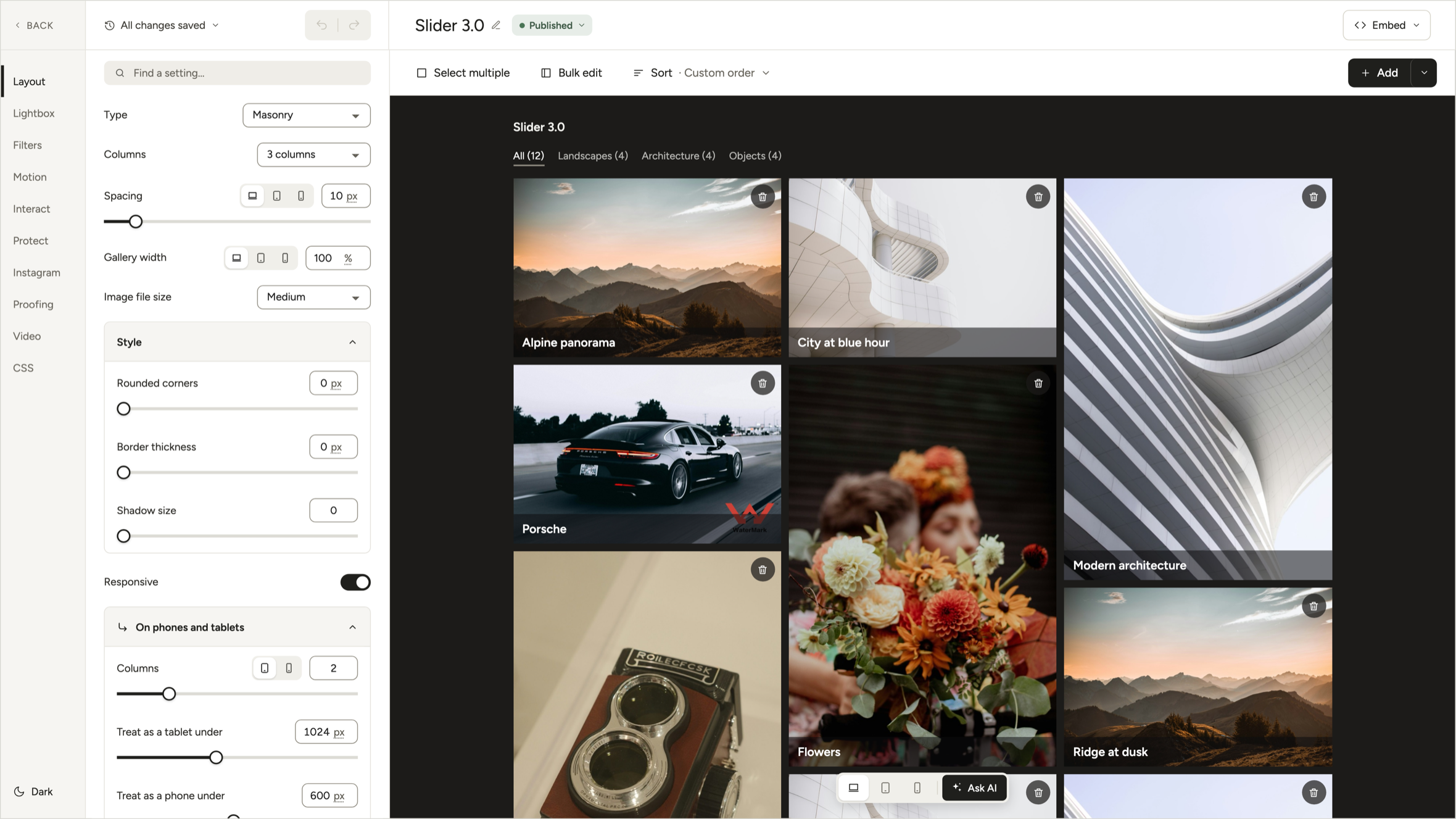
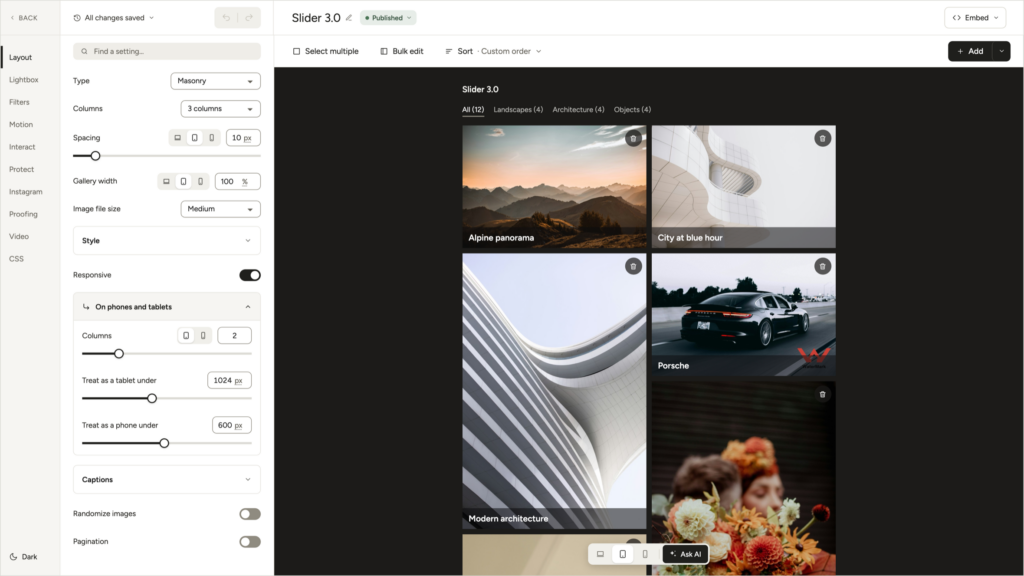
Columns for each device and the width where each one starts, right under the desktop settings.
06
Select, Bulk edit, Sort
Pick photos and change them together. Put them in order without leaving the editor.
07
The live preview
The real gallery, drawn by the same code as your site. Same layout, same lightbox.
08
Device switch
Desktop, tablet and phone, at the sizes you set. Next to it, Ask AI.
09
Embed
Copy the shortcode for the gallery without leaving the editor.
10
Dark mode
Follows your system, or switch it here.
03
The live preview
The preview is the page.
It is not a picture of your gallery. It runs the same code as your live site.
- Same look, same layout. Change the columns or the spacing and the gallery moves. What you see is what your visitors get.
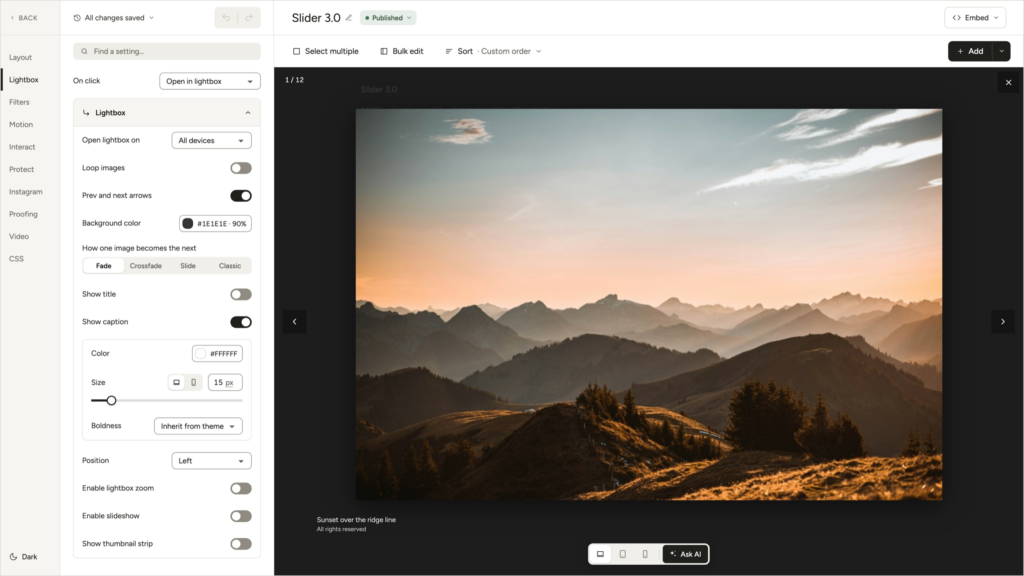
- The real lightbox. Open the Lightbox part and it opens, right there in the editor. Turn the arrows off and they go away.
- Phone and tablet, for real. Set the columns for each, and where each one starts: tablet under 1024px, phone under 600px, or any size your theme needs.
- A gap for each device. Make a grid tighter on phones without touching the desktop look.
Lightbox
Tablet
04
Saving and undo
When mistakes are easy to undo, you try more things.
There is no Update button. Every change saves on its own, and every change is a step you can take back.
Autosave
All changes saved
The top of the settings tells you so. Nothing waits for a button.
History
Your changes, in plain words
Click All changes saved and you see the list, like Turned on Pagination. Jump back many steps at once, or all the way to Original settings.
Undo
Ctrl/Cmd+Z, like everywhere else
Before, undo meant remembering the old number yourself. You try a gap of 30. What was it before? 10? 12?
All changes saved
Turned on Pagination Just now
Set phone columns to 1 1 min ago
Changed spacing to 30px 2 min ago
Turned off the lightbox arrows 5 min ago
Switched the type to Masonry 8 min ago
Original settings
Try the arrows · Illustration
05
Working with photos
Pick photos, then do one thing to all of them.
None of this is fancy. That is the point. Photo apps have worked this way since about 2003. Modula did not, until now.
Photo sidebar
Edit a photo without a pop-up in the way
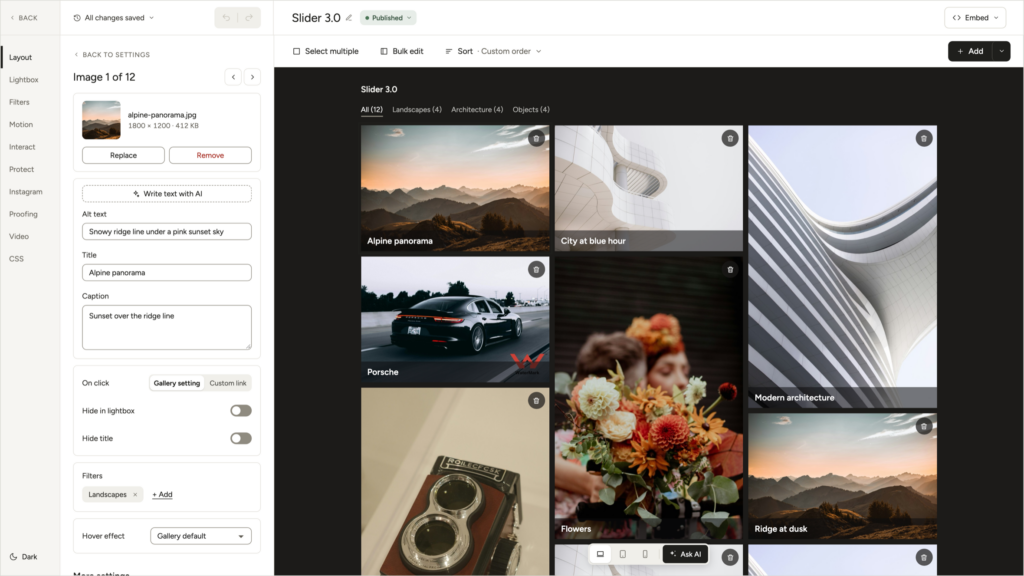
Click a photo and the sidebar shows it: the file name, its size and how heavy it is. The gallery stays in view, so a new title shows on the photo right away.
- Replace the photo, or remove it from the gallery
- Alt text, title and caption in one place
- Write text with AI fills in all three
- Arrows to move to the next photo
Select multiple
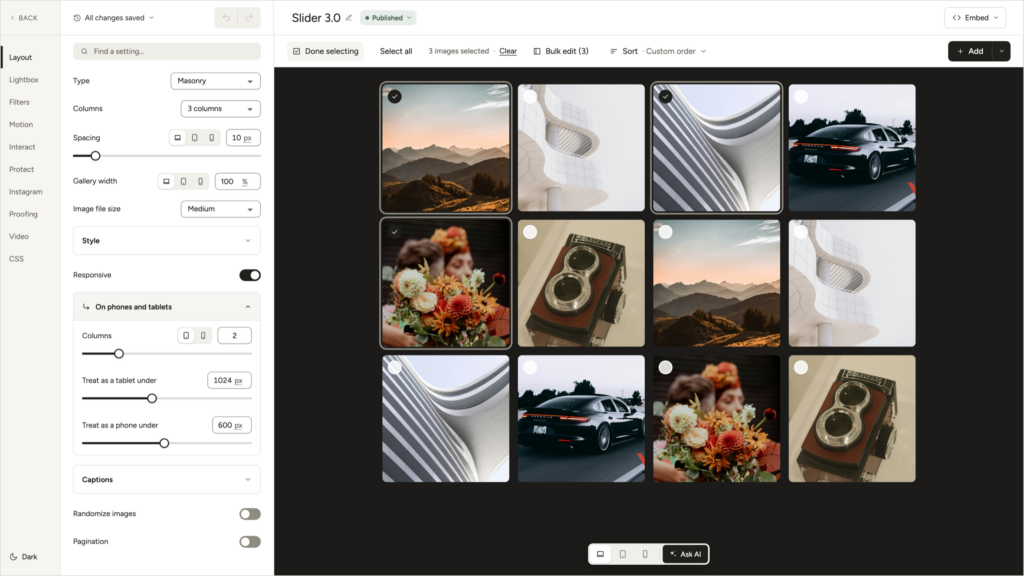
Tick a few, or Select all
A small circle shows up on each photo. The bar above the gallery says how many you picked. The settings stay where they are, and you can leave any time.
- “3 images selected”, in plain words
- Done selecting puts everything back
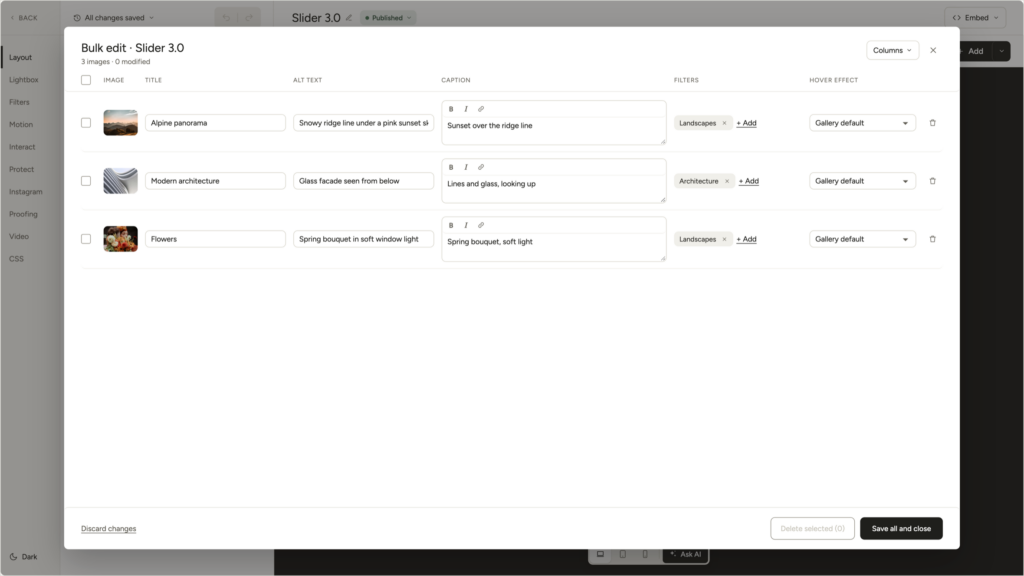
Bulk edit
One table, one row per photo
Change the text of every selected photo, one under the other, without opening each one. Nothing is saved until you click Save all and close.
- Title, alt text and caption
- Filters and hover effect
- Remove photos from the gallery
- Discard changes puts everything back
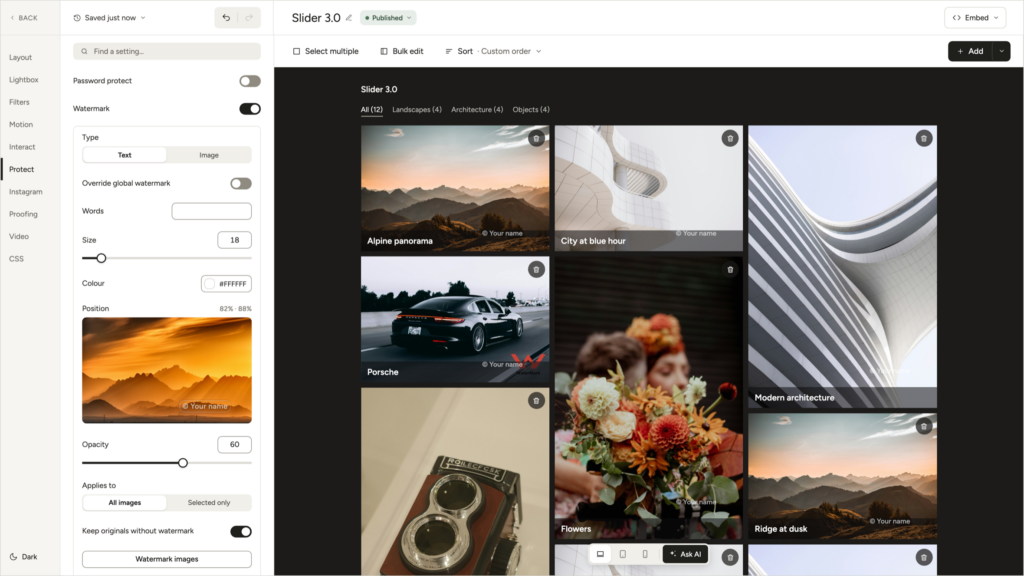
Watermark
On twelve of forty photos, if you want
Pick words or a logo, the size, the colour, the place and how see-through it is, and see it on the preview. Then choose All images or Selected only.
- Keep originals without watermark is on
- Remove watermark gives you the clean photos back
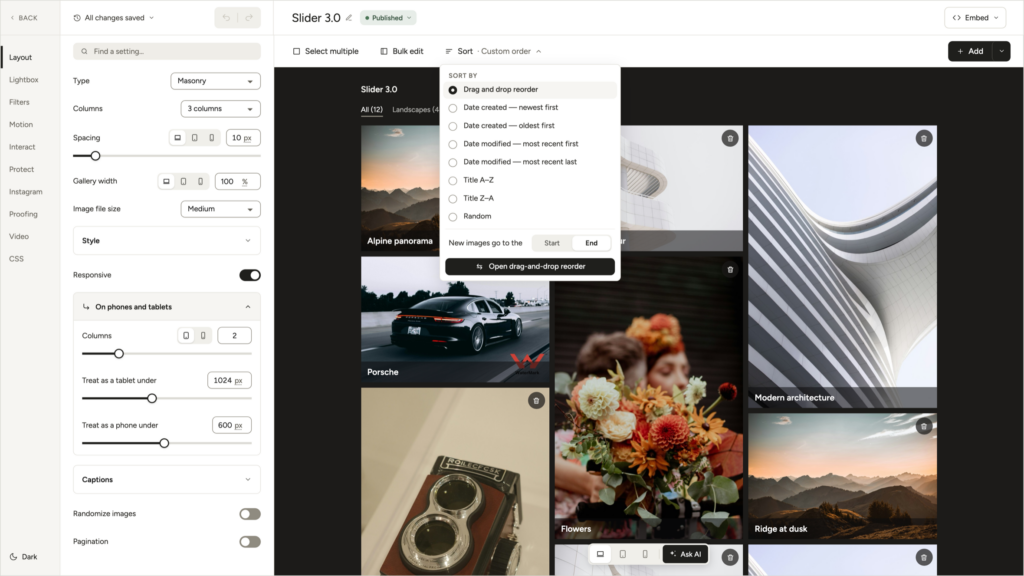
Sort
Sorting, inside the editor
Sort sits in the top bar and asks two questions: how the gallery is ordered, and where new photos go.
- Drag and drop, date made or changed, title A to Z or Z to A, random
- New photos at the start or at the end
- A view just for reordering, when you have forty photos
06
AI assistants
An ability for each job. Over a hundred of them.
Modula 3.0 gives the AI assistant you already use named abilities for your galleries. It works with assistants that support MCP, on your own subscription.
Works with


An ability for each job
Create a gallery, add photos, apply a preset, watermark a photo, invite a proofing client. Each action has its own name.
Only Modula
The assistant works with galleries, albums, presets, media and Modula’s settings. Changes to WordPress settings, plugins, users, posts or pages are refused.
Safe to repeat
A read-only connection lists no tools that make changes. Every change carries an ID, so a lost reply gets checked instead of repeated.
Make a masonry gallery from the photos in the Lisbon folder.
Used Modula: List media folders
Used Modula: Create gallery
Done. “Lisbon” is a Masonry gallery with 24 photos. Want me to write their alt text next?
Illustration
A few of the abilities
Create gallery 01
Read gallery 02
Update gallery 03
Update gallery images 04
Update gallery videos 05
Duplicate gallery 06
Trash gallery 07
Restore gallery 08
List galleries 09
Create album 10
Update album members 11
Duplicate album 12
Create gallery preset 13
Apply gallery preset 14
Apply album preset 15
Apply watermark 16
Remove watermark 17
Read watermark state 18
Upload image 19
Import zip 20
Import server files 21
Update attachment text 22
Replace attachment file 23
Read attachment usage 24
Create media folder 25
Assign media folder 26
Add favorite 27
Create collection 28
Create proofing invitation 29
Send proofing invitation 30
List proofing selections 31
Unlock proofing selection 32
Sync Instagram gallery 33
Resolve video source 34
Create bound gallery 35
Browse storage 36
Start folder transfer 37
Read site settings 38
Set extension 39
Recover request 40
07
Questions
Asked before updating
Update Modula from the Plugins screen in WordPress, Lite or Pro. There is nothing else to download. New galleries open in the new editor. To move an older one: Move a gallery to the new editor and back.
No. Galleries made before 3.0 stay in the classic editor until you move them, and they look the same on your site.
Yes, gallery by gallery. A gallery you moved keeps a copy of its classic settings.
Yes. The new editor is in both Lite and Pro.
Yes. 3.0 is the regular release, the one WordPress offers you as an update. Take a backup first, as with any update.
Assistants that support MCP, on your own subscription and with the model you choose. They can only work with Modula: galleries, albums, presets, media and Modula’s settings.
Start with these guides: The new editor view, Gallery types and Hover effects.
Write to us. Say what feels better, what is not clear, and what is broken. Your feedback is why the editor looks the way it does.