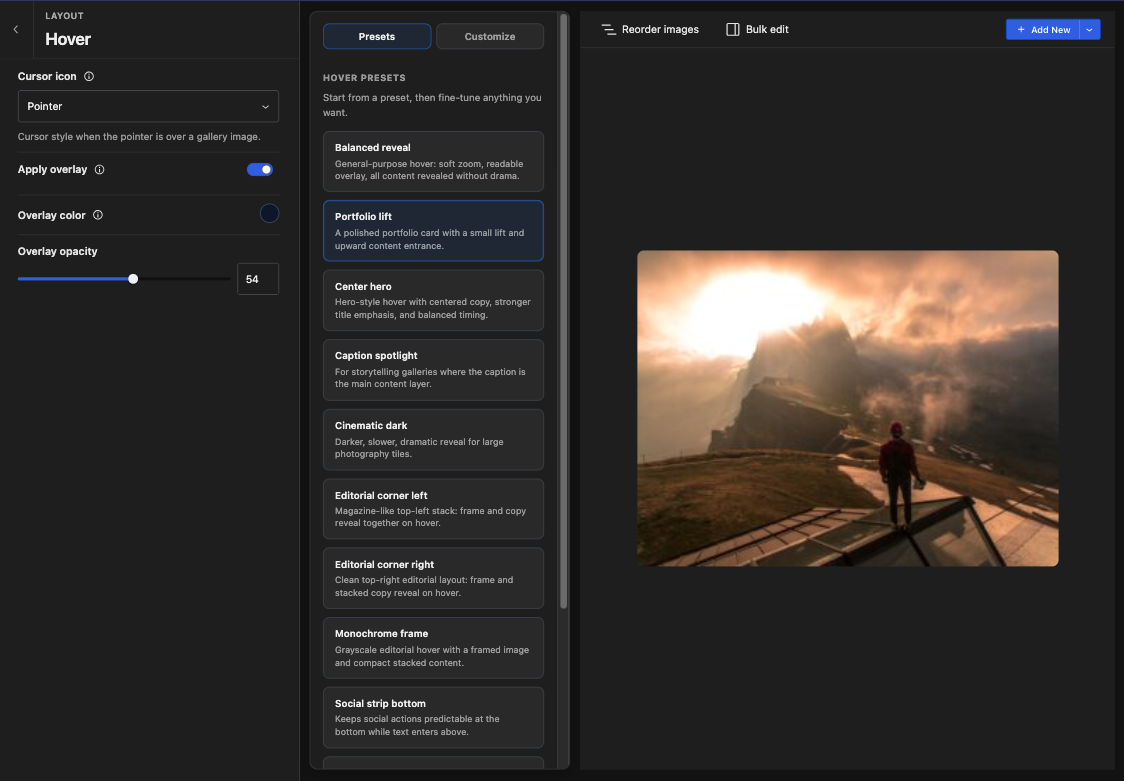
The new Modula Beta editor gives you a more modern way to build and configure your galleries.
Instead of working with the older classic metabox style, the Beta editor gives you a more structured editing experience with clearer navigation, a live preview, and faster access to settings.
This article gives you a simple overview of what you will see when you open the new editor.
What is different in the new editor
We scrapped the old, outdated view and redesigned the entire gallery edit screen. The new editor is organized into a few main areas using a full takeover mode approach to editing galleries.
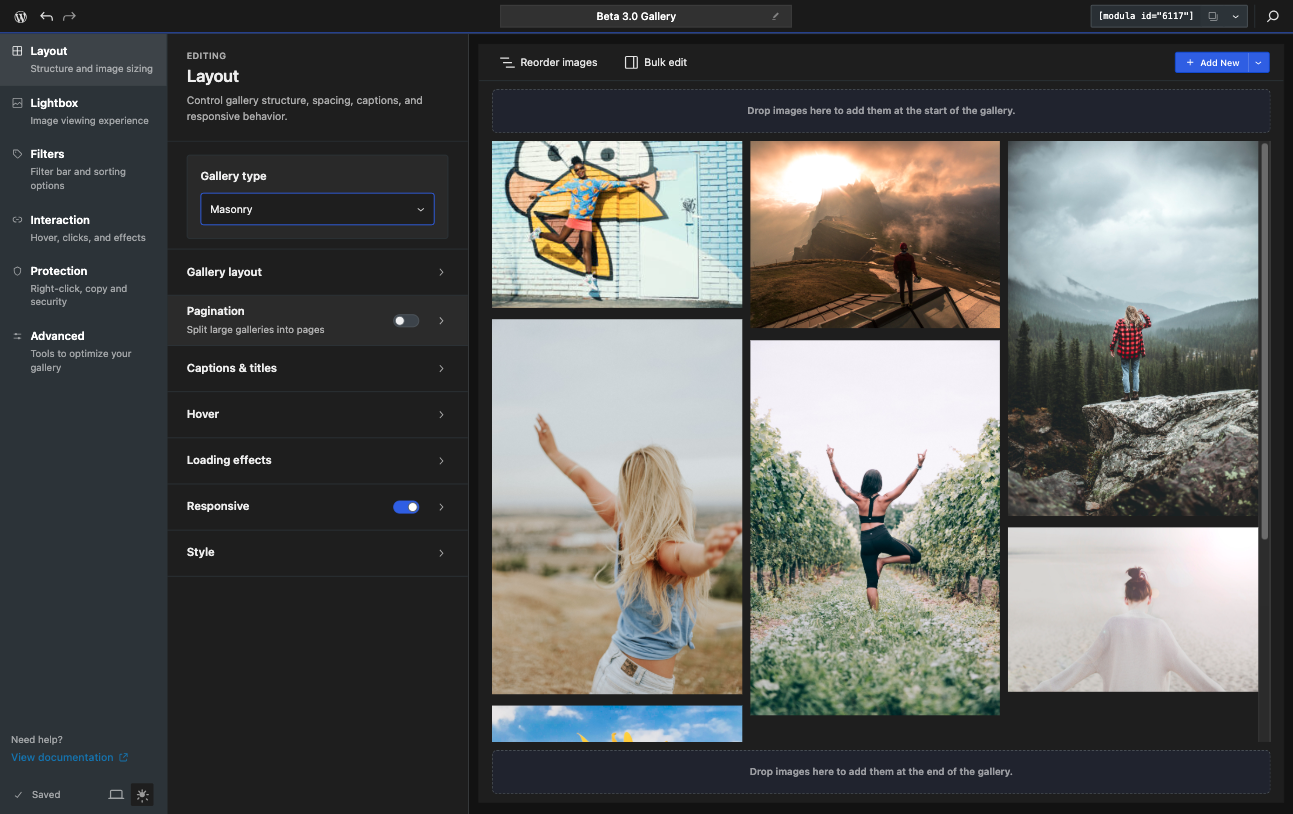
1. Settings navigation
The editor includes a sidebar or tab-based structure where settings are grouped into sections such as:
- Layout: this helps control the structure and image options
- Lightbox: here you can control everything related to the lightbox display of images
- Filters: in this section, you can define the filters that will be used for gallery images
- Interaction: this controls the dynamic options of the gallery, such as Downloads, Social Media control, and Comments
- Protection: here you can enable Watermarking, Password Protection, Image Licensing, and the Image Guardian options
- Advanced: EXIF, Zoom, Deeplink, Instagram sync, Performance, and Image proofing options are grouped here
- Video: this helps control the video-type gallery options
This makes it easier to find related settings in one place instead of searching through a long, mixed list.
2. Live preview
One of the biggest improvements in the Beta editor is the live preview.
This lets you see how your gallery looks while you change settings.
You can also switch between desktop, tablet, and mobile views. This helps you understand how your gallery may look on different screen sizes before publishing it.
3. Faster navigation tools
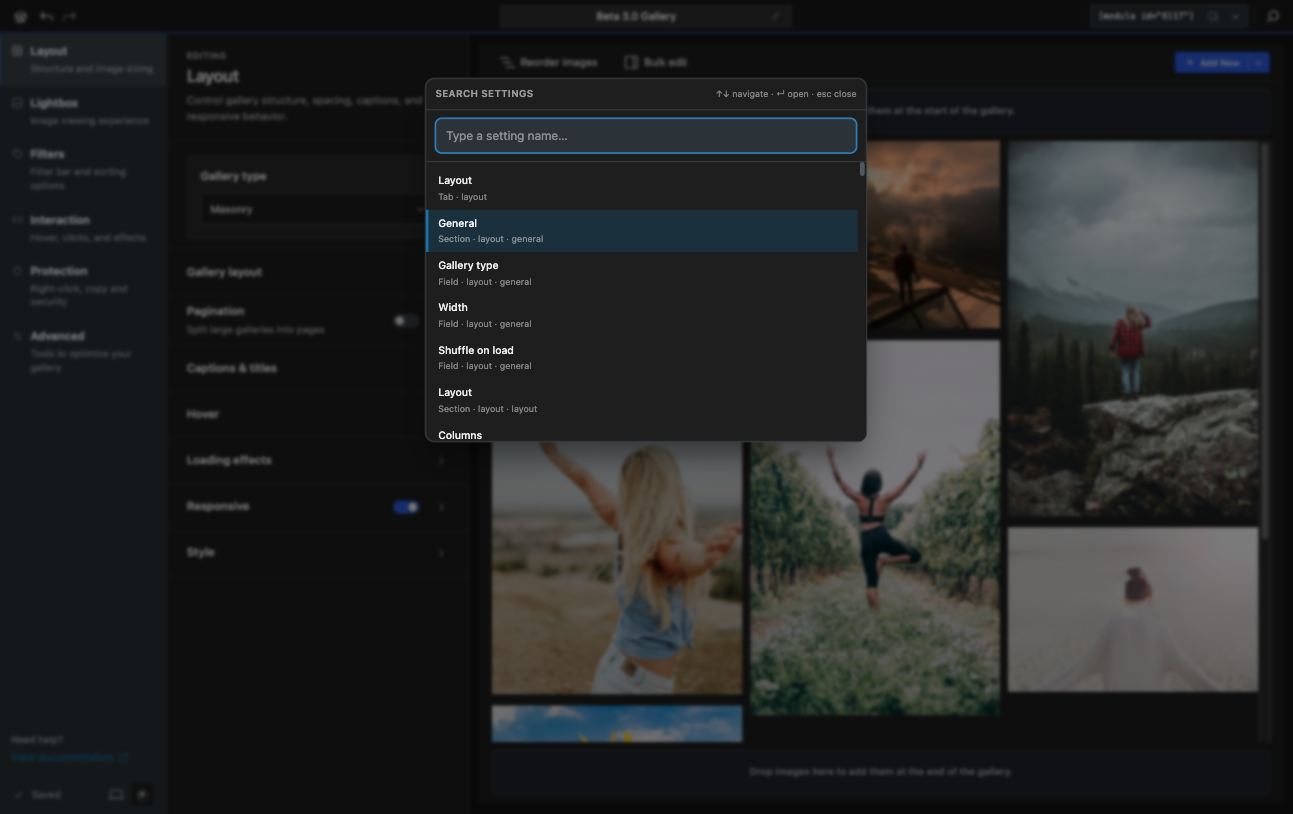
The new editor also includes tools that help you move around faster, like the Command Palette and improved category-based navigation.
This is especially useful when a gallery has many settings, and you want to jump to a specific option quickly.
4. Better conditional display
You will now only see the configuration sections available for your current gallery type, reducing the clutter and bloat of all options being shown all the time. For example:
- the Lightbox section does not apply to all gallery types
- the Filters section is hidden for some incompatible gallery types
- the Video section appears only when it is relevant
If you do not see a section, it may simply mean that the current gallery type does not support it.
5. Other Helpful Features
With the new editor, you will also get:
- autosave
- undo and redo controls
- drag-and-drop upload in the preview area
- hover builder and other special editing panels