Made in Europe, buy from Europe.
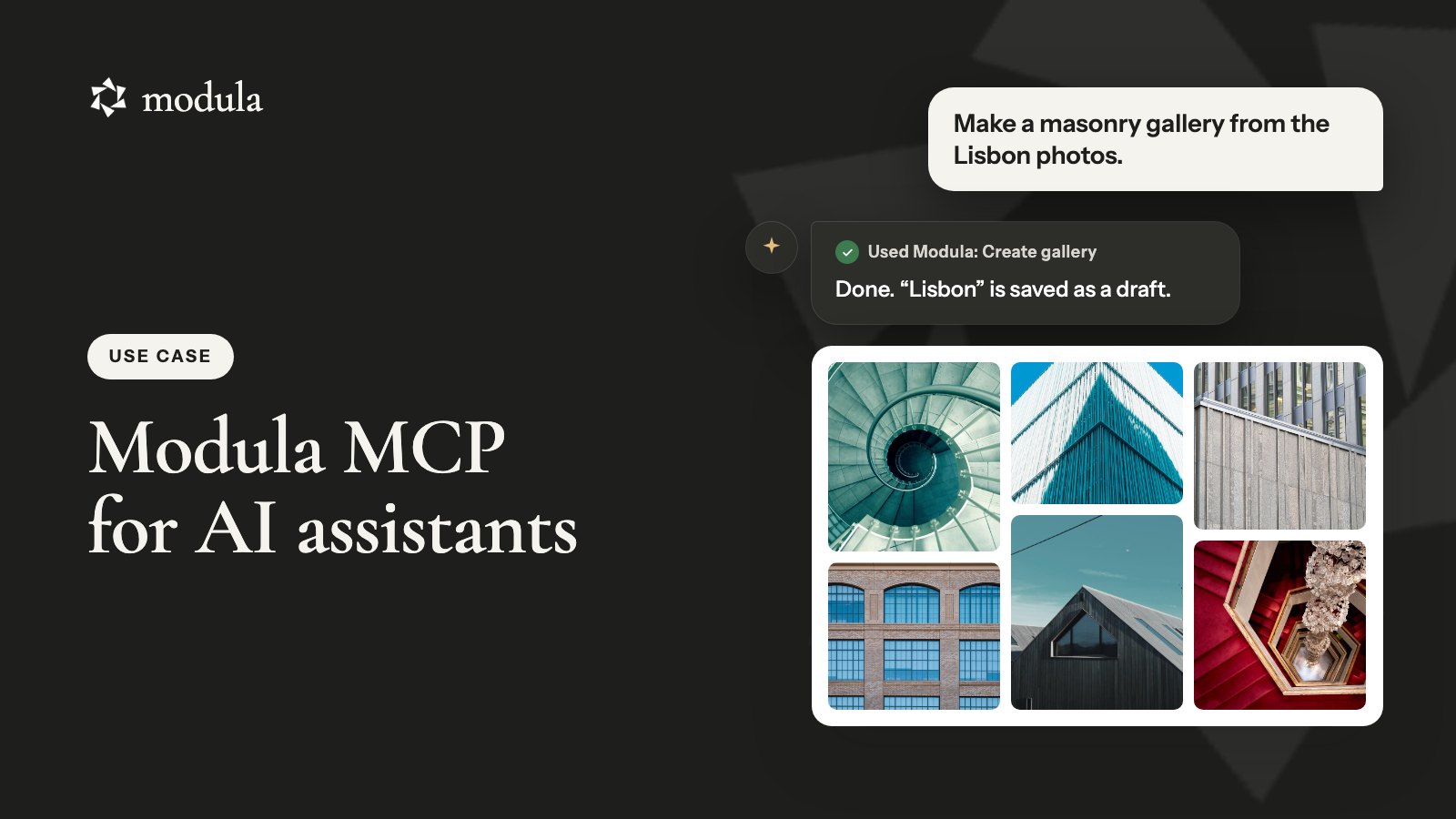
Modula 3.0 ships with an MCP server. Connect Claude, ChatGPT, Cursor or another AI assistant to your WordPress site, and it can build and edit your galleries when you ask in plain words.
So “make a masonry gallery from the Lisbon photos and keep it as a draft” becomes a finished draft gallery, not twenty clicks.
The short version
- Modula’s MCP server gives an AI assistant over a hundred named tools for galleries, albums, presets, media and Modula’s settings.
- You connect it under Modula → Settings → AI, then approve it on your own site as Read & write or Read only.
- It runs on the AI subscription you already pay for. Modula adds no AI fee and uses no Modula AI credits.
- The assistant can only touch Modula. WordPress settings, plugins, users, posts and pages are refused.
- It works on galleries made in the new 3.0 editor (Beta galleries), not on classic ones.
What is the Modula MCP server?
MCP stands for Model Context Protocol. It’s the standard that lets an AI assistant use other software. The assistant asks “what can you do?”, gets a list of tools back, and uses them when you ask for something.
Modula’s list is about galleries: Create gallery, Update gallery images, Apply gallery preset, Import zip, Apply watermark and over a hundred more.
You say what you want, and the assistant works out which tools that takes. If it asks for something that doesn’t exist, like a layout Modula doesn’t have, Modula says no and saves nothing.
So who pays for the AI, where does it run, and what can it touch?
- You bring the AI. Modula doesn’t run a model and doesn’t charge for one. The thinking happens in Claude, ChatGPT or whichever assistant you connect, on the plan you already pay for.
- It runs on your site. The server is part of the Modula plugin, at an address on your own domain. Nothing passes through a Modula cloud.
- It can touch Modula and nothing else. The assistant doesn’t log in as you. It gets its own WordPress user, the Modula agent, and that user can only use Modula tools.
Good to know
This is not Modula AI. Modula AI is the built-in feature that writes image text with AI credits. The MCP server is separate: it lets your assistant operate Modula, and it needs no credits.
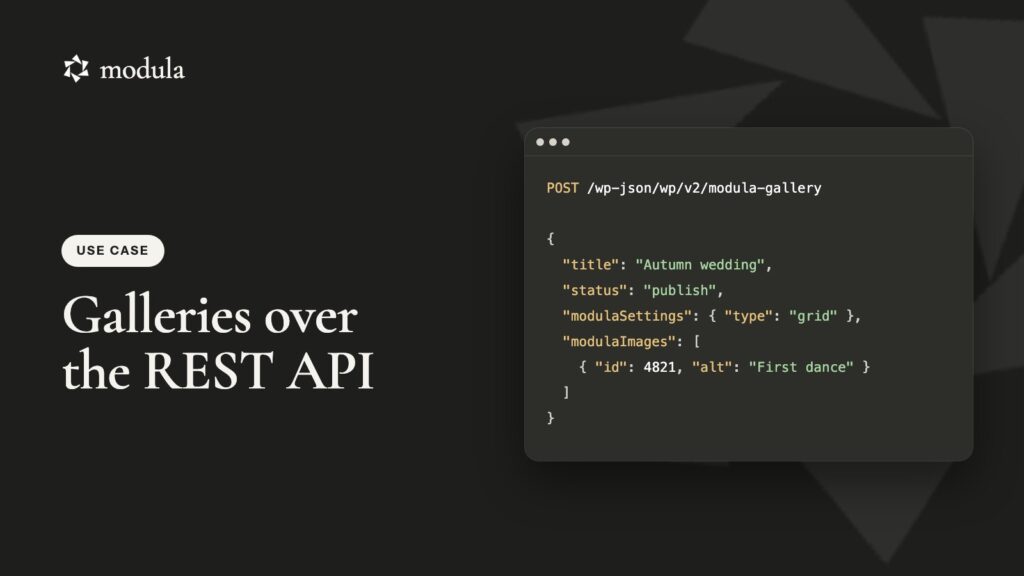
The same operations are also open to scripts: see Modula galleries with the REST API.
What you need before you connect
- Modula 3.0, Lite or Pro. The server is in the free plugin.
- WordPress 6.9 or newer, on a single site. Multisite isn’t supported yet.
- The MCP Adapter plugin. If it’s missing, the AI settings screen offers to install and activate it.
- An administrator account. Only an administrator can approve a connection.
- HTTPS, or a development site marked as local with
WP_ENVIRONMENT_TYPE. - An assistant that supports MCP. Modula has ready-made steps for Claude Code, the Claude app, ChatGPT, Cursor, VS Code and Codex, plus an Other tab for any client that supports remote MCP servers with sign-in.
Good to know
Local sites and cloud assistants don’t mix. The Claude app and ChatGPT connect from the internet, so they need a public site on HTTPS. Assistants that run on your computer, such as Claude Code, Cursor and VS Code, can also reach a local site.
How to connect an AI assistant to Modula
The whole thing takes a few minutes, and the last step is always the same: you approve the connection on your own site.
- In WordPress, go to Modula → Settings → AI and keep Let AI assistants work on your galleries switched on.
- If the screen says One more step, install and activate the MCP Adapter plugin from there.
- Under Connect an assistant, pick your assistant. The tab shows its exact steps with your site’s address already filled in.
- Follow those steps in the assistant. Your browser then opens your site’s consent screen.
- Check which assistant is asking, choose Read & write or Read only, and select Allow access.
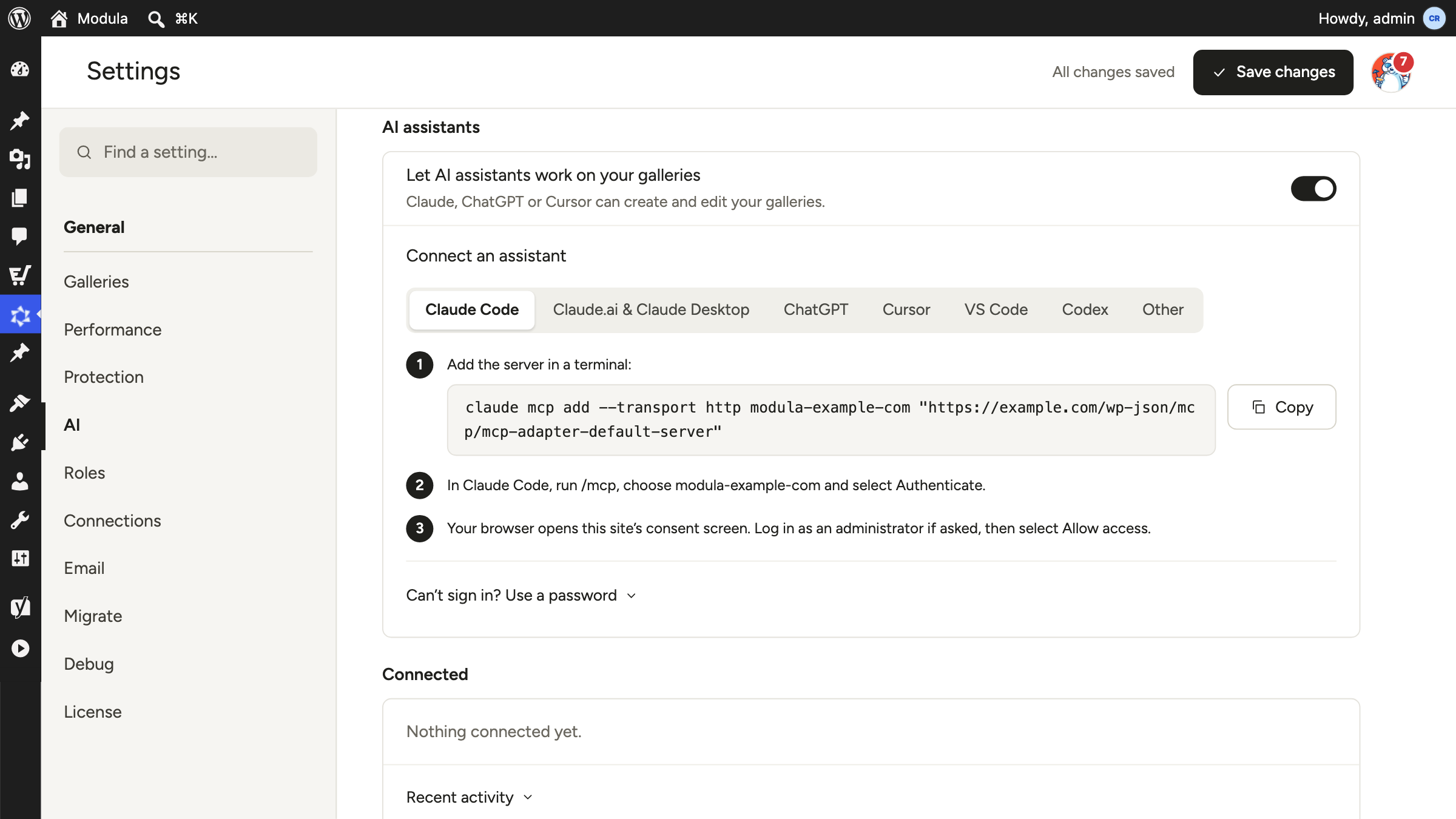
What step 4 looks like depends on the assistant:
| Assistant | What you do |
|---|---|
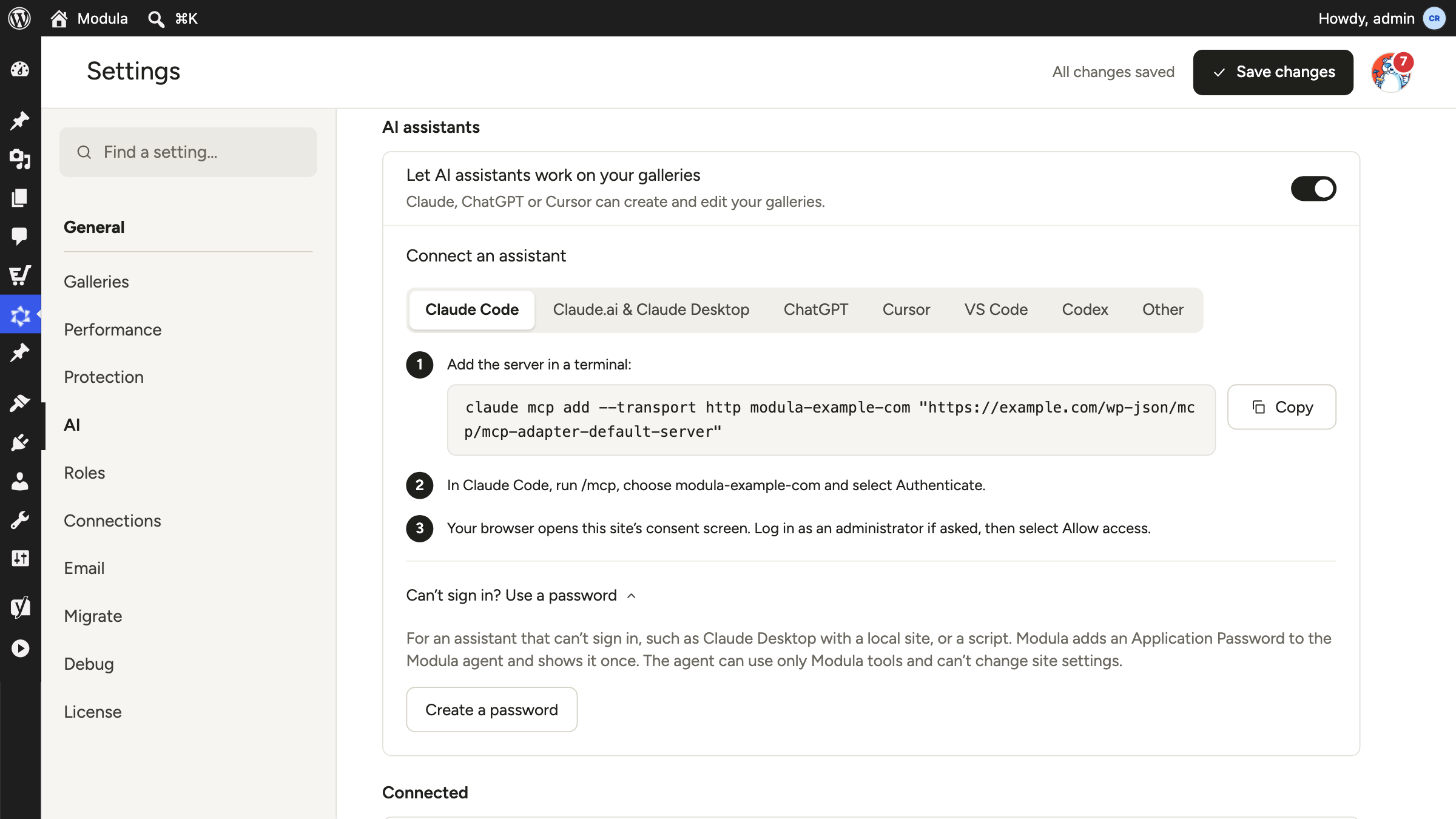
| Claude Code | Run the claude mcp add command from the tab in a terminal, then type /mcp, pick the server and choose Authenticate. |
| Claude app (web and desktop) | Open Settings → Connectors → Add custom connector, name it, paste the URL and select Connect. |
| ChatGPT | In settings, create a custom connector for a remote MCP server, paste the URL and choose OAuth. Your plan or workspace may need developer mode turned on. |
| Cursor | Add the server to ~/.cursor/mcp.json (the tab has the config), then select Connect in Cursor Settings → MCP. |
| VS Code | Run MCP: Add Server from the Command Palette and choose HTTP, start the server and allow the sign-in. |
| Codex | Add the lines from the tab to ~/.codex/config.toml, then run codex mcp login with the server name. |
| Other | Add the URL as a remote MCP server (Streamable HTTP) in any client that supports MCP authorization. |
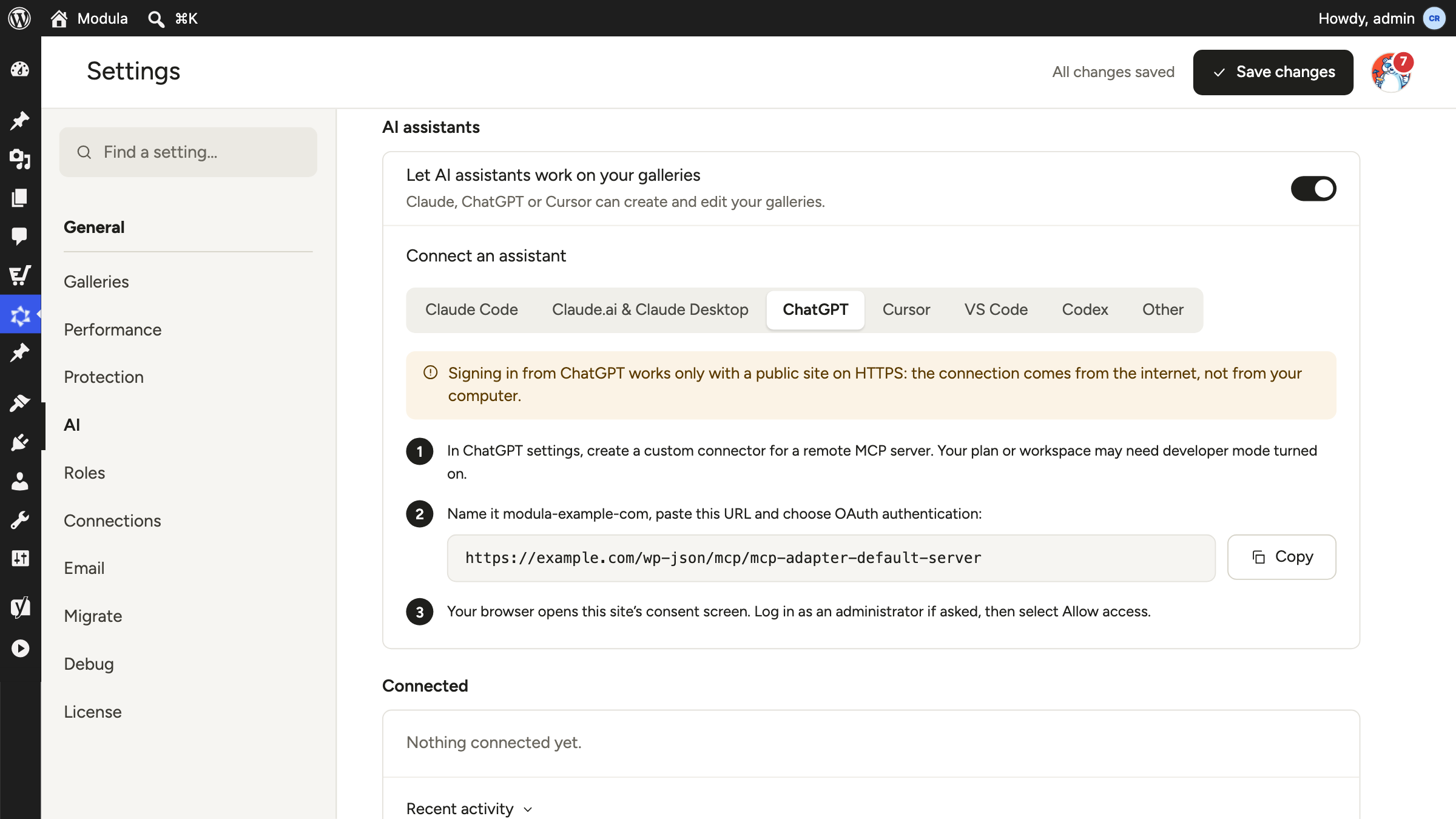
The step-by-step version with screenshots is in the knowledge base: Connect AI assistants to Modula.
Read & write or Read only?
You choose on the consent screen, per connection:
- Read & write lets the assistant create, change and delete Modula galleries and albums, and use or upload images.
- Read only lets it list and read, and nothing more. A read-only connection isn’t even shown the tools that make changes.
Read only is a good first connection. Ask the assistant to audit your galleries, see how it behaves, then reconnect with Read & write when you’re ready.
If your assistant can’t sign in
Some setups can’t open the consent screen, for example the Claude desktop app with a local site, or a script.
Open Can’t sign in? Use a password and select Create a password. Modula adds an Application Password to the Modula agent and shows the ready-to-paste config once, so copy it right away.
See and stop what assistants do
Every connection is listed under Connected with how it signed in, its access and when it was last used. Disconnect removes its access at once.
Recent activity shows the latest tool calls: which tool, which connection, when, and whether it worked. The log never stores the content of a request.
What you can ask it to do
Here’s what the tools cover, with prompts you can paste. Free means Modula Lite is enough. The rest needs Modula Pro on the plan shown.
Build and edit galleries (free)
The core gallery tools are in Modula Lite: list, read, create, update, duplicate, trash, restore and delete. A new gallery is made from images already in your Media Library, as a draft or published, whichever you say.
- “List my Modula galleries and tell me which ones are still drafts.”
- “Create a draft masonry gallery called Lisbon 2026 from the 24 photos I uploaded today.”
- “In the Lisbon gallery, set the gutter to 12 pixels and turn the lightbox on.”
- “Move the three sunset photos to the top and remove the two blurry ones from the gallery.”
- “Duplicate the Lisbon gallery as a draft called Porto 2026.”
- “Set the same hover effect on these 12 galleries.”
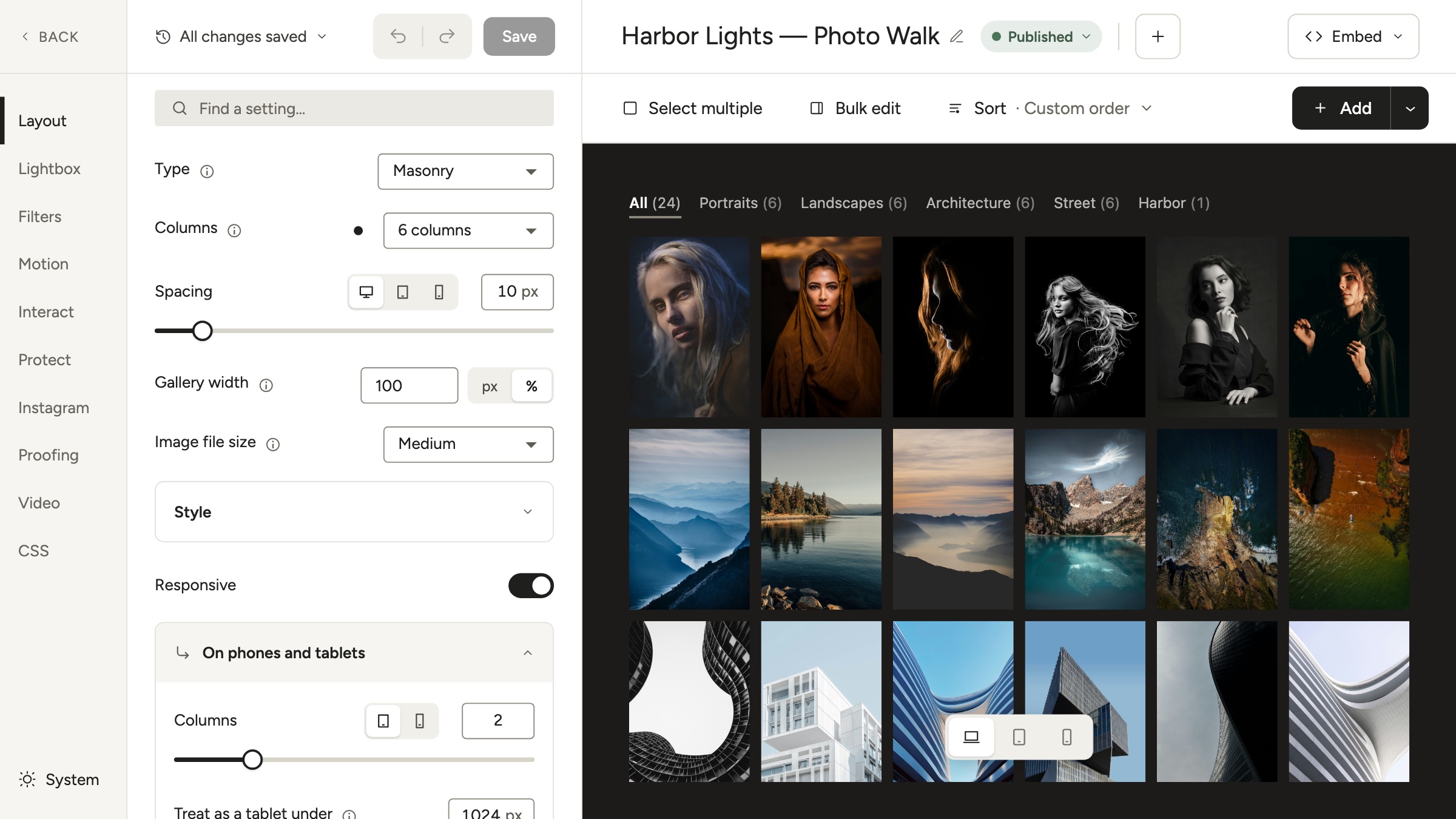
The assistant changes only the settings you name. Everything else stays as it was.
It can change up to 100 images in one gallery per call and up to 25 galleries in one batch. Removing a photo from a gallery never deletes it from the Media Library.
Layout types follow your plan. Masonry, Uniform Grid, Tiles, Custom Grid, Polaroid, Justified, Fit Grid and Template are free. Bento, Freeform, Story, Showcase, Parallax Masonry and the Airbnb-style layout need Pro, and Slider and Video need their extensions.
Upload and import photos
- Upload an image (free). The assistant can send a file it holds, up to 8 MB per image, and add it to a gallery in the same step.
- Import a ZIP (Pro). Up to 100 images and 32 MB unpacked per ZIP. Anything that isn’t an image is rejected before the import starts.
- Import from a server folder (Pro). The assistant browses Modula’s folder-import directory on your server and imports the files you pick, up to 25 per call, optionally removing the source files afterwards.
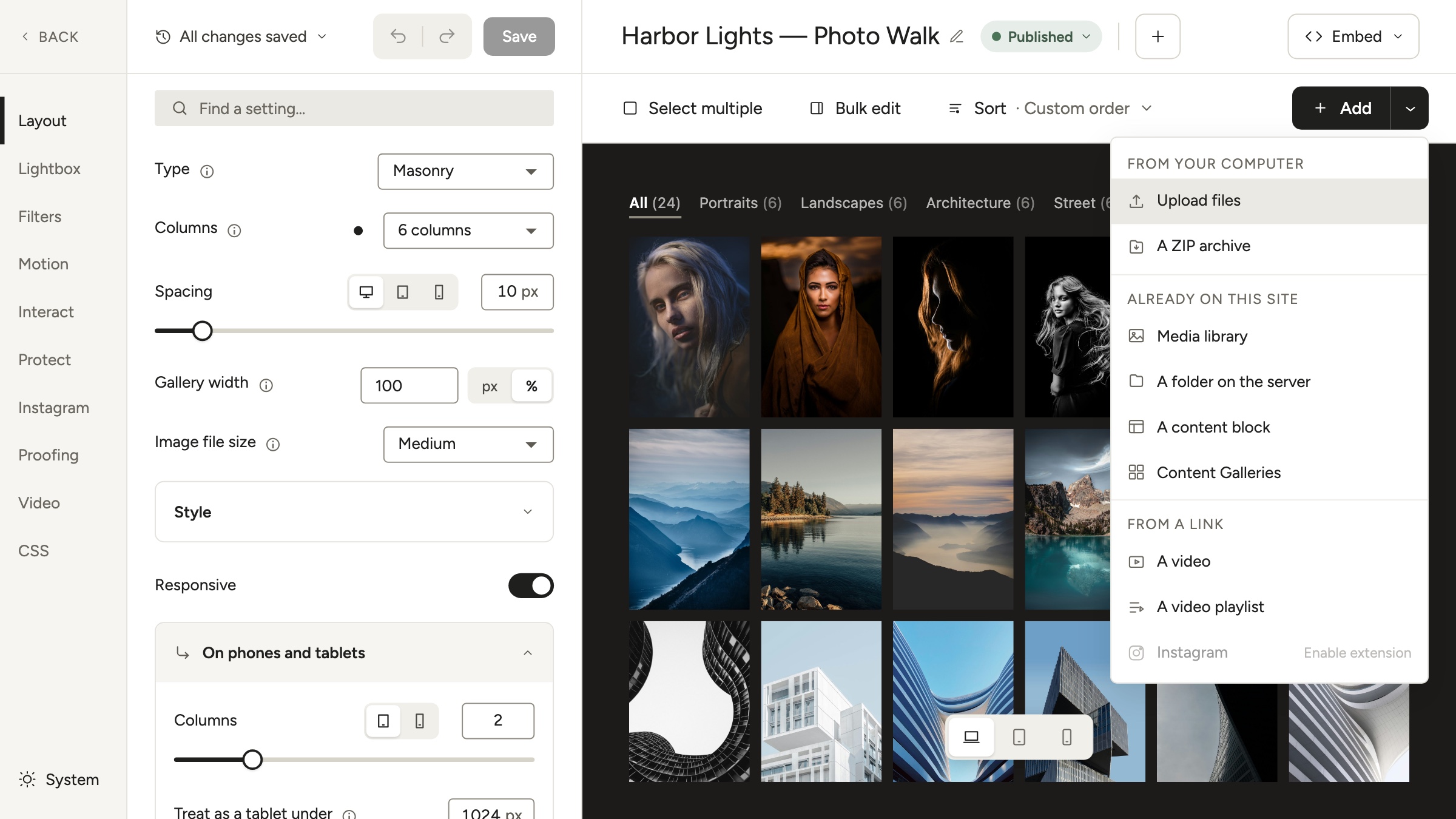
- “Look in the server import folder. What’s in weddings/ana-and-mihai?”
- “Import the first 25 JPGs from that folder into a new draft gallery called Ana & Mihai. Keep the source files.”
More ways to get photos in, with their limits: add multiple images to a gallery.
Albums (Trio and Business)
With the Albums extension on, the assistant can create and update albums, set which galleries and nested albums they hold and in what order, and duplicate, trash, restore or delete them.
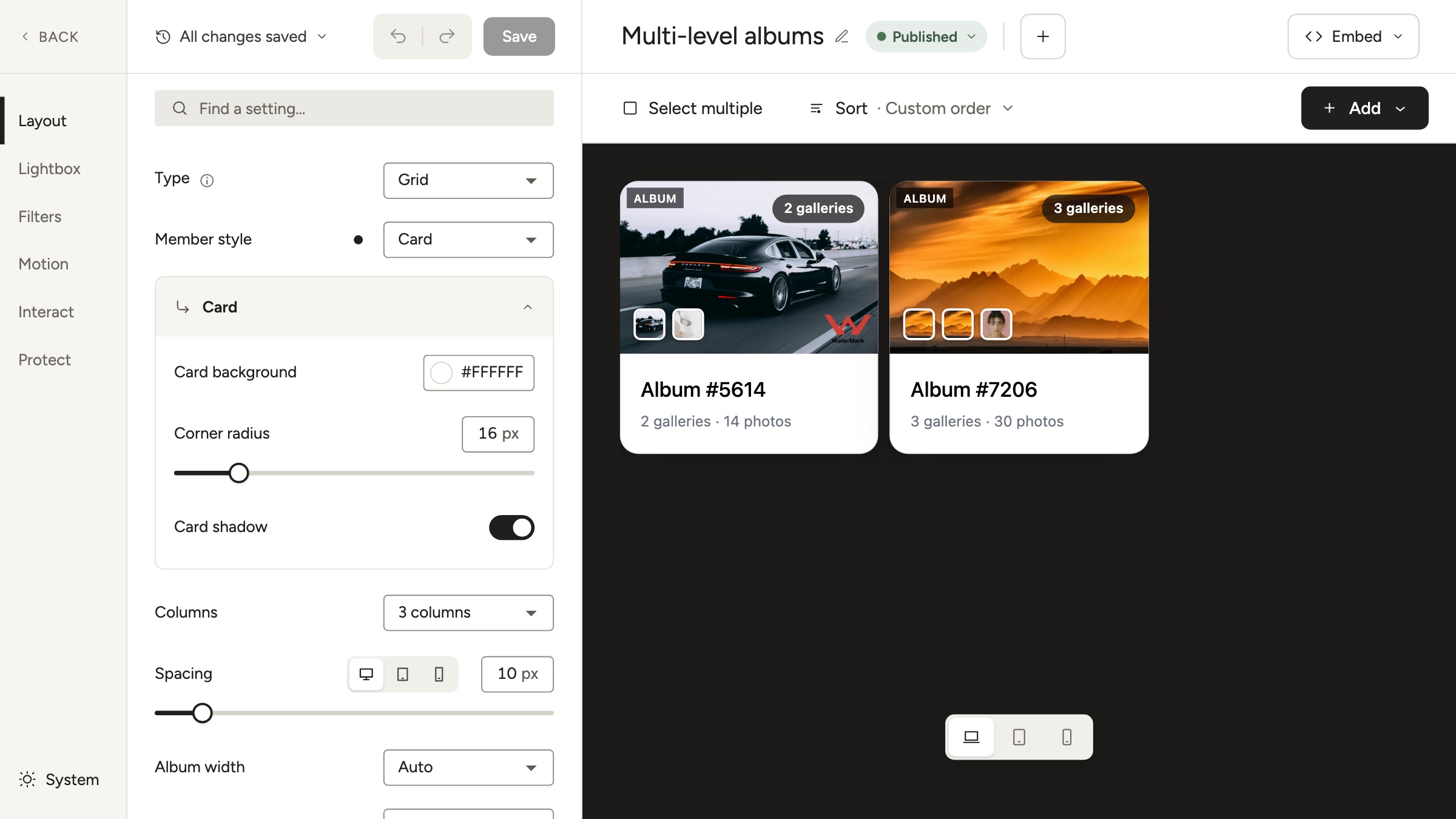
- “Create a published album called Weddings 2026 with the Ana & Mihai, Laura & Dan and Ioana & Paul galleries, newest first.”
- “Add the new Porto gallery to the Travel album, after Lisbon.”
Removing a gallery from an album doesn’t delete the gallery.
Presets (Business)
Presets store a full set of gallery or album settings. The assistant can create, read, update and delete presets, and apply one to up to 25 galleries or albums at a time.
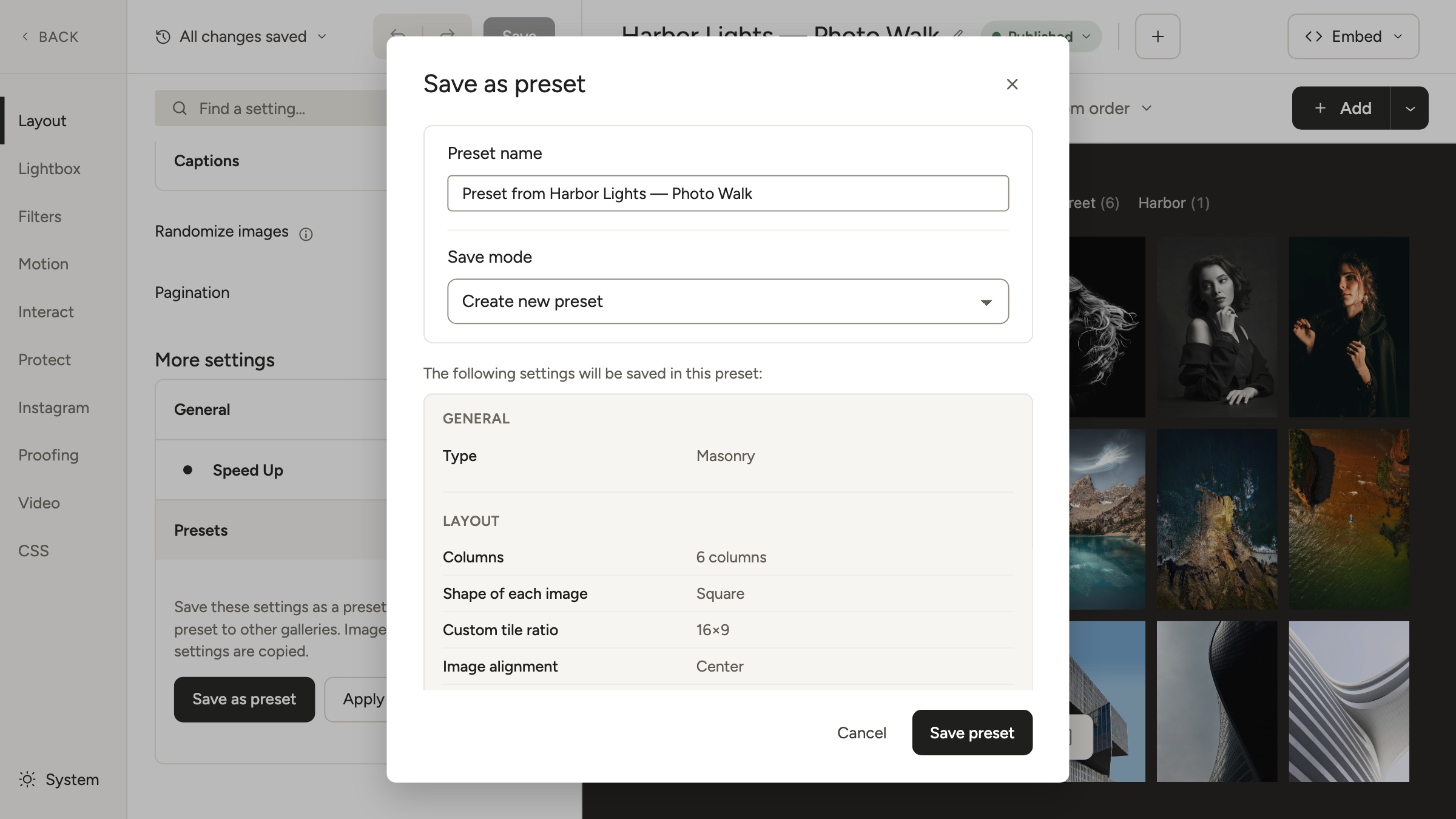
- “Save the settings of the Lisbon gallery as a preset called Travel look.”
- “Apply Travel look to every gallery with ‘2026’ in its title.”
Applying a preset replaces a gallery’s settings and sorting. Its images and their text stay as they are.
Video galleries (Starter and up)
With the Video extension on, the assistant can look up YouTube and Vimeo sources through the accounts you’ve already set up in Modula, then add, reorder, edit or remove video items.
It can also add a video file from your Media Library. It never downloads media from a provider.
- “Add this YouTube playlist to the Showreel gallery and put the 2026 reel first.”
Watermarks (Business)
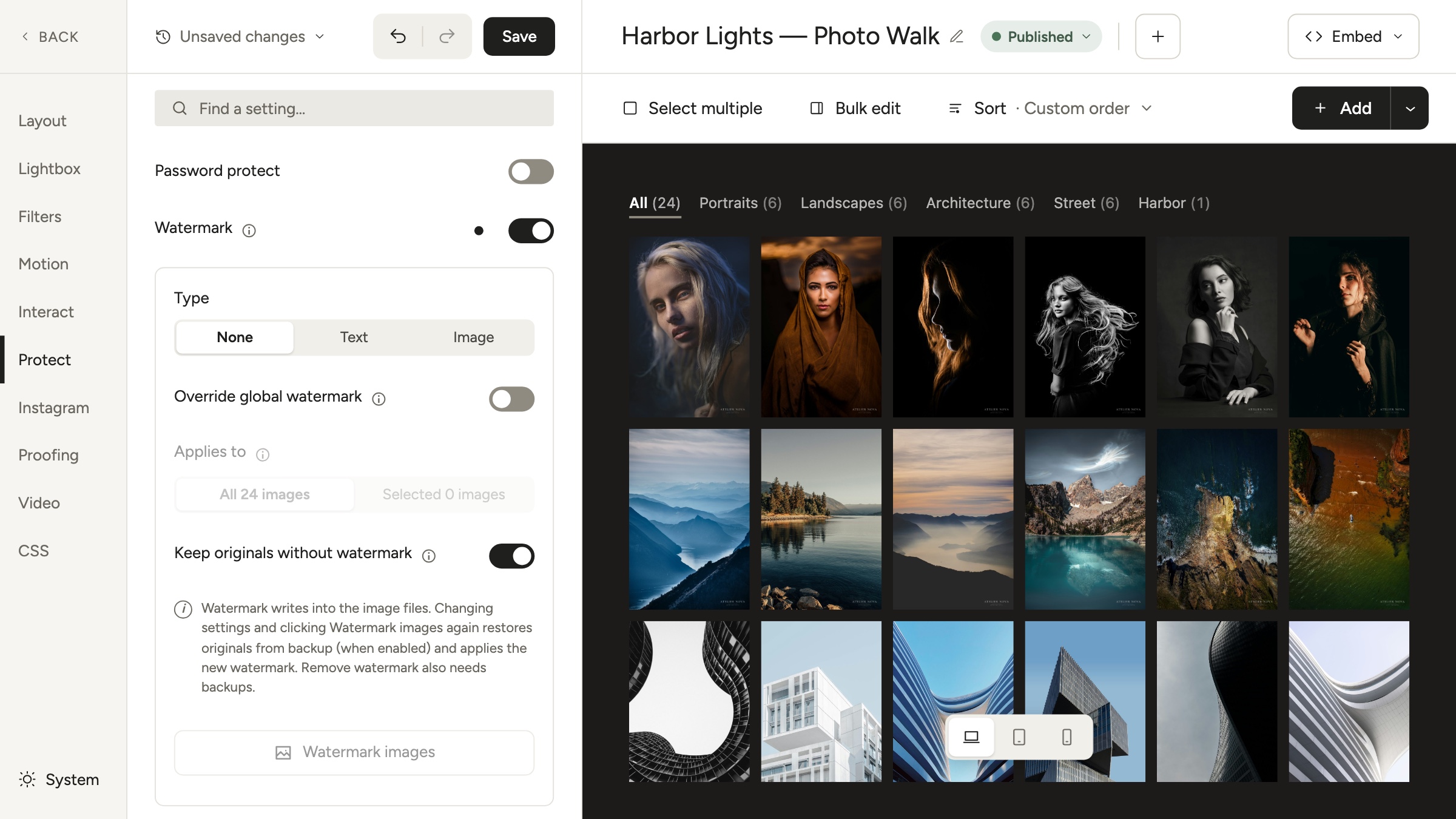
Watermarking takes two steps: save the watermark settings on the gallery, then apply the watermark to each image. The assistant can do both. It can also tell you whether an image is watermarked, and take a watermark off.
- “Set a bottom-right text watermark, ‘© Studio Ana’, at 40% opacity on the Proofs gallery, then watermark every image in it.”
- “Remove the watermark from the cover photo of the Proofs gallery.”
Watch out
A watermark is written into the image file. Every gallery that uses that image shows it, and removing it needs the backup Modula made when it was applied. Keep backups switched on in the watermark settings.
Client proofing (Business)
With the Image Proofing extension on, the assistant can read and change a gallery’s proofing settings, create invitations, email them with your existing proofing templates, and report what clients chose.
- “Turn on proofing for the Ana & Mihai gallery and create a guest invitation for ana@example.com. Don’t send it yet.”
- “Send that invitation.”
- “Which photos did Ana select, and has she submitted?”
- “Unlock her selection so she can change it.”
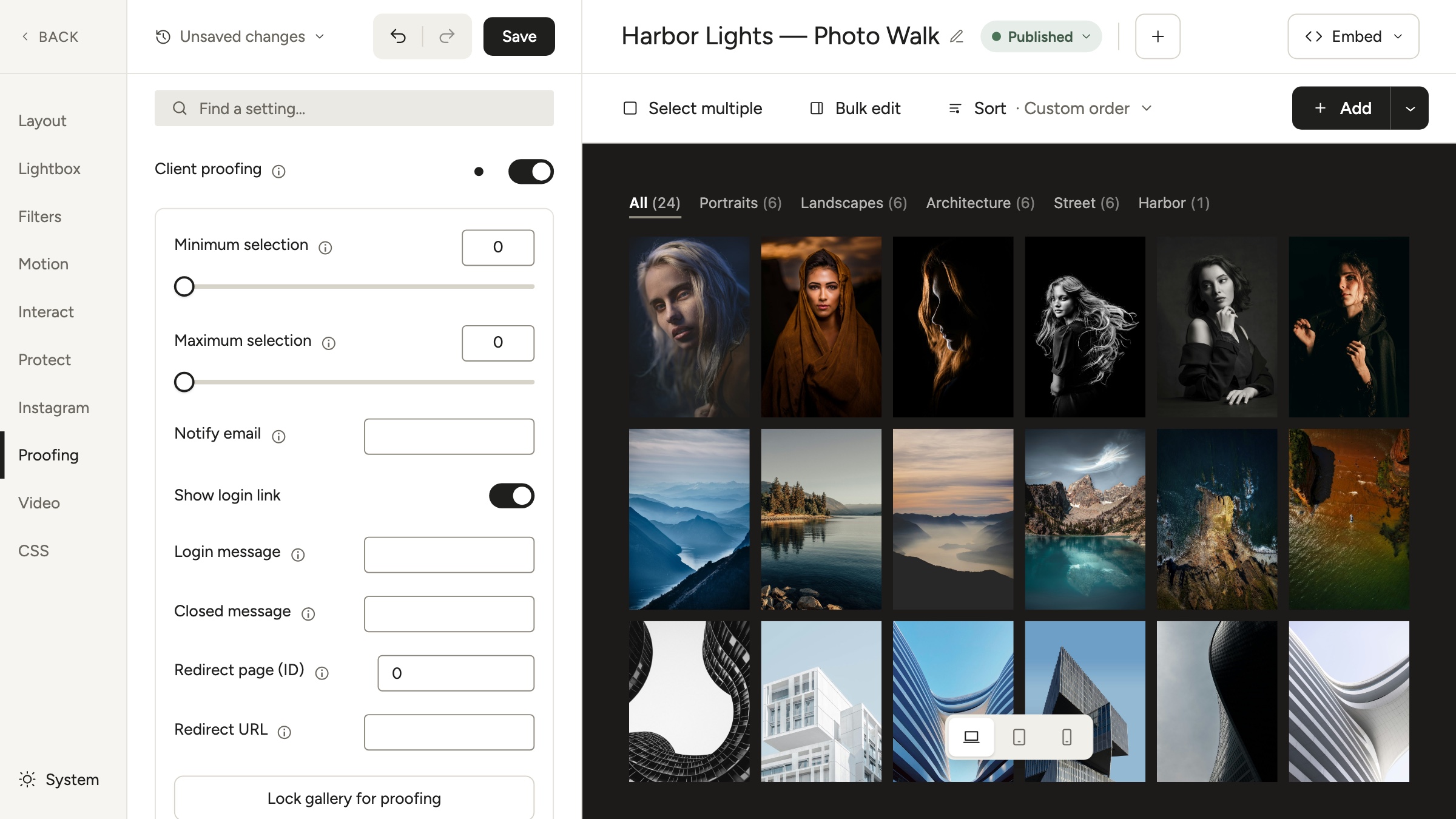
The assistant can unlock or delete a selection. It can’t pick photos for a client, edit their choices or submit for them. Creating client user accounts stays with an administrator in WordPress, because the Modula agent can’t manage users.
Instagram (Trio and Business)
With the Instagram extension on and an account already connected in Modula, the assistant can check the connection’s state and pull recent posts into a gallery: up to 50 images per sync, 20 by default.
- “Sync the latest 20 Instagram posts into the Feed gallery.”
It uses the account you connected in Modula. It can’t accept credentials, and it doesn’t set up automatic syncing: each sync happens when you ask.
Media folders, image text, cloud storage and folder-bound galleries
There’s another set of tools for Modula’s media folders. They only show up on sites where media folders are set up, so your assistant may tell you they’re not available on yours.
- Media folders. Create, rename, delete and fill folders. Deleting a folder never deletes the files in it.
- Titles, alt text and captions. The assistant looks at an image and writes its title, alt text, caption and description from what it sees. That uses your assistant’s own vision, not Modula AI credits.
- Where an image is used. Which galleries, posts and featured images reference it, before you replace or trash it.
- Collections and favorites. Label and group images without moving them.
- Cloud storage (Pro). Browse a connected storage bucket, bring remote images into the Media Library, and start, follow or cancel an offload of a folder or the whole library.
- Folder-bound galleries (Pro). Create a gallery that follows a media folder or a storage path, and hide or restore single images in it.
- “Make a masonry gallery from the photos in the Lisbon folder.”
- “Write alt text for every image in the Lisbon gallery that doesn’t have any. Keep it factual and short.”
- “Where is IMG_2041 used on the site?”
Image text is saved in the Media Library, so a change shows everywhere the image is used.
Modula settings and extensions
The assistant can read Modula’s site settings and your stored license and extension status, change the settings Modula allows, and turn the extensions in your license on or off.
- “Which Modula extensions are included in my license but switched off?”
- “Turn on the Image Proofing extension.”
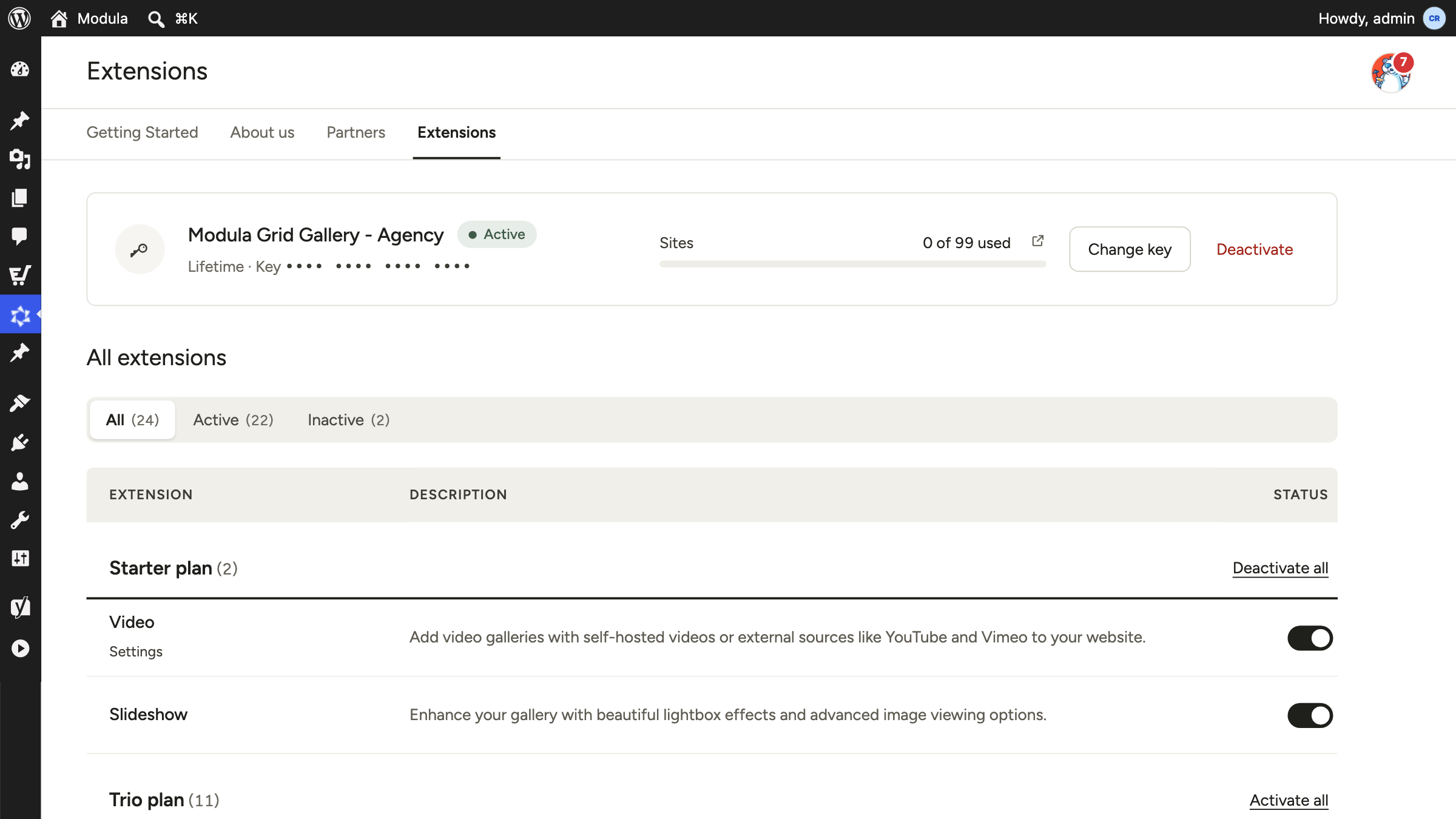
Secrets are out of reach: license keys, API credentials, roles and AI provider settings can’t be read or changed through the server.
Diagnostics and the debug log
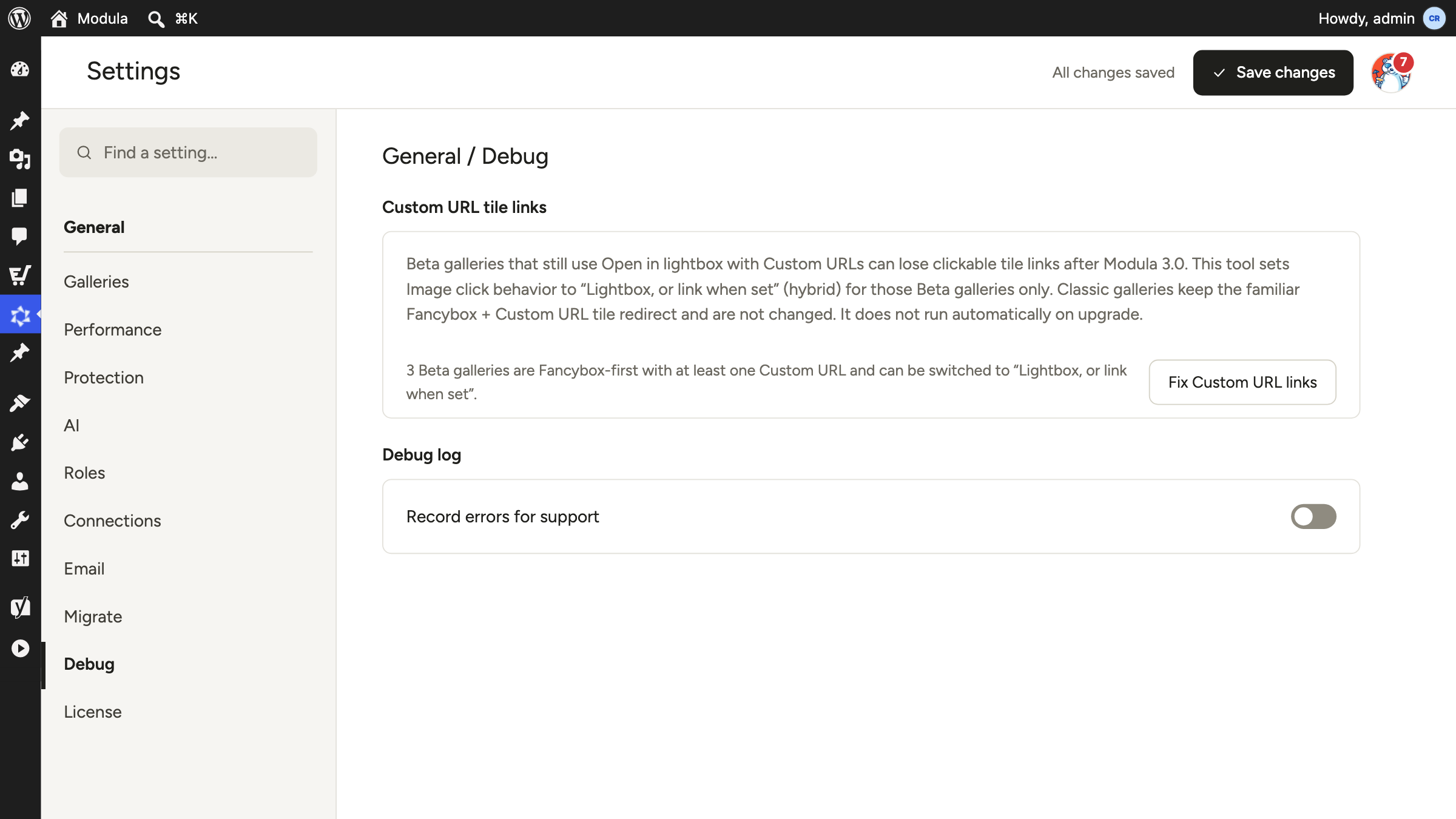
Modula has tools for its own debug log: check whether it’s on, switch it on for seven days, read a redacted view, switch it off, clear it.
They need a full administrator, and the Modula agent isn’t one. So a connected assistant is refused here and tells you why.
Use Modula → Settings → Debug for the debug log, or run the same operations as an administrator through the REST API.
What needs which plan
| Tools | Needs |
|---|---|
| Galleries: list, read, create, update, reorder, duplicate, trash, restore, delete | Free (Modula Lite) |
| Upload an image, read and update Modula settings | Free (Modula Lite) |
| Pro layouts and settings: Bento, Freeform, filters, lightbox options, password protection… | Modula Pro, plus the extension where one applies |
| Import a ZIP, import from a server folder, turn extensions on and off | Modula Pro, any plan |
| Video galleries (YouTube, Vimeo, self-hosted) | Starter, Trio or Business |
| Albums, Instagram sync | Trio or Business |
| Gallery and album presets, watermarks, client proofing | Business |
Agency includes everything in Business. Plans and prices in USD are on the pricing page.
You don’t need to remember the table. If you ask for something that needs Pro, a higher plan or an extension that’s switched off, you’re told what’s missing and nothing gets changed.
Limits and safety
What it can’t do
- Classic galleries. The tools work on galleries in the new 3.0 editor. Classic galleries are refused, and nothing is converted for you. To use one with an assistant, move it to the new editor first.
- Anything outside Modula. WordPress settings, plugins, themes, users, posts and pages are off limits. That includes putting a gallery on a page: the assistant builds the gallery, you place it.
- Changes on a read-only connection. The tools that write aren’t listed, and a write is refused if it’s tried anyway.
- Features you don’t have. Locked tools explain what’s missing. They don’t work around it.
- Credentials. No tool accepts or returns passwords, tokens, license keys or storage secrets.
- Big files in one go. Uploads stop at 8 MB per image, ZIPs at 100 images and 32 MB unpacked.
- Multisite. Not supported yet.
What keeps your galleries safe
- A separate user. The assistant acts as the Modula agent, with Modula permissions only while a Modula tool runs. It never has your administrator rights.
- You approve each connection. On your own site, as an administrator, with the access level you pick. Disconnect it any time.
- No double changes. Every change carries an ID. If a reply gets lost, the assistant looks up that ID and reads the outcome instead of doing the job twice. Outcomes are kept for 30 days.
- No silent overwrites. A change is checked against the version of the gallery the assistant last read. If you edited the gallery in the meantime, the change is rejected and the assistant has to read it again.
- Draft or published is your call. Creating, duplicating and restoring ask for one or the other. Nothing goes live by default.
- Trash before delete. Galleries and albums can be trashed and restored. Removing an image from a gallery or album never deletes the file.
- An activity log. The most recent 200 tool calls and connection events are listed in the AI settings.
Tip
The assistant is still an AI. Modula validates what it sends, but it can’t know you meant the other Lisbon gallery. Ask for drafts, name galleries exactly, and have it tell you what it will change before a big batch.
Who it’s for
The more galleries you make, the more time this saves.
- Wedding and portrait photographers. After a shoot, ask it to import the selects from a ZIP, build a draft gallery, apply your proofing preset, watermark the proofs and send the invitation. That whole run needs Business.
- Agencies and freelancers. Connect each client site once, then repeat the same setup everywhere: “create these four galleries and apply the client’s preset.” Use Read only for audits and Read & write where you build.
- Shops and product catalogs. Ask for the same Uniform Grid, gutter and hover effect on every product gallery. For a new season, duplicate last season’s gallery and swap the photos.
- Real estate and hospitality. Make one gallery per listing, all with the same Airbnb-style layout from a preset. When a listing sells, trash its gallery, and restore it if the sale falls through.
- Artists and portfolios. Try Bento, then Freeform, and reorder the series in one conversation. Keep each version as a duplicate draft until you’ve picked one.
- Bloggers and content teams. Have it build a draft gallery for each article from the images you’ve already uploaded. It can’t edit the article itself, which is the point.
Five habits that make prompts work
- Name the gallery exactly, or ask for a list first and pick from it.
- Say draft or publish. If you don’t, a careful assistant will ask.
- Ask for a plan before a batch. “Tell me which galleries you’ll change, then wait.”
- One job per message for anything that rewrites files, like watermarks.
- Ask what’s available. “What can you do with Modula on this site?” makes the assistant read the live tool list, with what’s locked and why.
Frequently asked questions
It’s the MCP (Model Context Protocol) server built into Modula 3.0. It gives an AI assistant named tools to create and manage Modula galleries, albums, presets and media on your WordPress site.
No. The server is part of the Modula plugin, free version included. You pay for your own AI assistant, and some tools need a Modula Pro plan, the same as in the editor.
Any assistant that supports remote MCP servers. Modula has ready-made steps for Claude Code, the Claude app, ChatGPT, Cursor, VS Code and Codex, and an Other tab for the rest.
Yes. Creating, editing, duplicating and deleting galleries, uploading images and reading Modula settings all work in Modula Lite. Albums, presets, imports, watermarks, proofing, video and Instagram need Pro.
It can’t reach it. The Modula agent is refused on WordPress settings, plugins, users, posts and pages. It can change or delete Modula galleries on a Read & write connection, so start with drafts, or with Read only.
Not until you move them to the new editor. The tools only work on galleries in the 3.0 editor, and a moved gallery keeps a copy of its classic settings.
Modula doesn’t. Your assistant sees what it asks for through the tools: gallery settings, image IDs and titles, and image pixels only when you ask it to look at a photo, for example to write alt text.
No. Posts and pages are outside what the Modula agent may edit. The assistant builds the gallery, and you add it to the page with the Modula block or shortcode.
Go to Modula → Settings → AI and select Disconnect next to it under Connected. It loses access at once. Switching off Let AI assistants work on your galleries pauses every connection.
Yes, with an assistant that runs on your computer, such as Claude Code, Cursor or VS Code. The Claude app and ChatGPT connect from the internet and need a public site on HTTPS.
Try it on one gallery
Update to Modula 3.0, open Modula → Settings → AI and connect the assistant you already use with Read only. Ask it what it can do on your site. When that looks right, reconnect with Read & write and have it build one draft gallery.
Setup steps: Connect AI assistants to Modula. What else is new in this release: Modula 3.0.