
Modula can expose gallery tools through the Model Context Protocol (MCP), allowing a compatible AI assistant to create, inspect, and edit galleries on your WordPress site. This guide explains how to enable the connection, configure the supported clients, and complete a gallery workflow from start to finish.
The connection feature is available with both Modula Lite and Modula Pro. The operations the assistant can perform still depend on the features included in your package.
What the MCP connection can do
After you connect an assistant, you can ask it to perform supported Modula tasks in plain language. Depending on the Modula products, plan, and extensions available on your site, these tasks can include:
- listing and reading galleries;
- creating a gallery from existing Media Library images;
- changing a gallery title, status, layout, spacing, and other settings;
- adding, removing, or reordering gallery items; and
- using supported Modula Pro features and extensions.
Before you begin
Make sure that:
- you are using a Modula version that includes AI assistants;
- WordPress 6.9 or newer is installed;
- you are working on a single WordPress site, because MCP connections are not currently supported on multisite;
- you are signed in as an administrator;
- your site can install and activate the official MCP Adapter plugin; and
- the images you want to use already exist in Media > Library.
For ChatGPT, Claude.ai, and other cloud-based clients, the WordPress site must be reachable from the internet over HTTPS. A local, private, or self-signed development site cannot receive a direct cloud connection.
Enable AI assistant connections in Modula
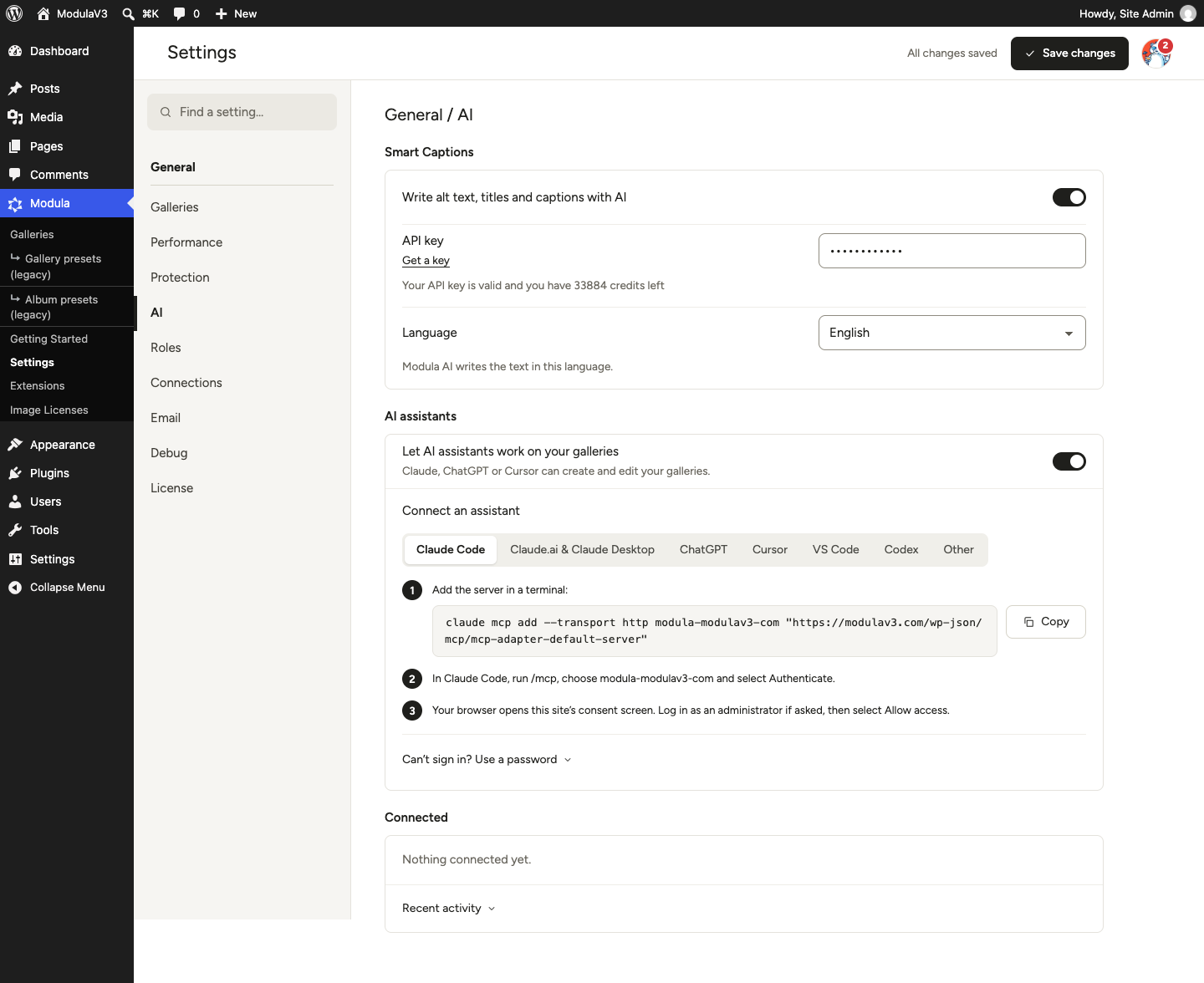
- In the WordPress dashboard, go to Modula > Settings.
- Select AI in the settings navigation.
- In the AI assistants panel, turn on Let AI assistants work on your galleries.
- If Modula reports that the MCP Adapter is missing or inactive, select Install or Activate.
- Under Connect an assistant, select the client you want to configure.
Connect with OAuth
OAuth is the recommended connection method. You add the MCP endpoint to your client, sign in to WordPress in the browser, and approve the requested access.
The endpoint generated for your site follows this format:
https://example.com/wp-json/mcp/mcp-adapter-default-serverClaude Code
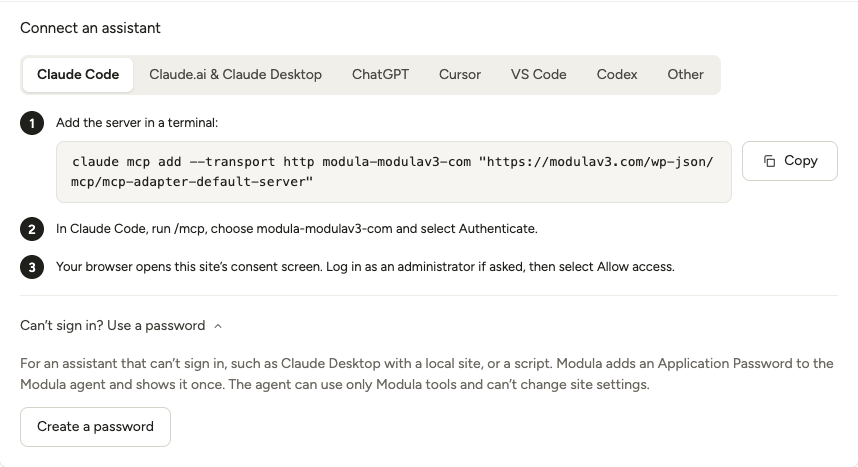
- Copy and run the command shown in the Claude Code tab:
claude mcp add --transport http modula-example-com "https://example.com/wp-json/mcp/mcp-adapter-default-server" - In Claude Code, run
/mcp. - Select the Modula server and choose Authenticate.
- On the WordPress consent screen, sign in as an administrator if needed and select Allow access.
Claude.ai and Claude Desktop
- In Claude, open Settings > Connectors and choose Add custom connector.
- Enter the server name and endpoint shown in the Claude.ai & Claude Desktop tab.
- Select Connect.
- Complete the WordPress sign-in and select Allow access.
Because this connection starts from Claude’s servers, the site must be publicly accessible over HTTPS. For Claude Desktop on a local site, use the password connection described later in this guide.
ChatGPT
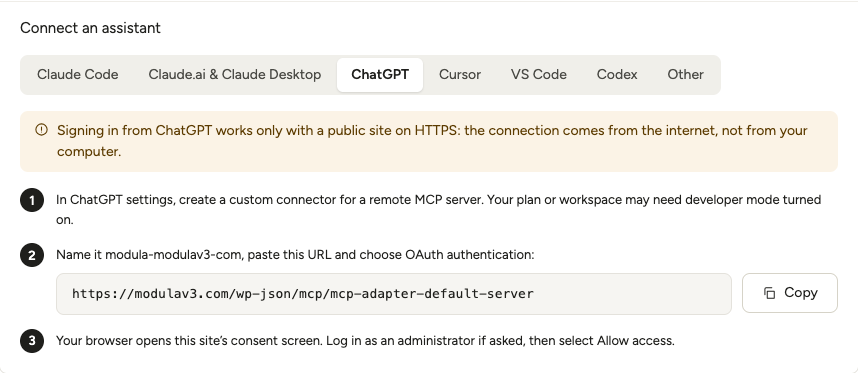
- In ChatGPT settings, create a custom connection for a remote MCP server. Depending on your account and workspace, the interface may refer to custom connectors, apps, or plugins, and an administrator may need to enable the feature.
- Use the name and endpoint shown in the ChatGPT tab in Modula.
- Choose OAuth as the authentication method.
- Start the connection or tool scan.
- When WordPress opens, sign in as an administrator if needed and select Allow access.
The connection is added only after the authorization flow succeeds. ChatGPT cannot connect directly to a local or private WordPress site through this cloud flow.
For current ChatGPT account, workspace, and MCP availability details, see Model Context Protocol in the official OpenAI documentation.
Cursor
Add the configuration shown in Modula to ~/.cursor/mcp.json, or to .cursor/mcp.json inside a project:
{
  "mcpServers": {
    "modula-example-com": {
      "url": "https://example.com/wp-json/mcp/mcp-adapter-default-server"
    }
  }
}
Open Cursor Settings > MCP, select the server, choose Connect, and complete the WordPress consent screen. If Modula displays an install button, you can use it instead of editing the JSON file manually.
You can also use the “Add to Cursor” button to install this automatically.
VS Code
Run MCP: Add Server from the Command Palette and choose HTTP, or add this configuration to .vscode/mcp.json or your user-level mcp.json:
{
  "servers": {
    "modula-example-com": {
      "type": "http",
      "url": "https://example.com/wp-json/mcp/mcp-adapter-default-server"
    }
  }
}
Start the server, allow VS Code to sign in, and complete the WordPress consent screen.
You can also use the “Add to VS Code” button to install this automatically.
Codex
Add the configuration shown in Modula to ~/.codex/config.toml:
[mcp_servers.modula-example-com]
url = "https://example.com/wp-json/mcp/mcp-adapter-default-server"
Then start the OAuth flow and complete the WordPress consent screen:
codex mcp login modula-example-comOther MCP clients
Select Other in Modula and add the displayed URL as a remote Streamable HTTP MCP server. If the client supports MCP authorization, it should open the WordPress consent screen automatically.
Use a password connection when OAuth is unavailable
For local clients, scripts, or applications that cannot complete the OAuth sign-in flow, Modula can generate an Application Password for its restricted MCP agent.
- Select the appropriate client in Connect an assistant.
- Expand Can’t sign in? Use a password.
- Select Create a password.
- Copy the generated command or configuration immediately. The password is displayed only once.
- Add the configuration to the file or application named by Modula, then restart the client if instructed.
The Modula agent can use only Modula tools through MCP and cannot change general WordPress settings. ChatGPT does not offer this password fallback in the Modula panel; use its OAuth connection on a public HTTPS site.
For Claude Desktop on a local site, the generated configuration uses the WordPress MCP proxy and requires Node.js 22 or newer. Restart Claude Desktop after saving its configuration.
Example: create and edit a gallery with ChatGPT
This example creates a draft gallery from four existing Media Library images, then changes its layout and publishes it. Use a public HTTPS site connected to ChatGPT through OAuth.
1. Create the gallery
Start a new conversation with the Modula MCP connection enabled, then enter:
List the images I can use from the WordPress Media Library. Create a draft Modula gallery named “MCP Documentation Demo” using the first four images. Do not publish it yet. Return the gallery title, status, item count, and shortcode.
Review the images and gallery details returned by ChatGPT. If the assistant finds more than one possible target or cannot determine which images you mean, provide the attachment names or IDs before allowing it to continue.
2. Edit and publish the gallery
After confirming the draft, enter:
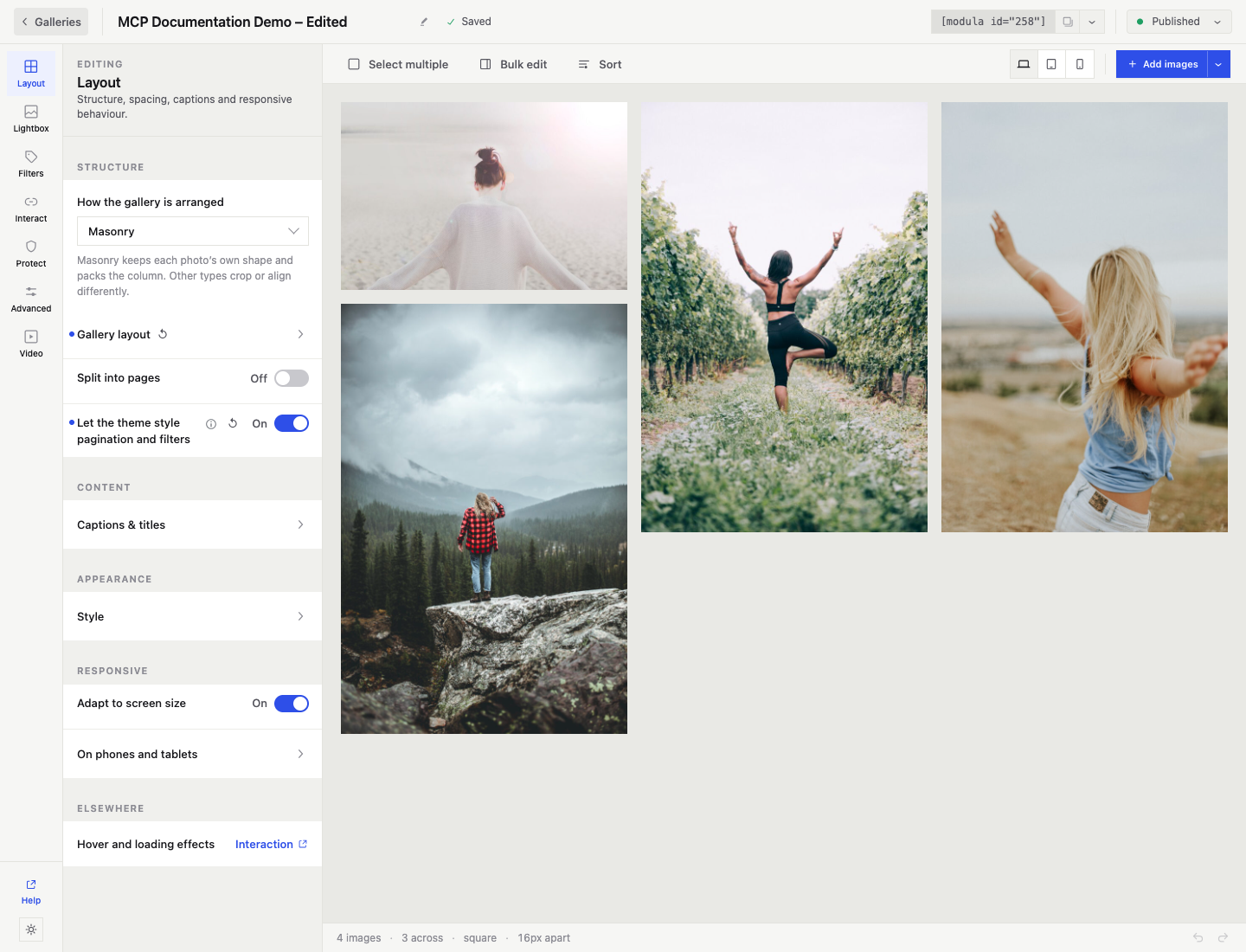
Rename the gallery to “MCP Documentation Demo – Edited”, use a three-column Masonry layout with 16 px between images, center the gallery, and publish it. Then read the gallery again and confirm the saved title, status, image count, column count, and spacing.
The assistant should read the current gallery state before editing it. Modula uses revision checks to prevent an update from silently overwriting a newer change.
3. Verify the result in WordPress
- Go to Modula > Galleries.
- Open MCP Documentation Demo – Edited.
- Confirm that the gallery is published and contains four images.
- Confirm that the layout shows three columns and 16 px spacing.
- Copy the generated shortcode if you want to place the gallery on a page or post.
The verified test produced a gallery with four images, a three-column layout, 16 px spacing, and a published status.
Manage connections and review activity
Return to Modula > Settings > AI > AI assistants to manage access:
- Connected lists active OAuth and password connections.
- Disconnect revokes one connection without affecting the others.
- Regenerate replaces the password for a password-based connection.
- Recent activity lists connection events and tool calls without storing tool arguments or passwords.
- Turning off Let AI assistants work on your galleries stops Modula’s managed AI connections until you turn it on again.
Disconnect clients you no longer use. If a generated password may have been exposed, regenerate or disconnect that connection immediately.
Troubleshooting
The AI assistants panel is missing
- Update Modula to a version that includes MCP connections.
- Confirm that you are signed in as an administrator. The panel is available only to users who can manage site options.
Modula asks for the MCP Adapter
Select Install or Activate in the AI assistants panel. If your account cannot manage plugins, ask a WordPress administrator to install and activate the official MCP Adapter plugin.
A cloud client cannot reach the site
- Confirm that the site is public and uses a valid HTTPS certificate.
- Do not use
localhost, a private hostname, or a self-signed certificate for ChatGPT or Claude.ai. - Confirm that security software, maintenance mode, or a firewall does not block the WordPress REST API endpoint.
The consent screen does not open
- Confirm that Let AI assistants work on your galleries is enabled.
- Remove the incomplete connection from the client and add it again using the exact endpoint generated by Modula.
- If the client does not support OAuth, use the password fallback when Modula offers it.
The assistant can read galleries but cannot edit them
- Check whether the connection was approved with read-only access.
- Confirm that the requested setting or extension is included in your Modula package and enabled.
- Ask the assistant to report the exact blocker returned by Modula.
Modula reports that the gallery changed
Ask the assistant to read the gallery again and retry the update against the latest revision. This safeguard prevents stale changes from overwriting newer edits.
A password configuration no longer works
Return to Connected, regenerate the password, and replace the old configuration in the client. If the client is no longer needed, disconnect it instead.