Made in Europe, buy from Europe.
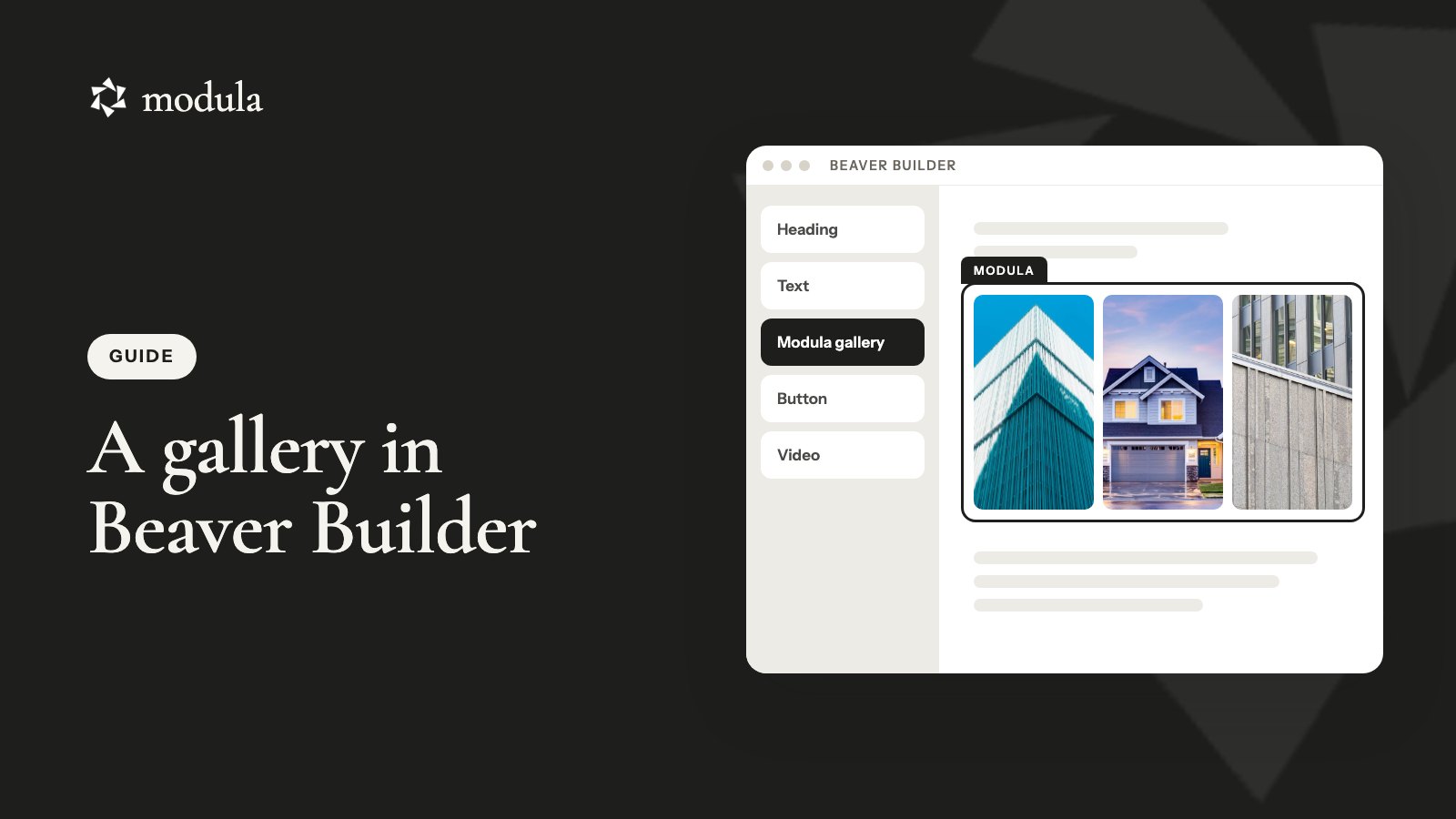
Went looking for a gallery in Beaver Builder’s Modules panel and found it greyed out? You’re likely on Beaver Builder Lite, where the Gallery module is locked. Good news: you don’t need it.
Build your Beaver Builder gallery in Modula, then drag the free Modula Gallery module onto your page.
The short version
- Install the free Modula plugin.
- In Modula → Content, click New gallery, add your photos and check that it says Published.
- In Beaver Builder, drag Modula Gallery from the Modula group into a column.
- Pick your gallery in Select Modula Gallery, then click Done → Publish.
Prefer to watch? It’s under a minute:
<video controls preload=”metadata” poster=”https://wp-modula.com/wp-content/uploads/2026/11/kb3-4553-walkthrough-poster.jpg” src=”https://wp-modula.com/wp-content/uploads/2026/11/kb3-4553-walkthrough.mp4″></video>
Beaver Builder’s Gallery module or Modula?
Beaver Builder’s own Gallery module is paid only, from $89/year for one site. Lite 2.11 shows it with a PRO badge. The free Modula plugin, not Beaver Builder, adds the Modula Gallery module, whatever older posts (ours included) said.
How they compare, per Beaver Builder’s docs and pricing (checked October 2026):
| Beaver Builder Gallery | Modula | |
|---|---|---|
| In Beaver Builder Lite | No, locked | Yes |
| Layouts | Collage or Thumbs | 14 types, 7 free |
| Lightbox | Yes | Yes, free |
| Captions | Never, on hover or below | Yes, free |
| Filters | Not in the docs | Starter |
| Columns on phones | Not in the docs | Free, per device |
| Video | Its modules page says yes | Starter |
| Cost | From $89/year | Free; Pro from $39 the first year |
Already paying for Beaver Builder and just need a photo grid with a click-to-enlarge lightbox? Stay native.
We make Modula, and it earns its place when a gallery has to do more. You build it once, put it on any page and edit it in one spot.
Build the gallery in Modula
Install the free Modula plugin from Plugins → Add Plugin (install guide). Everything here is free unless a plan is named.
Start a new gallery
Go to Modula → Content and click New gallery. Asked to choose an editor? Pick Use the new editor.
Click the pencil and rename it, say Portfolio. Beaver Builder lists galleries by title, so pick a name you’ll spot.
Add your photos
+ Add opens your Media library; its arrow has Upload files. A video adds a YouTube, Vimeo or .mp4 clip with Starter.
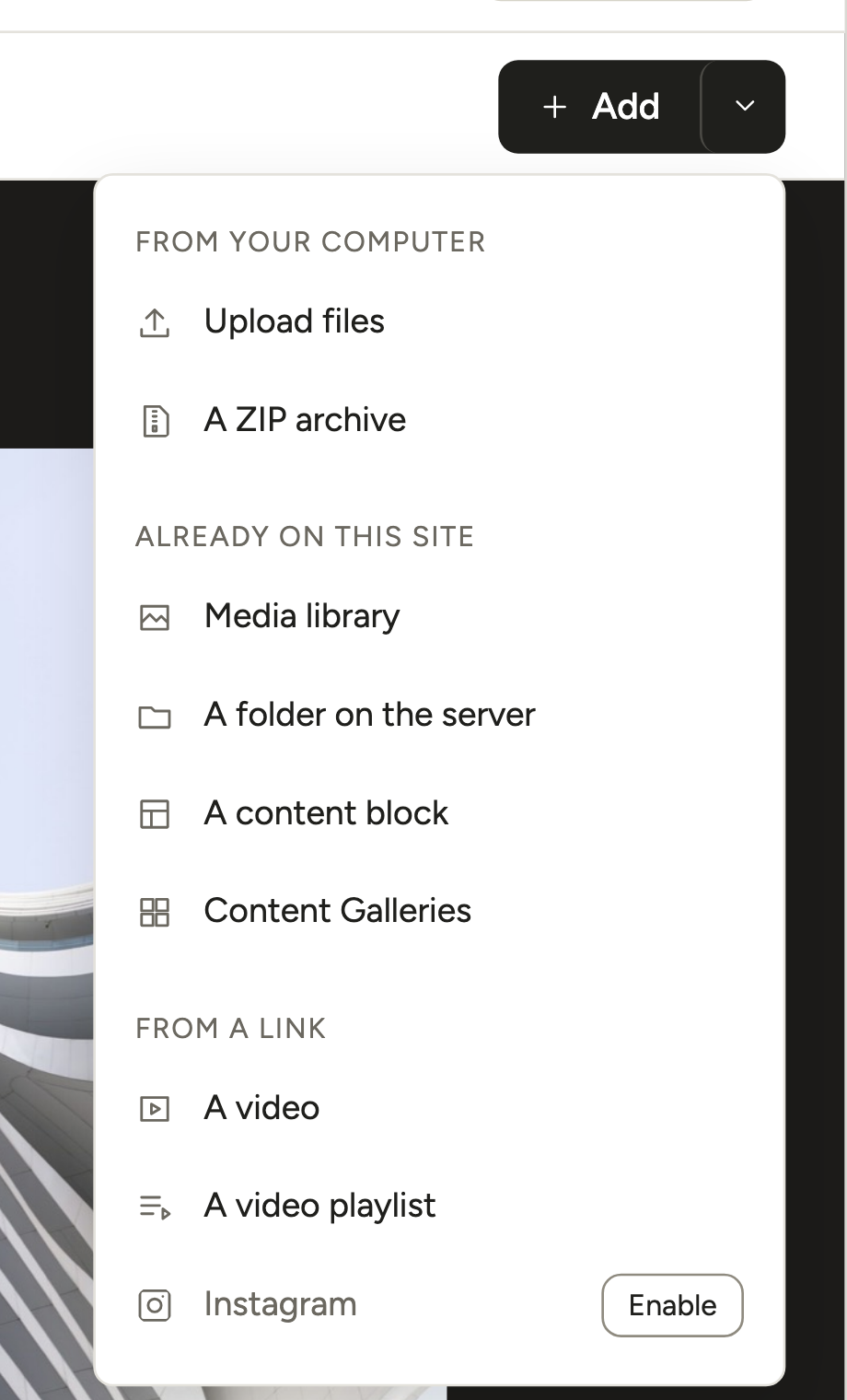
Photos keep the order you add them, so upload your best shot first. Sorting comes with Starter.
Pick a layout that works on phones
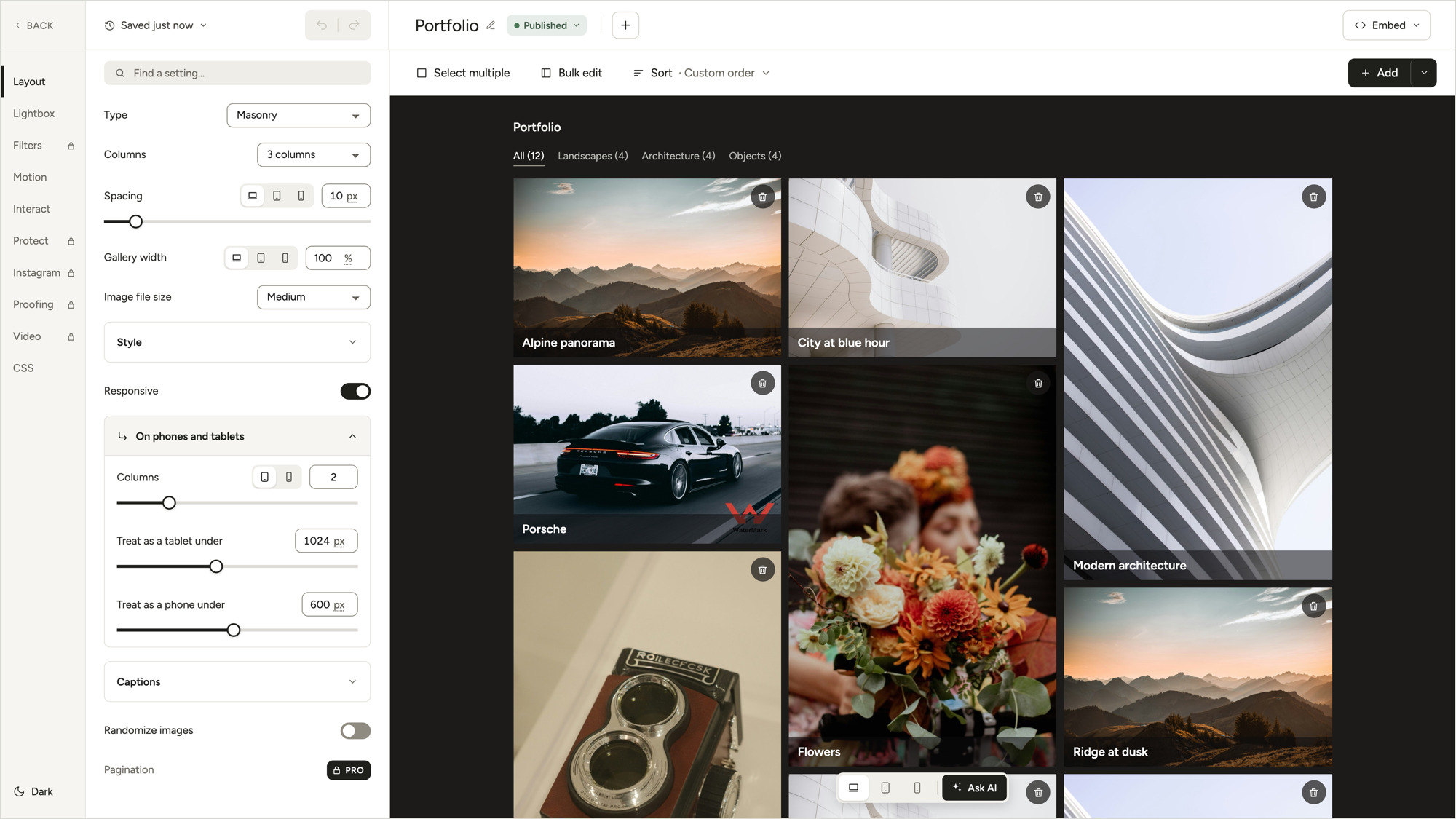
Open Layout and pick a Type. Masonry is the default. Then set Columns and Spacing.
Phones are already handled. Responsive is on by default, and On phones and tablets gives 2 columns on tablets and 1 on phones. Beaver Builder’s Collage, per a 2019 support answer, sticks at two columns on small screens.
Add filters (Starter)
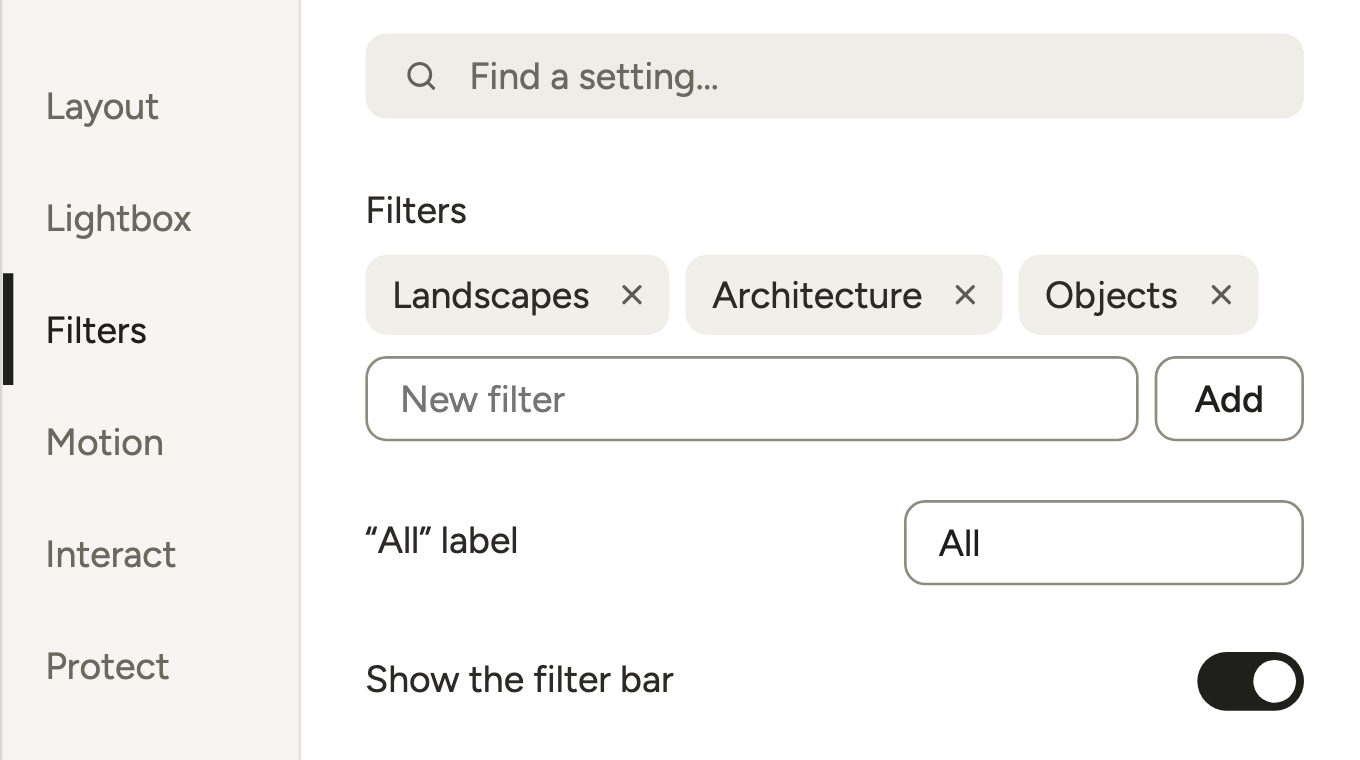
Want Portraits and Landscapes buttons above the grid? No Beaver Builder add-on needed. Open Filters, type a name in New filter and click Add.
Then click a photo and, under Filters, click + Add to pick one.
Nice touch: the lightbox stays inside the active filter. Open a landscape, and the arrows only show landscapes.
Filters work on the seven free layouts, not on Slider, Video gallery or other Pro layouts. More in our filterable portfolio guide.
Make it yours
- Lightbox: choose what a click does. Transitions and lightbox captions come with Pro.
- Motion: add a hover effect to each photo.
- Captions: click a photo for its title, alt text and caption.
- Protect: a password with Trio, or a watermark with Business.
Prefer an image slider? That’s the Slider type, with Trio.
Good to know
Saving is automatic. The editor saves as you go and shows All changes saved. Check that the status says Published.
Add the gallery to your Beaver Builder page
Now the fun part: placing a Modula gallery takes five steps in Beaver Builder.
- Open the page and click Launch Beaver Builder.
- In the Modules tab, scroll to the Modula group. Lite 2.11 has no search box here.
- Drag Modula Gallery into a row or column.
- Under Select Modula Gallery, swap None for Portfolio and click Save.
- Click Done, then Publish.
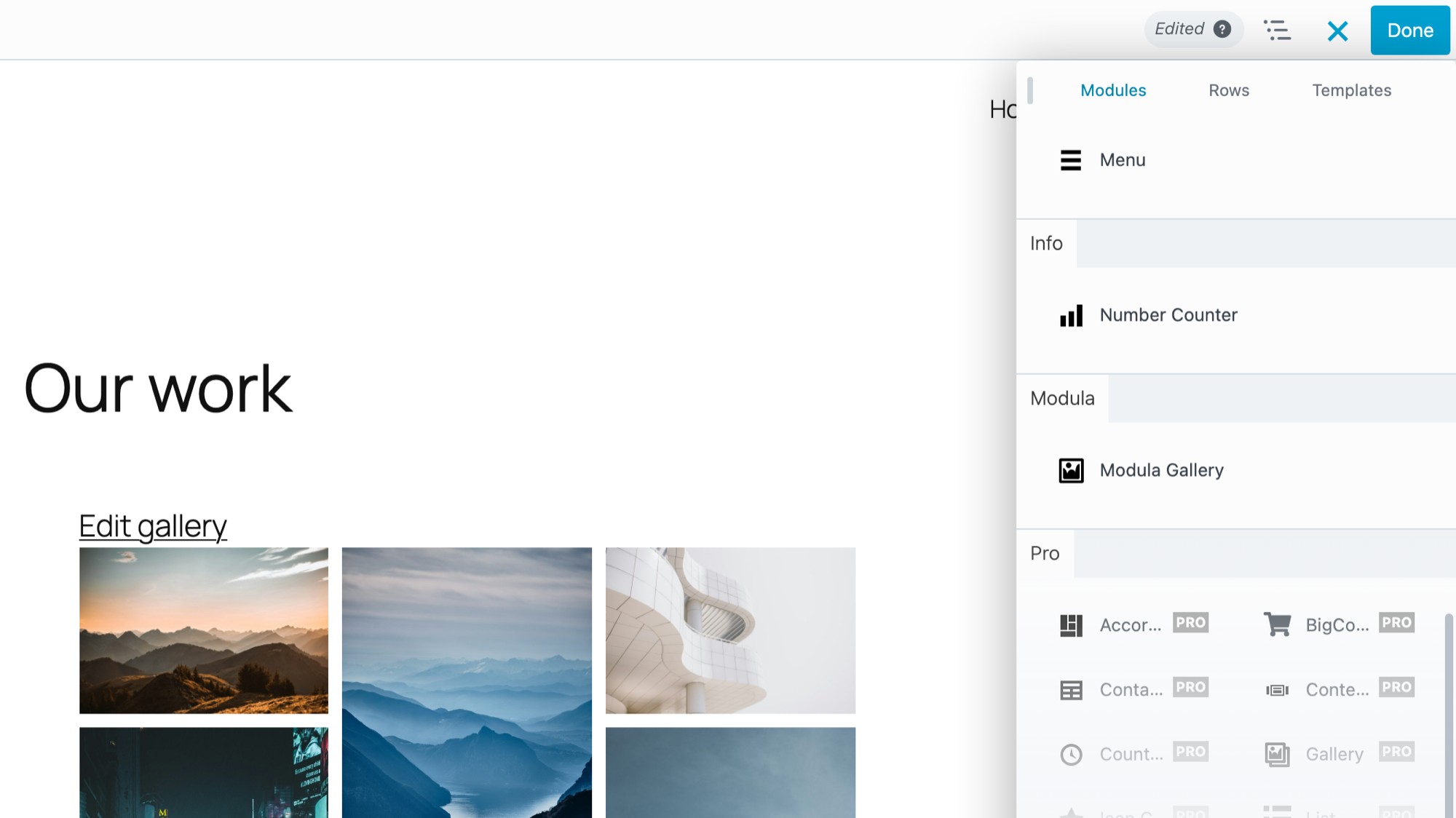
The gallery renders live in the builder. Edit it in Modula, and every page that shows it updates.
Spot Modula Albums next to it? That one needs Pro with Albums (Trio). Our help article has the bare steps.
Use the shortcode instead
Click Embed in the gallery editor, then Copy next to Shortcode. You’ll get something like [modula id="89"].
Paste it into an HTML module, which Beaver Builder recommends for shortcodes. Keep the quotes straight: curly ones make it print nothing. See our shortcode guide.
If your Beaver Builder gallery doesn’t show up or looks wrong
Modula 3.0 usually tells you what’s wrong:
- Not in the dropdown: the list shows published galleries only and loads with the builder. Publish, then reload Beaver Builder.
- “No gallery was selected”: the module is still on None.
- “This gallery is not published.”: it’s a draft or in the trash.
- “Gallery not found.”: the shortcode has no ID, the wrong one, or the gallery has no images.
- Blank until you scroll: a speed plugin is delaying JavaScript. Exclude Modula’s scripts, or test with delay off (WP Rocket example).
- Photos never load, or flash and vanish: often a JavaScript error from the theme or a plugin. Check the browser console and try Troubleshooting Mode.
- Tiny on phones: turn on Responsive and check On phones and tablets.
Good to know
Check it logged out. Logged in, you still see a draft gallery. Your visitors don’t. Open the page in a private window.
Frequently asked questions
Yes. The free Modula plugin adds the module, and we tested it on Beaver Builder Lite 2.11, where it sits in the Modula group.
Only in paid Beaver Builder, from $89/year (checked October 2026). It offers Collage or Thumbs layouts, a lightbox and captions. Lite shows it locked.
It isn’t published yet, or you published it after opening the builder. Set it to Published in Modula, then reload Beaver Builder.
Yes, with Modula’s Starter plan and no Beaver Builder add-on. Use Filters for the buttons and A video for YouTube, Vimeo or .mp4 clips (photo and video guide).