In July we shipped the first beta of Modula 3.0. We asked you for feedback.
You gave us a lot. Almost all of it was about one thing.
Not the new gallery types. Not the hover effects. The editor. That is where you spend most of your time. And it is the part we had worked on the least.
So round two is all about the editor.
The old editor was hard to work in
That is not an insult. Almost every WordPress gallery plugin works this way. Ours did too, for eight years.
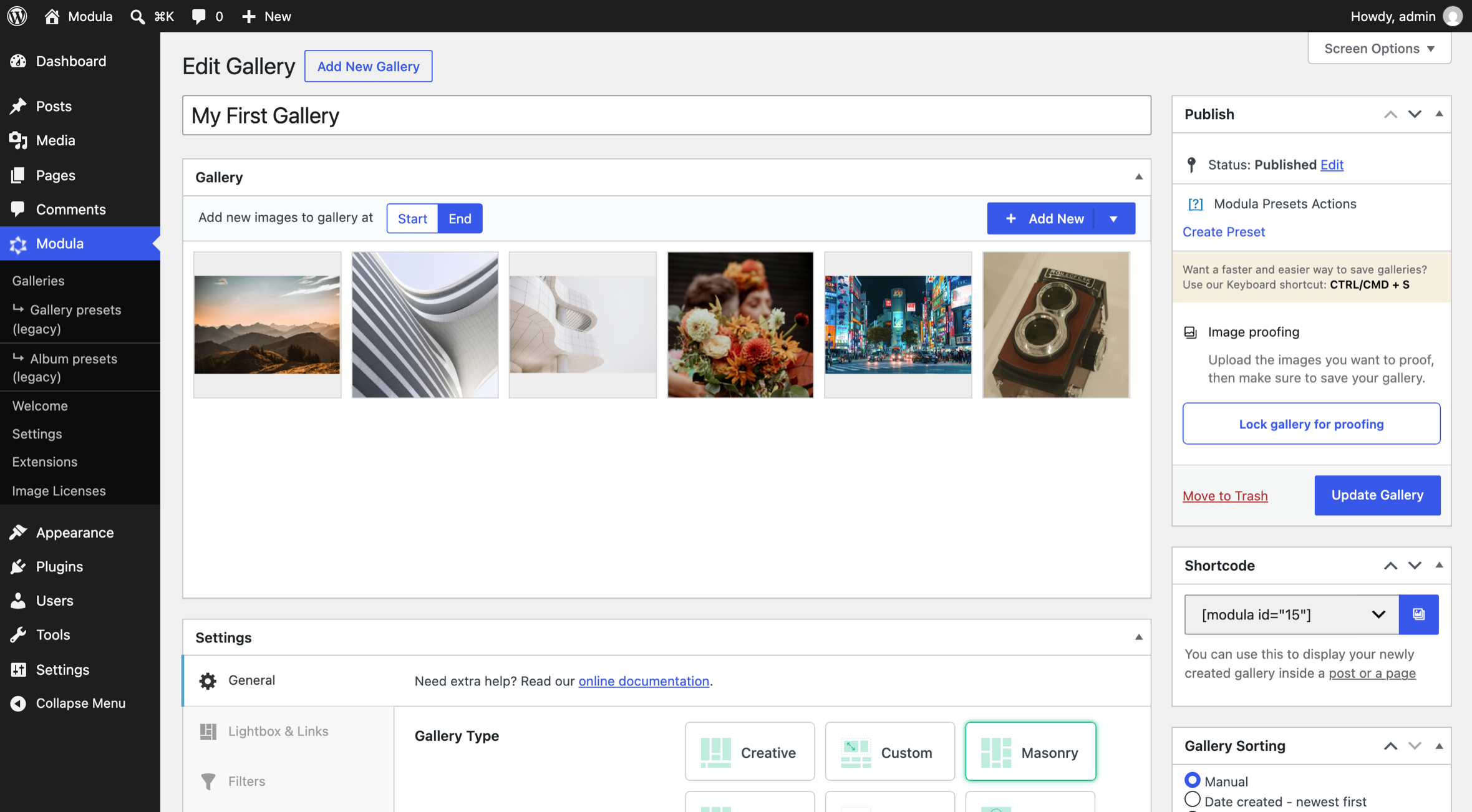
You open a settings page. There is a grid of photos at the top. Below it are tabs and fields. You change one field. You hit Update. You open the page to look. You go back. You change the next field.
Each trip like that takes about fifteen seconds. One trip is fine. But a gallery needs fifty of them. Now you have lost twelve minutes.
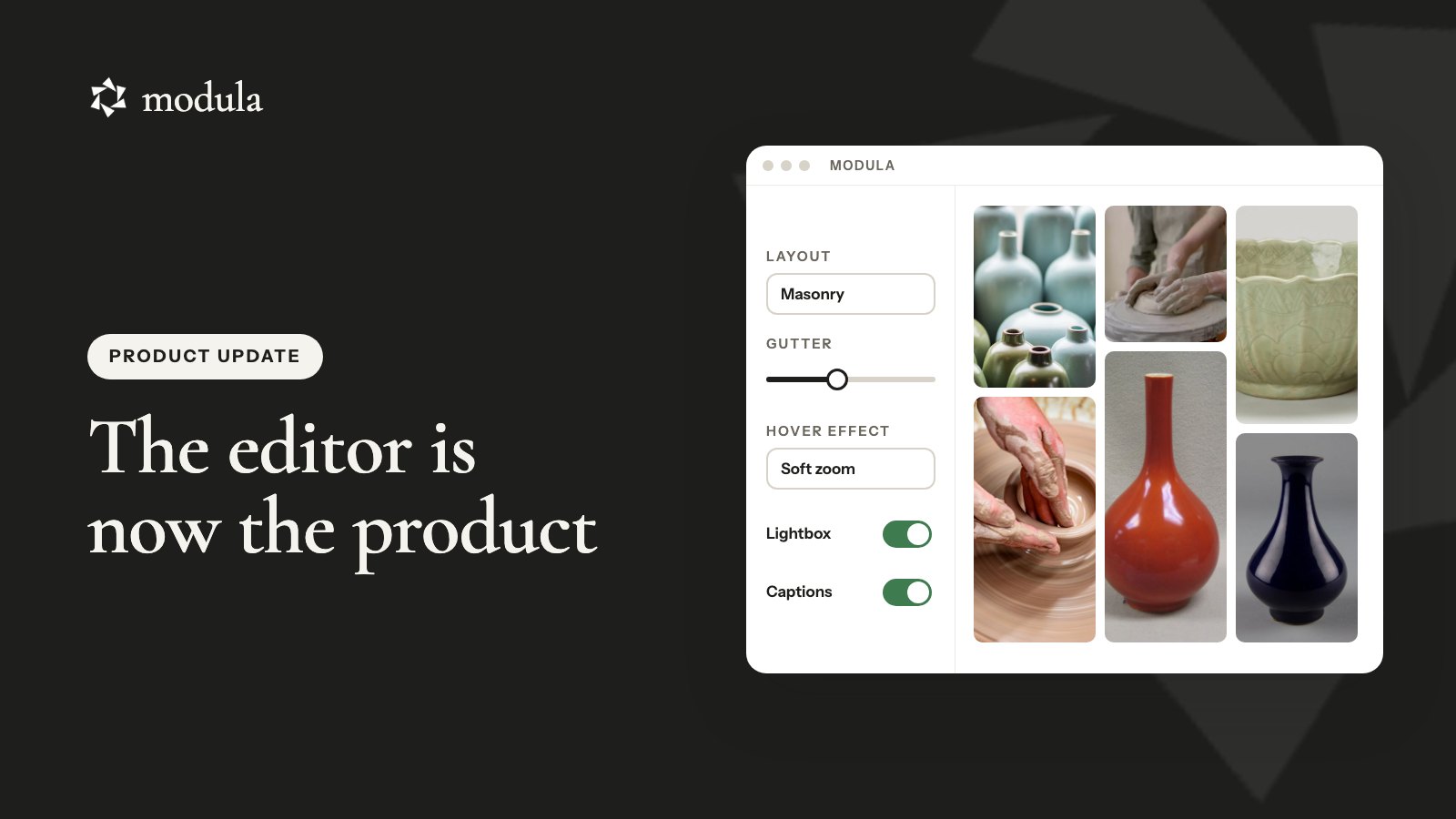
The new editor stops the back and forth.
What you see is what you get
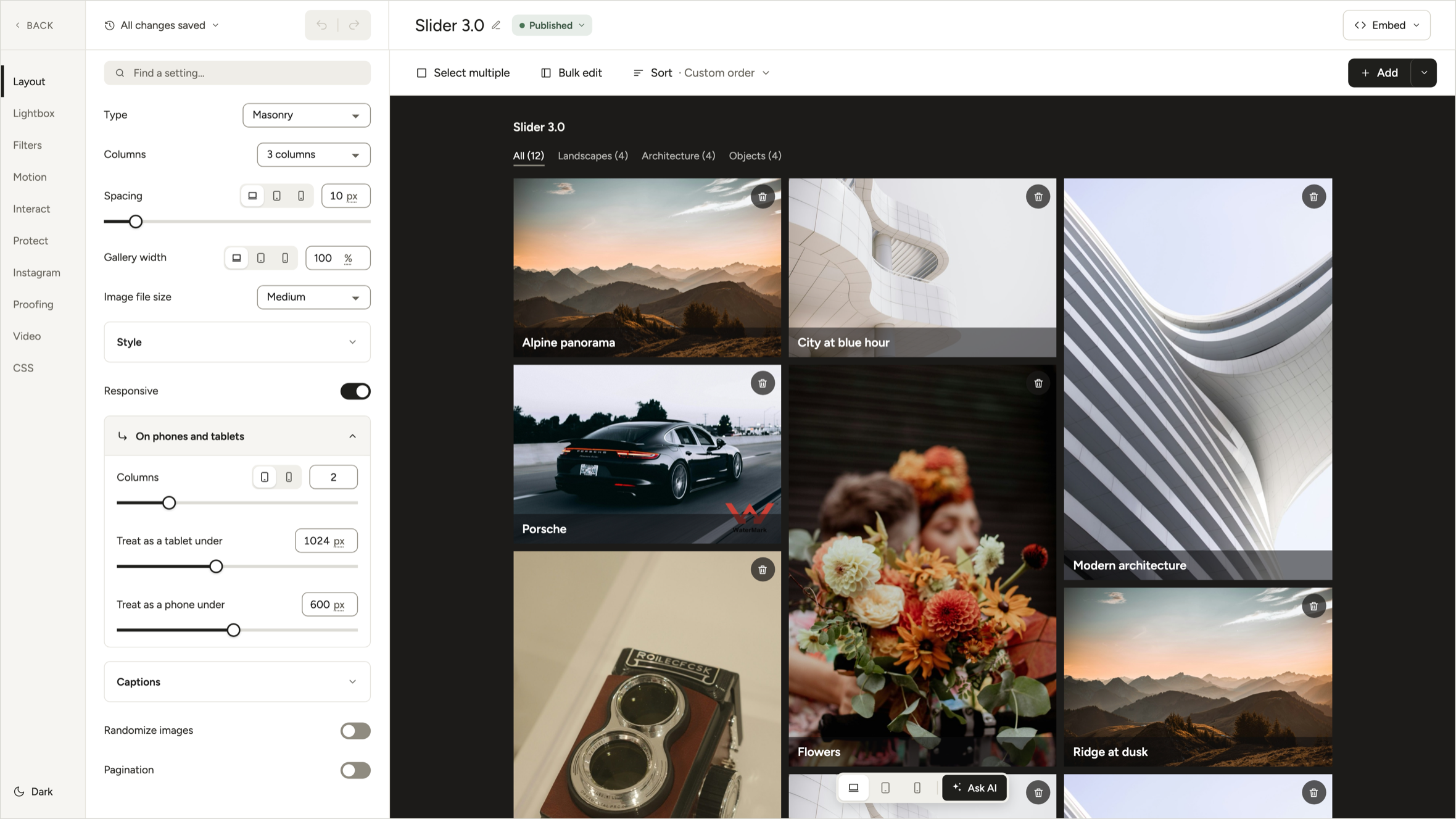
The preview is not a fake preview. It uses the same code that runs on your live site. Same look. Same layout. Same lightbox.
Change the number of columns and the gallery moves. Change the spacing and it moves. Open the Lightbox tab and the real lightbox opens, right there in the editor. Turn the arrows off and they go away.
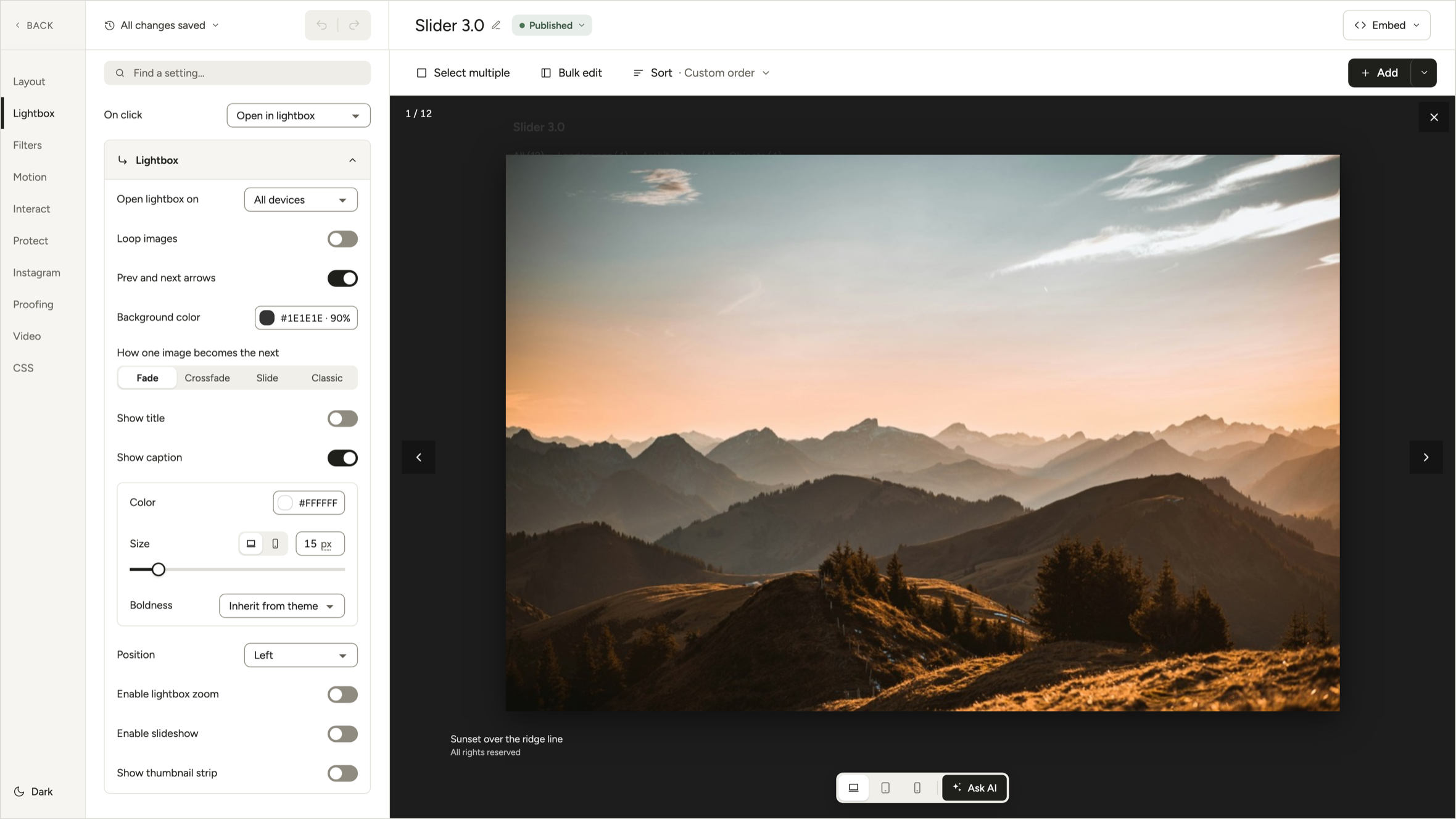
At the bottom of the preview there is a switch for desktop, tablet, and phone. It is not fake. It shows how the gallery really looks at each size.
We worked hard to keep this honest. If the preview lies to you even once, you stop trusting it. So we made sure it never lies.
Set phone and tablet options right here
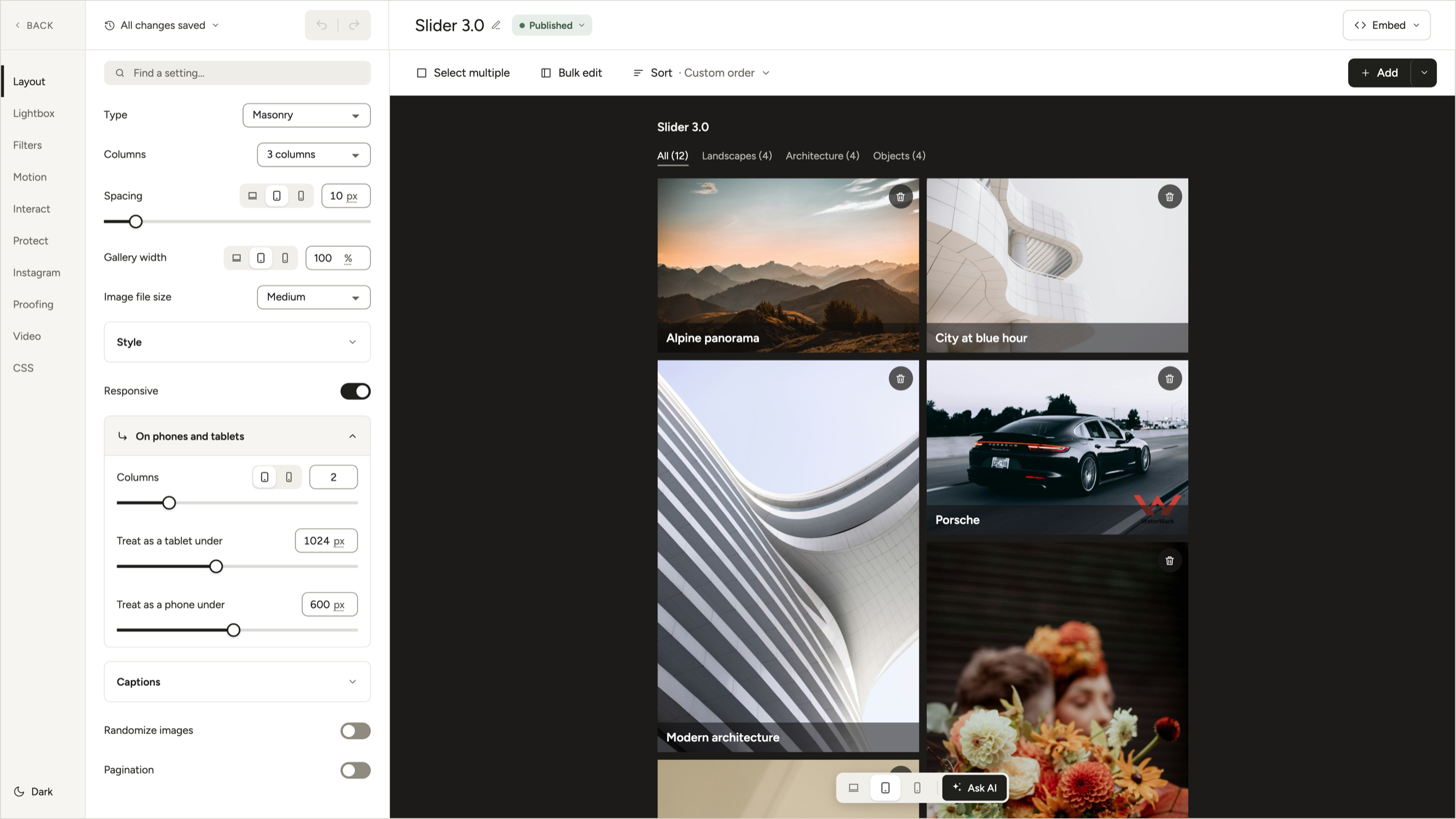
The device switch is not just for looking. Under Layout there is a part called On phones and tablets. There you set how many columns to show on a tablet and on a phone. You also set the width where each one starts. Tablet under 1024px. Phone under 600px. Or any size your theme needs.
Change the tablet columns. Click the tablet view. See it. That is the whole job, and it takes two seconds.
This was the worst part of the old editor. The phone settings were just numbers in a box. The only way to check them was to open the live page and drag the window smaller. Everyone hated it.
Spacing works the same way. The gap has its own tabs for desktop, tablet, and phone. So you can make a grid tighter on phones without touching the desktop look.
Settings are grouped by what you want to do
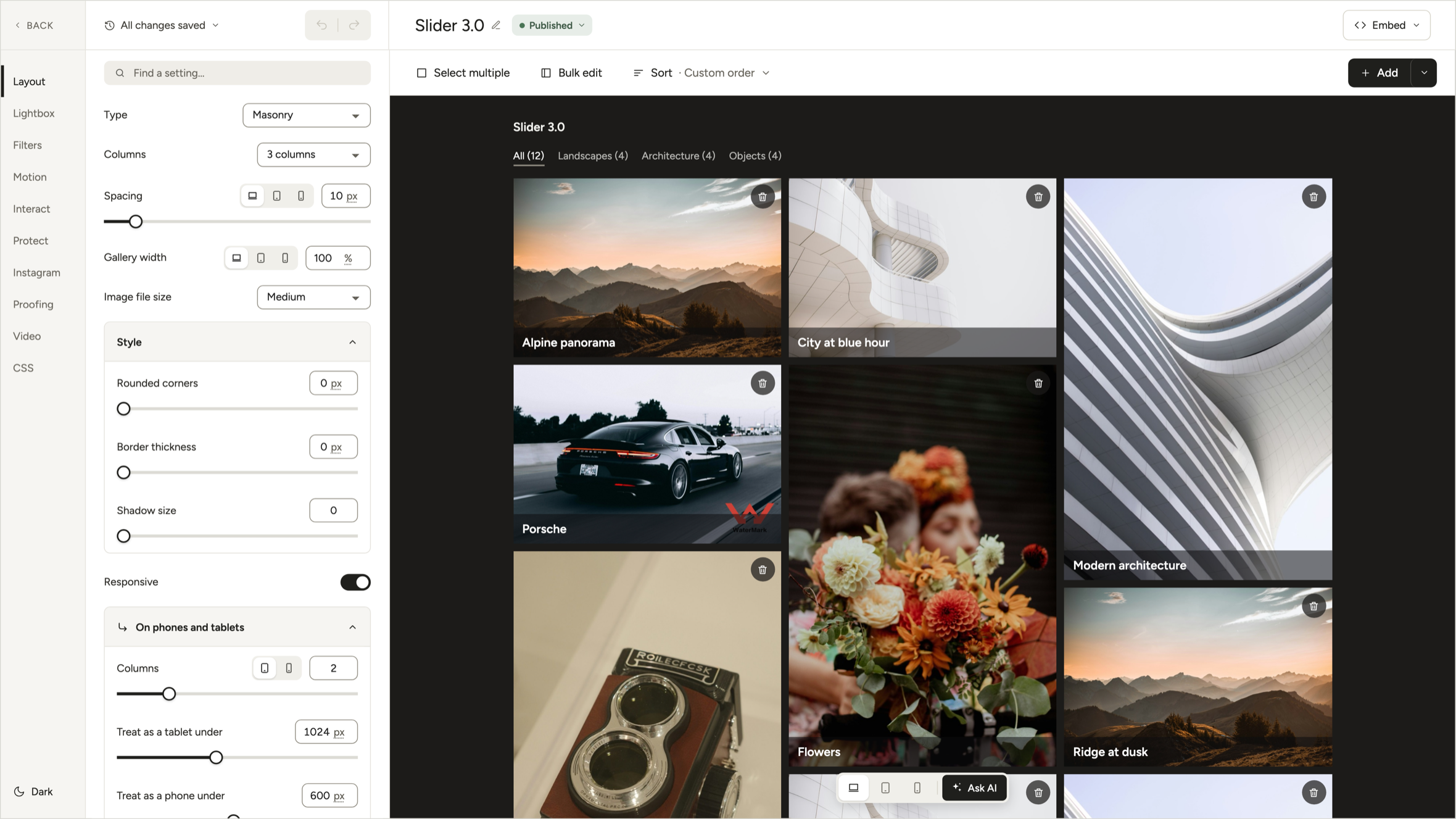
The menu on the left has ten items:
- Layout. How photos are placed and spaced.
- Lightbox. The big view after a click.
- Filters. Show only some photos.
- Motion. What photos do when you hover over them.
- Interact. Downloads, comments, and sharing.
- Protect. Passwords, watermarks, and ways to stop copying.
- Instagram. Keep a gallery in sync with your Instagram.
- Proofing. Let clients pick the photos they want.
- Video. How videos play.
- CSS. Your own styles, if you need them.
Do not know where a setting lives? Type it in Find a setting, at the top. Type water and it shows Watermark, under Protect. Click it and you are there.
Inside each part, the common settings show first. The rest wait in groups you open when you need them, like Style or Captions. That keeps the panel short.
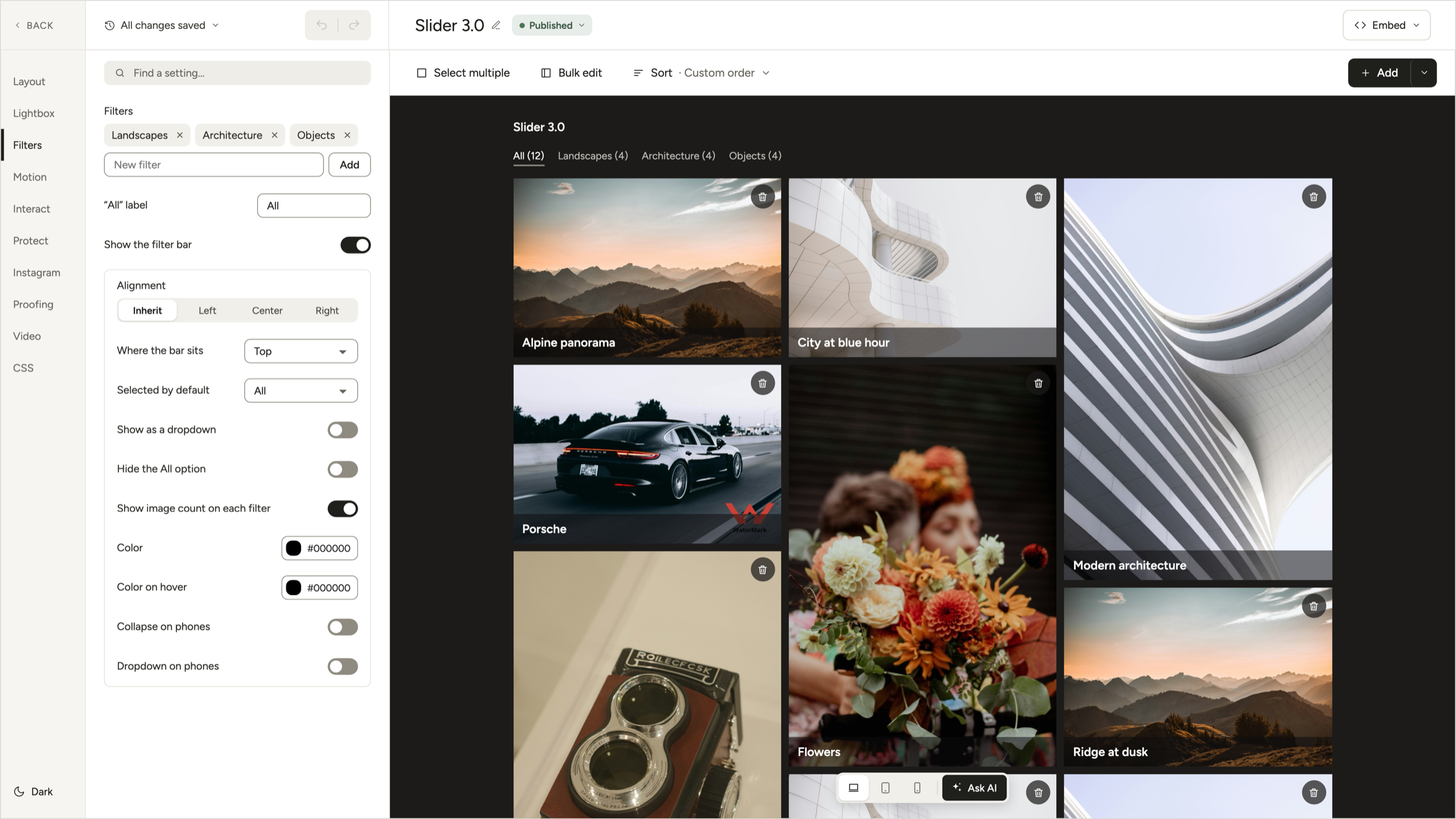
There is no Update button. Every change saves on its own, and the top of the settings says All changes saved. Click it and you see your history in plain words, like Turned on Pagination. If you come back later and forget what you did, that list helps.
Undo and redo, at last
Every change is a step you can take back. Use the arrows at the top of the settings, or press Ctrl/Cmd+Z like everywhere else. In the history you can also jump back many steps at once, or all the way to Original settings.
This sounds basic, because it is. But the old editor saved to the database when you hit Update. To undo, you had to remember the old number yourself. You try a gap of 30. You do not like it. What was it before? 10? 12?
Now you just press Z.
This changes how you work. When mistakes are easy to undo, you try more things.
Edit a photo without a pop-up in the way
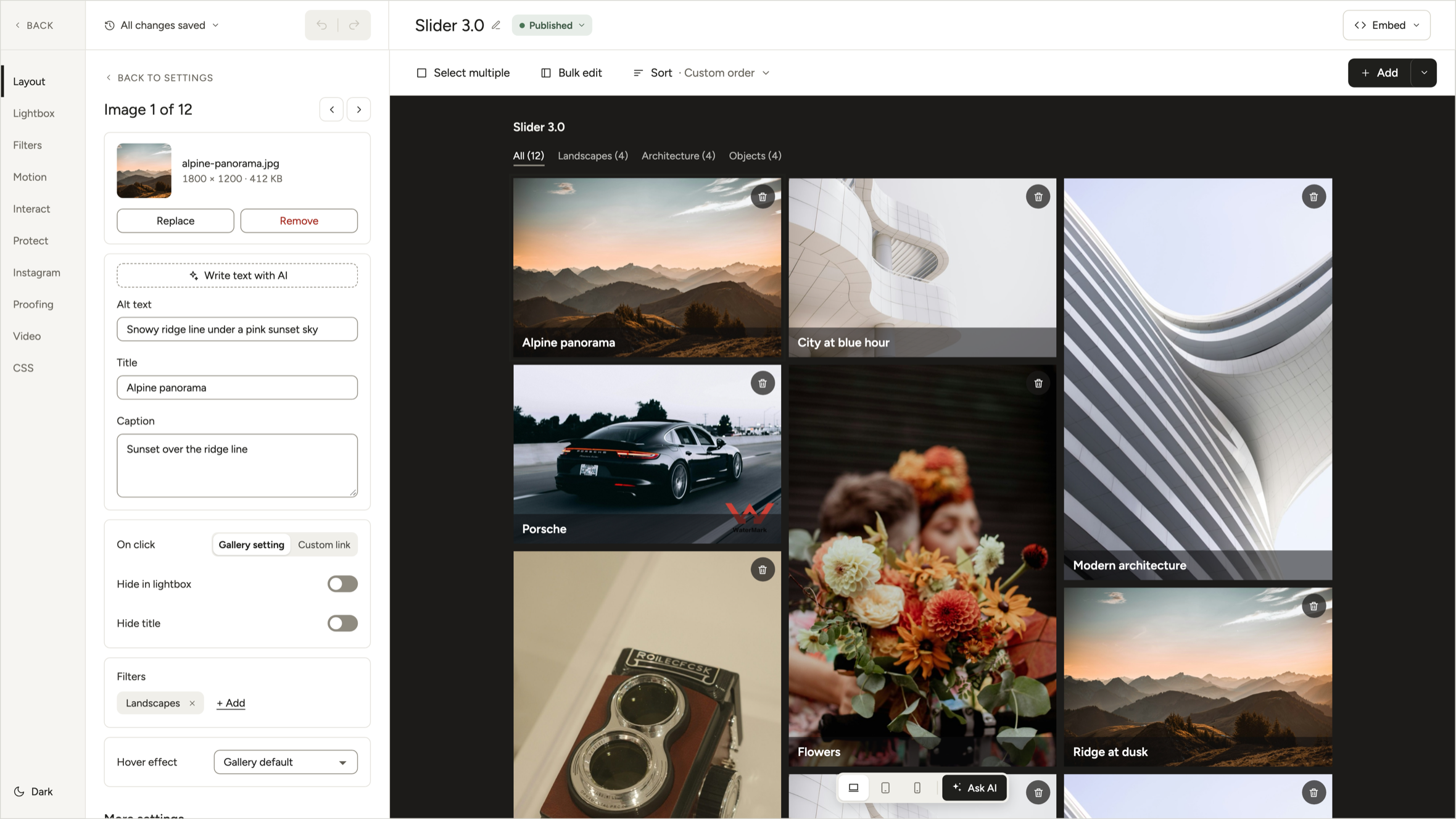
Click a photo. The sidebar now shows that photo.
You see the file name, its size, and how heavy the file is. You can replace it or remove it from the gallery. You can edit the alt text, title, and caption. Write text with AI fills in all three, and you can change anything it wrote. Below that you set what a click on the photo does, whether it shows in the lightbox, its filters, and its hover effect.
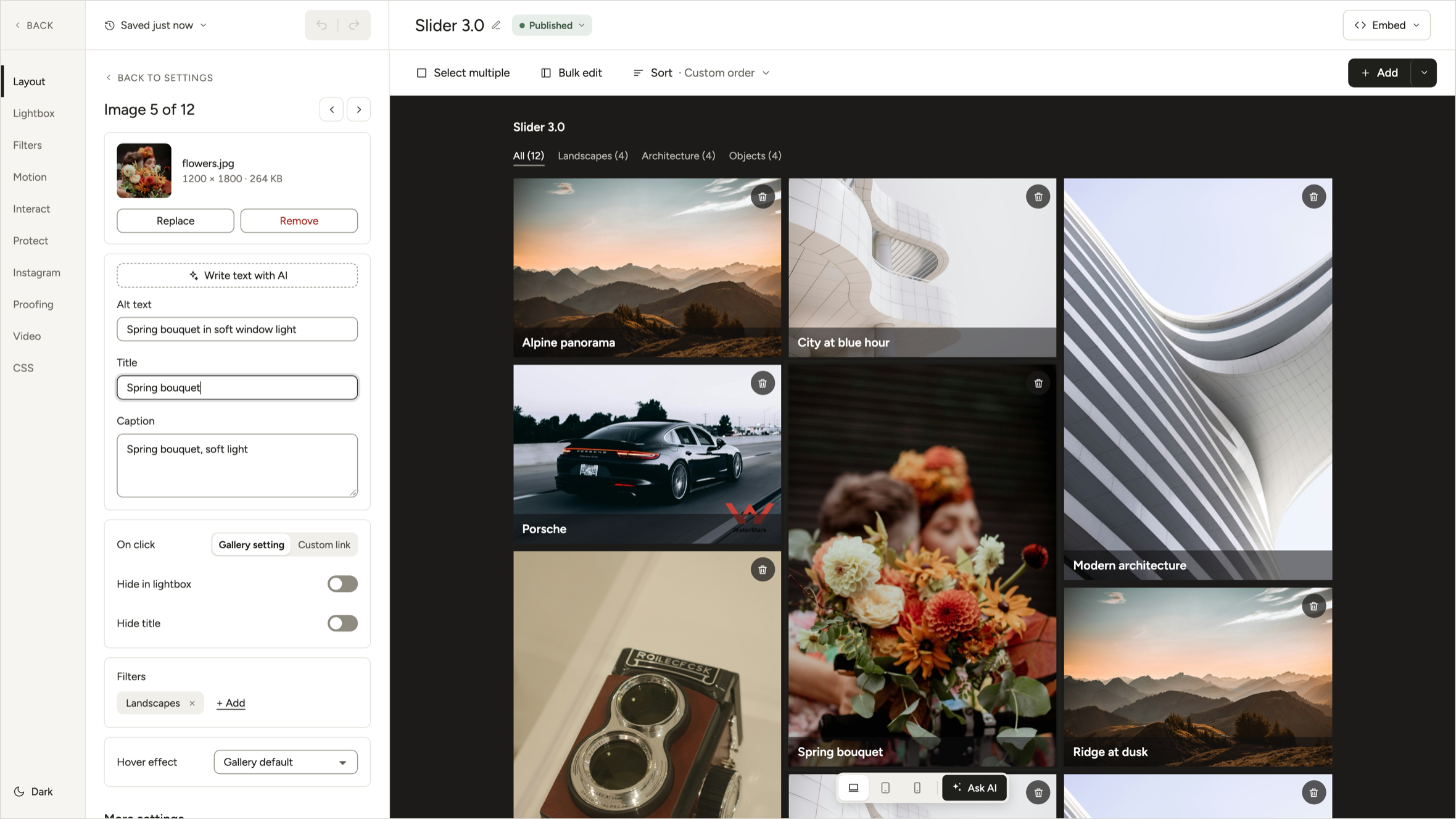
The gallery stays in view the whole time. Change a title and you see it on the photo. Click another photo, or use the arrows next to Image 1 of 12, and the sidebar follows.
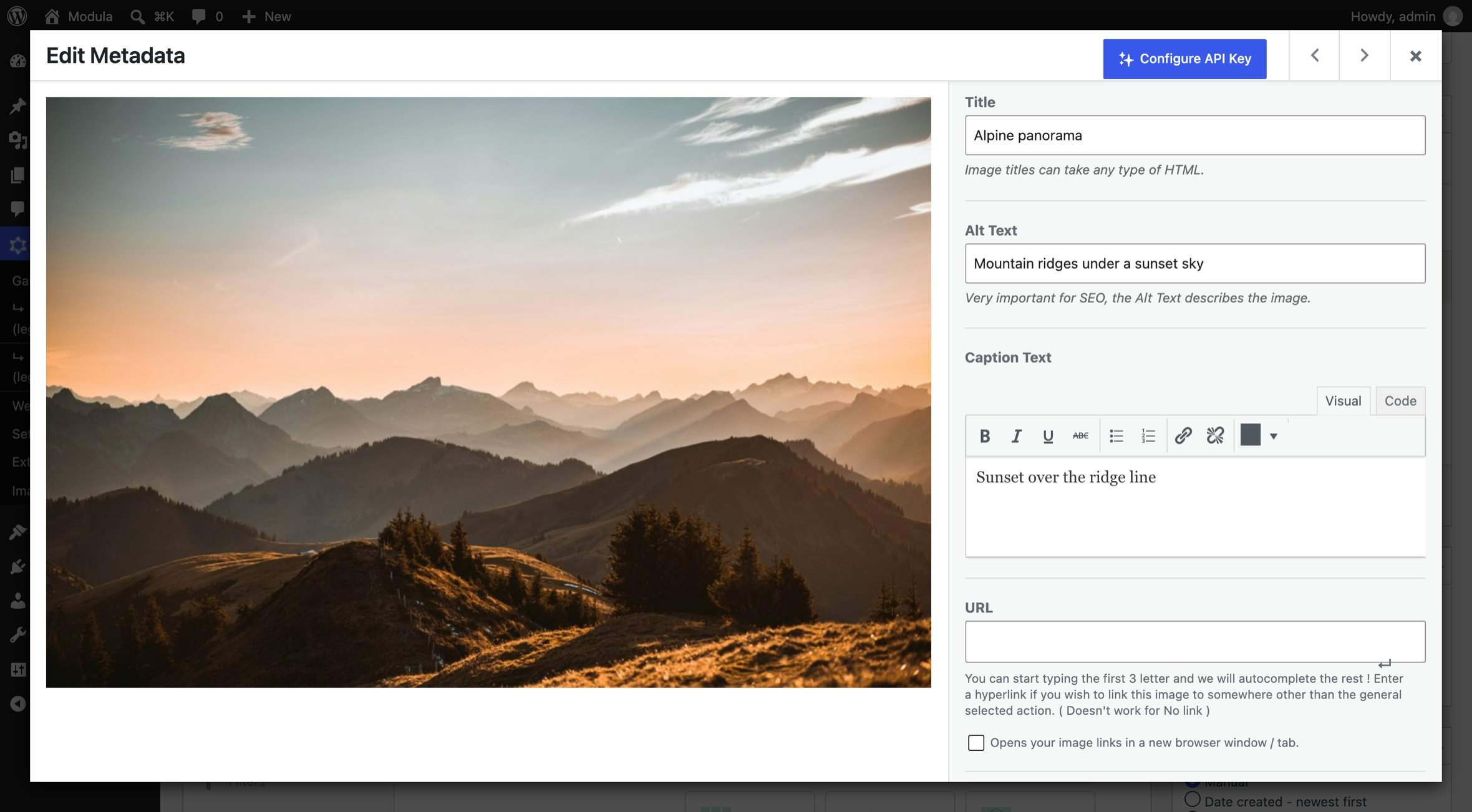
The old Edit Metadata pop-up did the job. But it covered the whole screen, had its own Save button, and put a big text toolbar on a one-line caption. It is gone now.
Pick photos, then do one thing to all of them
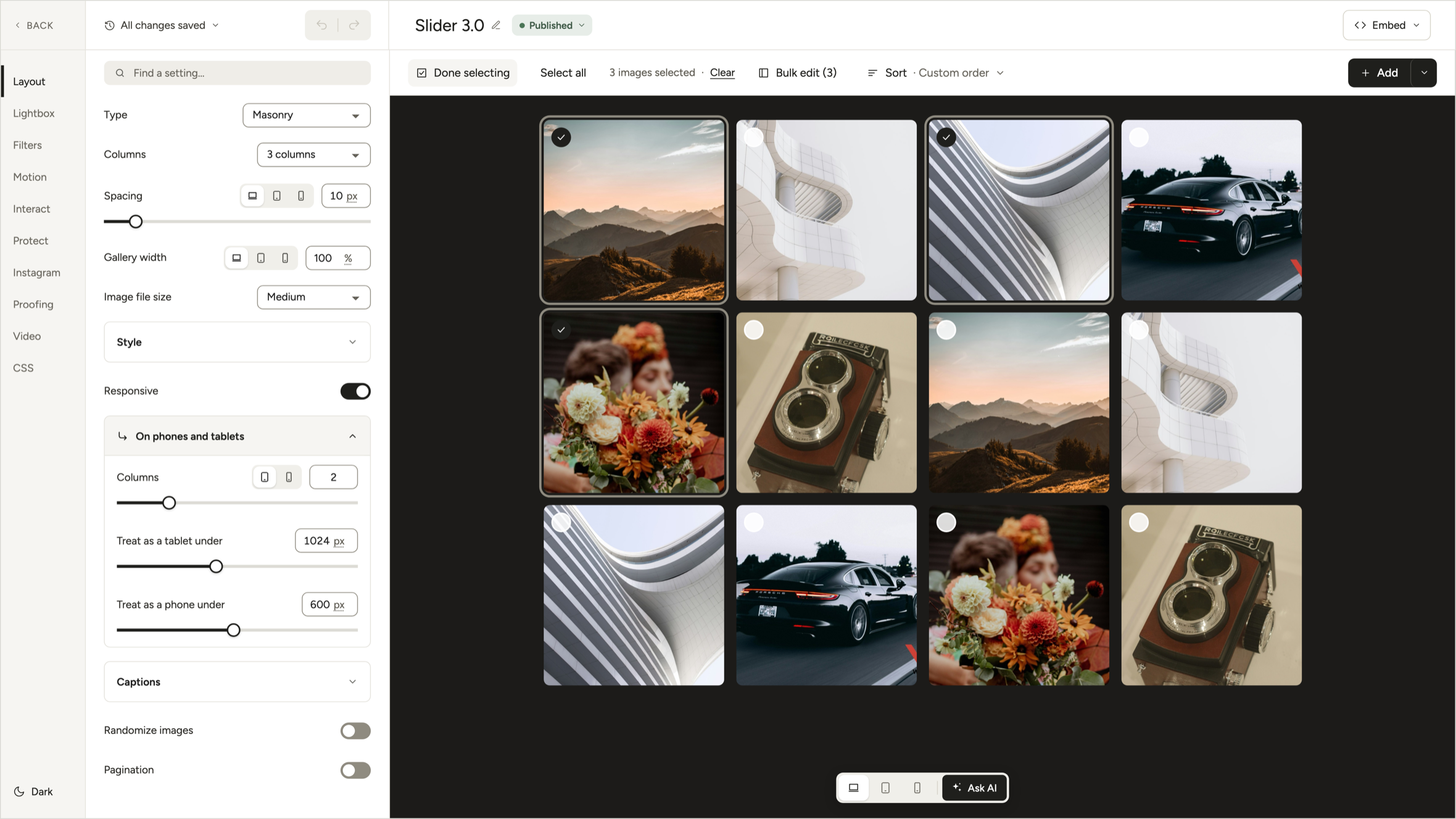
Click Select multiple. A small circle shows up on each photo. Tick a few, or click Select all.
The bar above the gallery says how many you picked, like 3 images selected. Click Bulk edit and they open in one table, one row per photo. There you can change:
- Title, alt text, and caption. One under the other, without opening each photo.
- Filters. Tag the photos for filtered galleries.
- Hover effect. Give a few photos a different one.
- Remove. Take photos out of the gallery.
Click Save all and close. Then click Done selecting, and the circles go away.
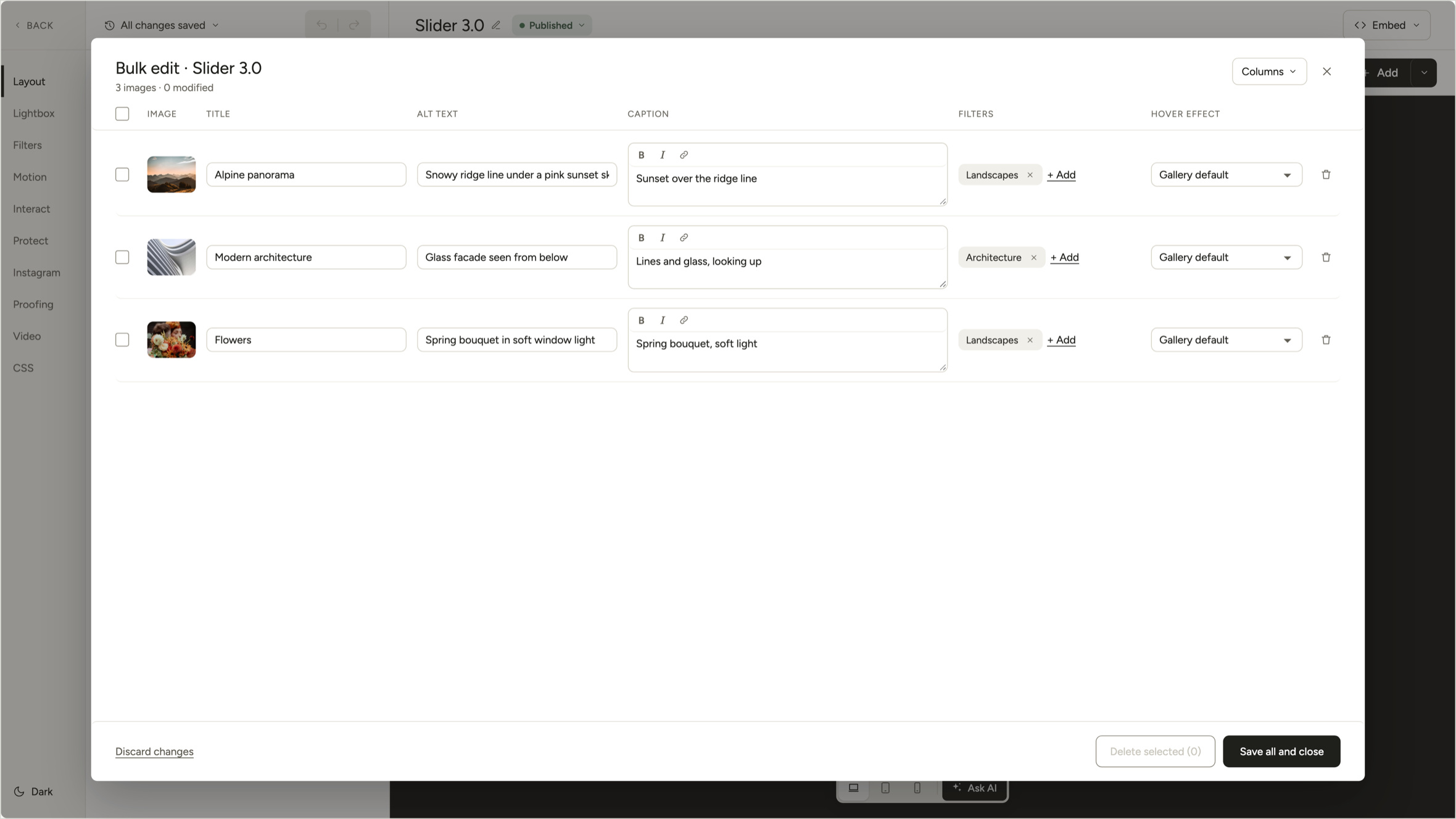
Picking photos does not take over the screen. The settings stay where they are. The gallery stays in view. You can leave any time. The table is the one thing that opens on top, because it needs the room. Nothing in it is saved until you click Save all and close. Discard changes puts everything back.
Watermarks are worth a note. Before, a watermark hit the whole gallery. If you wanted it on twelve of forty photos, you were stuck. Now it sits under Protect. You pick words or a logo, the size, the color, the place, and how see-through it is, and you see it on the photos in the preview. Then choose All images or Selected only, and click Watermark images. Keep originals without watermark is on, so Remove watermark gives you the clean photos back. People avoid watermarks because they fear they cannot undo them. Now they can.
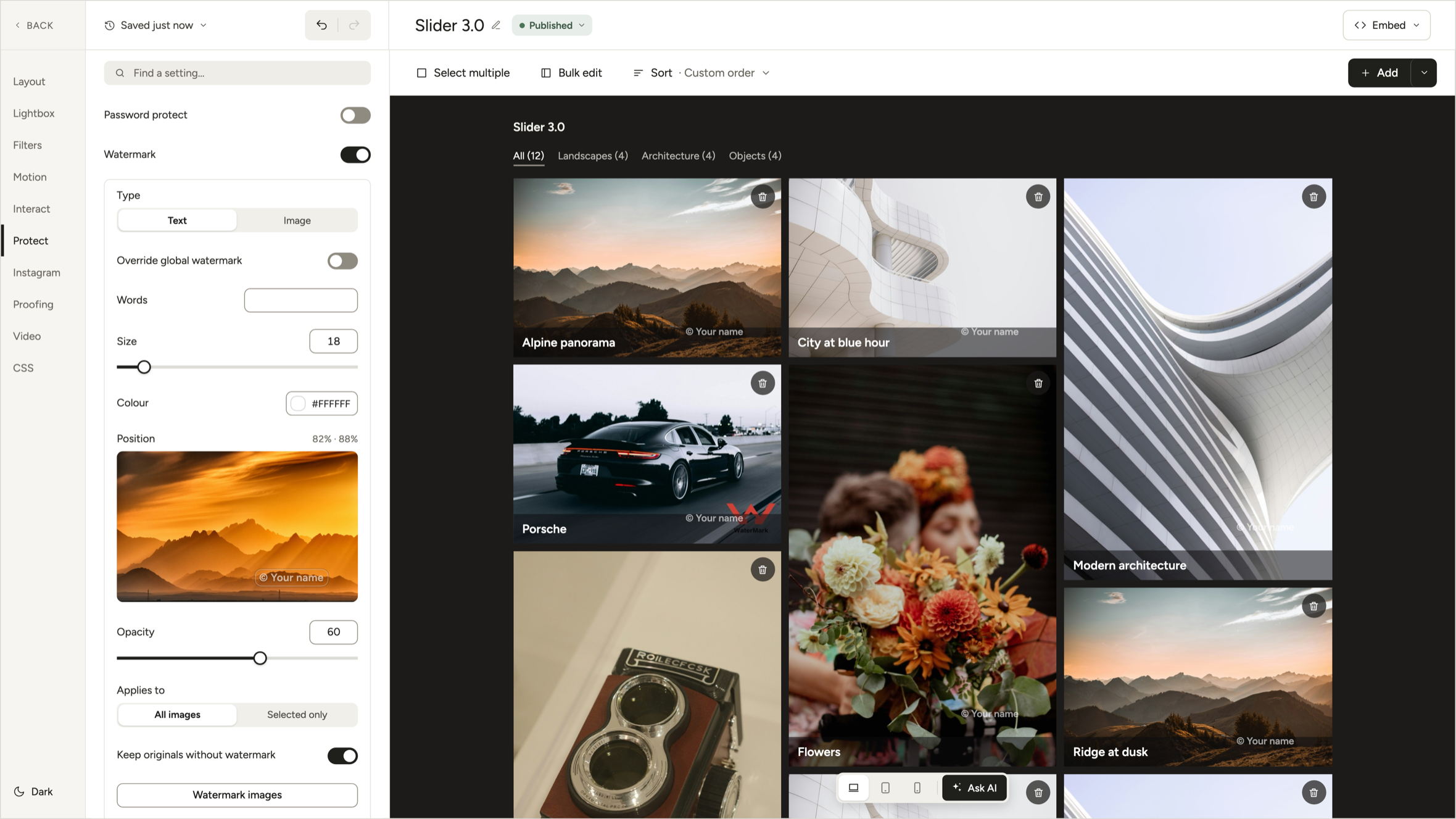
None of this is fancy. That is the point. Photo apps have worked this way since about 2003. Modula just did not, until now.
Sorting is now inside the editor
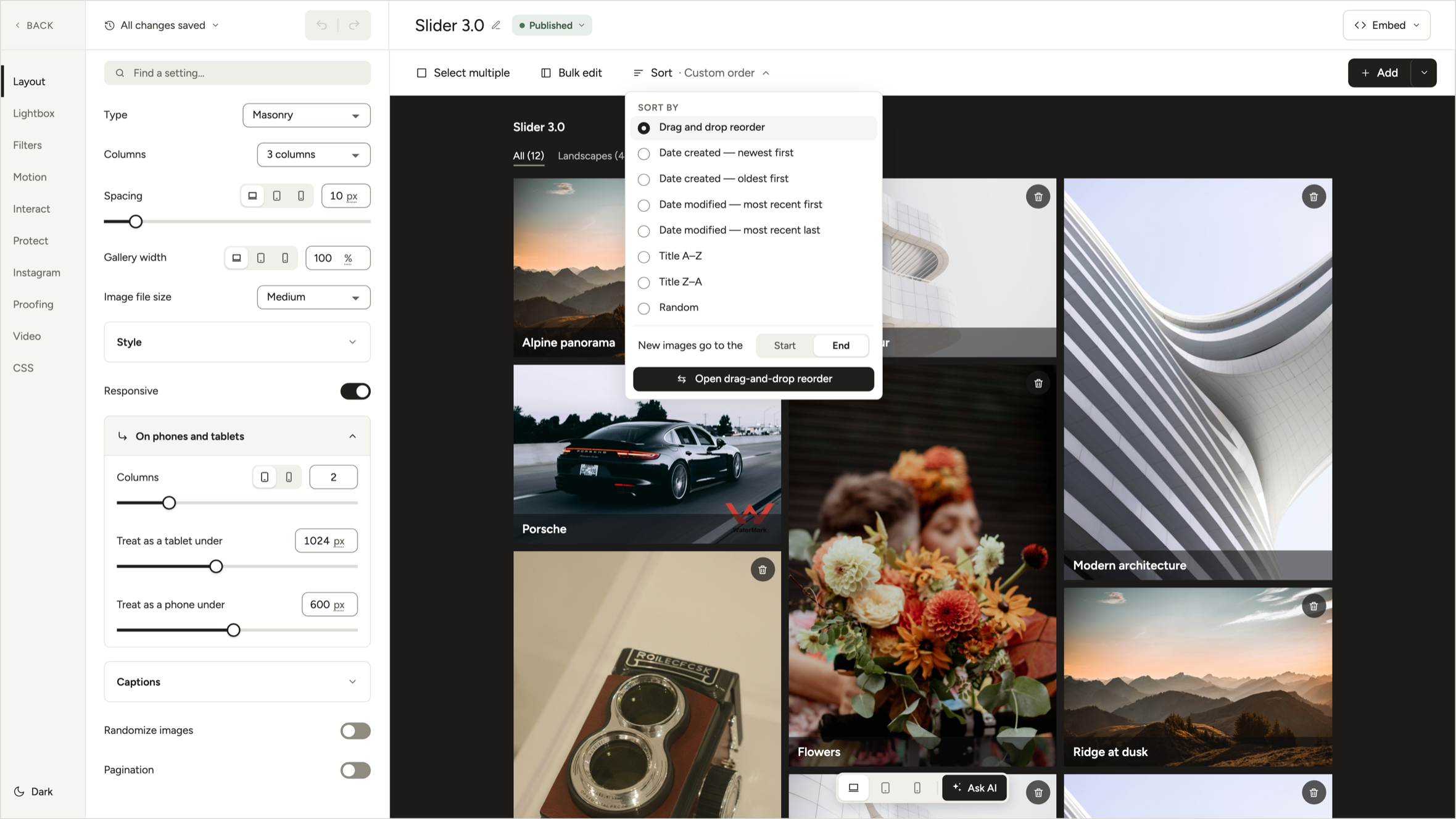
Sort sits in the top bar. It opens a panel with two questions.
First: how is the gallery ordered. You can drag and drop, sort by date made, by date changed, by title A to Z or Z to A, or at random. Second: where do new photos go, at the start or the end.
Drag and drop is the default. There is also a special view for reordering, for when you have forty photos and want the settings out of the way.
In the old editor, sorting sat in a box on the right. Mostly it was there to tell you sorting was a Pro feature. It is still a Pro feature. But now it is a normal part of the editor, in the same place as everything else. The upgrade note moved inside the panel.
The galleries list looks modern now
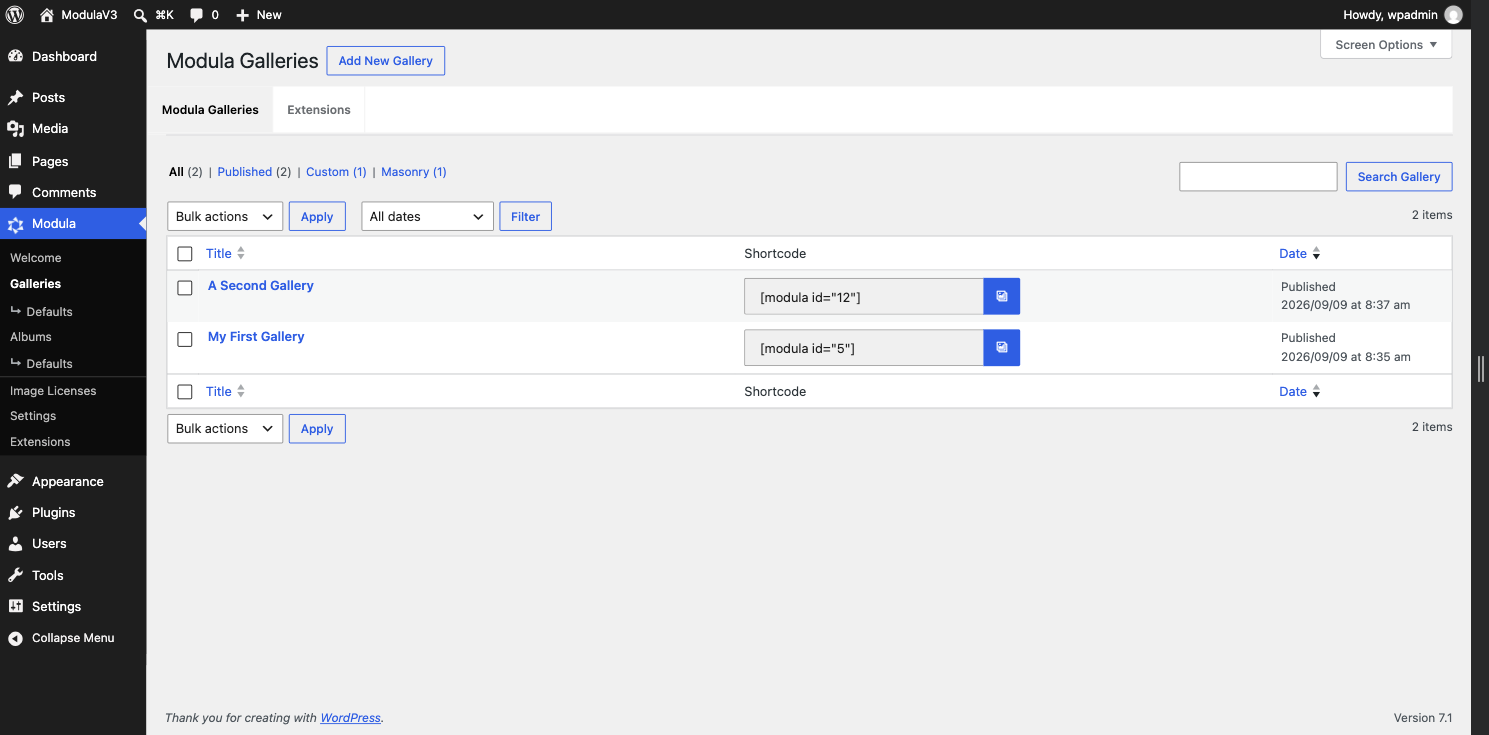
The old list was made in 2018 and looked like it. The new one has:
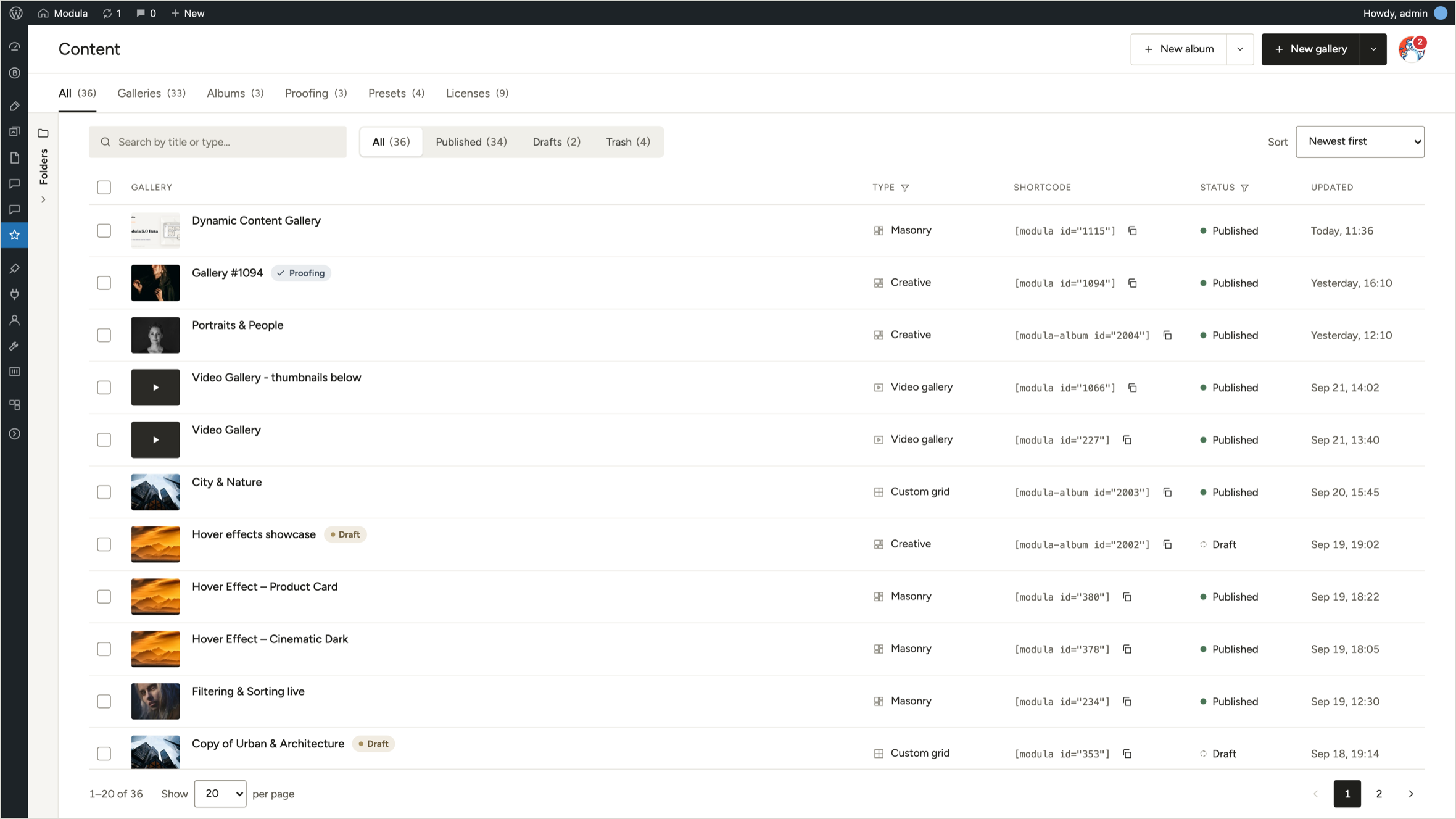
- Everything in one list. Galleries, albums, proofing, presets, and licenses, each in its own tab.
- Photos. You know a gallery by its photos, not just its name.
- Status and last update in plain words. Today, 11:36 is easier than 2026/09/09 at 8:37 am.
- Copy shortcode in one click, right in the row.
- Search, a status filter, and sort. The things any modern list has.
- The gallery type in its own column, like Masonry or Custom grid. Click it to see only that type. So you do not open three galleries to find the right one.
Quick actions, without opening the gallery
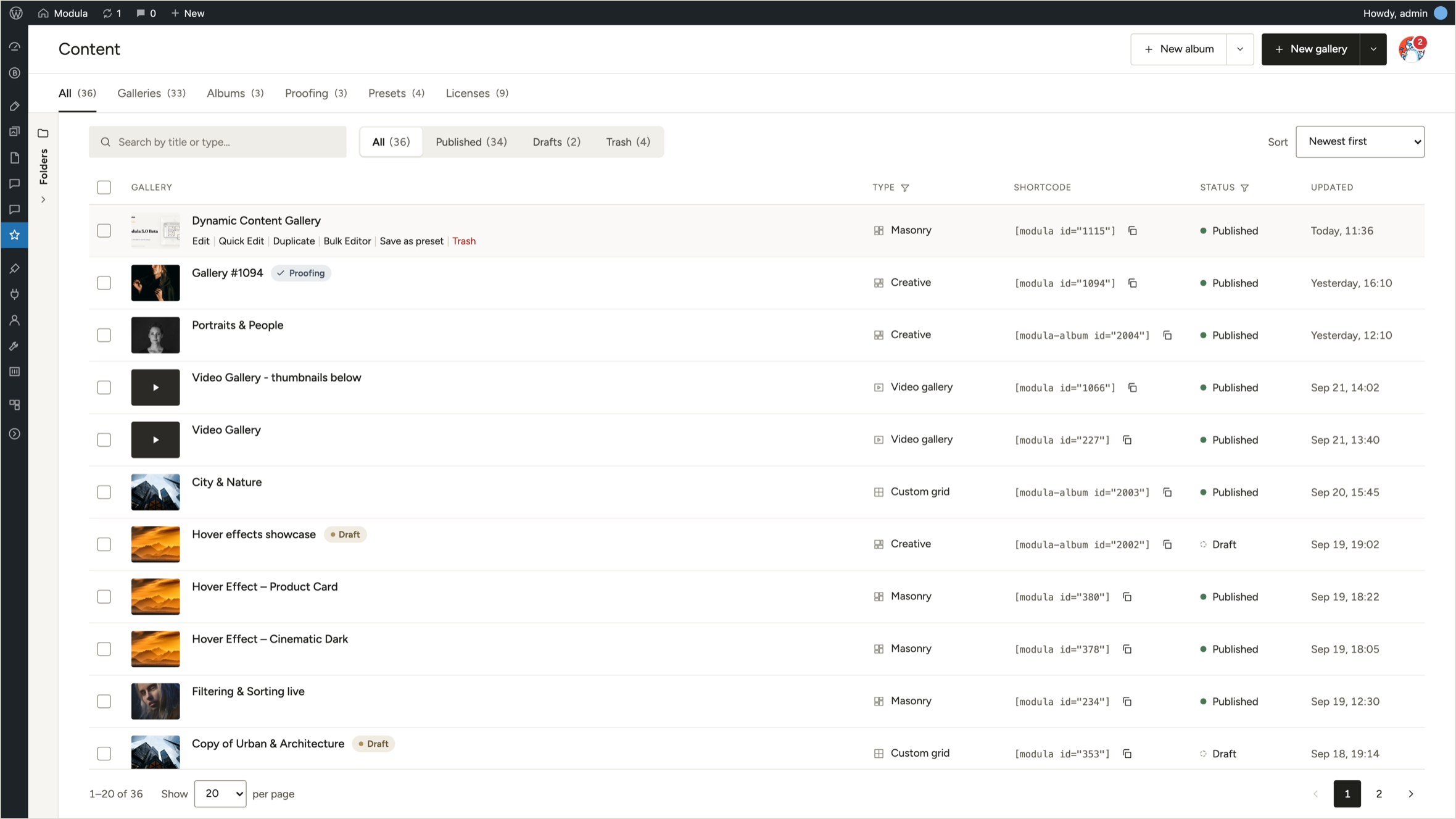
Hover over a row and its actions show up under the name:
- Edit. Photos, layout, all of it.
- Quick Edit. Change the name, status, or slug right in the list.
- Duplicate.
- Bulk Editor. The text of all its photos, in one table.
- Save as preset. Reuse its settings on new galleries.
- Trash.
Before, to copy a gallery and change its name you had to open it, find the copy button, wait for the page, open the copy, and wait again. Five clicks and two page loads for one task. Now it is two clicks and no page load.
Same with the shortcode. You should not have to open a gallery just to copy it. Now you do not.
Try it on a copy. Your gallery stays the same.
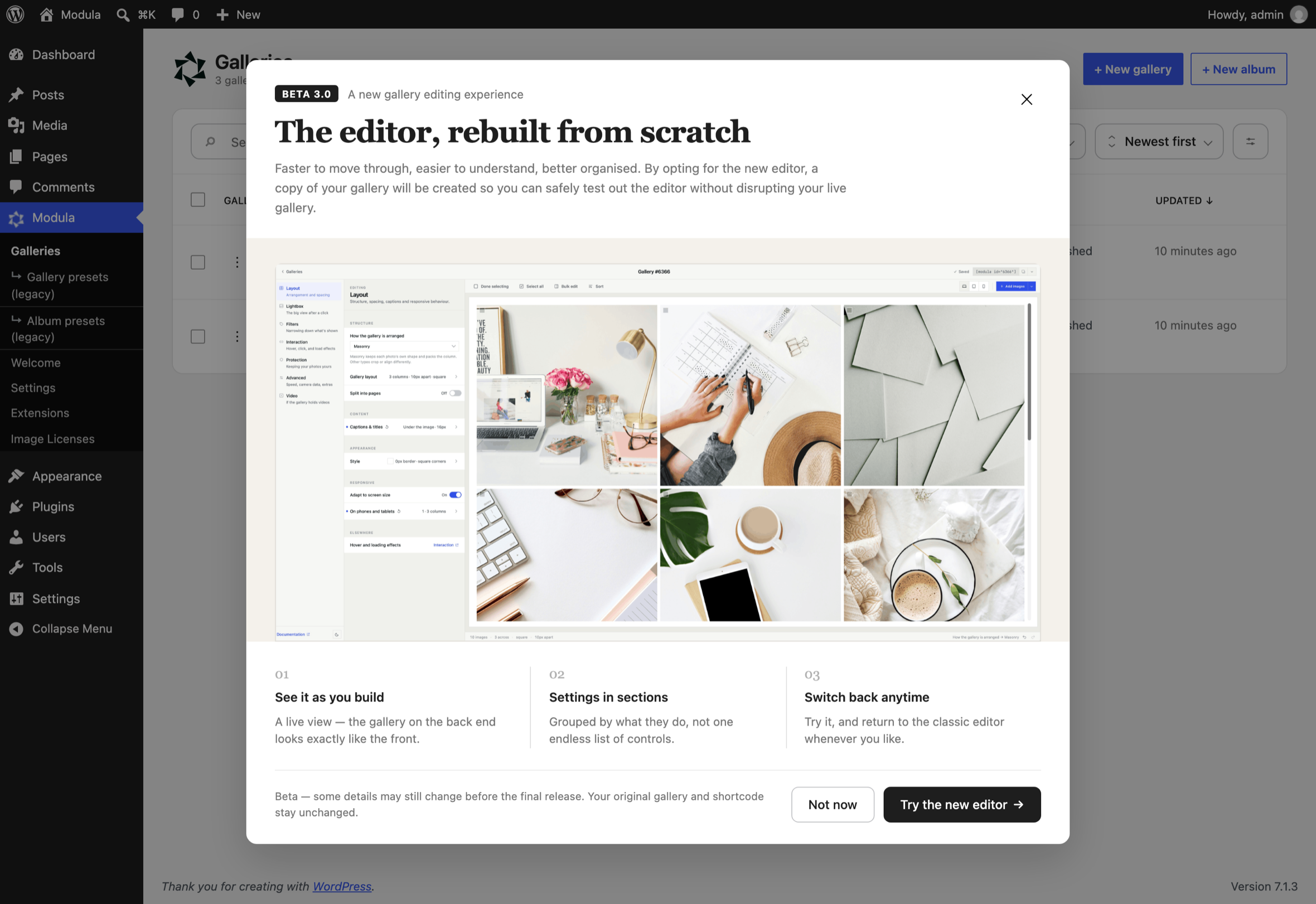
This is the part we spent the most time on. It decides whether people try the beta at all.
Open a gallery made in the old editor and you get two choices:
Try the new editor. This makes a copy and opens it in the new editor. The first gallery stays the same. The shortcode on your site still points to it. So you can play, break things, and delete the copy.
Convert to new editor. This uses the same gallery, same ID, same shortcode. Use it when you have made up your mind.
The old editor is still there too. If 3.0 does not fit how you work, go back. Nothing is changed either way.
We could have forced everyone into the new editor with an update. Some plugins do that. Then they spend a year on support tickets from people who did not want a new look on a Tuesday.
This is still a beta
Some things will change before 3.0 is done. Some parts are still rough. If you find a problem, tell us. Say what feels better, what is not clear, and what is broken.
Your feedback from the first beta is why this one looks the way it does. Look at the old post below and you can see what changed.
How to try it
Go to your account area and download the beta file. Install it over your current Modula, Lite or Pro. Then open a gallery and choose to try the new editor or to convert.
Use a test site first if you have one.
Start with these guides:
- How to enable the Modula 3.0 Beta
- The new editor view
- Gallery types available in Beta
- Hover effects in the 3.0 Beta
Modula v3 BETA – RC1
We’re opening access to the Modula 3.0 Beta – a completely new experience, re-built from the ground up.
This release introduces a new gallery editing experience, updated gallery settings, clearer navigation, and a more focused way to build and preview galleries inside WordPress.
If you’ve used Modula before, the biggest change is the editor itself – it’s faster to move through, easier to understand, and better organized.
What’s New in Modula 3.0 Beta
Modula 3.0 Beta is built around a redesigned and completely overhauled editor experience, powered by React (the same stuff that’s powering the Gutenberg editor / Full Site Editing).
Instead of working through the older settings flow, you now get a cleaner interface with grouped settings, better structure, and a streamlined editing workflow.
Some of the biggest changes in this Beta include:
- a new editor view for gallery settings (this time, wysiwyg – meaning, what you see on the backend is a real-time rendering of the gallery as it will be displayed on the frontend).
- clearer section-based navigation
- a lot more gallery types (more on this below)
- improved hover effects workflow (as well as the ability to create your own hover effect)
- a lot more space to build galleries (this has been on my list for a long, long time)
- and of course, dark mode support (follows OS/browser settings)
This is not just a visual refresh. It changes how the product works & feels, in an out.
A Better Way to Work With Modula
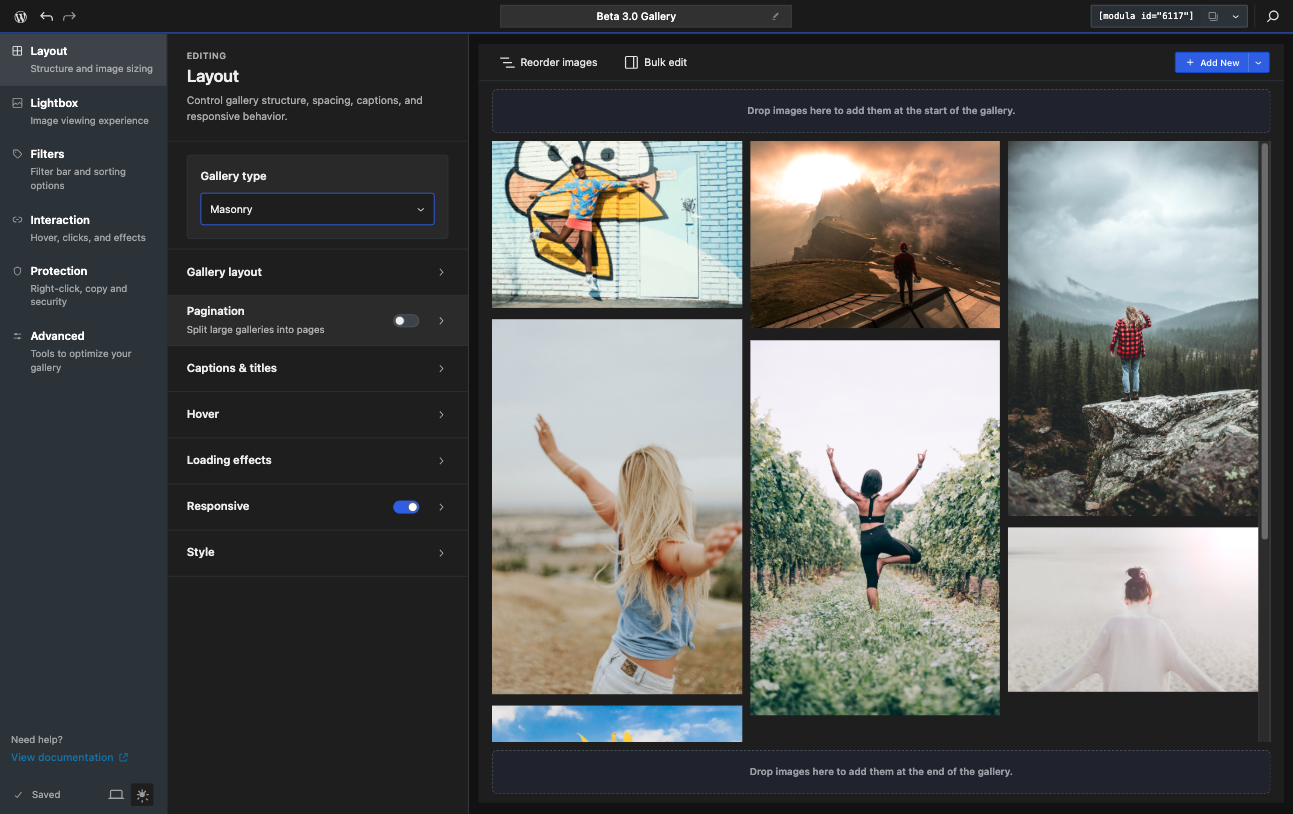
One of the main goals of Modula 3.0 is to make the gallery creation easier & faster. To that extent, we’ve addressed how we group settings – finding things is now a lot faster and easier.
Instead of digging through a long list of controls, you can move through the editor in a way that feels more predictable. This matters most when you are working on larger galleries or testing different layouts, captions, hover states, lightbox behavior, and presentation options – you know, the kind of workflow that fits photographers, real-estate agencies, hobbyists and anything in between.
More Gallery Types to choose from
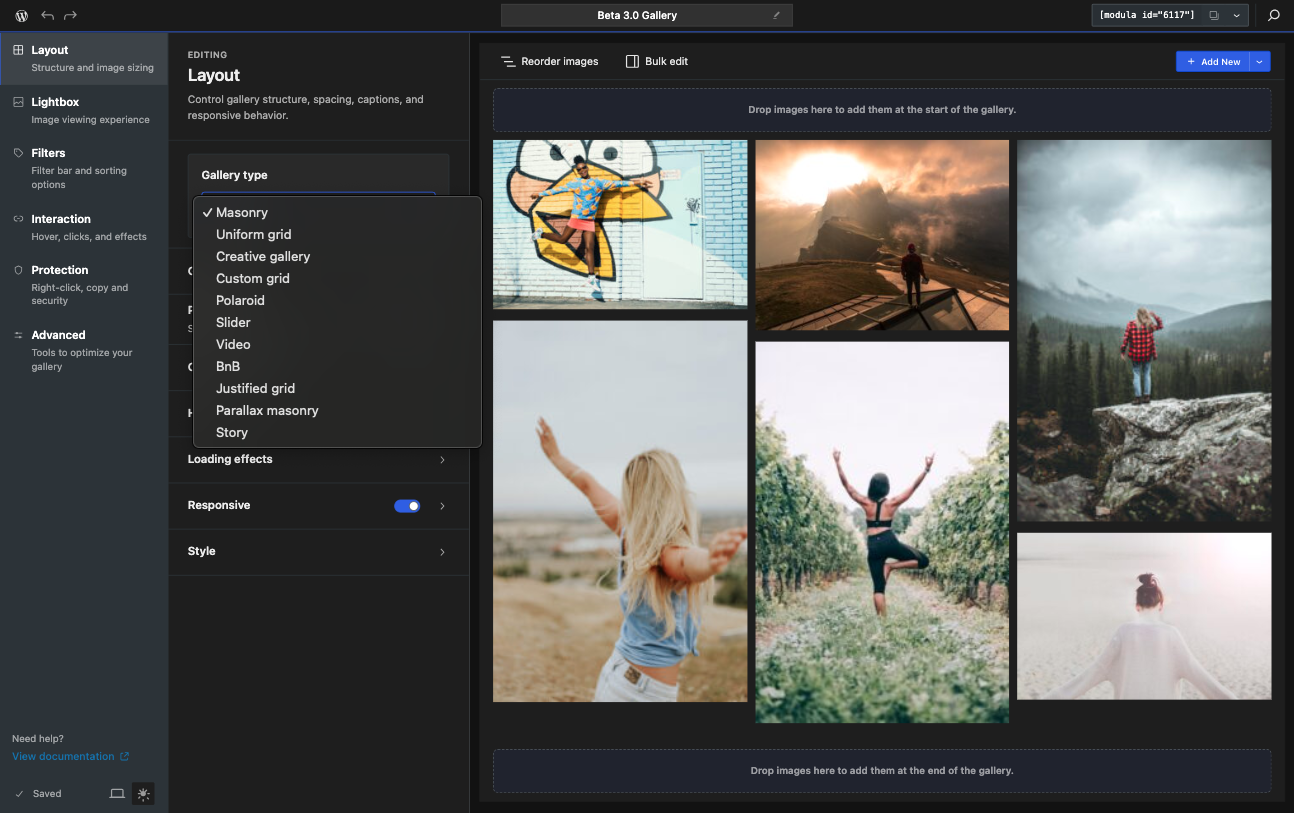
Another important part of the Beta is the updated gallery type experience.
Not just the increased number of gallery types, the selected gallery type now has a clearer relationship with the settings you see in the editor. That means the interface does a better job of showing relevant options and hiding settings that do not apply to the current layout.
Some of the new gallery types you can create with Modula are:
- Uniform grid: where all images are the same size (usually, square – see docs and layout)
- Polaroid – this one kind of speaks for itself, but if you’re reminescing for the old-school Polaroid look, that’s now just 1-click away. (see docs and layout)
- Parallax Masonry – or as we call it – infinite scrolling galleries (this one’s a stunner on a homepage and great for portfolio websites) (see docs and layout)
- Story – by now everyone’s seen a short – on YouTube, TikTok, Instagram – and we’ve brough the same video format into Modula. (see docs and layout)
Hover Effects Are a Bigger Part of the Experience
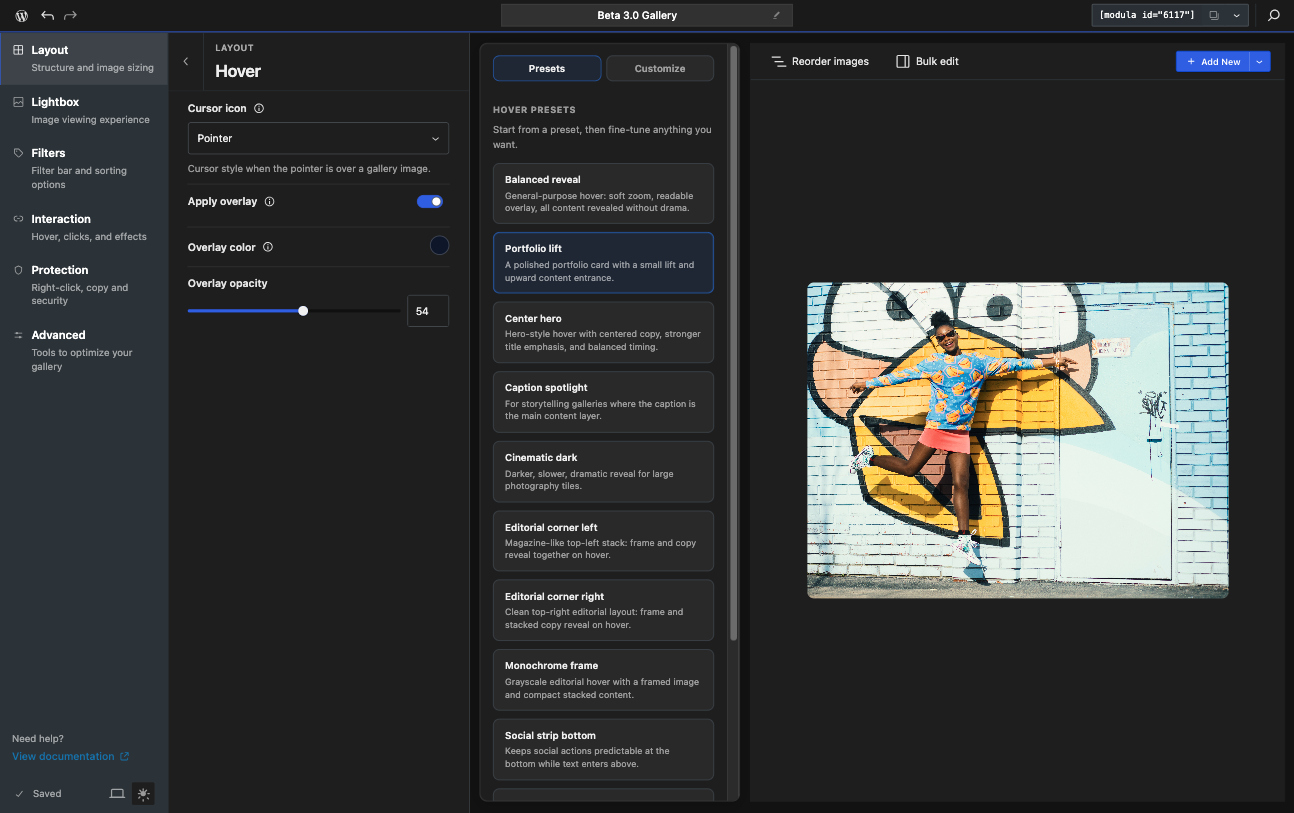
Hover Effects have also been completely re-designed.
We’ve added controls for each hover effect available so you can fine-tune them however you like. You can adjust colors, speeds, transition times and much more!
For many users, this will be one of the most noticeable upgrades in the new editor – and you can read more about hover effects in our docs here.
This Is a Beta Release
Because this is a Beta version, a few things are important to keep in mind:
- some details may still change before the final release
- some features may still have rough edges
- some settings may continue to evolve during the Beta period
That is exactly why we are opening it up now.
We want real feedback from users testing the new experience on real galleries.
How to Try Modula 3.0 Beta
Any user interested in this can download a separate Modula Beta archive from their account area on the Modula website.
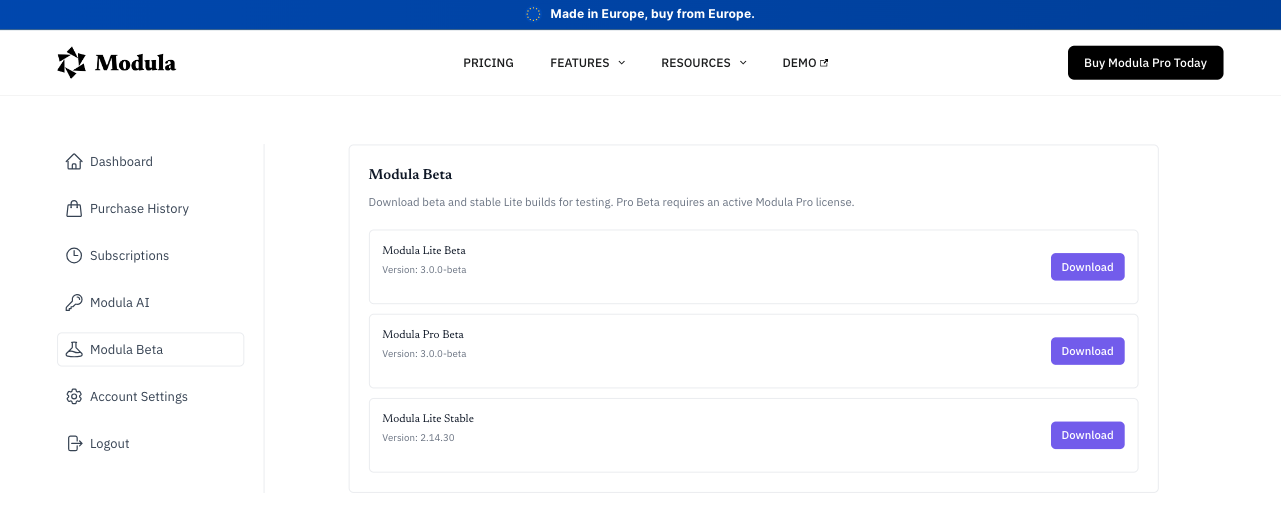
After that:
- update your current Modula version with the Beta build (both Lite and Pro)
- go to Modula > Settings
- make sure the Beta option is activated in the general plugin settings
- open a gallery and start testing the new editor
If possible, we recommend testing the Beta on a staging site first.
Start With These Articles
To make testing easier, we’ve also prepared a few help articles that cover the biggest changes in this release:
- how to enable the Modula 3.0 Beta version
- a general presentation of the new editor view
- gallery types available in Beta
- hover effects in the 3.0 Beta
These are the best place to start if you want a quick overview before diving in.
We’d Love Your Feedback
Modula 3.0 Beta is an important step forward, and this testing phase will help shape the final release.
If you try it, we’d love to hear what feels better, what feels unclear, and what still needs work.
That kind of feedback is exactly what helps us make the final version more solid.