Here’s the best file format for photos on your website: upload a high-quality sRGB JPEG (WebP works too), then serve visitors AVIF or WebP copies with a JPEG fallback. It’s really two decisions: the file you upload, and the file a visitor’s browser downloads.
Away from the web, the answer changes. Shoot RAW if you’ll edit, keep a full-size JPEG or TIFF for print, and archive the RAW files.
And JPEG XL? It finally shipped in Chrome 155 and Firefox 158 in October 2026. It’s a great format, but WordPress won’t accept it yet.
The right file format for photos, job by job
The best photo format depends on where the photo is going: RAW in the camera, a full-size JPEG or TIFF at the print lab, and AVIF or WebP in the browser. The best picture format for one job is often wrong for the next.
| Job | Use | Why | Avoid |
|---|---|---|---|
| Shooting | RAW (HEIC or JPEG only if you won’t edit) | Keeps everything the sensor recorded | JPEG-only if you plan heavy edits |
| Working files | PSD/PSB or 16-bit TIFF | Layers and full bit depth survive every save | Re-saving JPEGs while you edit |
| Archive | RAW or DNG (Adobe’s open RAW format), plus an edited TIFF or JPEG master | You can re-edit and still have a finished file | Keeping only web-size copies |
| Print lab | Full-size sRGB JPEG at top quality, or TIFF if the lab asks | Full detail, in a format labs accept | Web-size copies |
| Client delivery | JPEG | Opens on every phone and computer | RAW, HEIC |
| Website upload | High-quality sRGB JPEG, or WebP | WordPress makes its copies from it | PNG, TIFF or HEIC for photos |
| What visitors receive | AVIF or WebP, with a JPEG fallback | Smaller files, same visible quality; 96–97% of browsers show them (caniuse, October 2026) | The full-size original |
| Logos and graphics | SVG, PNG or lossless WebP | Sharp edges and transparency | JPEG (fuzzy edges around text) |
| Motion | MP4 or WebM | Made for motion | GIF, unless a platform requires it |
Print and delivery have their own guides: high resolution vs web size covers pixels for print, and how to deliver photos to clients covers the hand-off. The rest of this guide is about the web.
What makes one photo format better than another
The highest quality photo format is RAW, followed by lossless formats like 16-bit TIFF and PNG. They don’t throw data away. That’s exactly why they’re wrong for a website: visitors can’t see the extra data, but they still have to download it.
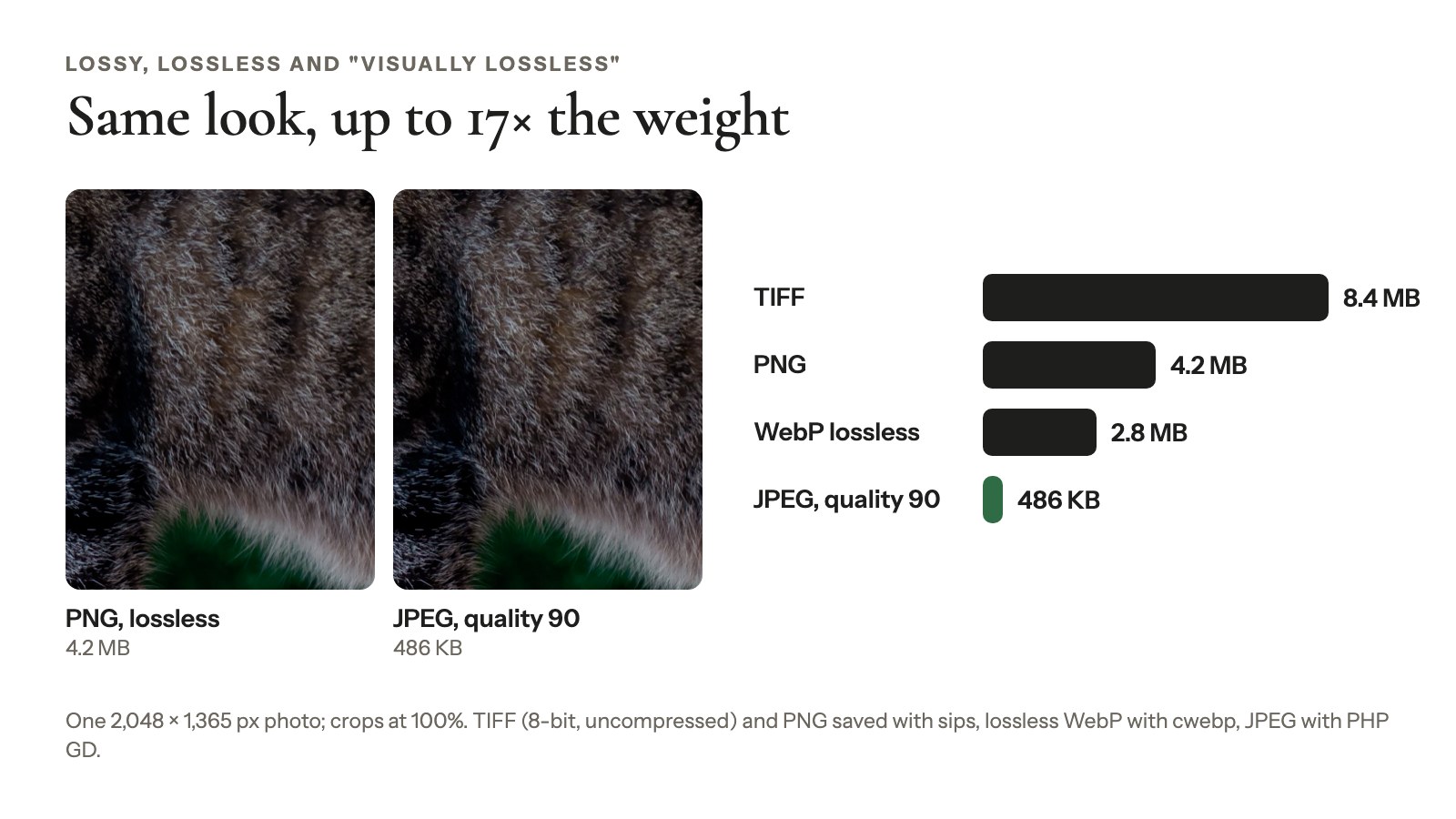
Three things decide which format wins: how it compresses, how much color it holds, and what happens to its color profile.
Lossy, lossless and “visually lossless”
Lossless formats (PNG, TIFF, lossless WebP) keep every pixel exactly. The files are big.
Lossy formats (JPEG, lossy WebP, AVIF) throw away detail you’re unlikely to notice. At a high quality setting the result is visually lossless: at normal viewing size, you can’t tell it from the original.
One catch: JPEG loses a little more each time you re-save it (ScanTips shows this at length). Always export from your edited master, never from last year’s JPEG.
Bit depth and HDR
JPEG and lossy WebP store 8 bits per color channel. Lossy WebP also stores color at a lower resolution than brightness, called 4:2:0 (Google’s WebP FAQ). You won’t see it in most photos.
AVIF goes up to 10 and 12 bits, and JPEG XL supports high bit depth and HDR (high dynamic range). More bits mean smoother gradients in skies and studio backdrops.
Unless you’re deliberately publishing HDR (Greg Benz’s guide covers gain maps), an 8-bit sRGB export is the safe default.
Color profiles: export in sRGB
Export web photos in sRGB, the standard color space of the web, and your server’s handling of color profiles stops mattering.
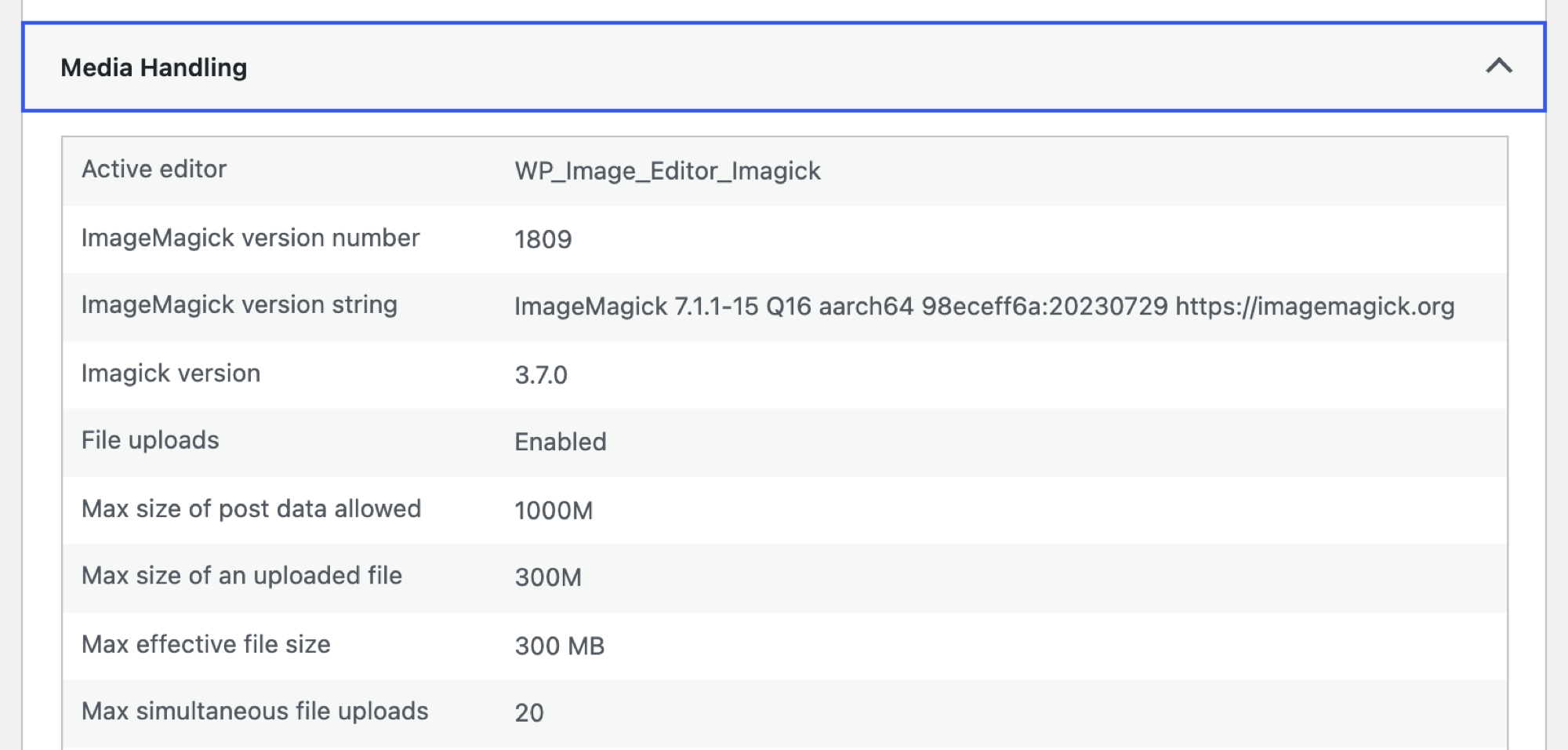
WordPress resizes every upload with one of two image libraries. Imagick keeps ICC color profiles when it strips metadata from the copies. GD doesn’t: WordPress 7.1’s own code says “GD always strips profiles by default.”
So on a GD host, a photo exported in Display P3 or Adobe RGB can look dull in the resized copies while the original looks right. Washed-out copies? Suspect a lost profile first.
To see which library your server uses, go to Tools → Site Health → Info and open Media Handling.
JPEG, WebP, AVIF and JPEG XL compared for web photos
The best photo file format for websites in 2026 is AVIF for delivery, with WebP close behind and JPEG as the fallback. MDN says to prefer WebP or AVIF, with a <picture> element (HTML that offers the browser several versions of one image) for a JPEG fallback.
| Format | Browser support | Size vs JPEG | Bit depth | WordPress upload | Main catch |
|---|---|---|---|---|---|
| JPEG | Every browser | Baseline | 8-bit | Yes | Biggest files of the four |
| WebP | 97% | 25–34% smaller (Google) | 8-bit, 4:2:0 when lossy | Yes (5.8+), if the server supports it | Max 16,383 × 16,383 px |
| AVIF | 96% | Up to 50% smaller (WordPress) | Up to 12-bit, HDR | Yes (6.5+), if the server supports it | Slow to encode, no progressive loading |
| JPEG XL | 43%, plus 17% partial | 5–10% smaller than AVIF (Cloudinary, 2023) | High bit depth, HDR | No | Edge support unconfirmed; not on Google Images’ list |
Browser support is the global share on caniuse (WebP, AVIF, JPEG XL), data updated October 22, 2026. The size figures come from different tests; the next section explains each.
JPEG: still the safest upload and the fallback
JPEG works in every browser and almost every app and print lab. It’s still the web’s most common image format: 32.4% of images on mobile pages in 2024, down from 40% in 2022 (Web Almanac 2024).
Its weakness is file size, which barely matters for an upload: WordPress can make smaller copies for you.
WebP: the dependable middle choice
WebP works in 97% of browsers: Chrome 32+, Edge 18+, Firefox 65+ and Safari 16+ (Safari 14 to 15.6 only on macOS 11 or later).
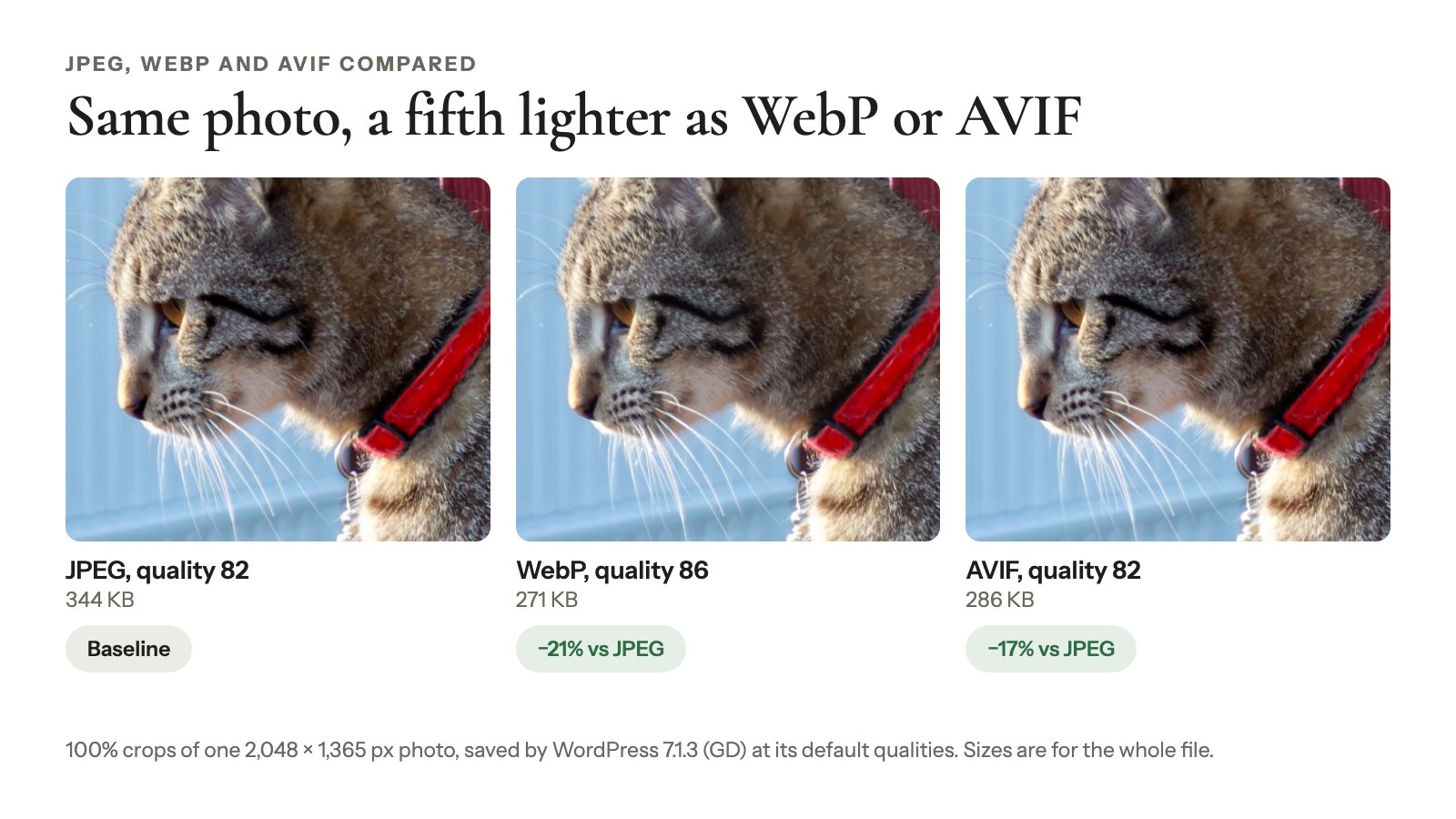
Google says lossy WebP is 25–34% smaller than JPEG at equal SSIM, a standard image-similarity score, in an older study. A 2023 Cloudinary comparison saw 25–35% only against unoptimized JPEGs at low quality. Against a well-optimized JPEG (made with Mozilla’s mozjpeg encoder), WebP gained just 3–5%.
So the savings are real, just smaller when your JPEGs are already well made.
AVIF: the smallest files for most photos
AVIF works in 96% of browsers: Chrome 85+, Firefox 93+, Safari 16.4+ (partial from 16.1) and Edge 121+. WordPress says AVIF files “can be up to 50% smaller than JPEGs while maintaining the same image quality”. Cloudinary’s 2023 test put AVIF about 10–15% below WebP.
Three downsides:
- It’s slow to encode. Cloudinary found it “an order of magnitude slower than WebP or mozjpeg.” Visitors don’t feel it; your server or CDN (content delivery network) does the work.
- It loads all at once. In 2020, Jake Archibald called AVIF loading “all-or-nothing”, while a progressive JPEG shows a rough version first.
- It can smooth fine texture. Archibald also noted that AVIF “introduces smoothing.”
If your style relies on film grain, fabric or foliage detail, test a few photos before switching.
JPEG XL: great for masters, not for your WordPress gallery yet
Chrome 155 (stable October 6, 2026) and Firefox 158 (October 13) now support JPEG XL. Safari 17+ supports it partially, without progressive decoding or animation. Edge is unclear: caniuse still lists no support, while MDN lists Edge 155 (both checked October 2026).
The Chrome team says “we recommend trying both AVIF and JPEG XL,” expecting JPEG XL to help most “for high-fidelity or lossless compression.” MDN (October 8, 2026) suggests you “consider JPEG XL for large, high-resolution raster images.”
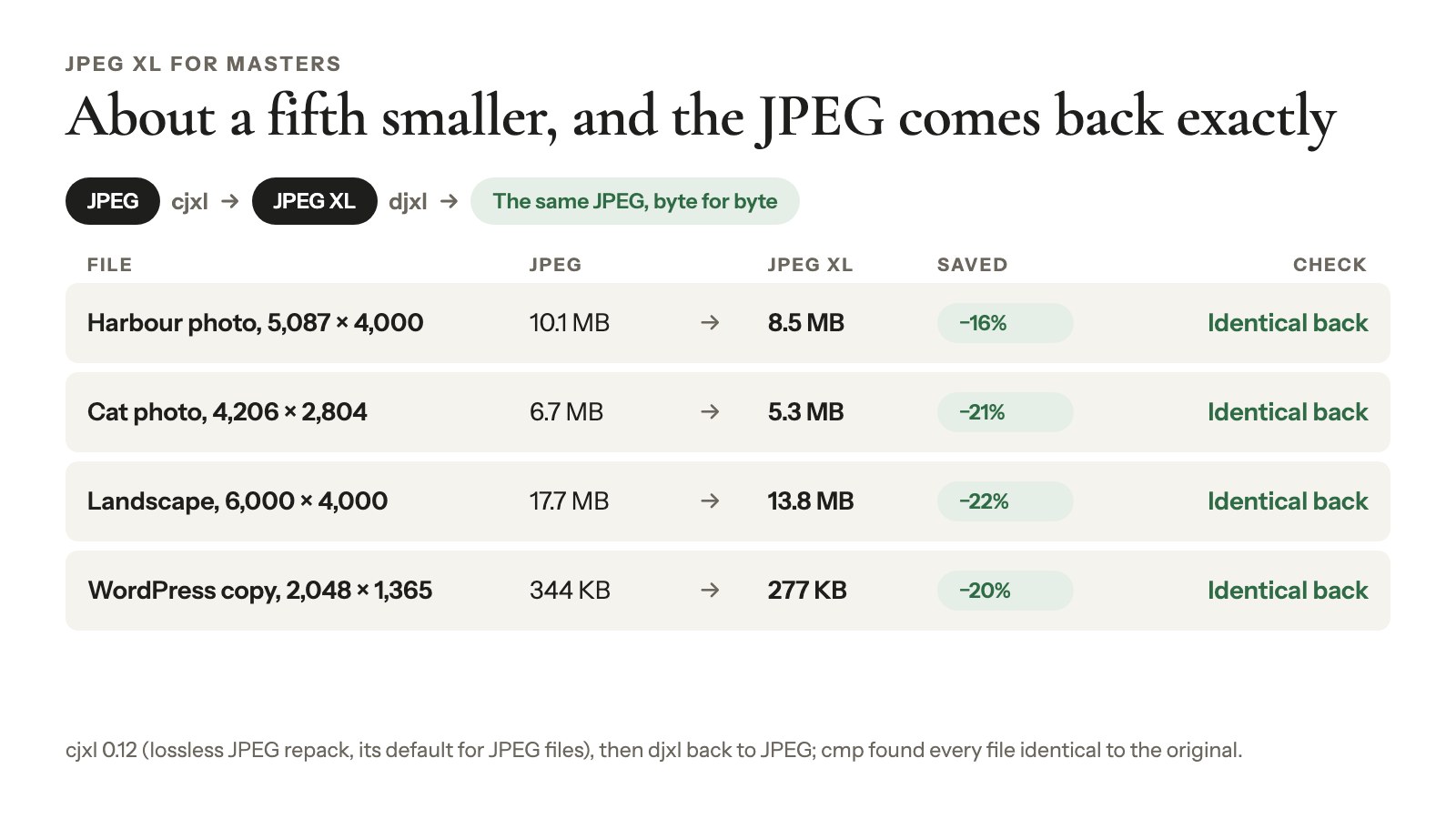
It can also repack an existing JPEG losslessly, about 20% smaller, and give back the original byte for byte (JPEG XL overview, 2025).
The catch for your website:
- WordPress 7.1 won’t accept .jxl uploads. It isn’t on core’s list of allowed file types.
- Google Images doesn’t list it. The supported formats are BMP, GIF, JPEG, PNG, WebP, SVG and AVIF. More in SEO for photographers.
For now, use it for masters, or for files you send to a retoucher or lab whose software reads it.
PNG, HEIC, TIFF and RAW: keep them out of web galleries
- PNG: great for logos, heavy for photos. On real sites, the median PNG uses 3.8 bits per pixel against 2.0 for JPEG (Web Almanac 2024).
- HEIC: the iPhone default, but only Safari 17+ shows it, about 17% of browsers. WordPress 6.7+ makes a JPEG copy on upload when the server can.
- TIFF: only Safari displays it (MDN).
- RAW: no browser shows it.
How much smaller are modern formats, really?
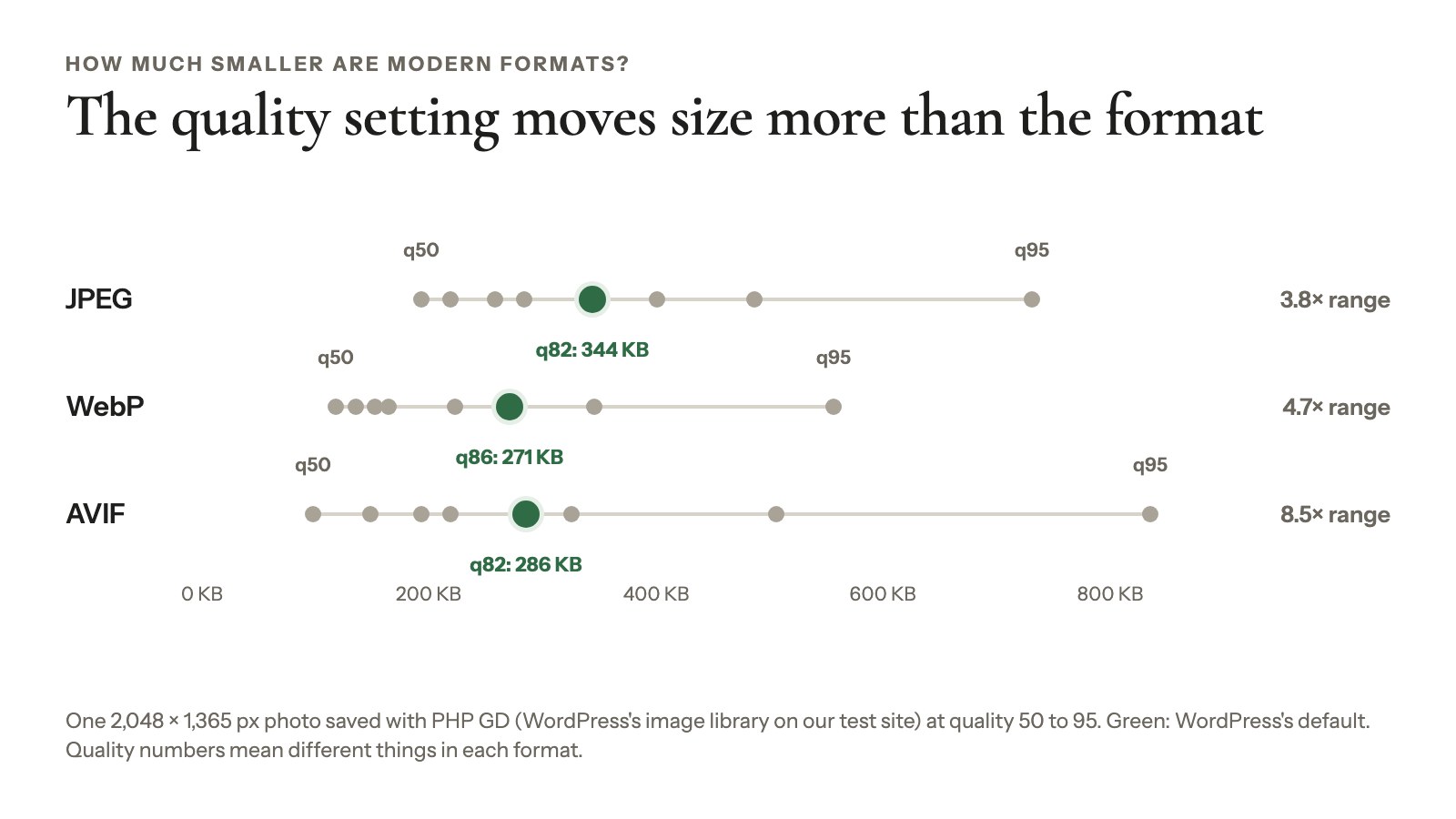
Modern formats save anywhere from a few percent to half or more over JPEG, depending on who tested, with which encoder, at what quality. That’s why the numbers online disagree.
| Test | Year | What was measured | Result | Caveat |
|---|---|---|---|---|
| Google’s WebP study | Older (page updated 2025) | Lossy WebP vs JPEG, equal SSIM | 25–34% smaller; lossless WebP 26% smaller than PNG | Google’s own format; an older study |
| WordPress 6.5 announcement | 2024 | AVIF vs JPEG | “Up to 50% smaller” | “Up to” is the best case |
| Cloudinary comparison | 2023 | SSIMULACRA 2, quality 30–95 | WebP 3–5% better than mozjpeg; AVIF 10–15% below WebP; JPEG XL 5–10% below AVIF | Over two years old |
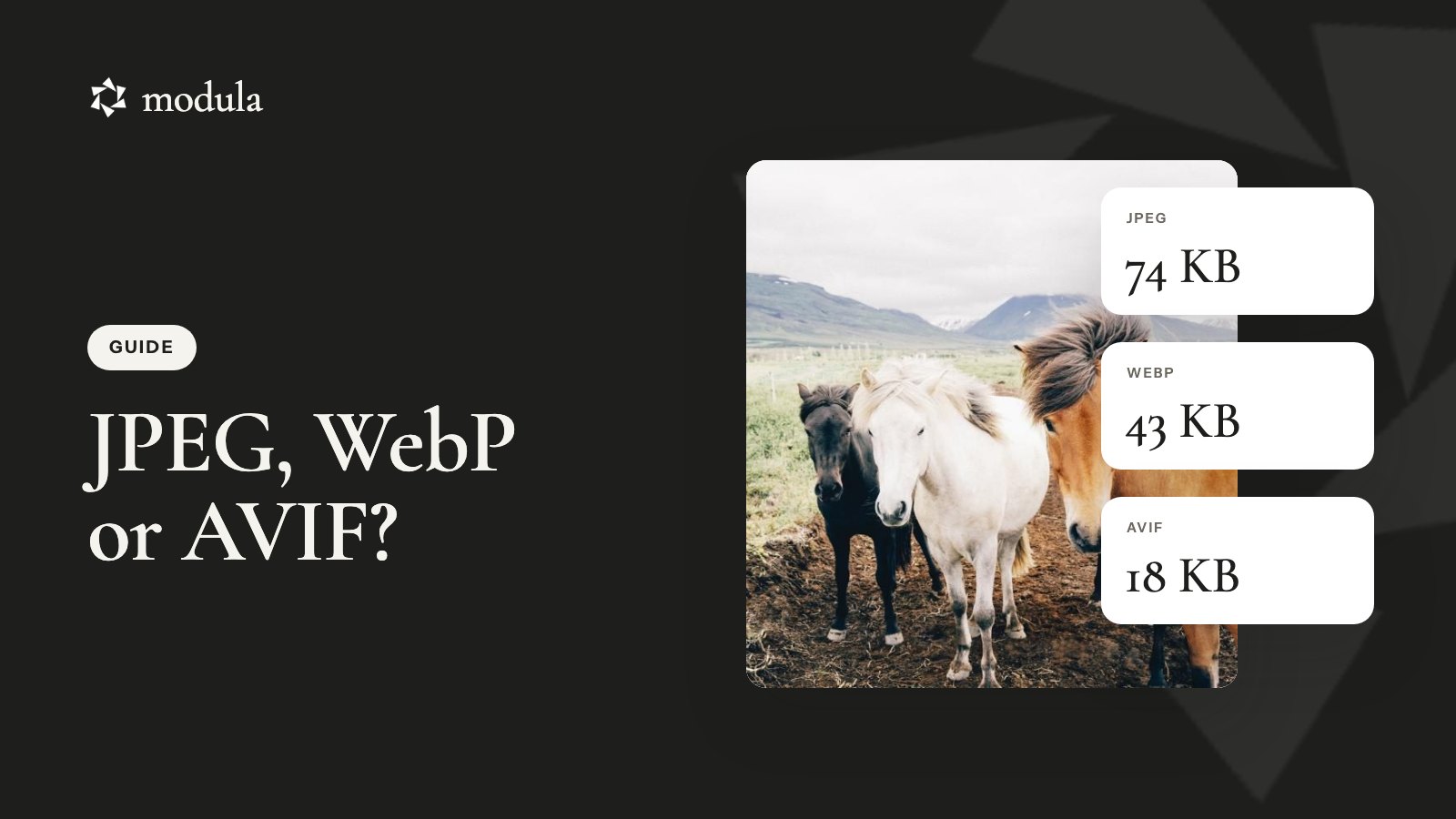
| Jake Archibald’s F1 photo | 2020 | One photo at “acceptable quality,” by eye | JPEG 74.4 kB, WebP 43 kB, AVIF 18.2 kB | One image, one person’s eye |
| Web Almanac | 2024 | Median bits per pixel on real sites | WebP 1.3, AVIF 1.4, JPEG 2.0, PNG 3.8 | Different photos, not like-for-like |
| Chrome team | 2026 | JPEG XL claim | “30-50% better compression than JPEG” | A browser maker’s claim |
What to take from these tests:
- Encoder and quality matter as much as format. A well-tuned JPEG closes most of the gap with WebP.
- Converting a JPEG adds loss. Re-encoding can’t bring detail back. Convert from originals when you can.
- Your photos are the real test. Compare a handful at 100% and check the sizes before converting everything.
What WordPress does with each format
Apart from HEIC, WordPress keeps the format you upload: a JPEG goes in, JPEG copies come out, and visitors get no AVIF or WebP unless you add a plugin, a filter or a CDN.
What you can upload
WordPress 7.1 accepts JPEG, PNG, GIF, BMP, TIFF, WebP, AVIF, ICO and HEIC/HEIF. JPEG XL and SVG aren’t on the list.
WebP (since 5.8) and AVIF (since 6.5) also need your server’s image library to support them. Media Handling in Site Health lists what yours can handle.
WordPress keeps your format and re-saves the copies
Every upload gets resized copies, re-encoded at quality 82 for JPEG and 86 for WebP. Export at quality 100 and the copies still come out at 82.
- HEIC is the one automatic conversion. Since WordPress 6.7, HEIC and HEIF uploads get a JPEG copy if the server’s Imagick supports HEIC. The original is kept.
- Big photos get a “-scaled” copy. Over 2,560 px, a smaller copy becomes the full size and the original stays on the server. See WordPress image sizes for dimensions.
- WebP by default never happened. It was planned for 6.1 and pulled in September 2022.
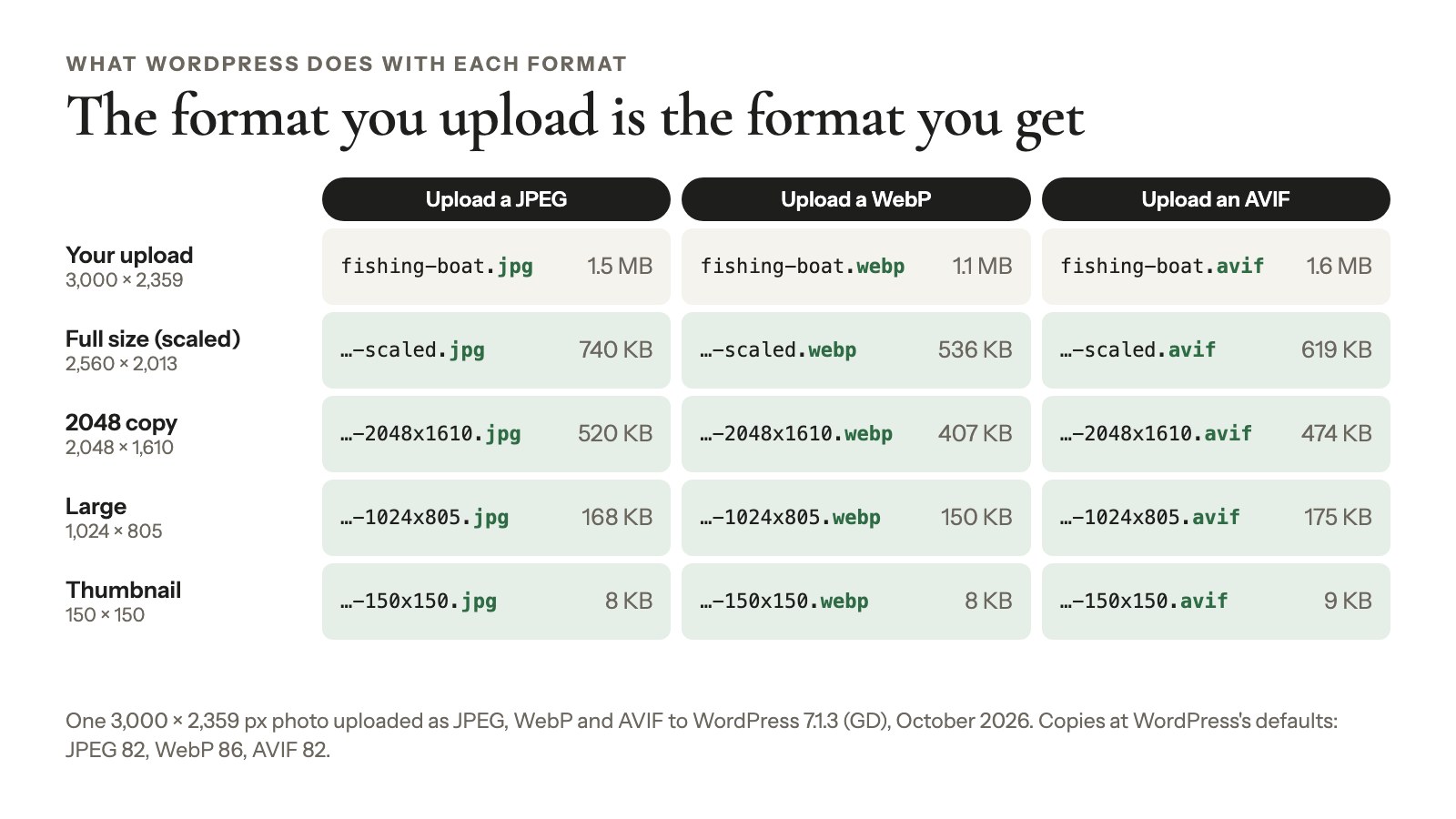
WordPress 7.1 processes uploads in the browser
WordPress 7.1 can resize uploads in the browser before they reach your server. It’s on by default in Chrome and Edge 137+ and Chrome for Android 146+, on HTTPS sites; Firefox and Safari fall back to the server.
The format rules don’t change: the browser obeys the same image_editor_output_format filter as the server. It also turns HEIC photos into JPEG right in the browser, where the computer has a HEIC codec.
Three ways to serve AVIF or WebP
- The Modern Image Formats plugin. From the WordPress Performance Team, with 100,000+ active installs (needs WordPress 6.9+). By default it makes AVIF copies if your server supports AVIF, WebP otherwise. In Settings → Media you’ll find Output fallback images for JPEG fallbacks and a
<picture>element option. Older images need regenerating. - The
image_editor_output_formatfilter. One snippet makes WordPress save its JPEG copies as AVIF (6.5 announcement). It makes no JPEG fallbacks:
add_filter( 'image_editor_output_format', function ( $formats ) {
    $formats['image/jpeg'] = 'image/avif';
    return $formats;
} );- An image optimization plugin or CDN that converts on the fly and sends each browser a format it accepts.
Whichever you pick, keep your original upload. It’s your master if you change formats again.
Photo formats in a Modula gallery
A Modula gallery shows the files in your Media Library; Modula doesn’t convert formats. We make Modula, so here’s exactly what it does with each format, limits included.
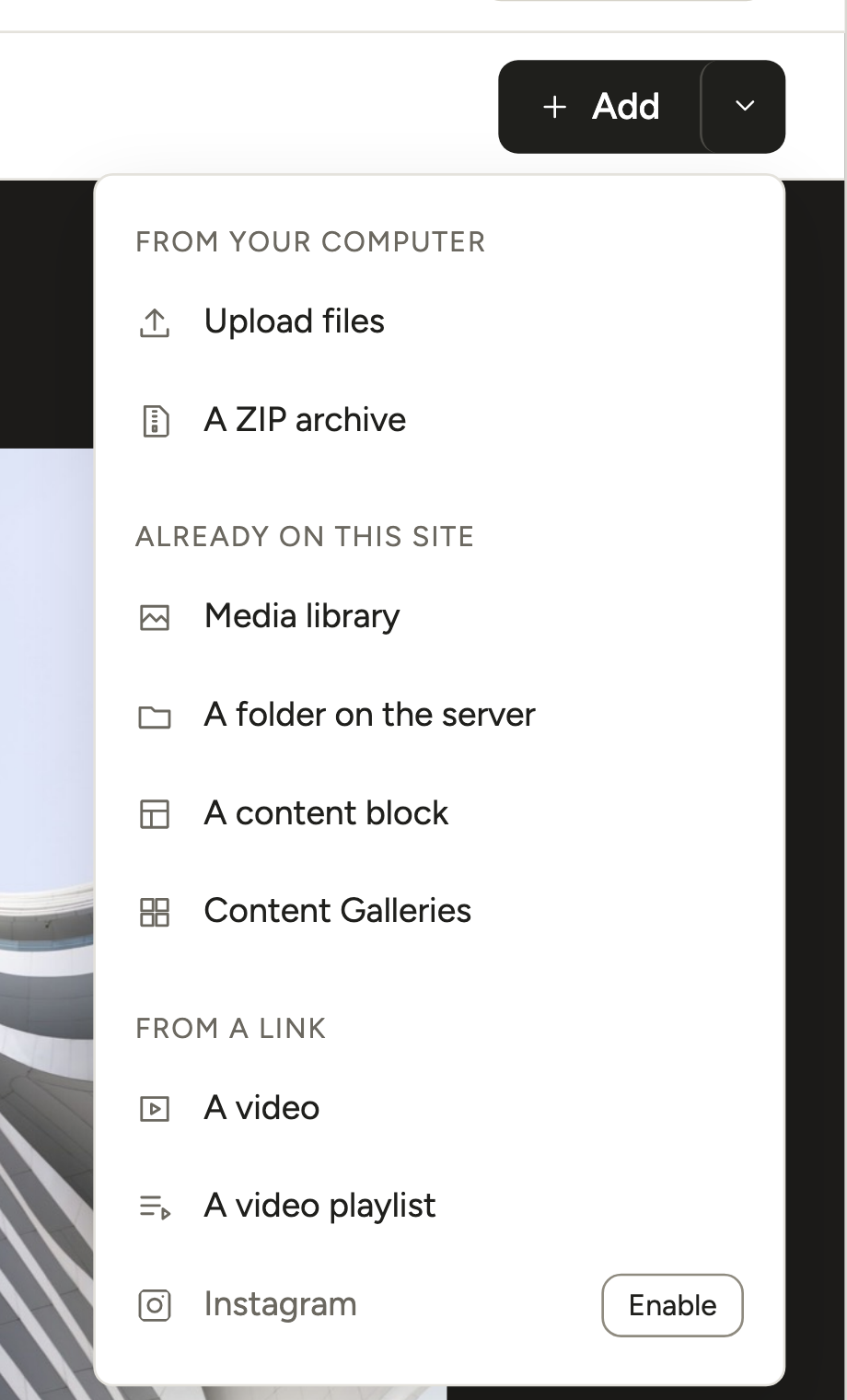
Adding photos. In the gallery editor, click the arrow next to + Add. Upload files and Media library take whatever WordPress accepts, AVIF included when your server supports it. A ZIP archive and A folder on the server import only JPEG, PNG, GIF, WebP, BMP and TIFF. Any AVIF or HEIC files in them get skipped (supported file types).
iPhone photos. For a HEIC upload, the gallery shows WordPress’s JPEG copy.
Responsive copies. Modula builds each gallery’s srcset, the list of image sizes a browser chooses from, out of WordPress’s own copies: a 1,600 px base, sized to your columns, in whatever format WordPress saved them. If you add AVIF or WebP copies with one of the routes above, check your page source to see what the gallery serves.
Speed Up compresses gallery images; it doesn’t change their format
Speed Up comes with the Trio plan and up ($69 for the first year, $138/year after). With the extension on, pick a level in Modula → Settings → Performance → Compression: Off, Lossless, Lossy or Glossy.

Speed Up compresses gallery and lightbox images and serves them from Modula’s image CDN. What the levels mean:
- Lossless: no loss of quality.
- Lossy: much smaller files, with a slight visible loss of quality.
- Glossy: top-notch quality, at a slight cost in page speed.
Downloads are separate. With Enable download on (Business plan and up), visitors get the Download size you pick: it starts at Thumbnail, and only Full hands over your untouched original. Compression isn’t available on a local site, as the Speed Up docs note.
Good to know
Honest limit: Speed Up isn’t a WebP or AVIF converter. Modula doesn’t ask its CDN for another format. When we tested one live image at Lossless in October 2026, the CDN sent back a JPEG even though the browser accepted AVIF and WebP. For those formats, use the WordPress routes above.
Some features expect JPEG, PNG or WebP
- Modula AI: the batch optimizer, which writes alt text, titles and captions, reads only JPG, PNG and WebP files and skips the rest.
- Watermark (Business plan and up): on servers without Imagick, it writes only JPEG, PNG, GIF and WebP files.
If you use either, JPEG or WebP uploads are the safe choice.
And a modern format won’t fix an oversized file: a giant WebP can still make the lightbox zoom far too close. Get the size right with high resolution vs web size, and see faster gallery loading for the rest.
A web export checklist for photographers
A photographer’s web export should be one high-quality sRGB JPEG or WebP, made from the edited master and uploaded once. Check these six points every time:
- Start from your edited master. Never re-export an already compressed JPEG.
- Convert to sRGB. Under the W3C’s CSS Color 4 spec, browsers treat a photo with no profile as sRGB, so your colors survive a GD host stripping it.
- Save a high-quality JPEG or WebP. Size it for your site; WordPress image sizes gives the numbers.
- Keep the metadata you rely on. Imagick keeps IPTC, EXIF and XMP in the copies; GD strips them. If your copyright notice lives in the file, check Media Handling.
- Upload once. Let WordPress, and a format plugin if you use one, make every copy.
- Check one published photo. Compare it with your original on a phone and a laptop. Skin tones and skies show problems first.
Frequently asked questions
RAW is the highest quality photo format, because it keeps everything the sensor recorded; for finished photos, a lossless 16-bit TIFF comes next. Neither belongs on a website: browsers can’t show RAW, and only Safari shows TIFF. Online, a high-quality JPEG, WebP or AVIF looks the same at normal viewing size, at a fraction of the file size.
Keep originals as RAW or DNG, and edited versions as a 16-bit TIFF or a full-size, top-quality JPEG: something to re-edit and something finished to print. For sharing with friends or clients, JPEG is still the format every device opens.
Not for the web. PNG is lossless, so photos saved as PNG are heavy. On real sites, the median PNG uses almost twice the bits per pixel of the median JPEG (Web Almanac 2024). Use PNG for logos, screenshots and transparent backgrounds, and JPEG, WebP or AVIF for photos.
AVIF if your server can make it, WebP if it can’t, with a JPEG fallback either way. That’s what the Modern Image Formats plugin does by default; turn on Output fallback images for the JPEGs. AVIF usually gives the smallest files, but it can smooth fine grain, so compare a few detailed photos first.
JPEG XL compresses a little better than AVIF (about 5–10% in Cloudinary’s 2023 test, more at high quality) and can repack JPEGs losslessly. But WordPress 7.1 won’t accept .jxl uploads, only 43% of browsers fully support it, and Google Images doesn’t list it. Keep it for masters for now.
A full-size sRGB JPEG at the highest quality, or a TIFF if your lab asks for one. Check your lab’s requirements before you export. Pixels matter more than format for print; high resolution vs web size shows how many each print size needs.
No. WordPress keeps the format you upload, so a JPEG gets JPEG copies; the only automatic conversion is HEIC to JPEG. To serve WebP or AVIF, use the Modern Image Formats plugin, the image_editor_output_format filter, or an optimization plugin or CDN that converts on the fly.
In photography, “format” means one of three things. “File format” is the type of file: RAW, JPEG, TIFF, WebP. “Format” can also mean the photo’s shape, its aspect ratio (3:2, 4:5, square). And “sensor format” or “film format” is the size of the sensor or film, like full frame, APS-C or medium format.