A lightbox is the overlay that opens a photo large on top of the page. The rest of the page dims, visitors move through the gallery with arrows or a swipe, and closing it takes them right back where they were.
A lightbox in WordPress works the same way, from the Gallery block or a plugin. Below: when WordPress’s own lightbox is enough, how to set one up in Modula 3.0, and fixes for what goes wrong, from unreadable captions to a zoom that won’t zoom.
What is a lightbox?
A lightbox on a website is a window that opens over the page when a visitor clicks an image. It shows the image as large as the screen allows and closes with an X, the Esc key or a click outside. The page underneath doesn’t move, so nobody ends up staring at a bare JPEG.
What a lightbox looks like
Almost every lightbox has the same parts:
- The enlarged image, scaled to the screen.
- The dimmed background, so nothing competes with the photo.
- Previous and next arrows, to move through the gallery.
- The close button, the X in a corner.
- The counter, the “3 / 12” that shows where you are.
- Title and caption, under or beside the image.
- The toolbar, with zoom, fullscreen, download or share buttons.
- The thumbnail strip, to jump straight to another photo.
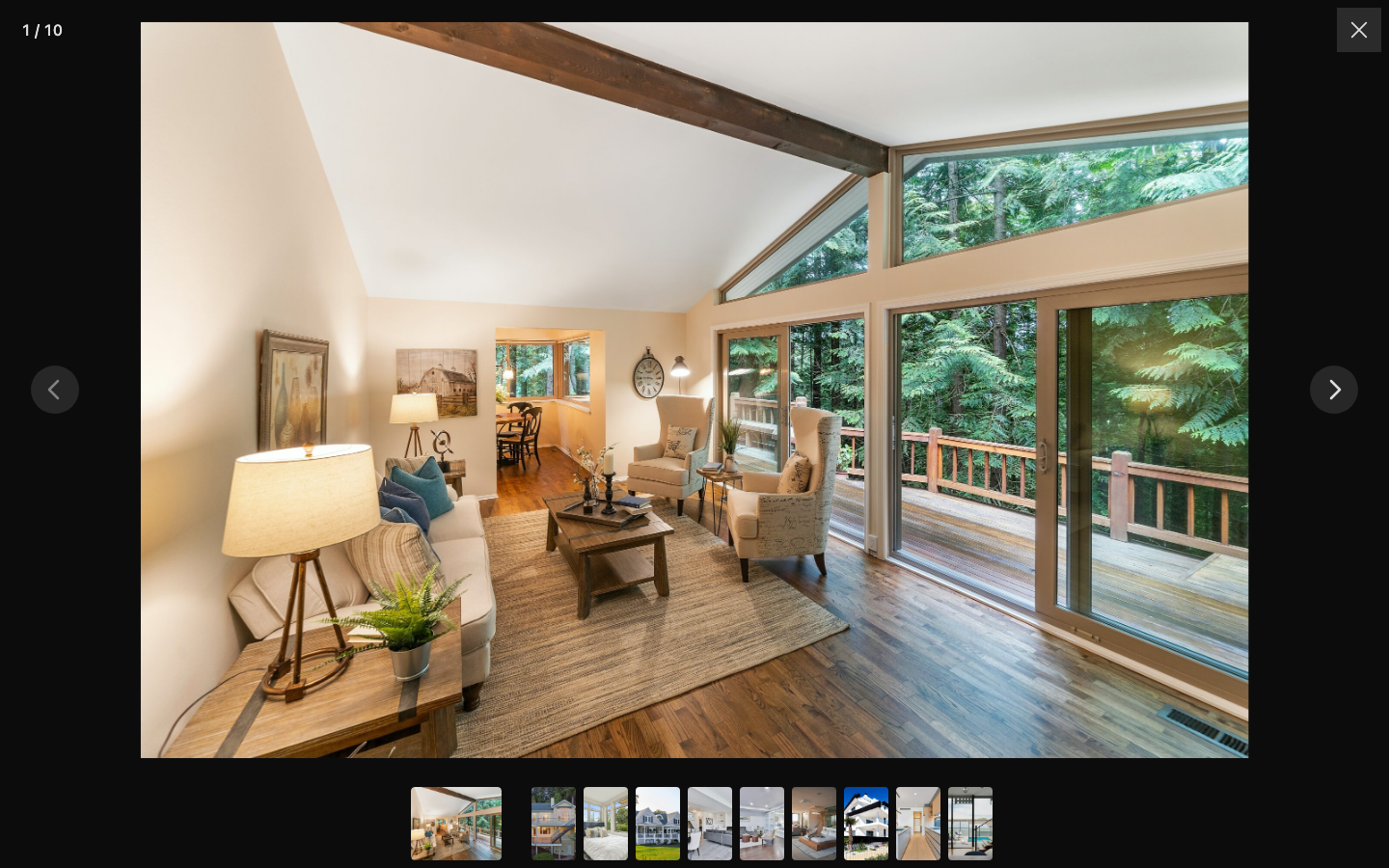
You rarely want all of them. A portfolio may need only the photo and the arrows.
Lightbox, modal or popup?
A lightbox is a kind of modal, which the W3C defines as “a window overlaid on” the main one. Lightboxes are built for photos and videos, and the visitor opens one with a click. A newsletter or cookie popup opens by itself and asks for something. The word also means a photographer’s light table or an illuminated sign, but not here.
Why use a lightbox on a WordPress gallery
A lightbox lets people see your photos big without leaving the page. Link a thumbnail straight to its file and the visitor lands on a bare image with no menu and no way to the next one.
It keeps pages light, too: the page loads smaller gallery images and fetches the full-size file only on click. Images take more bytes than anything else on a typical page. The median mobile home page carries 911 KB of them out of 2,559 KB (Web Almanac 2025).
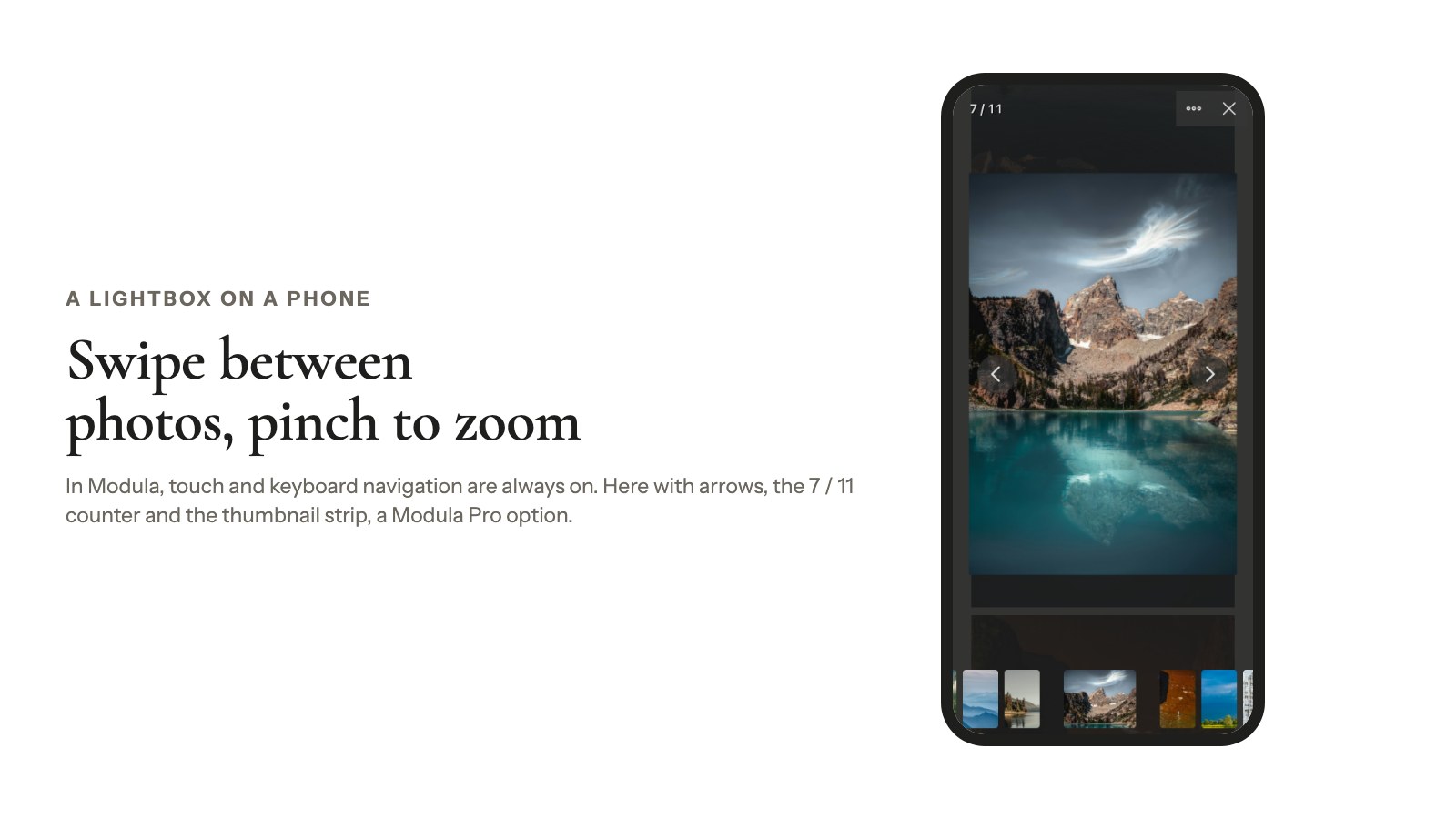
And it works on phones: visitors swipe between photos and pinch to zoom. In Modula, touch and keyboard navigation are always on.
When a lightbox is the wrong choice
- The image should lead somewhere. If a photo stands for a product or a post, use Go to URL or Lightbox, or link when set. See our gallery custom links guide.
- The gallery is already a viewer. Sliders, stories and video playlists show one big item at a time, so Modula’s Slider, Story and Video types skip the Lightbox section.
- You want a form or a promo. That’s a popup plugin’s job.
- The images are decoration. Nobody needs a divider icon at full screen.
Lightbox examples by type of site
A portfolio, a shop and a rental listing each need something different from their lightbox:
| Site | What matters | Modula setting |
|---|---|---|
| Portfolio | A solid, dark frame and few buttons | Background color, fewer toolbar Buttons |
| Product detail shots | Seeing the texture up close | Enable lightbox zoom, with large images |
| Property or holiday rental | The whole set one click away | The BnB type and its Show all photos button |
| Event photos | Sitting back and watching | Enable slideshow with Autoplay |
| Photo archive | Sharing a single picture | Photo links |
| Photography | How the shot was taken | EXIF (Show shooting data) |
All six are Modula Pro settings in Modula 3.0 (plans below). The property one is our Airbnb-style gallery.
Does WordPress have a built-in lightbox?
Yes, WordPress has a built-in lightbox called Enlarge on click. The Image block got it in WordPress 6.4 (developer docs), and the Gallery block offers it as a Link option. Since WordPress 7.0, visitors can move forward and back through the gallery, with buttons shown as Icon, Text or Both (Gallery block docs).
To turn it on, select the Gallery block, open Link and choose Enlarge on click.
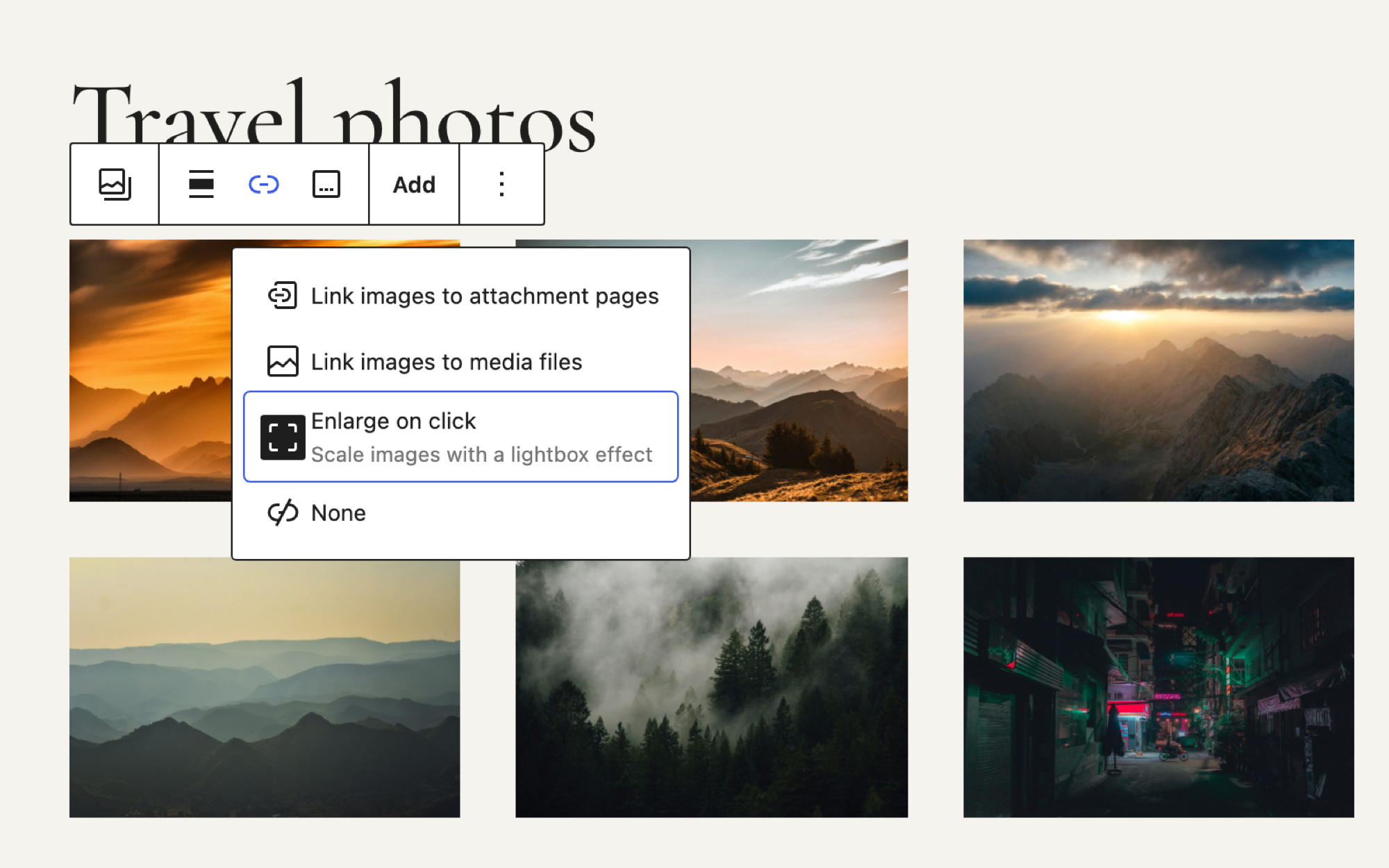
For a post with three photos, that’s often all you need. The limits show as galleries grow: images only, no swiping on touch screens (Twentig, June 2026) and no styling settings. Nor is there a thumbnail strip, zoom, slideshow, fullscreen, download or link to a single photo.
Built-in lightbox vs a WordPress lightbox plugin
How Enlarge on click compares with Modula:
| WordPress (Enlarge on click) | Modula Lite (free) | Modula Pro | |
|---|---|---|---|
| Previous and next | Yes, Gallery block since 7.0 | Yes | Yes |
| Swipe on phones | No | Yes | Yes |
| Background, caption, transition and thumbnail settings | No | No | Yes |
| Slideshow, fullscreen, zoom, downloads, photo links | No | No | Yes, by plan |
| Videos | No, images only | No | Starter and up |
How to add a lightbox to a WordPress gallery with Modula
Modula gives you a gallery with lightbox in three steps: create the gallery, check that On click says Open in lightbox, and embed it. That setting is the default, so the real work is choosing what visitors see.
Disclosure: we make Modula. Modula Lite is free on wordpress.org, with 160,000+ active installations and a 4.7/5 rating (October 2026), and its lightbox costs nothing. More on our WordPress gallery plugin page.
Create or open your gallery
In Modula → Content, click New gallery or open one you have, then add photos with + Add. New to this? Follow how to create an image gallery in WordPress.
Set On click to Open in lightbox
Click Lightbox in the left rail. On click has four choices, all covered in Lightbox & Links:
- Open in lightbox, the default. An image you’ve set to Custom link goes to its link instead.
- Lightbox, or link when set: any image with a link opens it; the rest open the lightbox.
- Go to URL: each image opens the link you set on it.
- No link: clicks do nothing.
Choose what visitors see
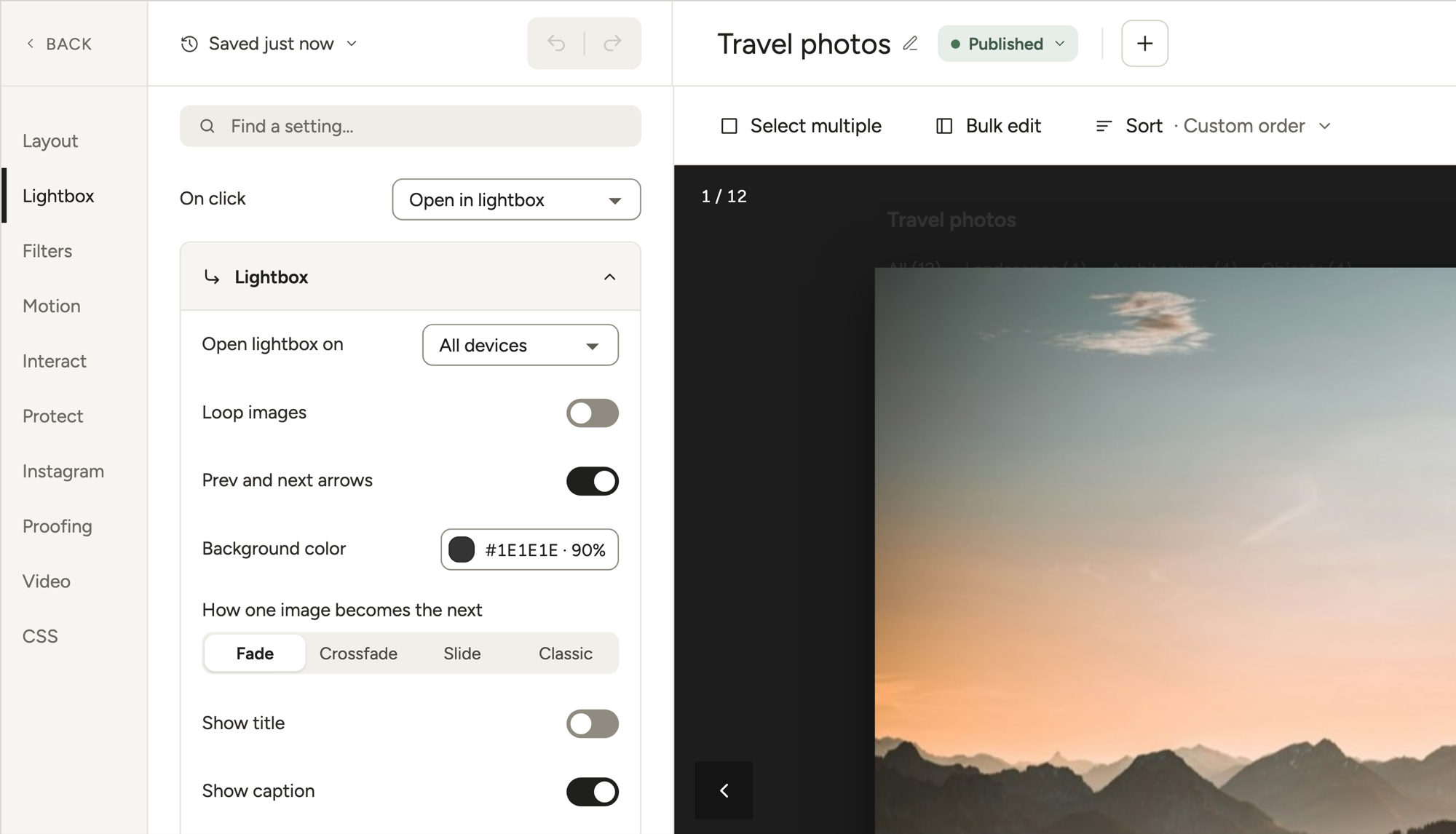
The free plugin gives you Prev and next arrows, on by default. Leave them on. Modula Pro adds:
- Open lightbox on: All devices, Desktop only or Mobile only.
- Loop images: Next on the last photo goes back to the first.
- Background color, behind the image.
- How one image becomes the next: Fade, Crossfade, Slide or Classic.
- Show title and Show caption, with Position: Left, Right or Center.
- Show thumbnail strip, at the Left, Bottom or Right.
Tip
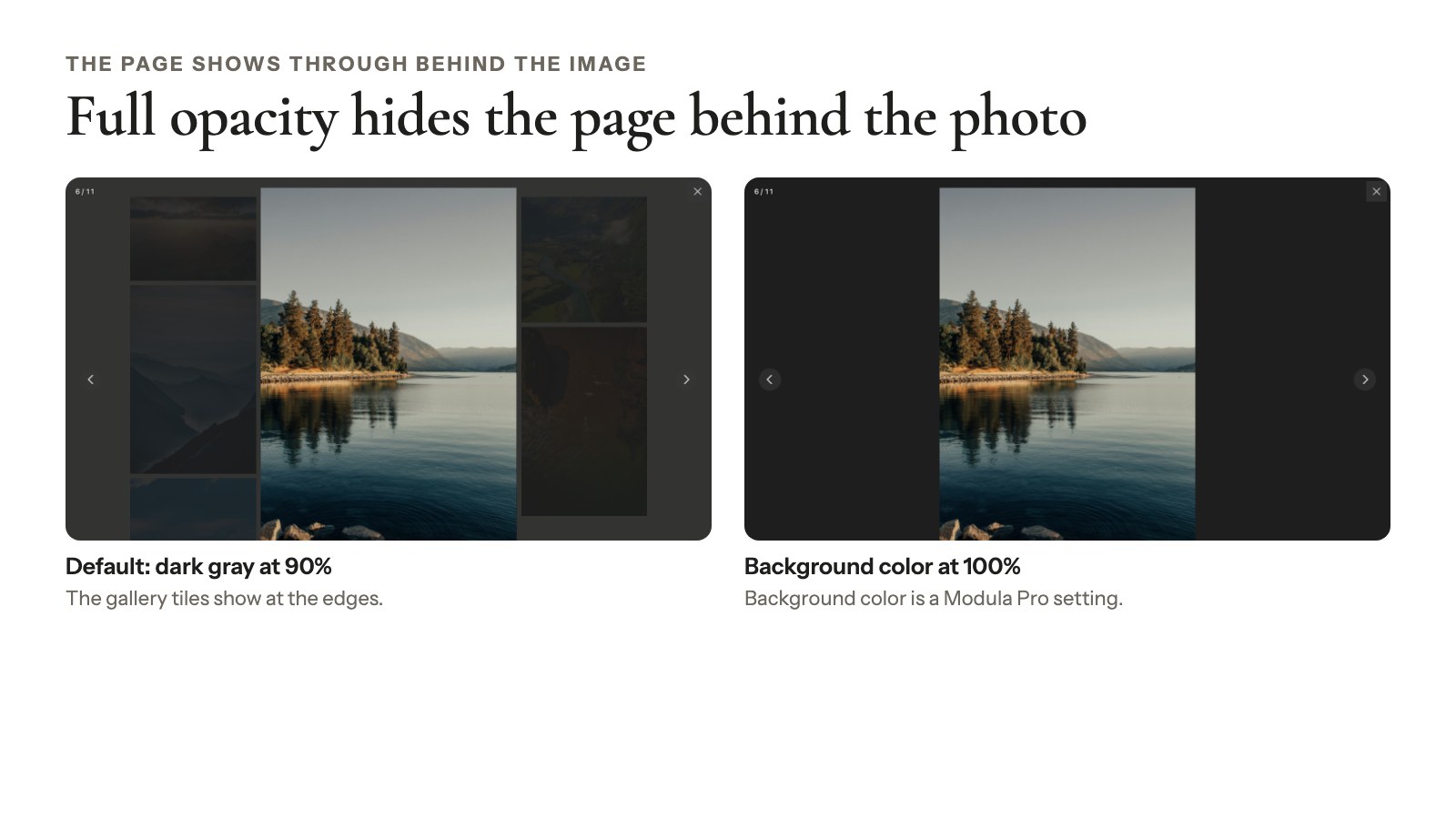
The default background is a dark gray at 90% opacity, so a hint of the page shows through. Set it to 100% for a clean, solid frame.
Fine-tune the toolbar and clicks
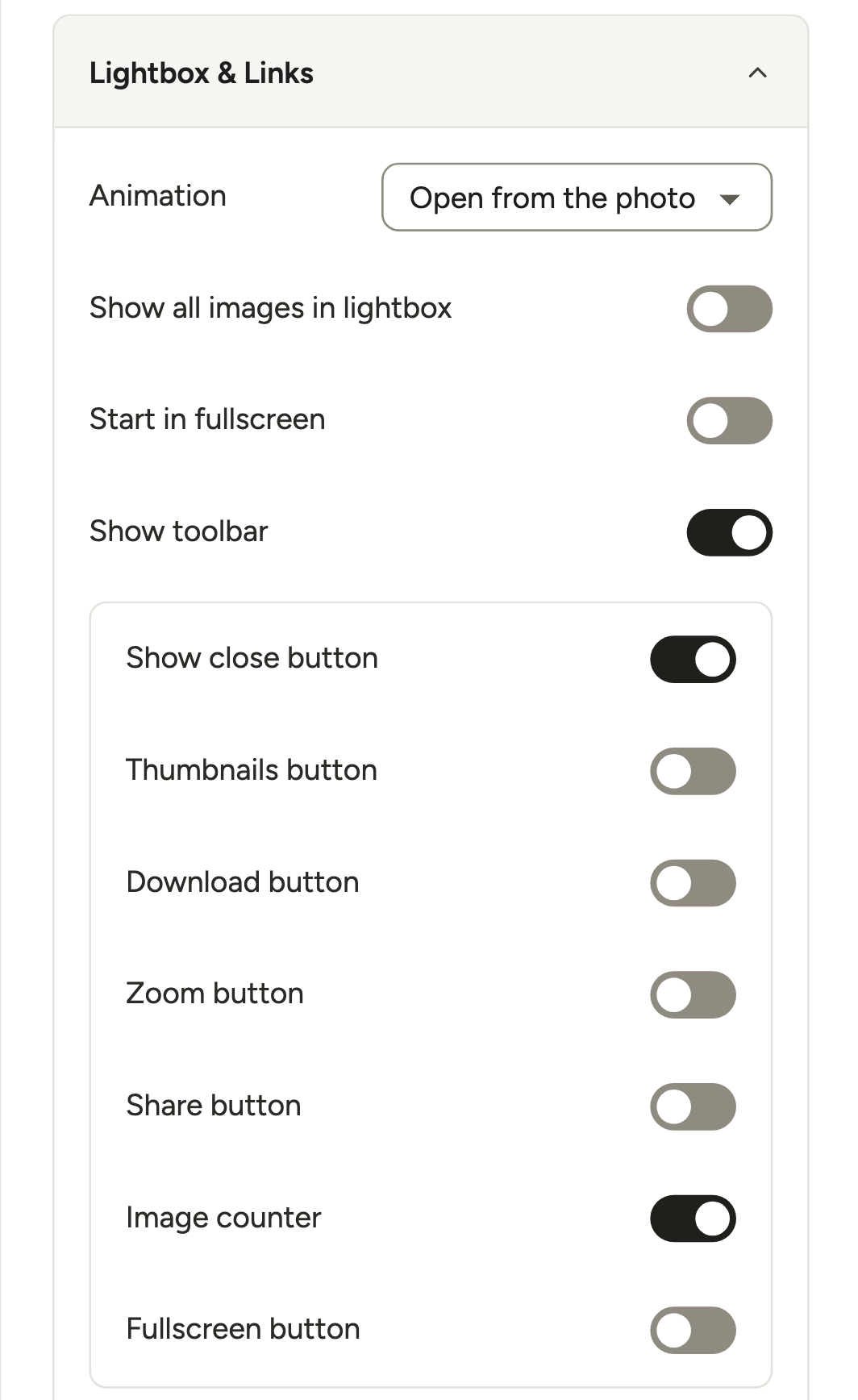
More settings → Lightbox & Links (Modula Pro) holds the rest:
- Animation, for opening and closing.
- Show all images in lightbox, for galleries split into pages.
- Start in fullscreen.
- Show toolbar and its Buttons, from Image counter to Share button.
- Open on double-click or double-tap, against accidental opens.
- Close when the image is clicked. When it’s off, a click zooms in instead.
Make exceptions for single images
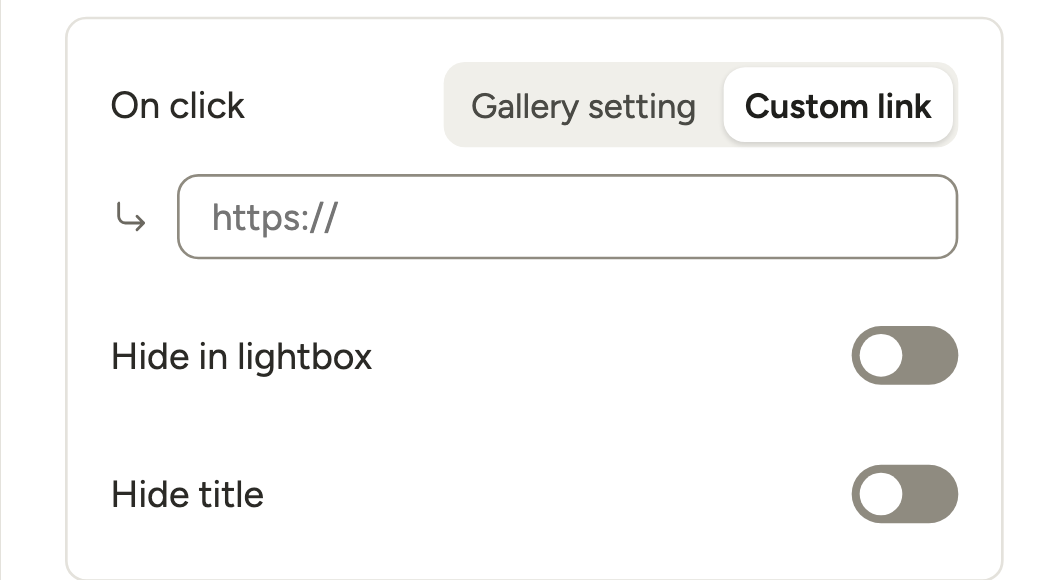
Click a photo in the preview to open its panel. There, On click: Custom link sends that image to a page. Hide in lightbox leaves it out, and Hide title hides that photo’s title in the gallery.
Embed it and test on your phone
Click Embed and copy the shortcode ([modula id="12"]), or use the Modula block. Elementor, Divi and Beaver Builder modules exist too.
Then test it like a visitor: click a photo, use the arrows, press Esc, and swipe through it on your phone. To open the gallery from a button instead of showing the grid, use Modula Link (Modula Pro).
Lightbox extras and which plan has them
Modula’s lightbox extras come with paid plans, from the slideshow in Starter to zoom in Business. Each one is an extension you first switch on in Modula → Extensions. That’s the usual reason a slideshow you paid for “isn’t there”.
| Feature | What it does | Plan |
|---|---|---|
| Enable slideshow | Plays the photos one after another | Starter and up |
| Fullscreen | Start in fullscreen, Fullscreen button | Trio and up |
| Image licensing | Shows each image’s license | Trio and up |
| Lightbox compression (Speed Up) | Smaller files, so photos open faster | Trio and up |
| Enable lightbox zoom | Magnifies part of a photo | Business |
| Download buttons | Save one photo or all of them | Business |
| EXIF | Camera details under the photo | Business |
| Photo links | A shareable link per photo | Business |
| Comments | Comments from the lightbox | Business |
Plans start at $39 for the first year ($78/year after; checked October 2026). See pricing.
Slideshow
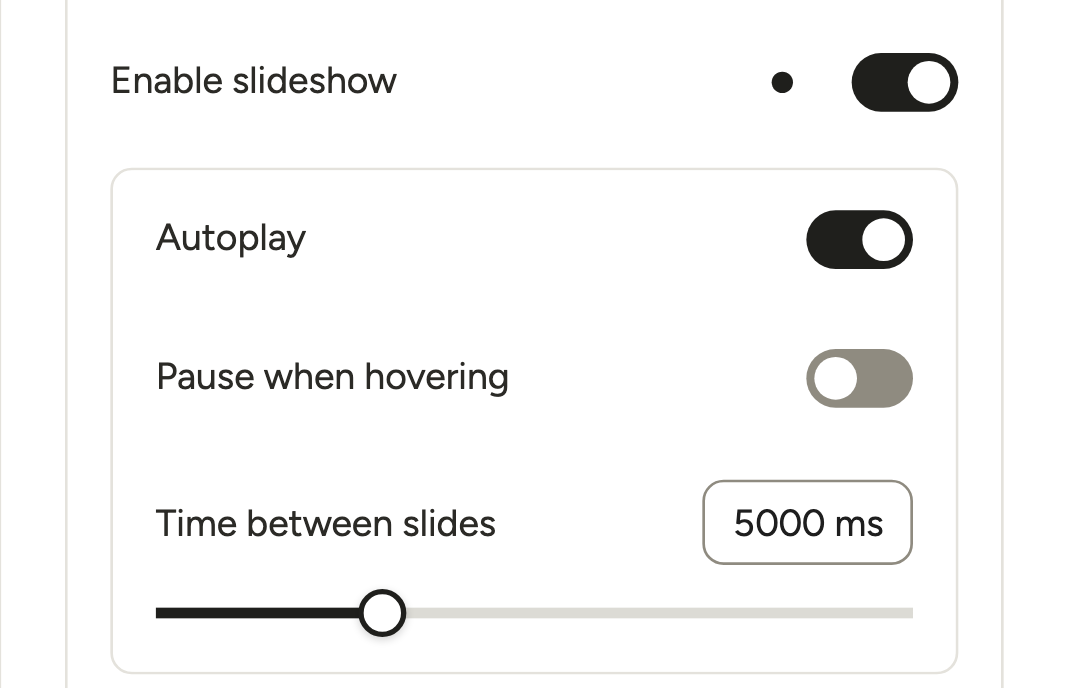
Turn on Enable slideshow, then set Autoplay, Pause when hovering and Time between slides (1,000 to 15,000 ms, 5,000 by default). The play button lives in the toolbar, so keep Show toolbar on. Without Loop images, the show stops at the last photo. More in Lightbox Slideshow.
Lightbox zoom
Enable lightbox zoom adds a magnifier. Its Kind is Magnify in place, Inner or Lens, and you can tune the window, lens and tint.
The rule that trips people up: zoom only magnifies when the file the lightbox loads is bigger than the image it shows. That’s the full-size file WordPress keeps, and WordPress scales uploads over 2,560 px down to 2,560 px. So on a photo shown 1,800 px wide, even a 3,600 px upload gives only about 1.4×. See web size vs high resolution.
It’s not the Zoom hover effect or the toolbar’s Zoom button. Setup is in Modula Zoom.
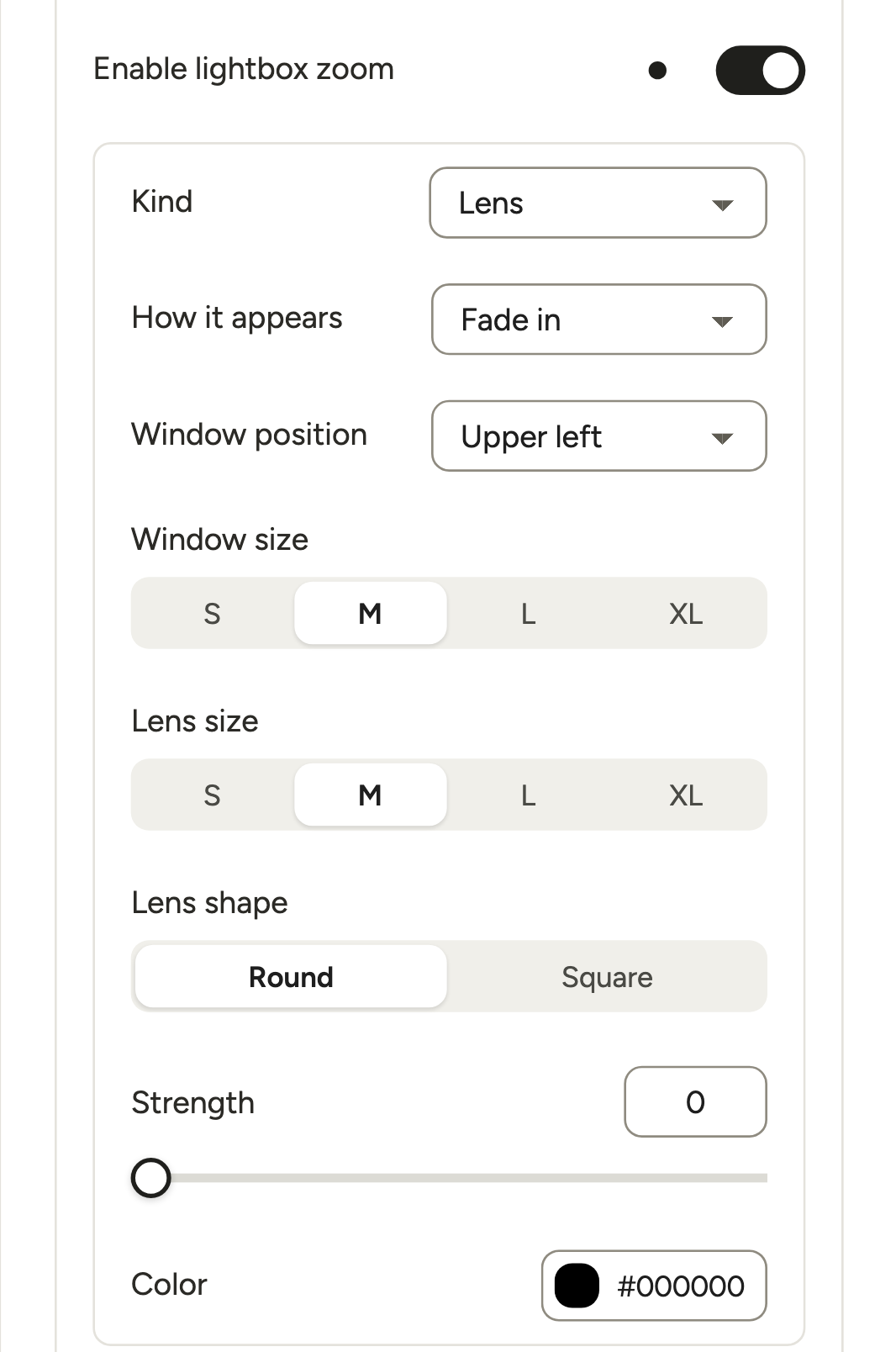
Photo links
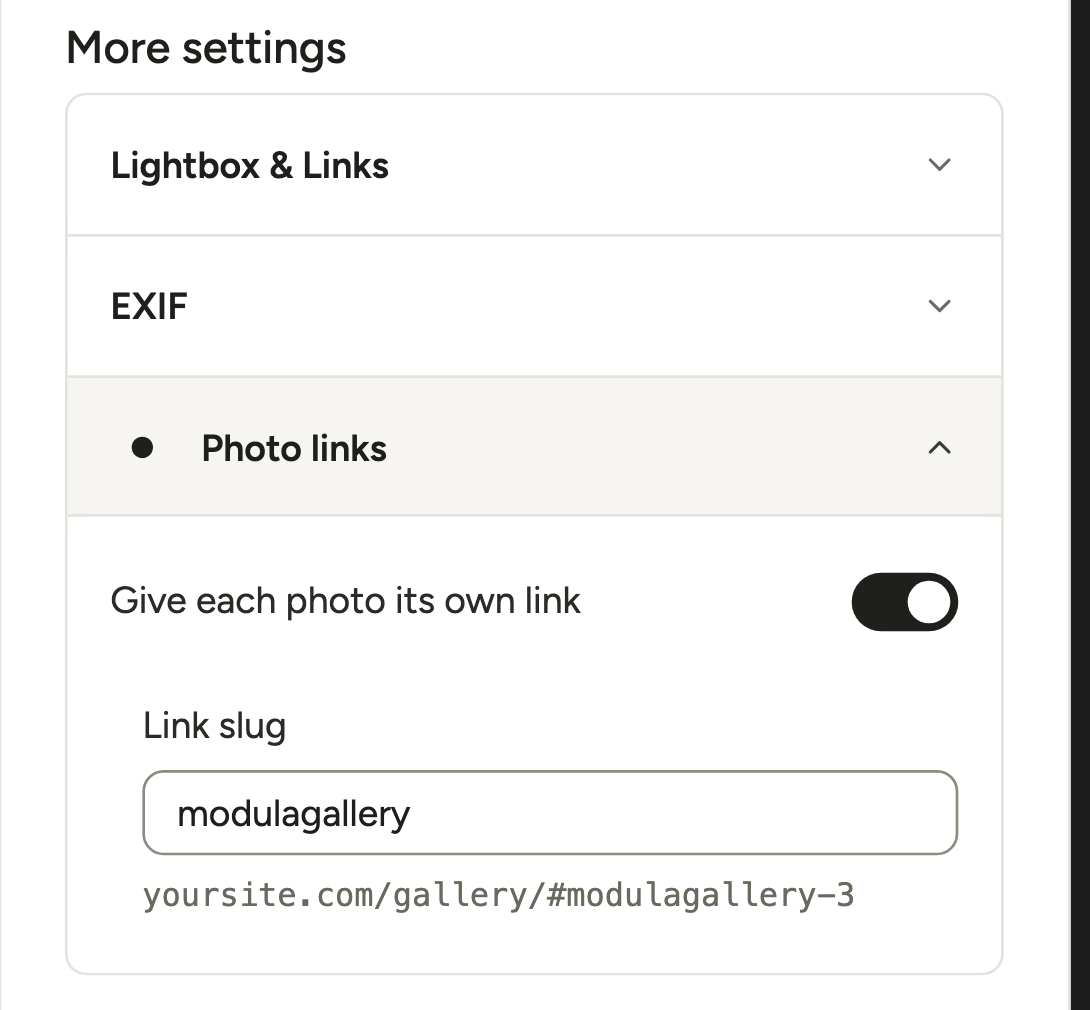
In Lightbox → More settings → Photo links, turn on Give each photo its own link and pick a Link slug. Each photo then gets an address ending in something like #modulagallery-12-3 (slug, gallery ID, photo number) that opens it straight in the lightbox. Handy when a client asks for “the one with the red door”. The hint under the field leaves out the gallery ID.
Change the slug later and shared links break. With filters, keep All selected by default so every photo can be reached.
The honest limit: “Google Search generally doesn’t support URL fragments” (Google Search Central). These links are for sharing, not extra pages in search. See Modula Deeplink.
Common lightbox problems and how to fix them
Most Modula lightbox problems come down to image size, a setting that’s off or one line of CSS. Each fix below comes from our support inbox.
The zoom doesn’t magnify, or zooms far too much
No magnification: the files are no bigger than the lightbox display, so the lens shows them at 1:1. Upload larger images.
Far too much: with Close when the image is clicked off, a click can zoom the photo to the full size of its file. On a phone, or with a file bigger than WordPress’s usual 2,560 px, most of the picture ends up off screen. Resize huge files before uploading, or turn that setting on. There’s no setting to cap the zoom level.
Captions are missing, faint or off-center
- Missing: turn on Show caption (Modula Pro), and Show title if you want it (it’s off by default). For a gallery opened from an album, change the gallery’s own settings.
- Off-center: set Position to Center.
- Faint: the caption text is light, so it fades on a light background. One rule fixes it:
.modula-best-grid-gallery .modula-fancybox-container .fancybox__caption,
.modula-best-grid-gallery .modula-fancybox-container .f-caption {
  color: #111;
}
The first selector is for classic galleries, the second for galleries made in the 3.0 editor.
The page shows through behind the image
Set Background color (Modula Pro) to full opacity. Modula 3.0’s default is 90%.
Visitors can’t get to the next photo
Prev and next arrows is off. Turn it back on; it’s free. The arrow keys work too, but many visitors never think to try them.
The last image zooms instead of closing
Without Loop images, the last photo has no Next arrow. On a wide panorama, a click where it was lands on the photo and zooms in. A click on the dark background does nothing while Close when the image is clicked is off (the default). Turn it on, and a click on the photo or the background closes the lightbox.
The toolbar covers the photo
Switch off the buttons you don’t need under Buttons (Modula Pro), or stack them in a vertical bar down the right edge:
.modula-best-grid-gallery .modula-fancybox-container .fancybox__toolbar__column.is-right,
.modula-best-grid-gallery .modula-fancybox-container .f-carousel__toolbar__column.is-right {
  flex-direction: column;
  flex-wrap: nowrap;
  position: absolute;
  top: 0;
  right: 0;
}
Your lightbox sizing CSS should stay on desktop
Resized the lightbox with CSS for big screens? Wrap those rules in @media (min-width: 1024px) { … } so phones keep Modula’s own sizing.
Style one gallery or one photo differently
- One gallery: replace
.modula-fancybox-containerwith.modula-lightbox-12, where 12 is the ID in the gallery’s shortcode (.modula-lightbox-jtg-12for a classic gallery). - A thin border around lightbox images:
.modula-best-grid-gallery .modula-fancybox-container .fancybox__content img,
.modula-best-grid-gallery .modula-fancybox-container .f-panzoom__viewport img {
  border: 1px solid #000;
}- One photo: in that rule, change
imgtoimg[src*="red-door"], using part of the photo’s file name.
The CSS goes in Appearance → Editor → Styles → ⋮ → Additional CSS with a block theme. With a classic theme, use Appearance → Customize → Additional CSS. To load a rule only with one gallery, paste it in that gallery’s CSS section instead. More recipes: lightbox CSS changes.
Make your lightbox accessible
An accessible lightbox follows the W3C dialog pattern, which comes down to four checks you can run yourself:
- Focus moves into the lightbox when it opens.
- Tab stays inside it.
- Esc closes it.
- Focus returns to the photo that opened it.
In Modula, the arrow keys and Esc always work in the lightbox. Keep the close button and arrows visible for mouse and touch users.
Write alt text for your thumbnails, too. Google calls it “the most important attribute” for image metadata (Google Images guide), and screen readers rely on it. See our guide to titles and captions.
Frequently asked questions
No. A lightbox opens when the visitor clicks a photo. A popup usually opens by itself to promote a newsletter, a sale or a cookie choice. Both are modals; what differs is who opens them and why.
Yes. In Modula, visitors swipe between photos and pinch to zoom, and Open lightbox on (Modula Pro) can limit the lightbox to Desktop only or Mobile only. WordPress’s Enlarge on click opens on phones too, but it doesn’t support swiping (Twentig, June 2026).
Yes. Modula Lite has On click and Prev and next arrows, plus touch and keyboard navigation. Everything else needs Modula Pro, from $39 for the first year: the slideshow comes with Starter, fullscreen with Trio and zoom with Business.
Yes. Add YouTube, Vimeo or self-hosted videos to a Modula gallery with the Video extension (Starter and up), and they open in the lightbox like photos. WordPress’s own lightbox is images only. See video galleries in WordPress.
For an image lightbox in WordPress posts, use the Image block’s Enlarge on click. Modula’s lightbox works on Modula galleries only. To open a gallery from a button or image, use Modula Link (Modula Pro).
No, not lightboxes visitors open themselves. Google’s warning is about “page elements that obstruct users’ view of the content, usually for promotional purposes” (Google Search Central). Your thumbnails stay indexable images with alt text, though photo links (# addresses) won’t show up as separate pages.
Check that On click isn’t No link or Go to URL and that the image has no Custom link. Slider, Story and Video galleries have no Lightbox section. Still nothing? A lightbox from your theme or another plugin may be catching the click.