You’ve got 300 photos and one page to put them on. Load them all at once and the page crawls, especially on a phone.
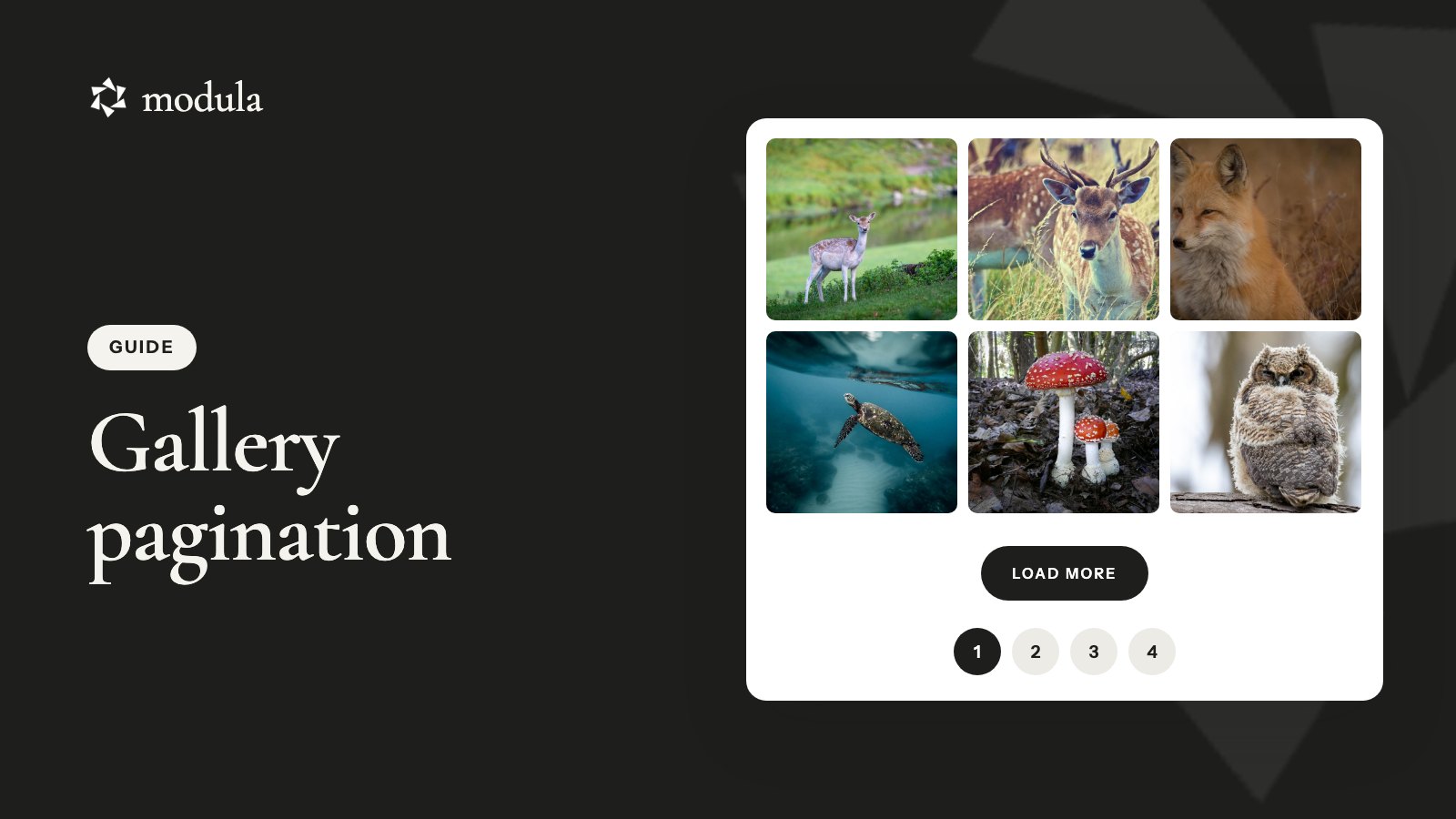
Gallery pagination, also called image pagination, shows a big gallery in batches instead. Visitors reach the next batch through page numbers, a Load more button or infinite scroll. The short version: page numbers when people pick photos, Load more when they browse, and infinite scroll for long feeds with nothing important underneath.
Below: how to choose, why it’s faster, how to set it up in Modula 3.0, and fixes for the usual problems.
What gallery pagination is, and the three ways to do it
Gallery pagination splits one big gallery into batches and loads the next batch only when the visitor asks for it. How they ask is the choice you make.
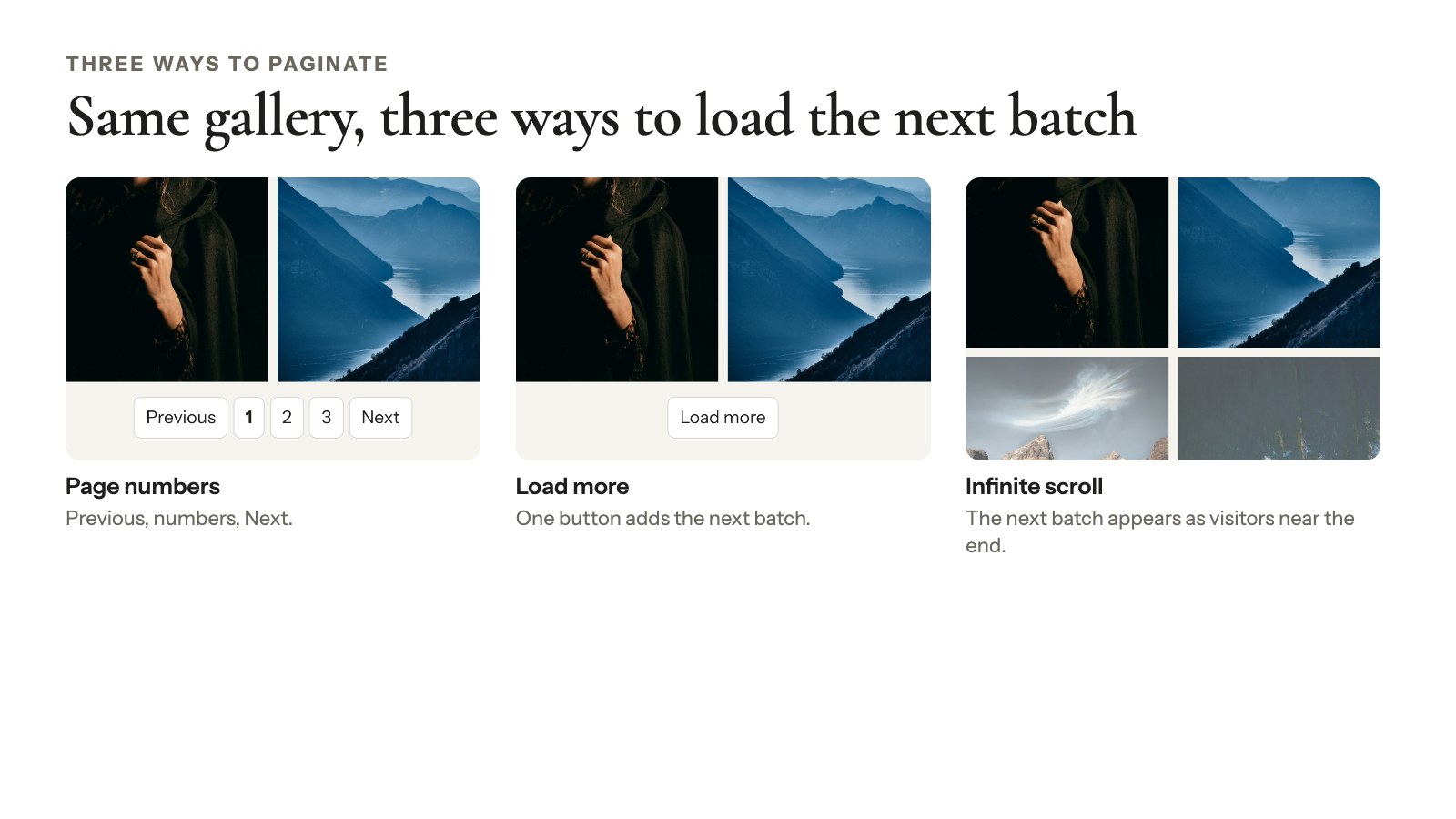
Page numbers
Numbered buttons sit under the gallery, with Previous and Next. Click “3” and page 3’s photos replace the ones on screen.
People always know where they are. That helps when they’re hunting for one photo, or coming back to the one they liked on page 4.
Load more button
One button sits under the photos. Each click adds the next batch below the ones already showing, so nothing disappears and the footer stays within reach.
Infinite scroll
No clicks at all. When visitors get near the bottom, the next batch loads by itself.
It’s great for skimming. The catch: your footer keeps running away, and after a few batches nobody knows how far they’ve scrolled.
| Style | What visitors do | Best for | Watch out for |
|---|---|---|---|
| Page numbers | Click a number | Galleries people pick from | Photos are replaced, not added |
| Load more | Click one button | Portfolios people browse | A very long page after many clicks |
| Infinite scroll | Just scroll | Long feeds of similar photos | Footer out of reach, no sense of position |
Google’s guide to pagination and incremental page loading (updated December 2025) weighs the same trade-offs, down to infinite scroll’s risk of “scrolling fatigue”.
Which pagination style should your gallery use?
The right pagination style depends on the gallery’s job, not on what looks modern.
| Your gallery | Use | Why |
|---|---|---|
| Client or event gallery where people pick favorites | Page numbers | They need to find the same photo again |
| Portfolio people browse | Load more | Visitors stay in control and can reach your contact details |
| Long mood board or visual feed | Infinite scroll | Nothing important below it, and people just skim |
| Fewer than about 30–50 photos | No pagination | Extra clicks just get in the way |
The Load more pick isn’t just taste. Baymard Institute ran usability tests on more than 50 e-commerce sites. Load more combined with lazy loading came out ahead, while infinite scroll “can be downright harmful to usability” on mobile (Smashing Magazine, 2016). It’s an older study of product lists, so treat it as a strong hint, not a law.
Nielsen Norman Group’s infinite scrolling advice (2022) fits galleries too. Skip infinite scroll when:
- People look for something specific, like their own event photo.
- They compare photos far apart, like a dress in the first batch and one in the sixth.
- Your footer matters, for example because it holds your booking link.
- Visitors use a keyboard or screen reader.
Does image pagination make a gallery load faster?
Image pagination makes a gallery faster only when it limits what’s in the page. That’s the difference between pagination and the other speed tricks people try first:
- Lazy loading waits to download each photo until it’s near the screen. Every photo is still in the page.
- Pagination keeps most photos out of the page until someone asks for them.
- Image weight decides how heavy each photo is once it does load.
A typical support question goes like this: a gallery with 300+ photos, lazy loading on, and still no noticeable difference. That’s expected: the page still has all 300 photos in it.
Pagination fixes exactly that. When Pagination is on in Modula and the gallery has more photos than fit on one page, only the first page goes into the page’s HTML. The rest come from Modula’s REST API when a visitor clicks Load more, picks a page or scrolls down.
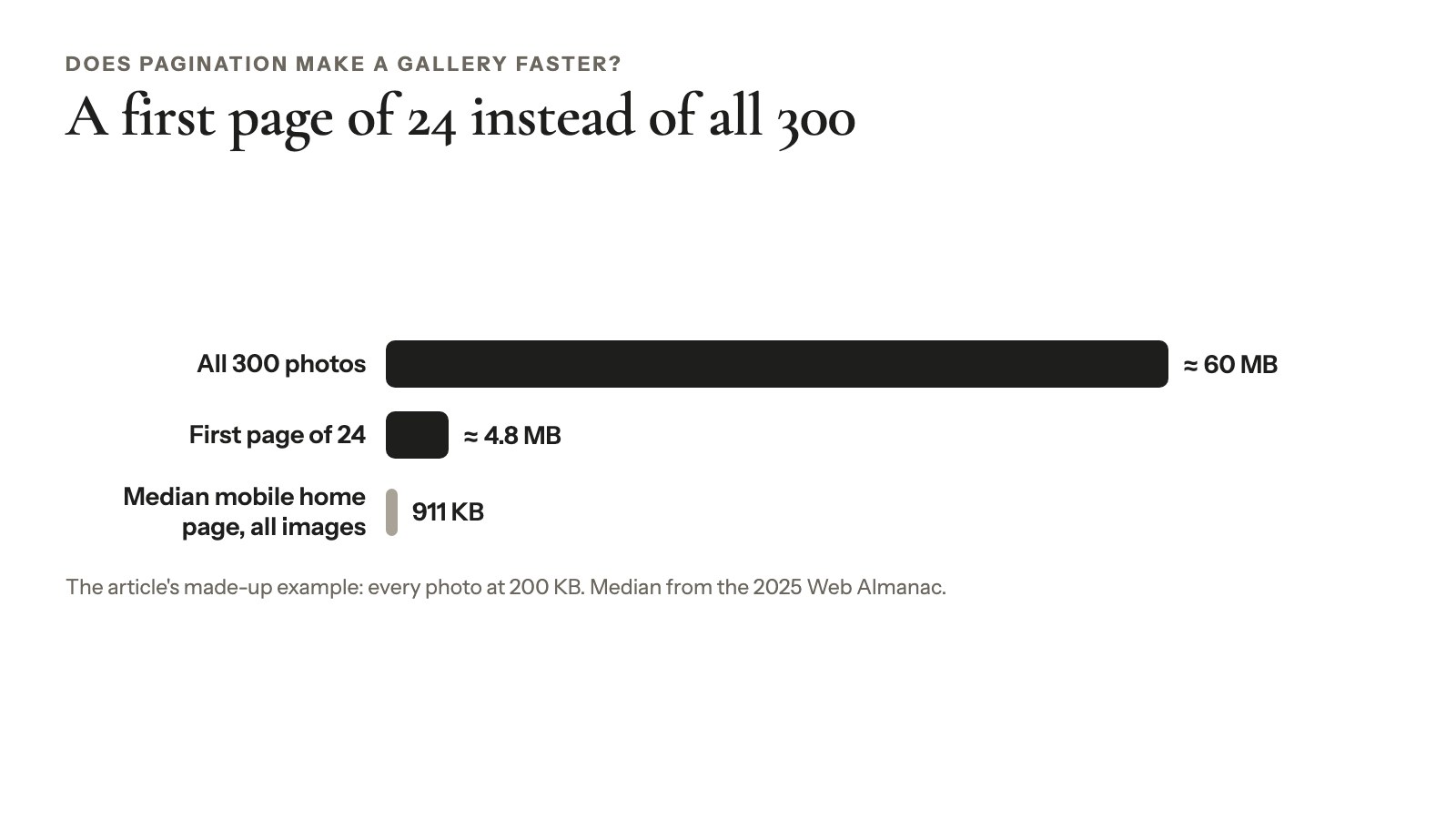
Here’s a made-up example of the scale, with each photo at 200 KB:
- Every photo downloads (no lazy loading, or a visitor scrolls to the end): 300 × 200 KB ≈ 60 MB.
- A first page of 24: at most 24 × 200 KB ≈ 4.8 MB, until the visitor asks for more.
For comparison, the 2025 Web Almanac found that the median mobile homepage loads 911 KB of images in total.
Keep lazy loading on anyway. In Modula it’s on by default (Load images as people scroll, under Layout → More settings → Speed Up). Just don’t expect it to rescue a 300-photo page alone.
The Business plan you need for pagination also includes image compression, in Modula → Settings → Performance (Modula Speed Up). More in improving the loading speed of gallery images.
How to add pagination to a gallery in Modula
Modula, the gallery plugin we make, offers page numbers, Load more and infinite scroll. Here’s how to build a gallery with pagination in the 3.0 editor. Short reference: Modula Pagination.
Before you start
- Plan: Pagination, Load more included, comes with the Business plan and Agency. The free plugin shows “Looking to paginate your gallery?” instead.
- Extension: with Modula Pro installed and your license active, switch on Pagination in Modula → Extensions (how).
- Gallery type: Pagination works on Masonry, Uniform grid, Fit grid, Justified grid, Custom grid, Creative and Polaroid. It isn’t available on Canvas, Parallax, BnB (hero + grid), Slider, Showcase, Story or Video (gallery types explained).
Turn on Pagination and set Images per page
- Open the gallery and click Layout in the left rail.
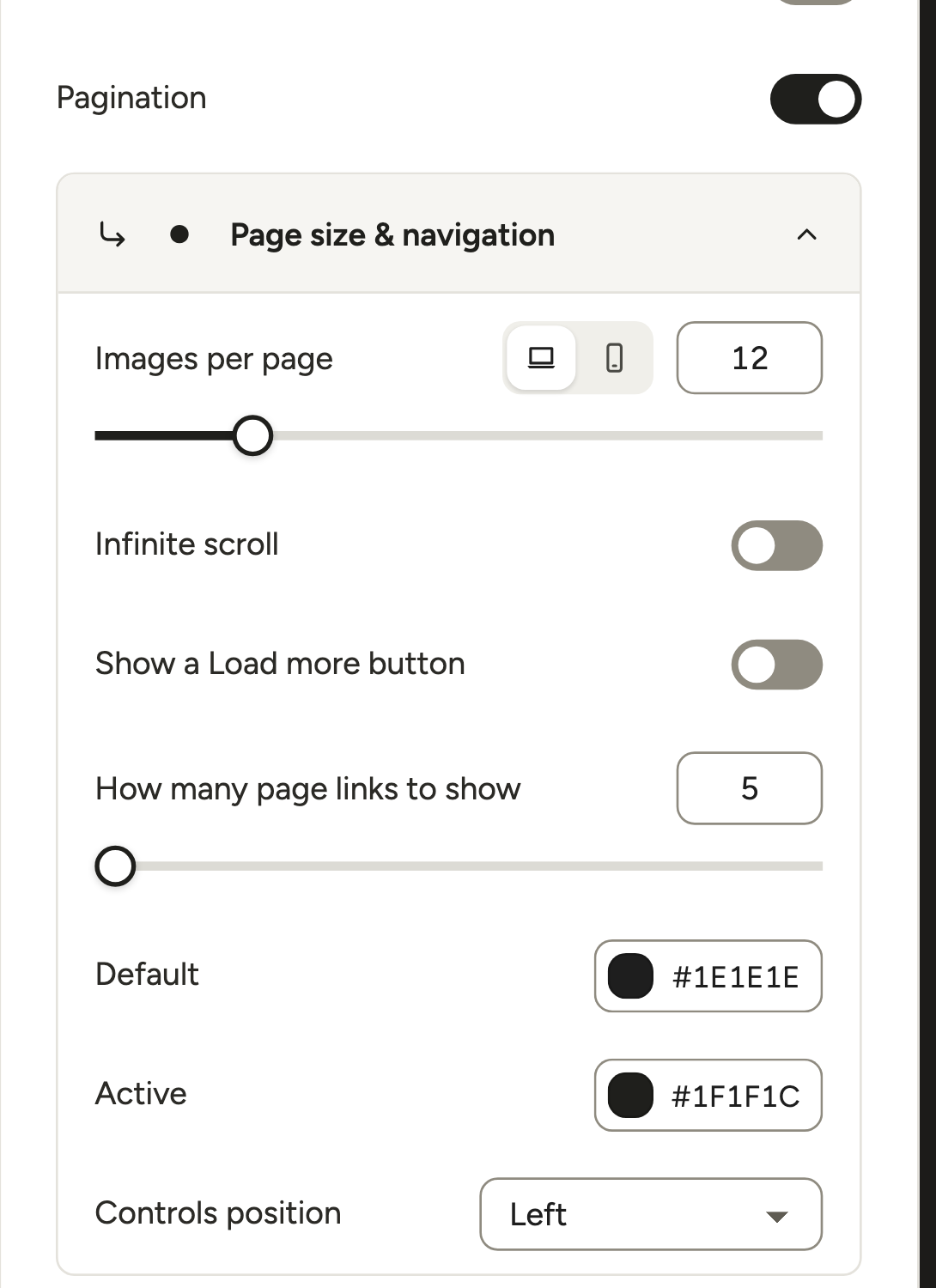
- Near the bottom, turn on Pagination. The Page size & navigation options open below it.
- Next to Images per page, type how many photos each batch shows on desktop.
- Click the phone icon next to it and type a smaller number for phones.
Type an actual number in both.
Choose page numbers, Load more or infinite scroll
This is where most people get stuck. Infinite scroll is on by default, and it wins over the Load more button. So:
- For infinite scroll: leave Infinite scroll on. Done.
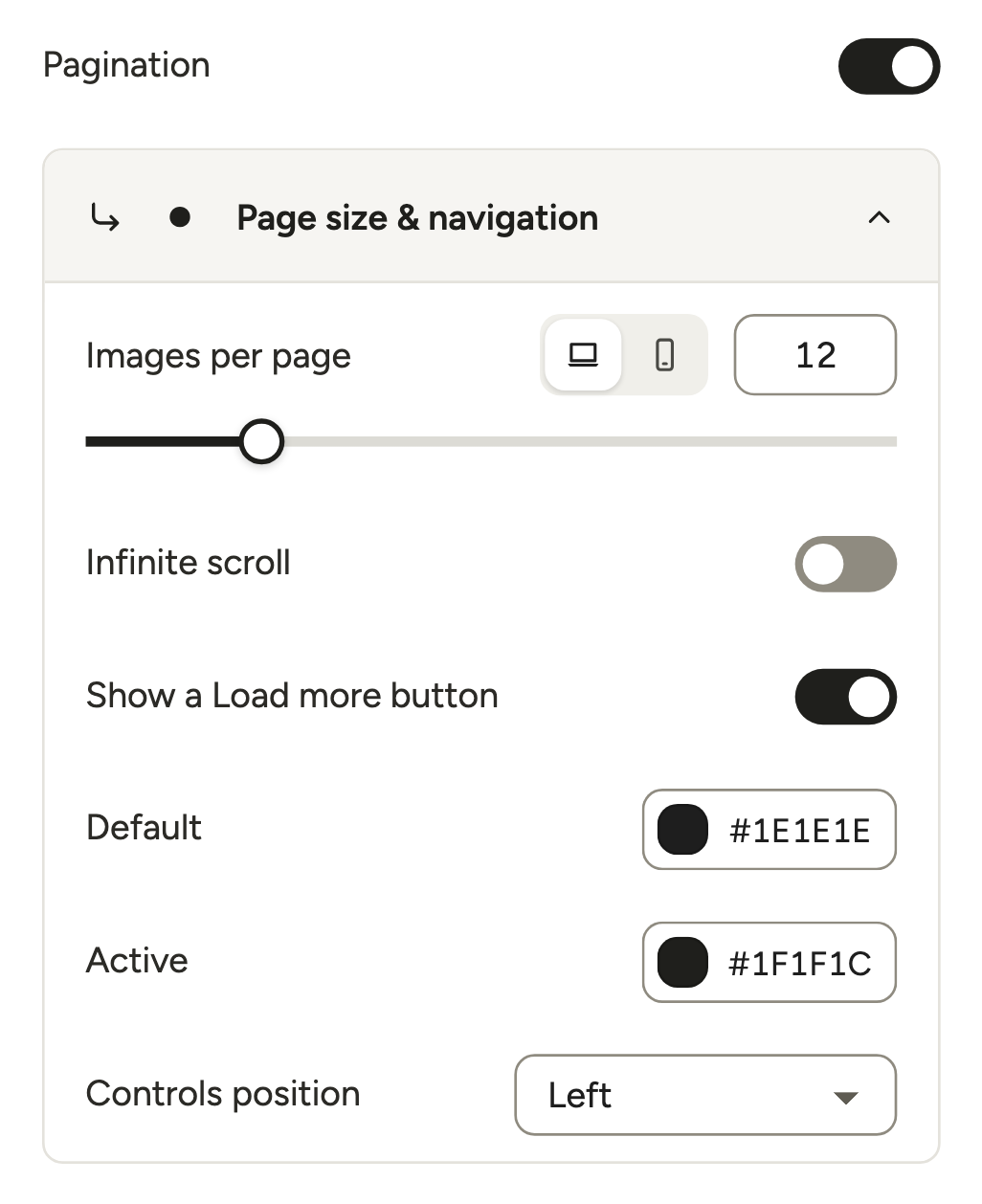
- For a Load more button: turn Infinite scroll off, then turn on Show a Load more button.
- For page numbers: turn both off. Then set How many page links to show (5 to 20). That’s how many number buttons appear at once, not how many photos.
Creative galleries, and Polaroid with Uniform size off, don’t offer infinite scroll. They use Load more or page numbers.
Style the controls
- Default and Active set the color of the page links and of the current page.
- Controls position puts them Left (the default), Center or Right.
- Let the theme style pagination and filters (Layout → More settings → General) is on for new 3.0 galleries. Your theme’s button styles then shape the controls, and your colors still apply.
Check it on a phone, then embed
Use the Desktop / Tablet / Mobile bar under the preview to check the phone batch. The editor saves as you go (“All changes saved”), so there’s no Save button to hunt for.
Then click Embed and copy the shortcode ([modula id="…"]), or use the Modula block, Elementor widget, Divi module or Beaver Builder module.
Tip
Paginating several galleries? Switch on Presets in Modula → Extensions. Then, in Modula → Content, hover over this gallery and click Save as preset. Pick it as the Default gallery preset in Modula → Settings → Galleries, and new galleries start paginated. See Modula presets and the presets demo.
How many images per page?
Each gallery page should hold a multiple of the column count: usually 12 to 30 images on desktop, fewer on phones.
- Match your columns. With 4 columns, use 12, 16 or 24 so the last row is full.
- Go lower on phones. A 2-column phone layout looks complete at 8 or 10.
- Think in screenfuls. The first batch should fill the screen a couple of times, not ten.
- Treat it as a step size. With infinite scroll, the number is how many photos each scroll step fetches.
Baymard (2016) suggests 10–30 items first when people browse, and 15–30 on mobile before a Load more button. That’s product-list data, so read it as a rule of thumb.
| Gallery | Desktop | Phone |
|---|---|---|
| Uniform grid, 4 columns | 12–24 | 8–10 |
| Masonry, 3 columns | 15–24 | 8–10 |
| Client picks with page numbers | 20–30 | 10–16 |
Fix the usual pagination problems
Five common pagination problems each have a quick fix in Modula 3.0.
The Load more button doesn’t show up
Turn Infinite scroll off. It’s on by default and takes priority, so Show a Load more button changes nothing while it’s on.
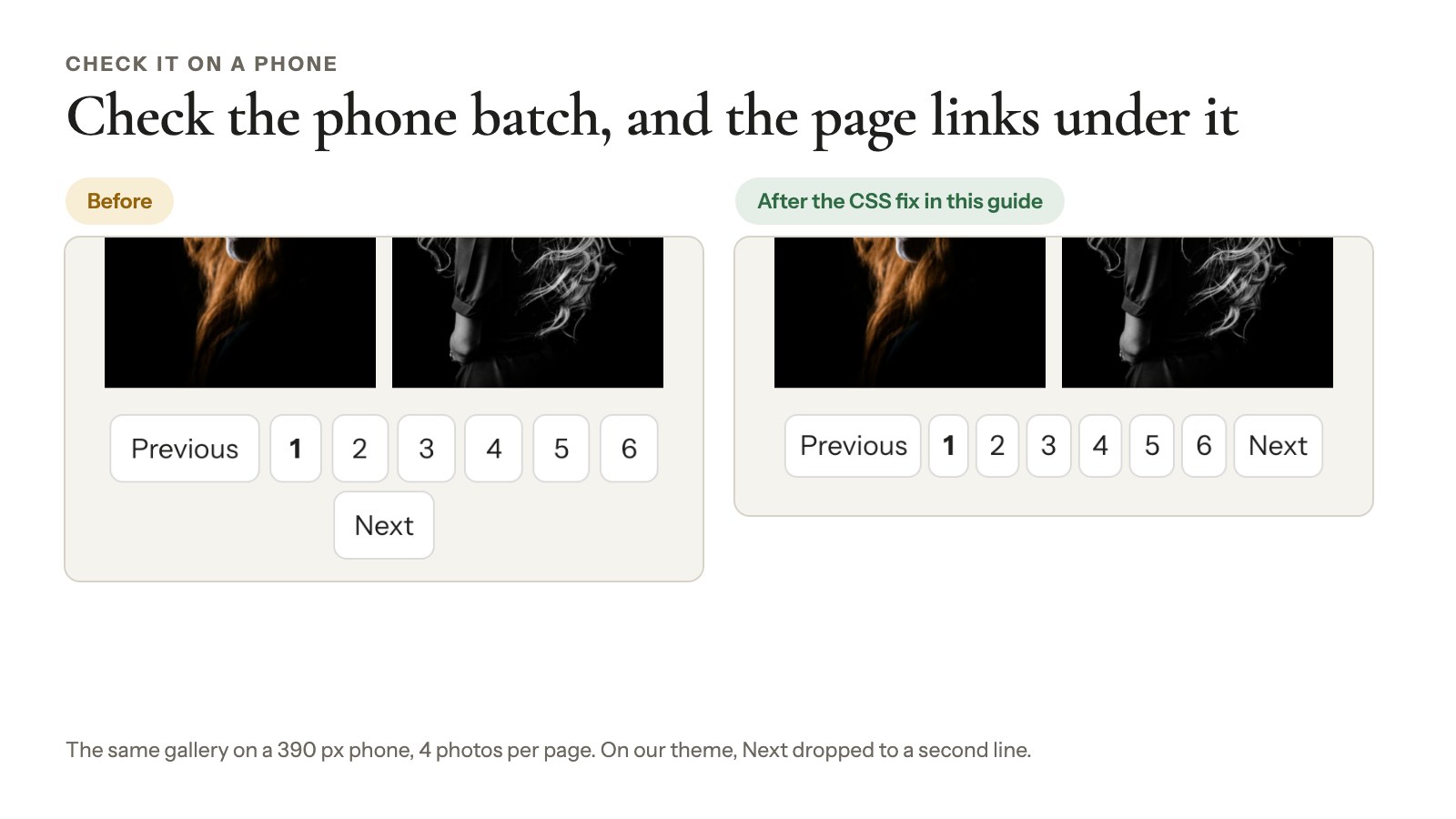
The page links wrap onto two or three lines on phones
Your theme’s button styles are usually making each link too big. Try, in order:
- Keep How many page links to show at 5.
- Turn off Let the theme style pagination and filters, so Modula’s own button style applies.
- Still wrapping? Add this to the gallery’s CSS section in the left rail, with your own gallery ID from its Copy button:
@media (max-width: 600px) {
  #modula-89 .modula-pagination { flex-wrap: nowrap; gap: .25rem; }
  #modula-89 .modula-pagination button { padding: .3rem .5rem; }
}
Adjust the numbers to your theme (custom CSS in Modula).
Center the controls or make the numbers bigger
Set Controls position to Center. For bigger numbers, one line in the gallery’s CSS section does it, no page builder needed:
#modula-89 .modula-pagination .page-numbers { font-size: 18px; }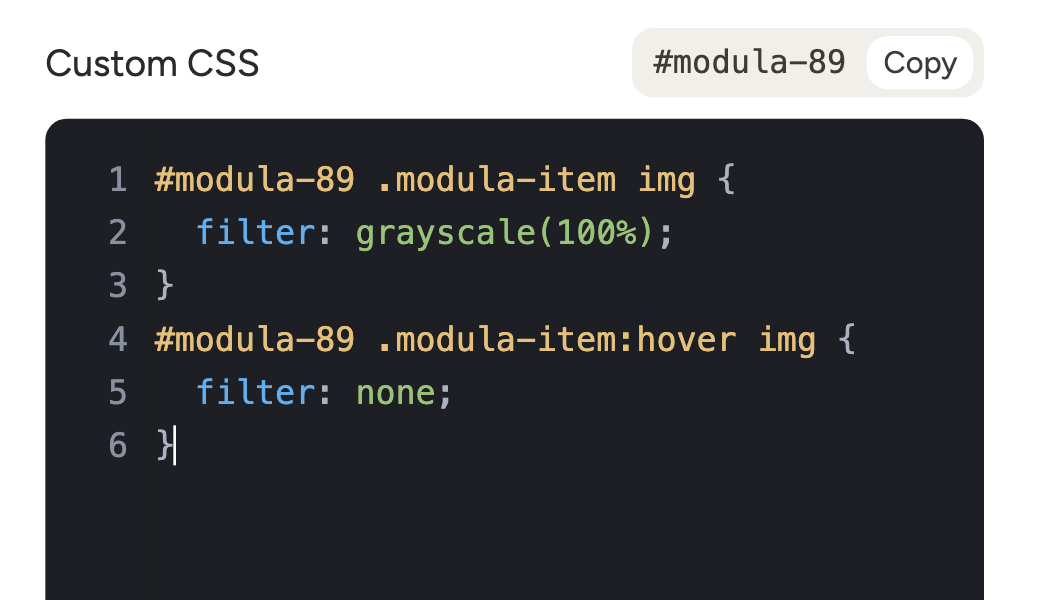
The lightbox only shows the current page
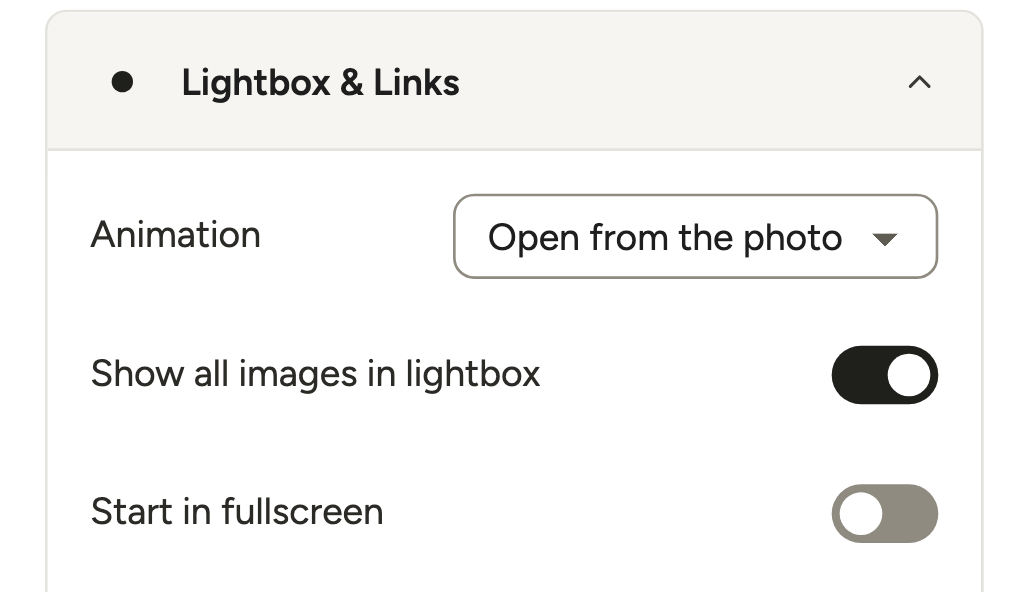
By default, the lightbox pop-up only browses the photos already loaded. Click Lightbox in the left rail, open More settings → Lightbox & Links and turn on Show all images in lightbox (details).
Visitors jump back to the top after clicking a page number
In the new 3.0 editor, page buttons swap the photos in place without reloading, so old scroll-back snippets aren’t needed.
Still jumping? If the address bar shows ?modula-page=2 after a click, that gallery still runs on the classic editor, where page numbers reload the page. Move it to the new editor and the jump goes away.
Does gallery pagination hurt SEO?
Gallery pagination can hide photos from Google: its crawlers follow <a href> links and don’t click buttons (Google’s pagination guide, 2025). Modula’s page controls are buttons, so photos after the first batch can’t be reached from the page itself.
Three things make up for it:
- Your XML sitemap. Modula adds gallery images to the sitemaps of Yoast SEO, Rank Math and SEOPress automatically (how). Open your sitemap and check the photos are listed.
- Alt text. Describe every photo. Bulk edit puts the whole gallery’s alt text in one table.
- Your best photos first. In Sort, pick Drag and drop reorder and move your strongest shots to the front. That first batch is the one in the HTML.
Nobody can promise Google indexes every photo, but the sitemap tells it where they are.
One honest limit: the page number isn’t written into the URL. Visitors can’t bookmark or share “page 3”, and they start from the first batch when they come back.
Is gallery pagination accessible?
Modula’s page numbers work with a keyboard and a screen reader: they’re real buttons inside a labelled “Gallery pagination” navigation area. Screen readers also hear which page is current.
Infinite scroll is the hard style: Nielsen Norman Group (2022) notes that keyboard users struggle with it and screen readers may only see the first chunk.
Adding hundreds of photos without the wait
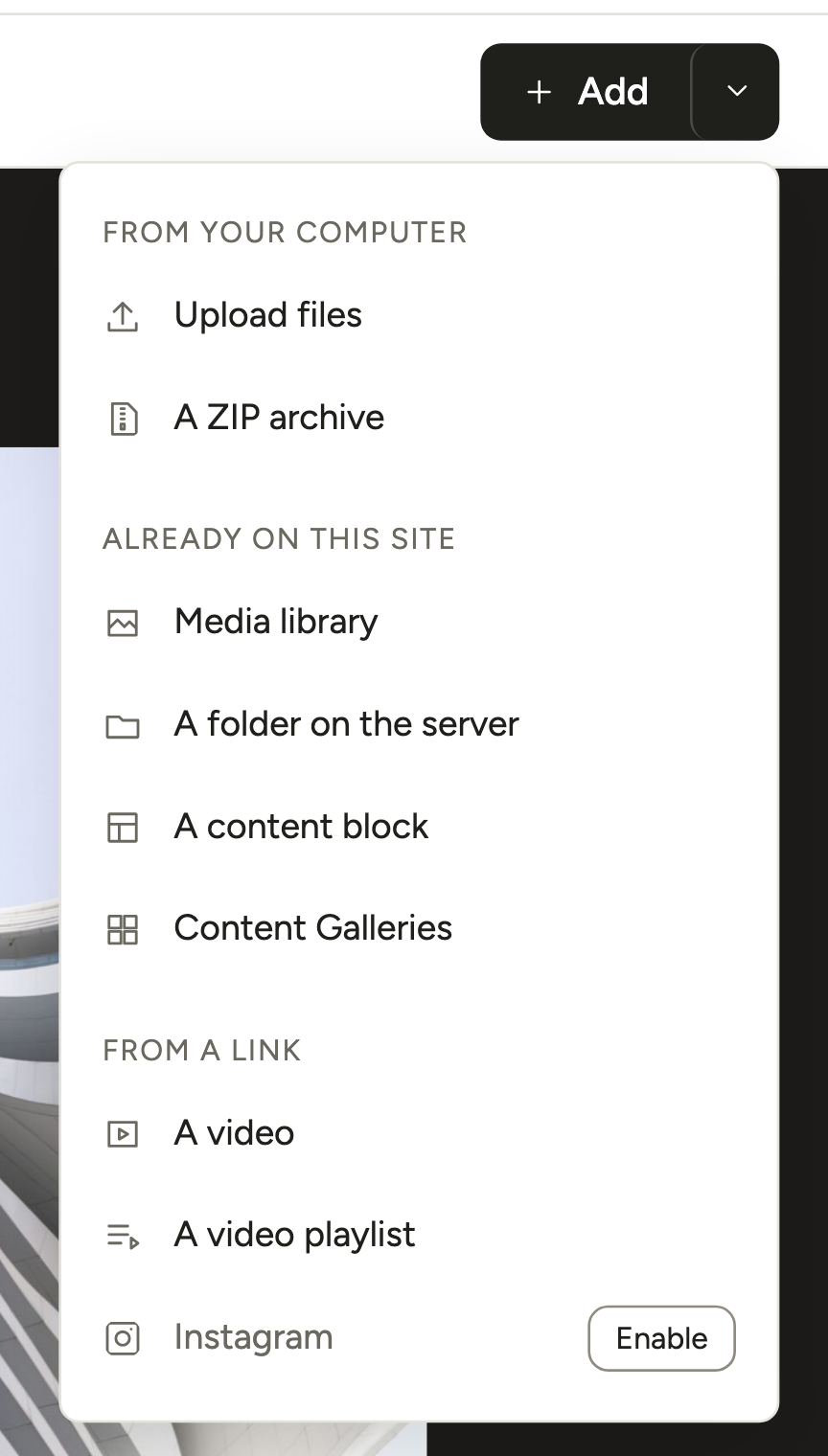
The Modula 3.0 editor adds hundreds of photos in one go. Click the arrow next to + Add for four bulk options:
- Upload files: drop a whole batch on the window, or click Choose files and select them all. You’ll see “Uploading 1 of N…” as it works.
- A ZIP archive: one ZIP full of photos, smaller than your site’s maximum upload size (guide).
- A folder on the server: upload the folder by FTP, then add it all at once (guide).
- Media library: pick photos already on your site. The WordPress Media Library also has Add to Modula Gallery for many photos at once.
The ZIP and folder options come with Modula Pro, which you’ll have anyway for pagination.
More in adding multiple images to a gallery.
Can you paginate a WordPress gallery without a plugin?
WordPress alone can’t paginate a gallery: the Gallery block has columns, resolution, cropping, random order and aspect ratio, but no pagination.
The closest workaround is the Page Break block. Put a Gallery block on each “page” of your post with a Page Break between them, and WordPress adds numbered links. Each page gets its own URL, which Google can crawl.
The downsides: you split the photos by hand, the whole post splits (text included), and every page change reloads the page.
Gallery plugins handle it on different plans (checked October 2026). FooGallery has a free Simple Dots style and puts numbered pages, Load more and infinite scroll in PRO Expert. Modula’s free plugin has no pagination.
Frequently asked questions
Gallery pagination shows a large photo gallery in smaller batches. Visitors get the next batch through page numbers, a Load more button or infinite scroll, so the page doesn’t load every photo at once.
For most portfolios, Load more. Visitors decide when to see more and can still reach your footer. Infinite scroll suits long feeds with nothing important below them.
Infinite scroll can hide photos from Google, whose crawlers don’t scroll or click to load more. Make sure your XML sitemap lists the gallery images.
Not by default. Turn on Show all images in lightbox under Lightbox → More settings → Lightbox & Links.
Yes. Picking a filter searches the whole gallery, not just the batch on screen, and goes back to the first page. Filters come with every Modula Pro plan.
No. It comes with the Business and Agency plans, not with the free plugin or the Starter and Trio plans. See Modula pricing.