 Made in Europe, buy from Europe.
If your images are in a ZIP file, Modula can unpack it and add every image to a WordPress gallery in one go. You don’t need to upload the photos one by one.
Note: A ZIP archive needs Modula Pro.
Add a ZIP file to a gallery
- Go to Modula → Galleries.
- Open your gallery, or click New gallery to start a new one.
-
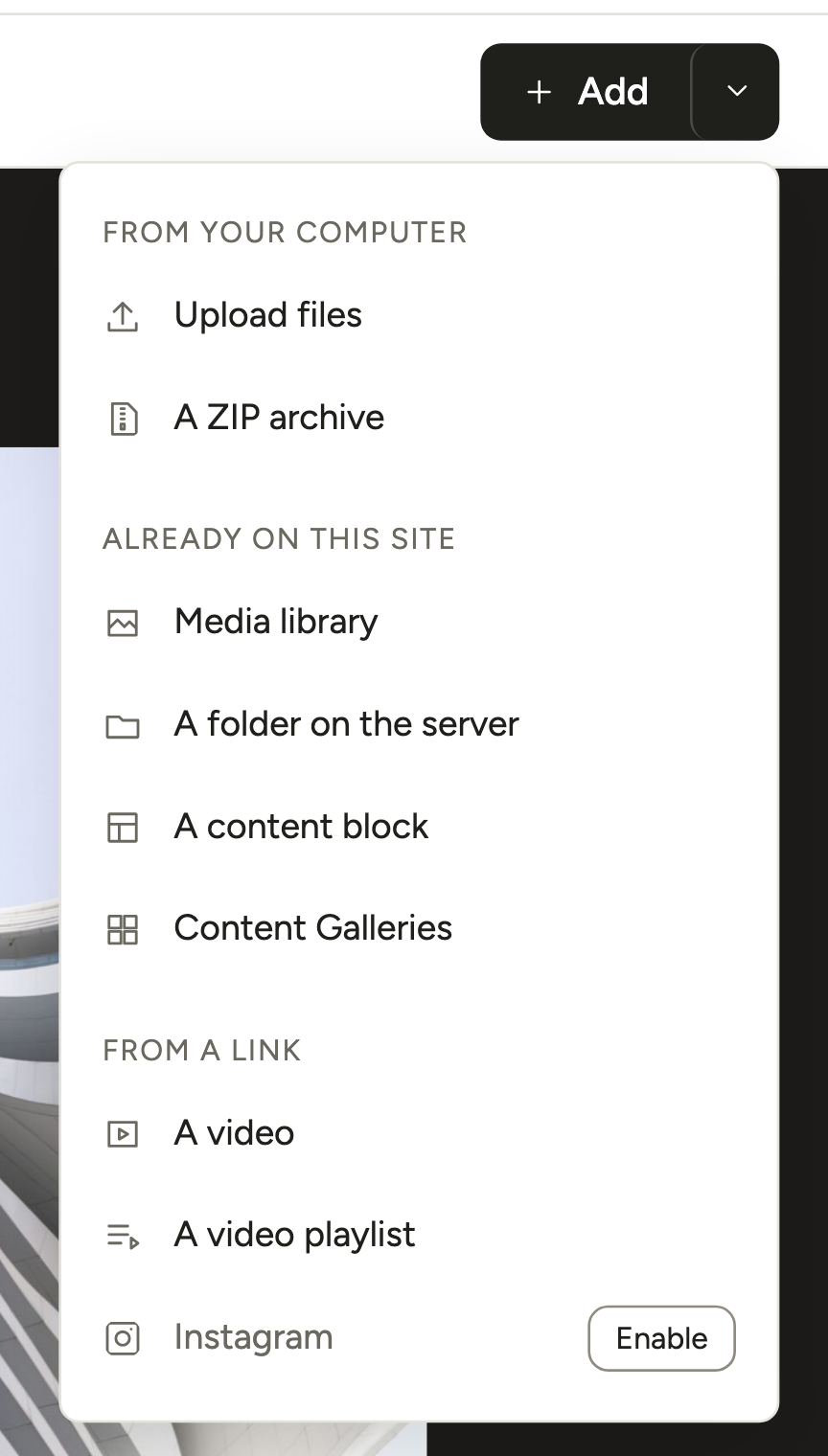
Click the arrow next to Add, at the top right of the editor, and choose A ZIP archive.
-
The Add images and videos window opens on Upload files. Drop the ZIP file on it, or click Choose files and pick the ZIP on your computer.
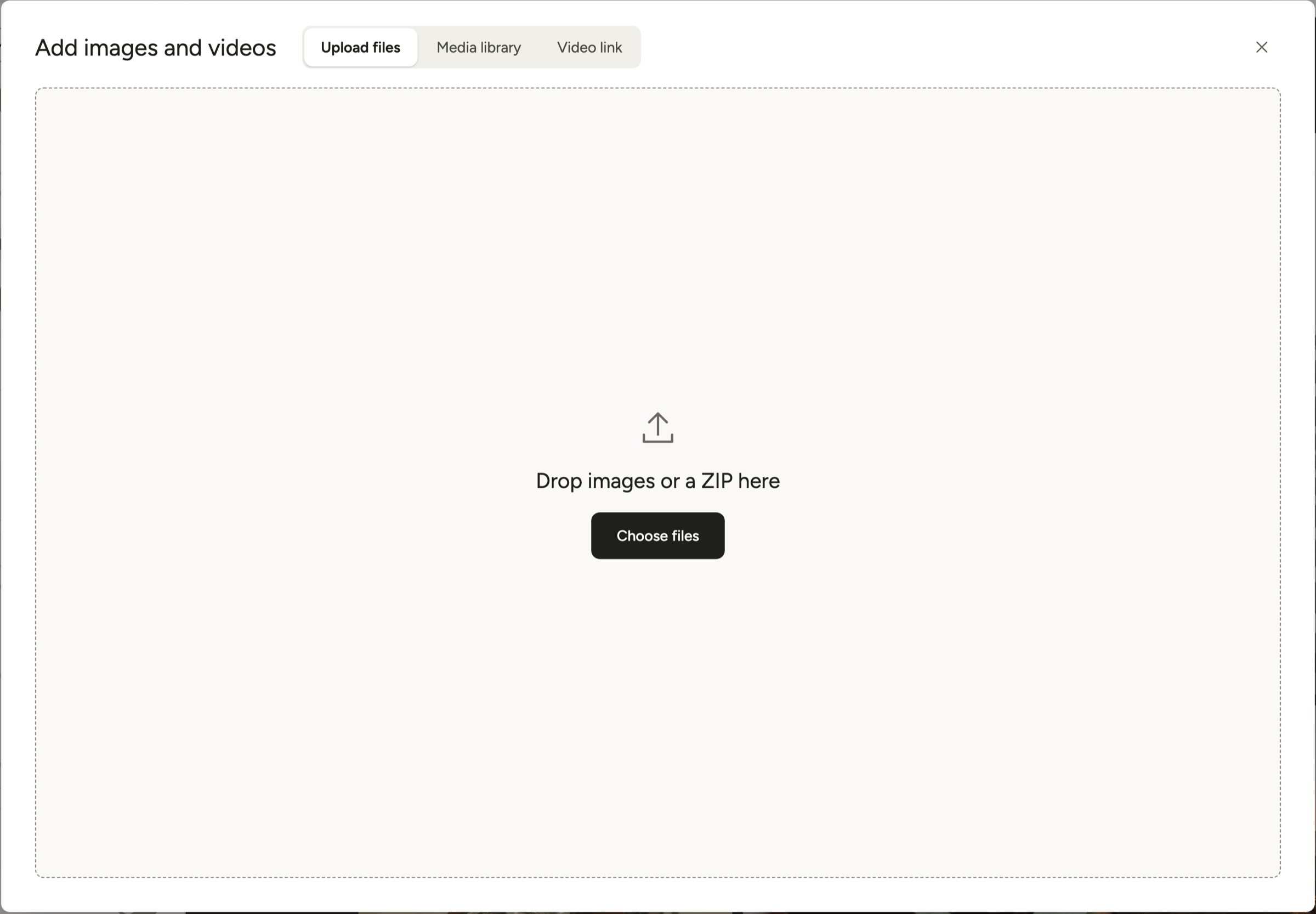
Modula uploads the ZIP and unpacks it. It adds the images to your Media Library and to the gallery. The editor saves the gallery on its own.
What the ZIP file can contain
Before you upload, check that your ZIP file fits these rules.
- Image types: JPG, PNG, GIF, BMP, TIFF and WebP images work, as long as your WordPress site accepts that type. Modula skips other files. It refuses a ZIP without any image.
- Folders in the ZIP: Modula also adds images in folders inside the ZIP. It ignores the hidden files a Mac adds to ZIP files (
__MACOSXand files starting with._). - File size: The ZIP must be smaller than your site’s maximum upload size. You can see this size in Media → Add Media File. Split a large set of images into several ZIP files if needed.
- PHP ZIP extension: Your server needs this extension, which lets PHP open ZIP files. If it’s missing, Modula tells you. Ask your host to turn it on.
- After the import: Modula deletes the ZIP file once it is unpacked. Only the images stay in your Media Library.
Other ways to add images
To add images that are already on your server, see how to create a gallery from a folder. To see which formats Modula can use, read Supported file types.
Once the gallery is ready, you can show it in a post or page.