 Made in Europe, buy from Europe.
A preset is a saved set of gallery or album settings. With Modula Presets, you don’t set up every new gallery by hand. You start it from a preset and only add the photos.
Note: Presets is a Modula Pro extension, included in the Business plan. Switch on Presets in Modula → Extensions (how to switch on extensions). Presets replace the old Defaults extension.
Save your gallery settings as a preset
- Set up a gallery the way you want your galleries to look. If you are new to this, make your first gallery.
- In the gallery editor, click Layout in the left rail.
-
Click More settings, then Presets.
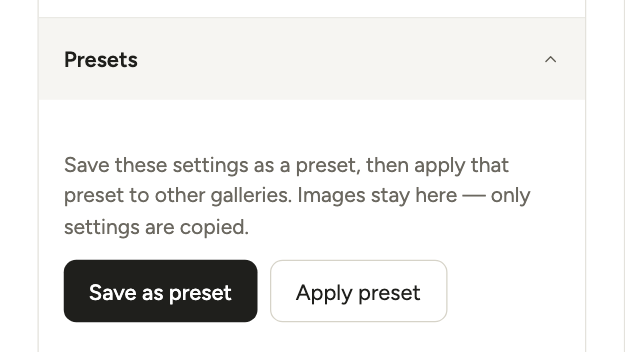
- Click Save as preset.
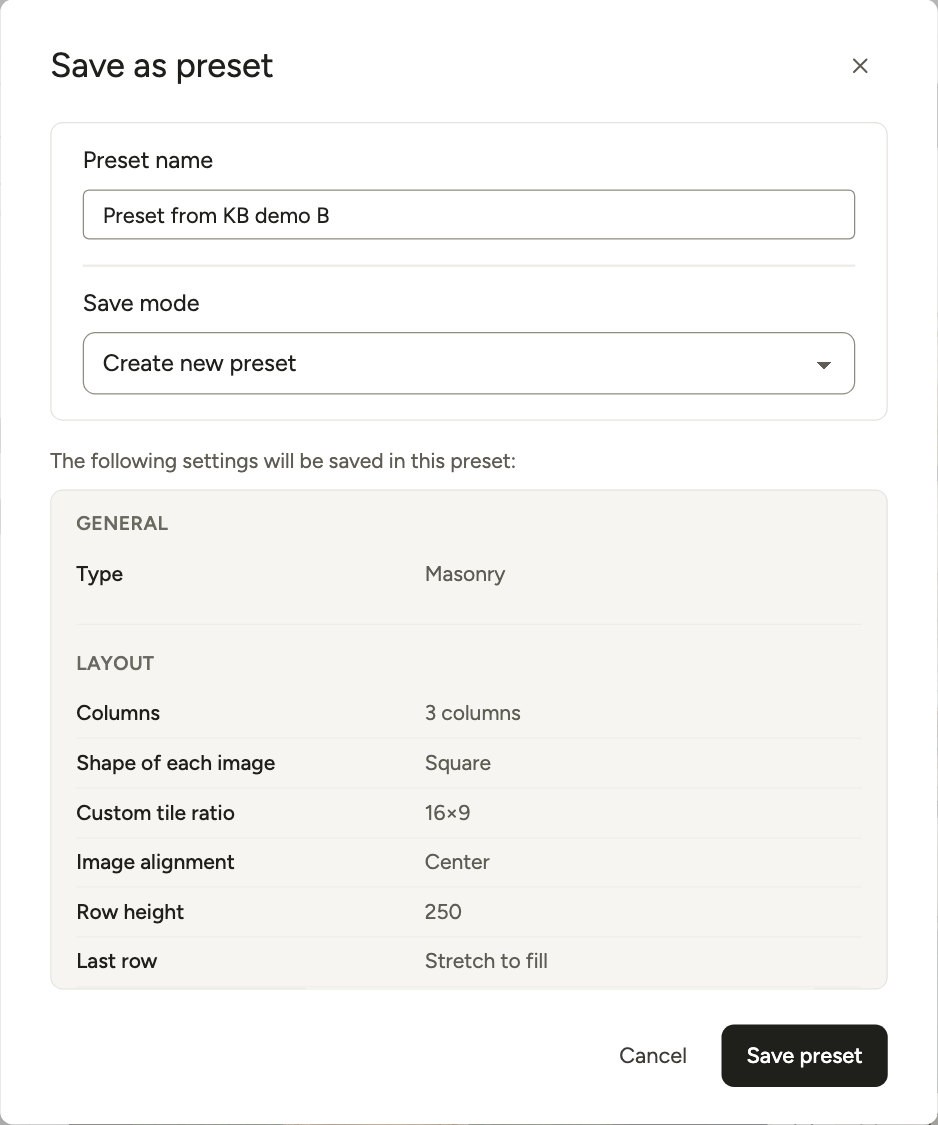
- Check the Preset name. Modula fills it in from the gallery’s name.
- Leave Save mode on Create new preset. To change a preset you already have, choose Update existing preset.
-
Click Save preset. The preset keeps the gallery’s settings. The images are not copied.
Find and use your presets
All your presets are on the Presets tab in Modula → Galleries. The tab lists each preset with its title and date.
To delete a preset, hover over it and click Trash.
Choose a default preset for new galleries
You can pick one preset to start each new gallery from. You do this on the Modula Settings page.
- Go to Modula → Settings → Galleries.
- Under New galleries, pick one of your presets in Default gallery preset.
-
Click Save changes.
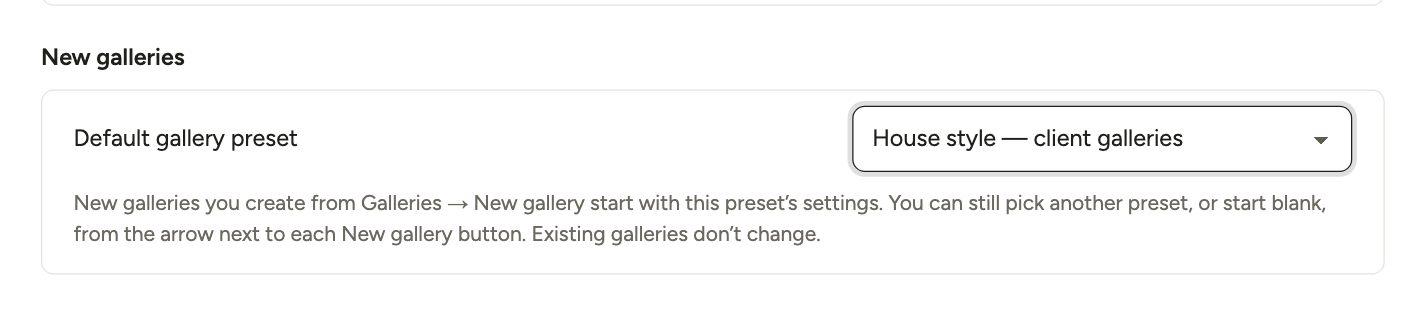
- Go to Modula → Galleries. New gallery now starts from your default preset. To start from another preset, create the gallery and apply that preset.
Note: The default preset only applies to galleries you create from now on. Existing galleries don’t change.
Apply a preset to existing galleries
To change galleries you already have, apply a preset to them.
- In the gallery list, click the three dots on a gallery’s row, then click Apply preset. For several galleries at once, select them and click Apply preset in the bar that appears. In the gallery editor, you find Apply preset next to Save as preset.
- Pick the preset in Select a preset….
- Click Apply preset.
The preset’s settings replace the gallery’s settings. The images in the gallery don’t change. Albums work the same way with album presets.