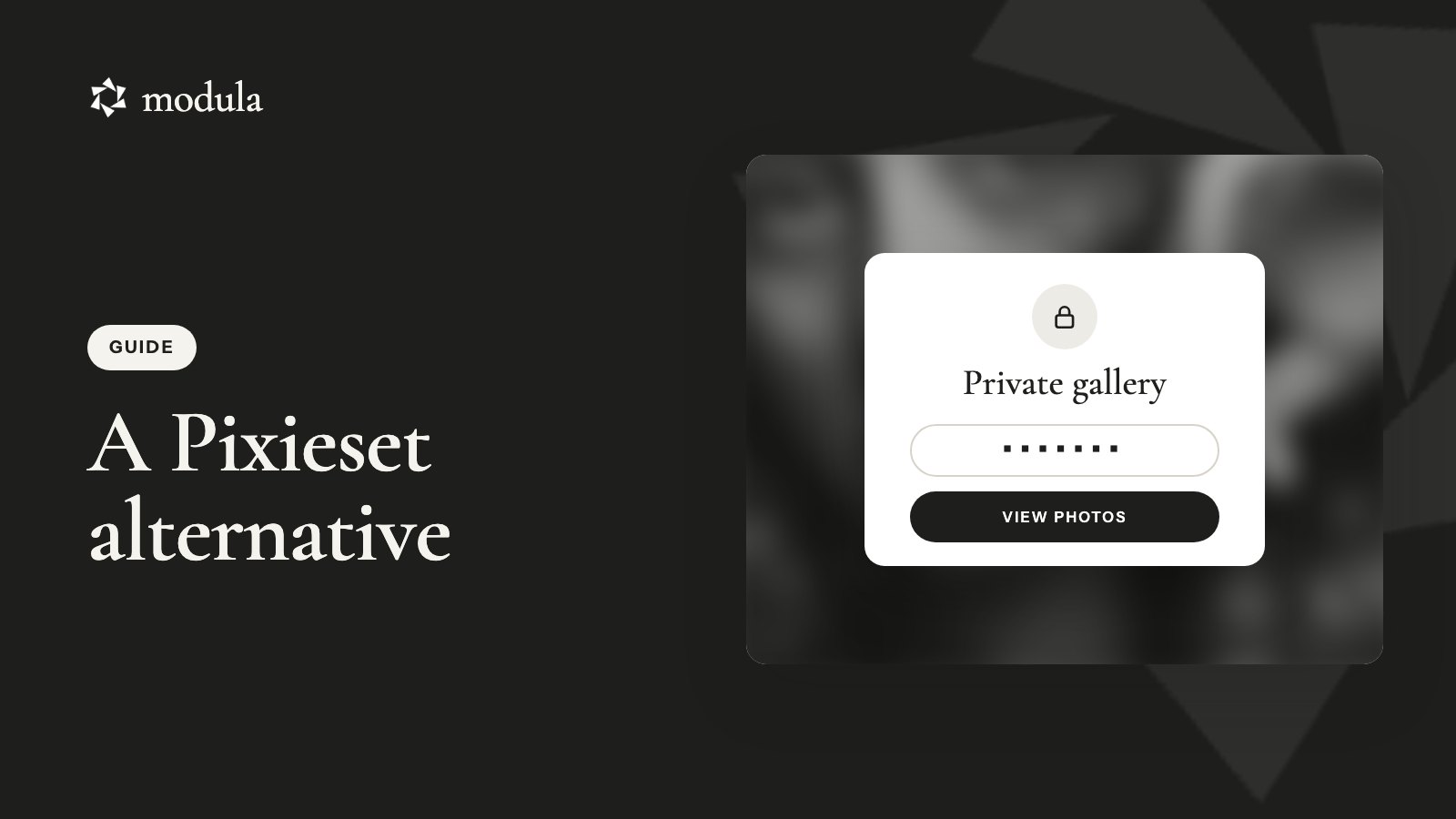
Want a Pixieset alternative that keeps client galleries on your own website? If you run WordPress, you can have one. A gallery plugin can take over proofing (clients picking their favorites), final delivery and password protection, on your domain, next to your portfolio.
What you give up is real, though. Pixieset’s Store and print fulfillment, its Mobile Gallery App and its business tools (Studio Manager, email campaigns) don’t come with a gallery plugin. If prints and albums pay a big share of your bills, keep Pixieset for selling, or pair WordPress with a store plugin.
We checked every price below on the vendors’ own pages in October 2026.
Which Pixieset alternative fits you
The best Pixieset alternative depends on the job: Modula for proofing and delivery on WordPress, Sunshine Photo Cart for selling from WordPress, picu for free proofing, and ShootProof or Pic-Time if you’d rather stay hosted. Those Pixieset alternatives, by job (checked October 2026):
| If you mainly… | Go with | Why | Watch out for |
|---|---|---|---|
| Proof and deliver photos, sell little or nothing | Modula Business on your WordPress site | Proofing, downloads, comments and watermark in one plan | No store, no print sales |
| Sell prints and downloads from WordPress | Sunshine Photo Cart | Cart, checkout and proofing in one plugin | The free core adds a 5% platform fee on Stripe and Square |
| Need proofing only, for free | picu | Free core built around proofing | Pro costs $149 a year for one site |
| Don’t want to run WordPress at all | ShootProof (no commission on any plan), Pic-Time (30+ labs) or Pixpa | Hosted, nothing to maintain | You’re still renting your galleries |
| Like Pixieset’s Store, tired of the rest | Keep Pixieset for sales, move the rest to WordPress | You keep the store you know | Two logins and two bills |
What Pixieset does well (and what you’d be replacing)
Pixieset does three jobs well, according to its own pages (checked October 2026): delivery and proofing, selling, and the rest of the business. A WordPress gallery plugin replaces only the first.
Delivery and proofing
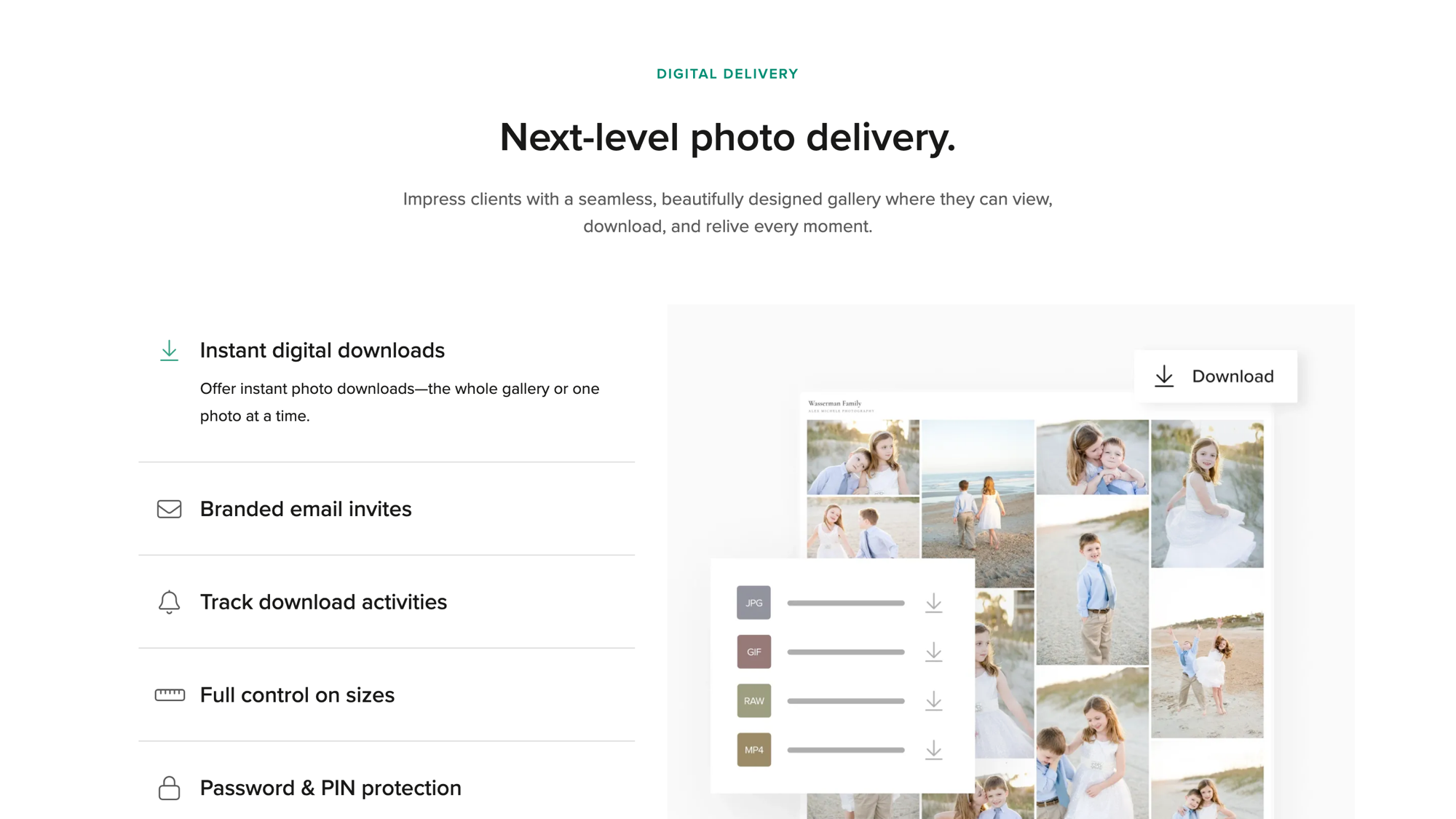
Pixieset’s Client Gallery gives you:
- favorites lists, and clients can add a note to each favorited photo
- downloads in several sizes, download PINs and download activity tracking
- an optional Auto Expiry date per collection, with automated expiry reminder emails (the collection goes hidden, not deleted)
- branded email invites and a Lightroom plugin, plus RAW sharing (unedited camera files) on Pro and Ultimate
Selling
The Store comes with every Client Gallery plan: a storefront, online payments, automatic fulfillment, coupons and gift cards. Pixieset’s pricing FAQ puts it plainly: “There are no commission fees for all upgraded accounts. Free accounts are subject to a 15% commission fee on store sales.”
The rest of the business
Pixieset also sells a Website builder (separate plans) and Studio Manager, with contracts and e-signatures, invoices and booking. Add the Mobile Gallery App, email campaigns (100 to 10,000 a month by plan) and a $12-a-month Photo Editor add-on.
Pixieset vs WordPress: what changes when galleries live on your site
Moving client galleries from Pixieset to WordPress trades Pixieset’s storage tiers for a plugin license and a site you own and look after.
What you gain
- Your own domain, no upgrade needed. Pixieset connects a custom domain from its Basic plan up. On WordPress, galleries already sit on your domain.
- Clients land on your site. A couple picking engagement photos is one click from your wedding packages.
- No platform commission. Nobody takes a cut of your galleries. If you sell, the fees depend on the store you pair with them.
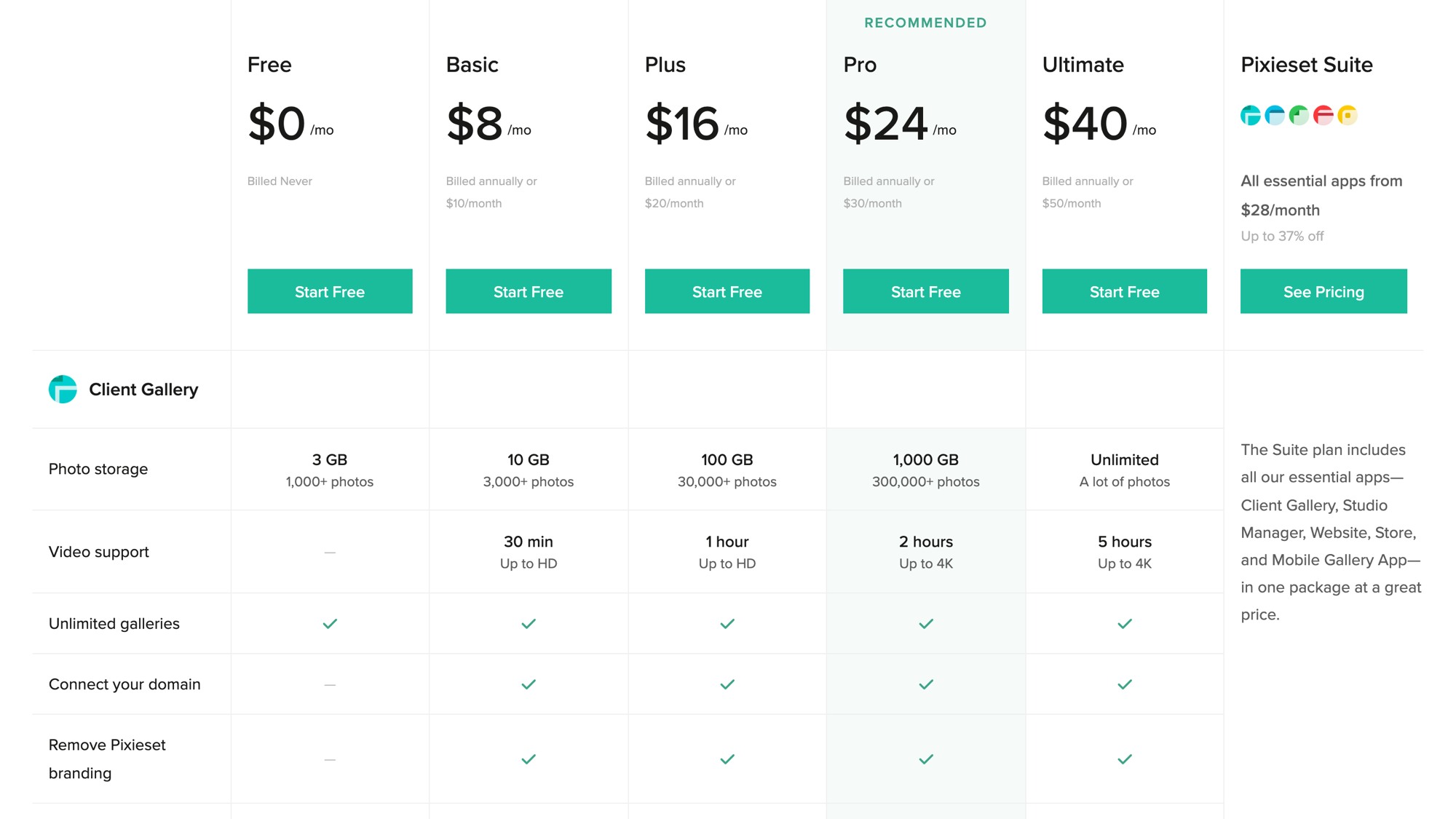
- No storage tiers. Pixieset steps from 3 GB to 10 GB, 100 GB, 1 TB and unlimited. On WordPress, the limit is your hosting.
What you take on
- Space and backups. Full-size wedding galleries fill hosting fast, so check your disk space and make sure backups include the uploads folder.
- Updates. WordPress, your theme and plugins need regular updates.
- Email delivery. Invitations go out from your own server. An SMTP plugin, which sends mail through a real mail service, helps them reach the inbox.
- Look and app. Your theme sets how galleries look, and there’s no branded mobile app for clients.
What Modula does for client work, and which plan you need
Modula handles proofing, delivery and protection for client galleries on your WordPress site, and every client tool sits in the Business plan. We make Modula, so read this as the vendor’s view, with the gaps right after.
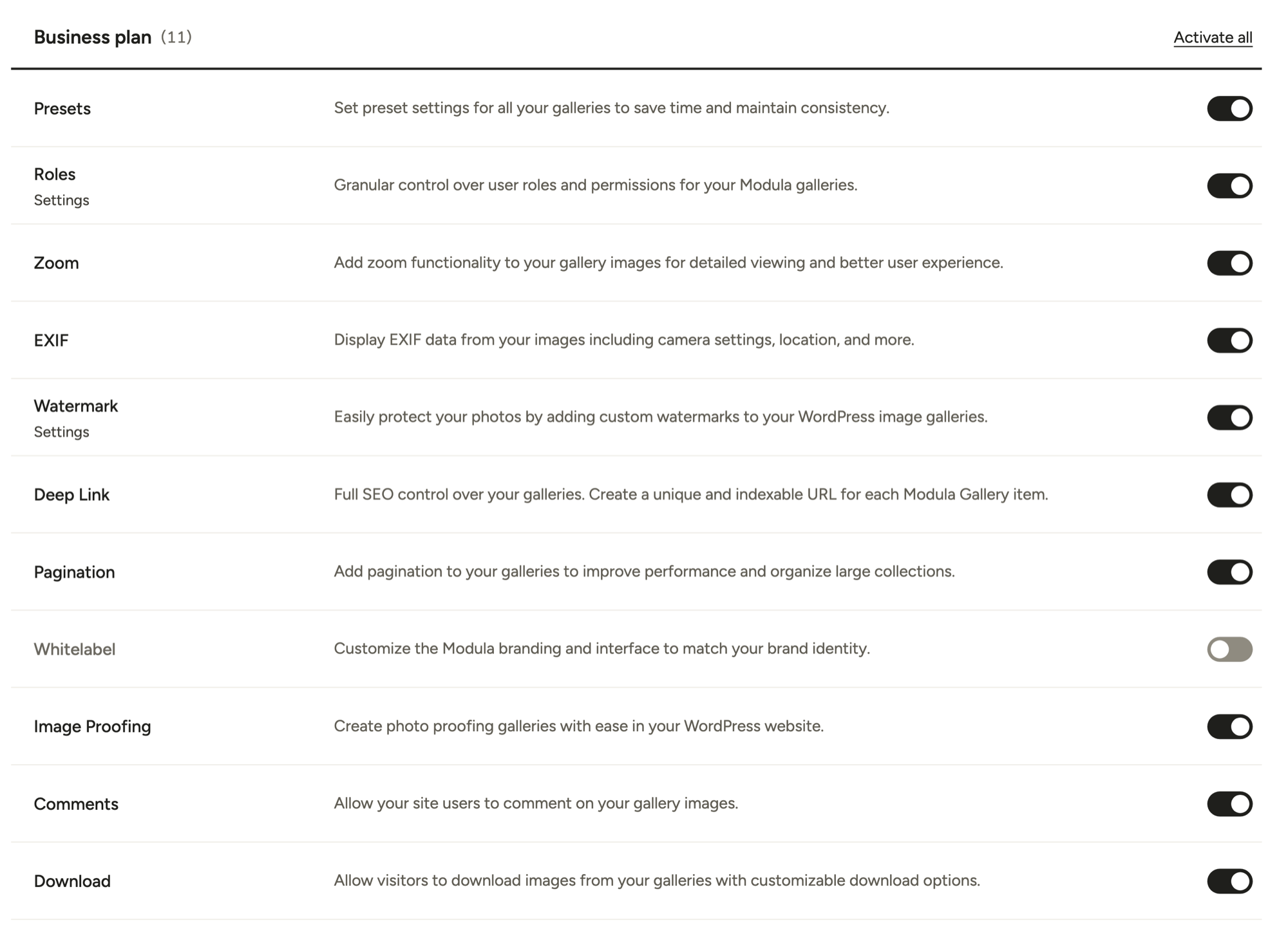
Despite what some AI answers say, these aren’t add-ons sold one by one: they’re extensions in your plan, switched on in Modula → Extensions.
| Feature | What it does | Plan |
|---|---|---|
| Image Proofing | Clients pick photos through invite links, within the limits you set | Business |
| Comments | Each photo gets its own comment thread in the lightbox (the full-screen view) | Business |
| Download | One image, or the whole gallery as a ZIP, at the size you choose | Business |
| Watermark | Marks your proofs | Business |
| Password Protect | A password on a gallery or an album | Trio and up |
| Image Guardian | Blocks right-click and dragging images out | Trio and up |
| Albums | Groups one client’s galleries together | Trio and up |
| Standalone | Gives each gallery its own address | Trio and up (per the KB) |
| Image compression + CDN | Smaller files, served from servers near each visitor | Trio and Business |
Business costs $99 for the first year in the current offer, then $198 a year, for 5 sites. Trio is $69, then $138 a year, for 3 sites. Both have a 14-day money-back guarantee (pricing).
Free Modula Lite gives you 7 of the 14 gallery types, but no proofing, downloads or passwords. It has 160,000+ active installations and a 4.7/5 rating on wordpress.org.
What Modula doesn’t do
- Selling: no store, cart or checkout, no print-lab fulfillment, no selling digital files.
- Storage and apps: no included storage (photos live in your Media Library), no RAW delivery, no mobile app, no face or selfie search.
- Business tools: no email campaigns, CRM, contracts, invoices or bookings.
- Expiry and tracking: no automatic expiry date (you expire invites by hand) and no log of who downloaded what.
- Notes: proofing notes cover the whole selection. For a note on each photo, turn on Comments.
- Lightroom: no publish plugin. Export, then upload or add a ZIP.
Set up a client proofing gallery in Modula
A client proofing round in Modula 3.0 takes six steps, from creating the gallery to reopening a round. New to proofing? Start with what photo proofing is. The Image Proofing docs cover every option.
Create the gallery
Go to Modula → Content → New gallery. Click the arrow next to + Add and pick Upload files, Media library, or A ZIP archive (Pro) for a whole session at once.
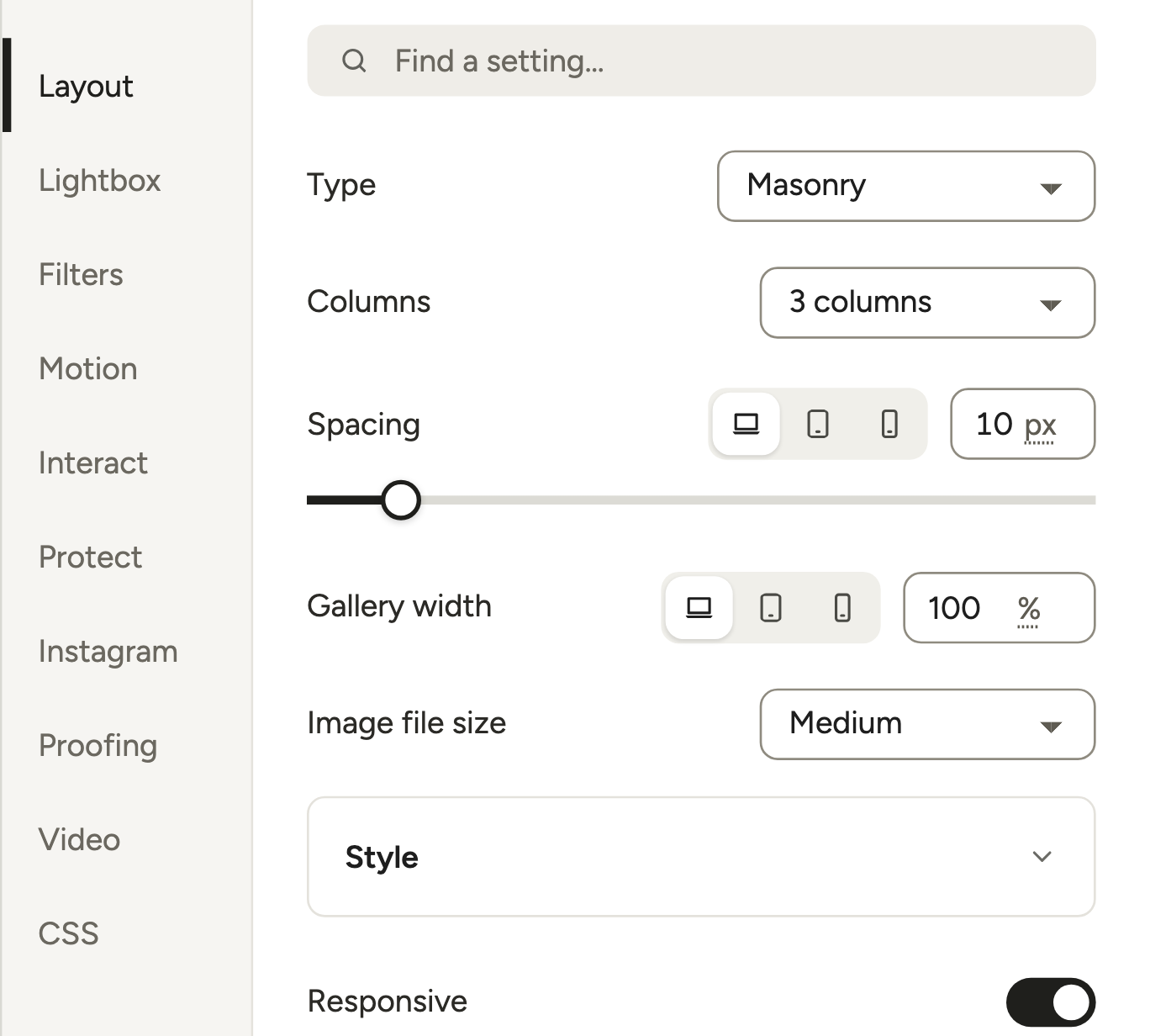
For picking, a 3-column Masonry layout works well: photos keep their shape and stay big enough to judge.
Turn on Client proofing
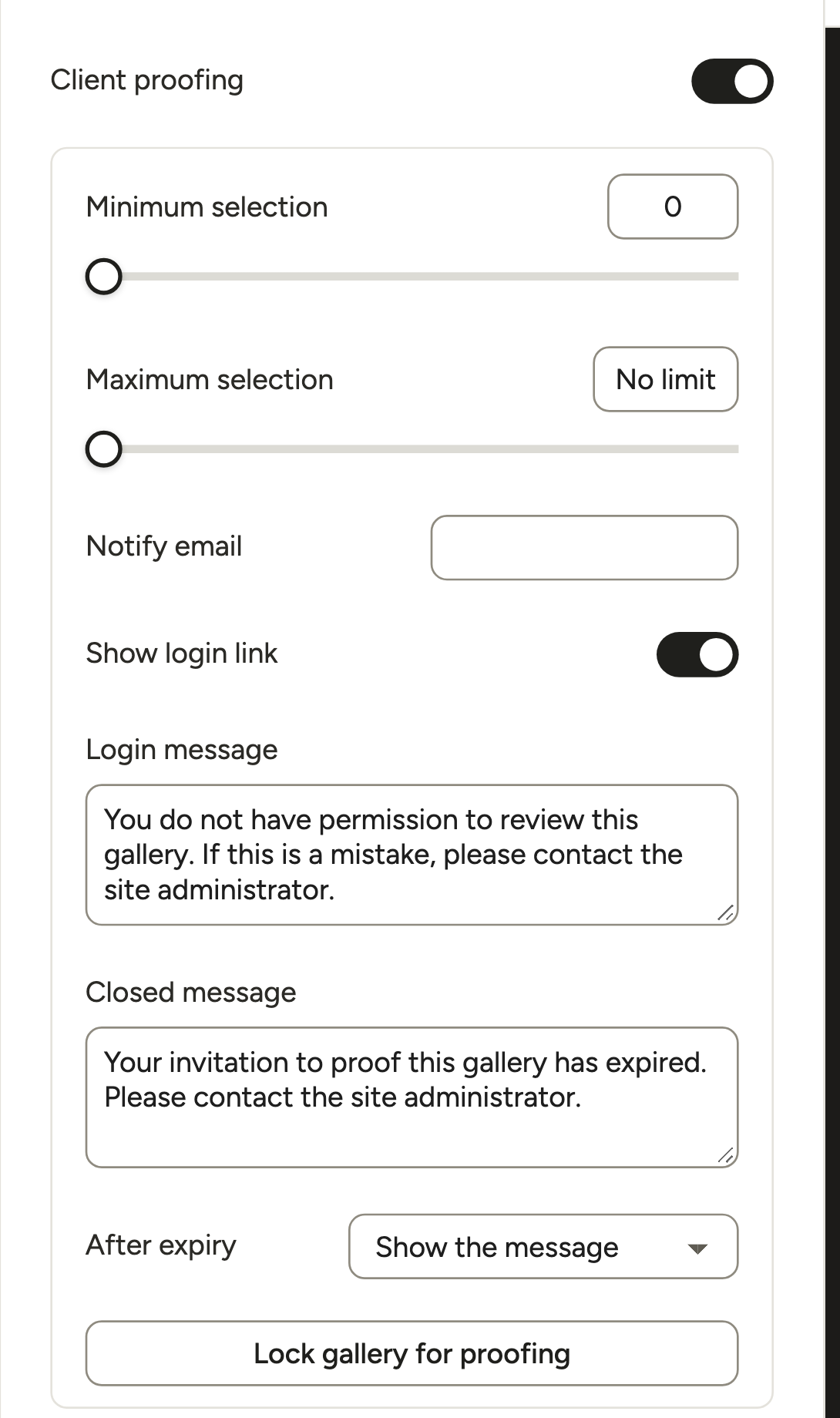
Click Proofing in the left rail and switch on Client proofing. Then set the rules:
- Minimum selection and Maximum selection. Selling a 25-image package? Set the maximum to 25 and nobody picks 40.
- Notify email. Where the email goes when a client submits (the gallery owner’s email by default).
- Show login link and Login message. What a visitor without an invite sees.
- Closed message and After expiry. What someone with an expired invite sees, or where they’re sent instead.
With your photos in, click Lock gallery for proofing. That opens proofing mode, home to the invitations and the summary.
Brand the invitation email
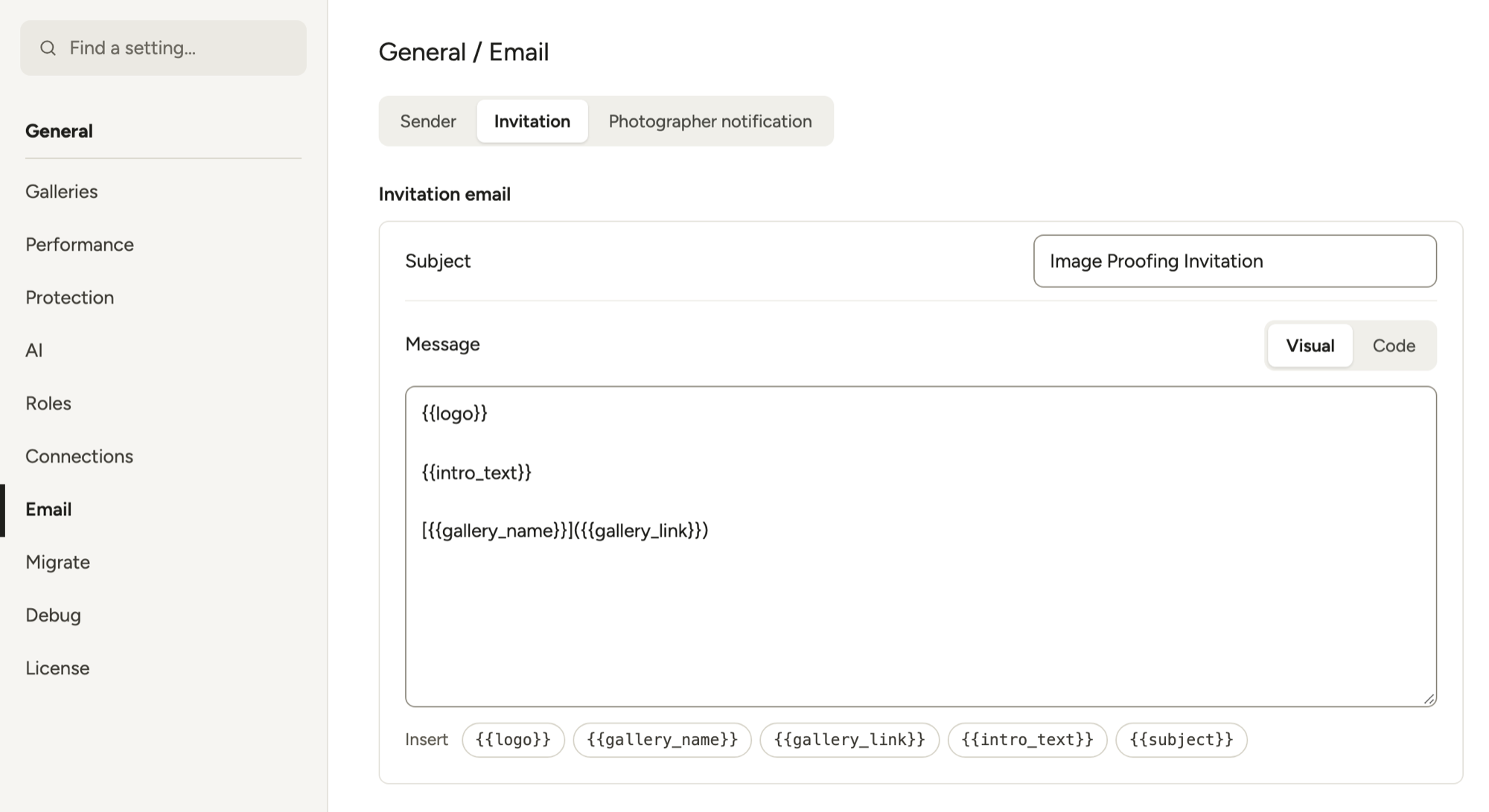
Go to Modula → Settings → Email. Under Sender, set the From name, From email, Reply-to and your Logo. Then write the Invitation and your Photographer notification.
Skip hand-written HTML for the logo: click the {{logo}} tag under Insert. The invitation also takes {{gallery_link}} and {{intro_text}}.
Use Send a test email before inviting anyone. Blank gap at the top? Switch the editor to Code and delete the empty tags above {{intro_text}}.
Invite your client
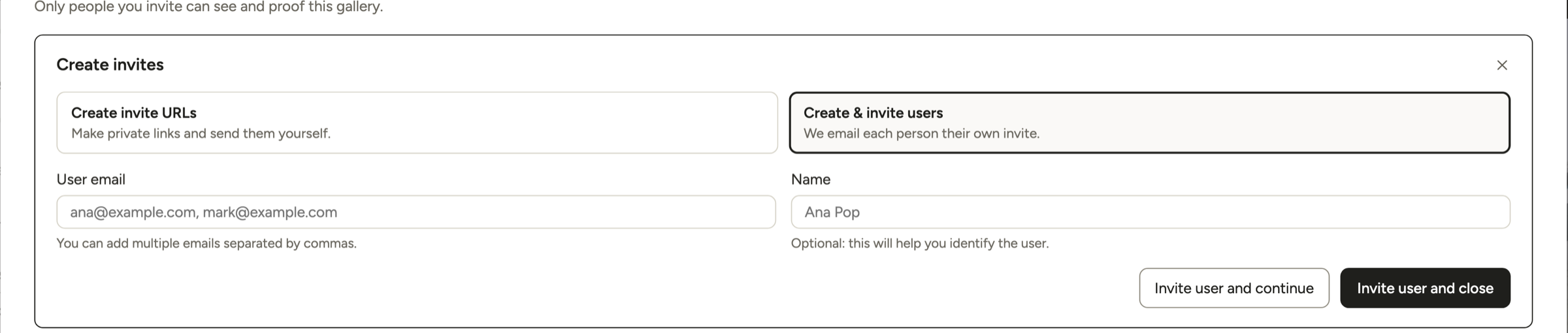
Open the Invitations tab and click Create invites. Create invite URLs makes a private link you send yourself, by email or text. Create & invite users has Modula email each address for you.
Each invite then has Copy, Send email, Expire invite (or Activate invite) and Delete.
Tip
The invite link opens the gallery on your site’s front end. Clients never need a WordPress login. If a link lands on your homepage, re-save Settings → Permalinks, clear your cache and create a fresh invite. It’s the first thing to try, though it won’t fix every case.
What your client sees
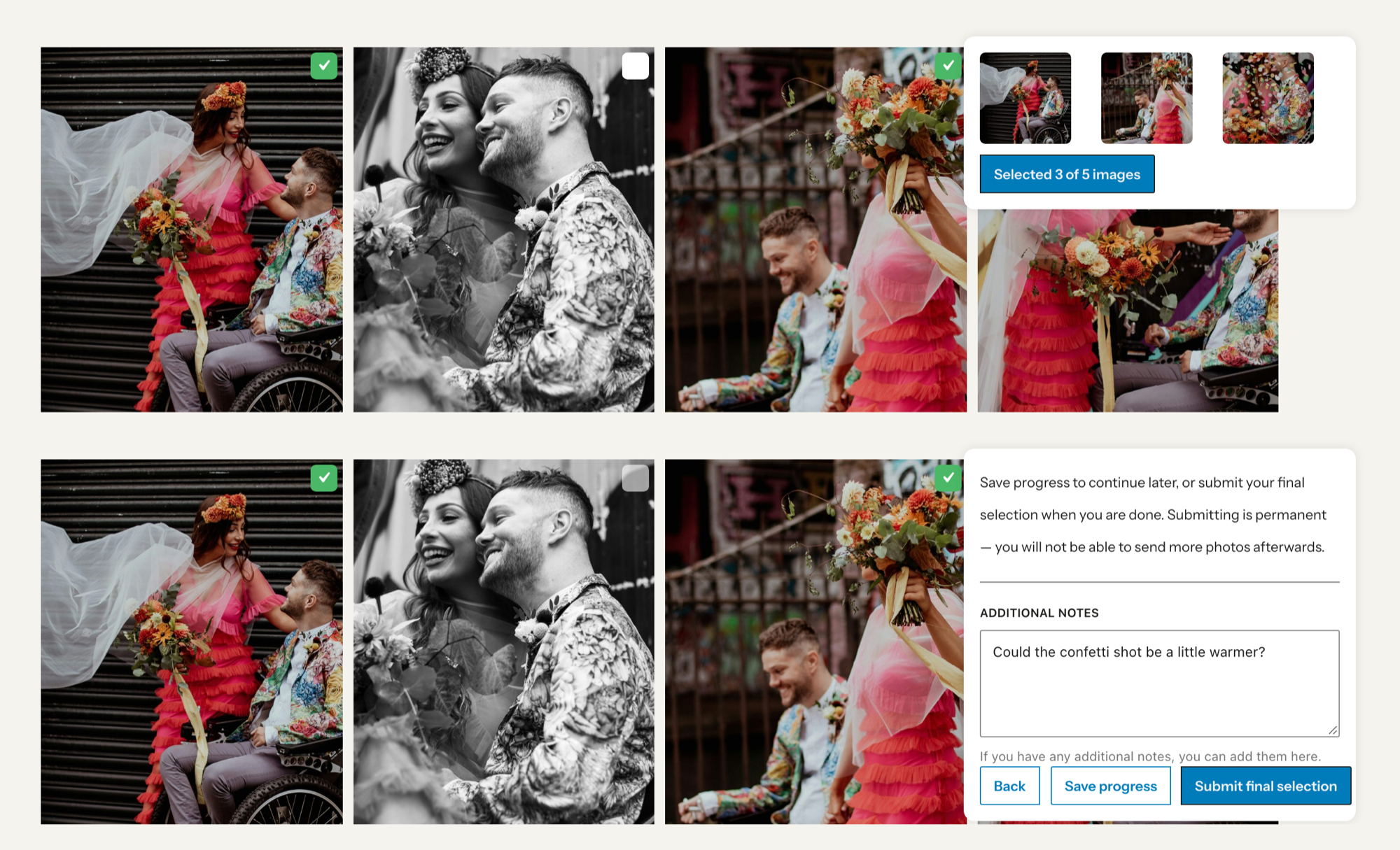
Your client opens the link and taps the small box on each photo they want, with a counter keeping score. They can add Additional notes, then choose Save progress or Submit final selection.
Once they submit, the selection stays locked until you unlock it. So tell clients to use Save progress until they’re sure: the same link brings them back to their picks.
Review the picks and reopen a round
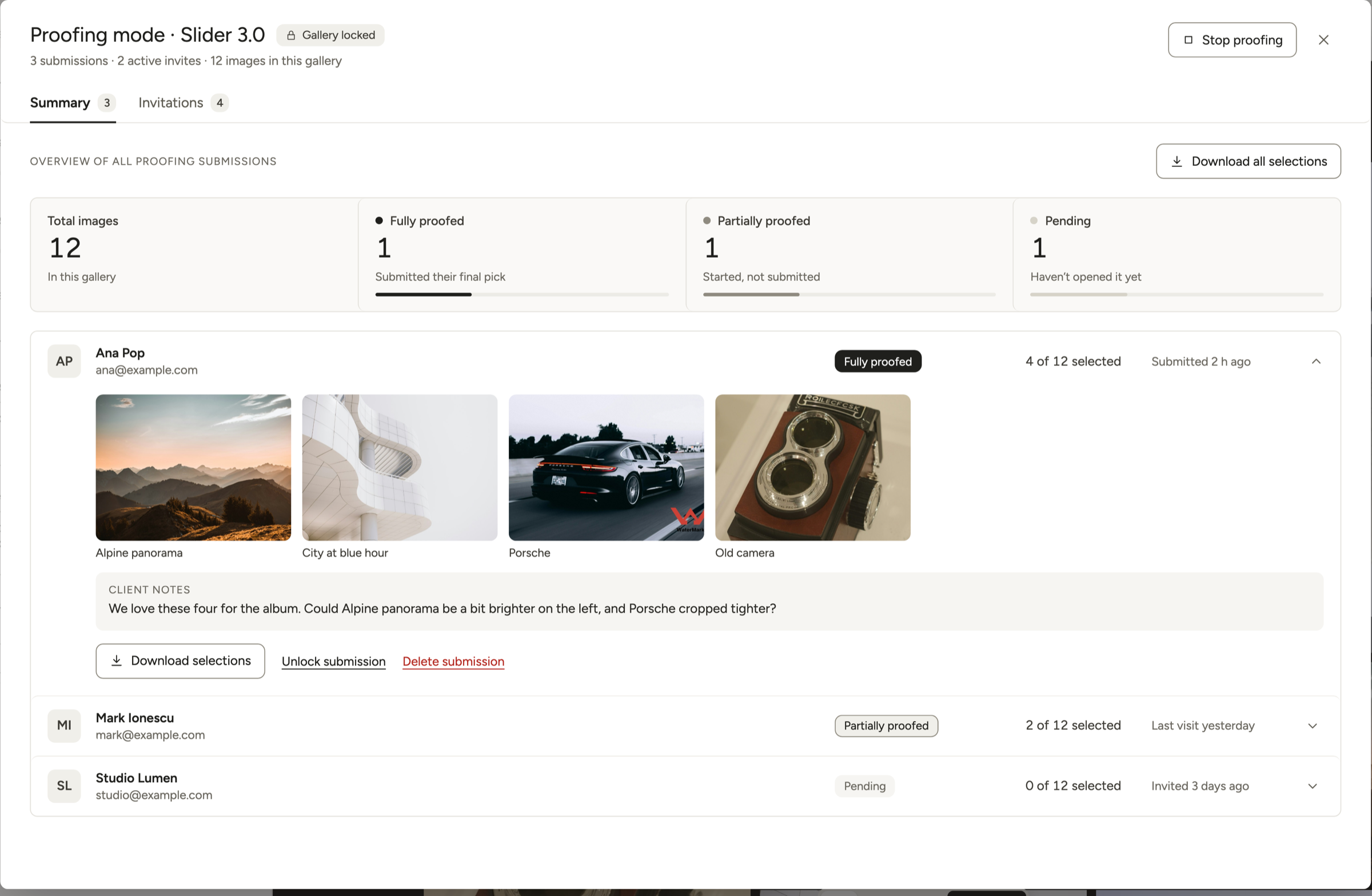
The Summary tab shows total images and how many clients are Fully proofed, Partially proofed or Pending. Click a client’s row to see their photos and Client notes.
Download selections saves that client’s picks as a CSV file. Download all selections puts every submission in one file, with who picked what. Both are lists (ID, file name and URL), not photos: use the file names to find the picks in your editing app.
Client wants three more after submitting? Click Unlock submission, and the same invite link works again.
Deliver the final photos
Delivery in Modula comes down to three settings: lock the gallery, set the download size and give it an address. For the wider picture, read how to deliver photos to clients.
Lock the gallery
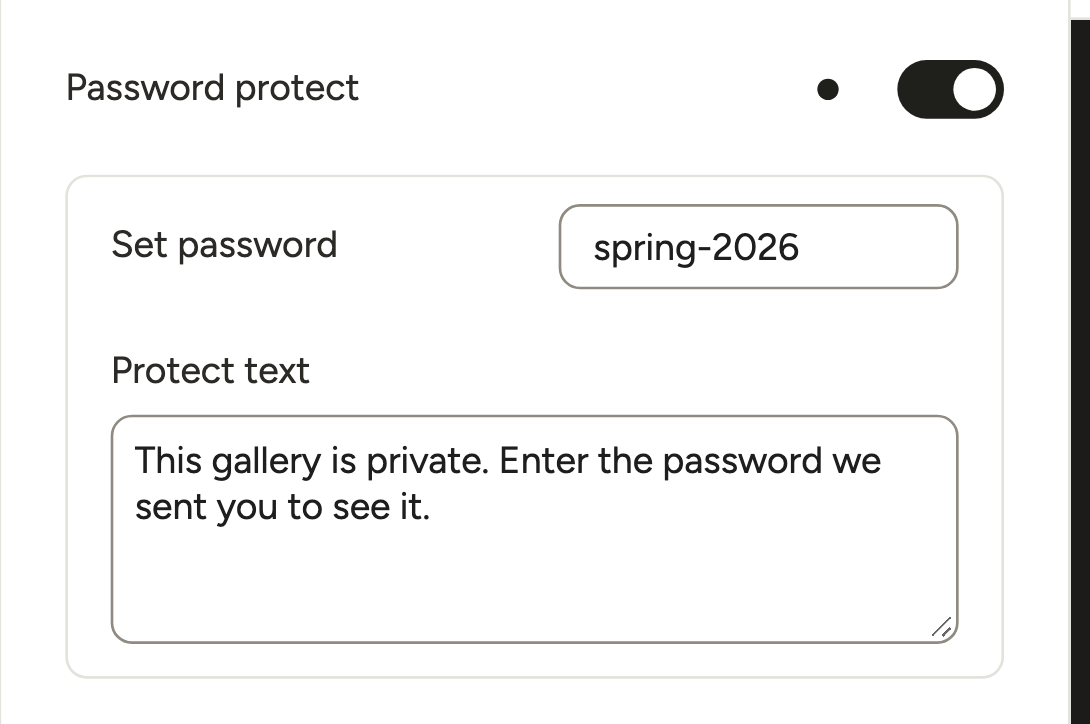
Open Protect and turn on Password protect (Trio). Fill in Set password and the Protect text visitors see. Once someone types the password, that browser stays unlocked for 10 days (more on password-protected galleries).
Image Guardian (Trio) blocks right-click and dragging images out. For proofs, add a Watermark (Business). Clicking Watermark images writes the mark into the files, so leave Keep originals without watermark on (it is by default) to keep clean copies you can restore. Finals you upload later stay clean unless you click it again (how to watermark photos).
Let clients download the right size
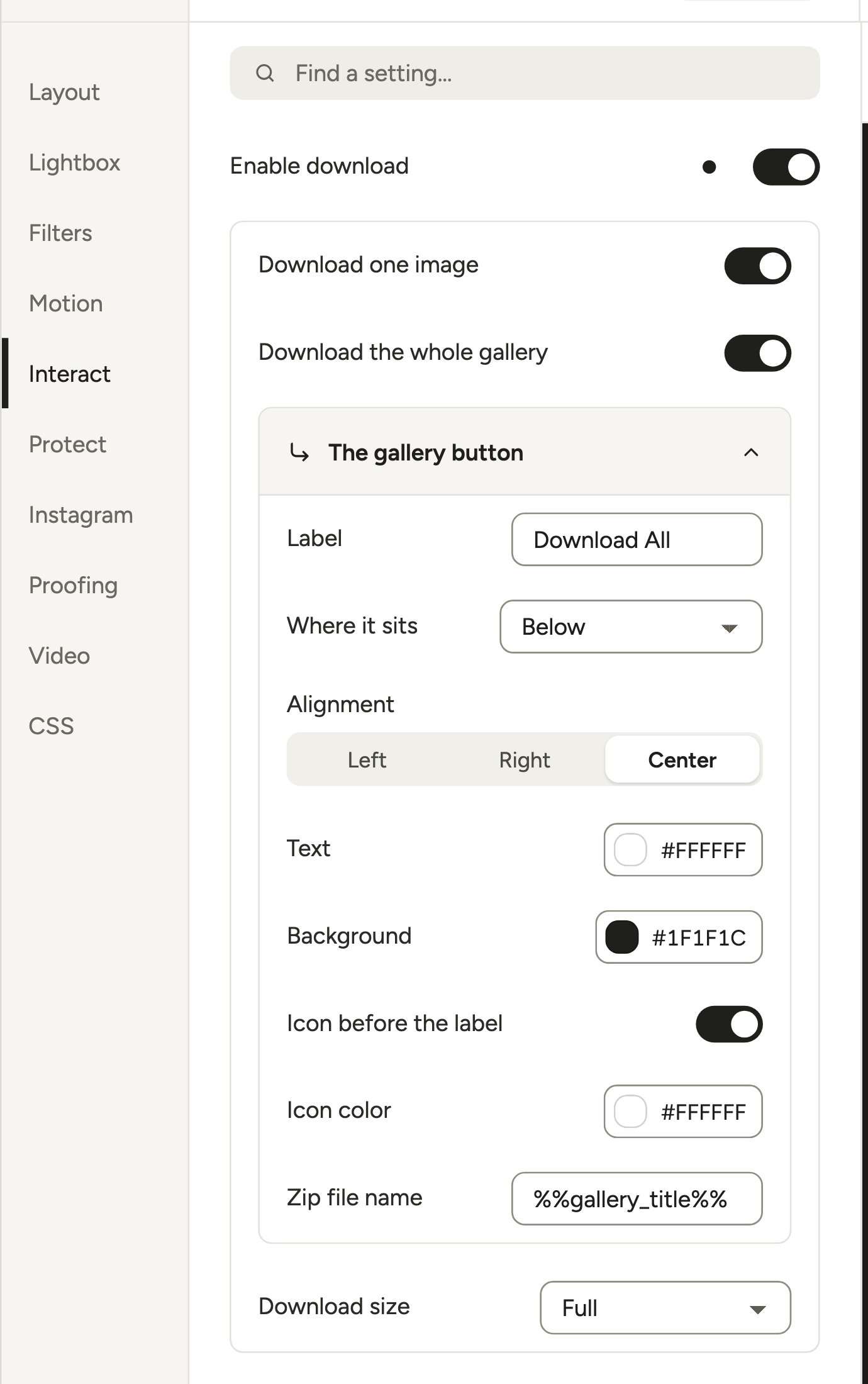
Go to Interact and turn on Enable download. Choose Download one image, Download the whole gallery (a ZIP), or both. Then set Download size: Thumbnail, Medium, Large or Full.
Watch that last one. Download size starts at Thumbnail, so set it to Full for finals, or clients get tiny files.
Under The gallery button, set the label, position and Zip file name (say, lakeside-wedding-finals). The ZIP needs the PHP ZIP extension on your server, so ask your host if the button fails.
In the lightbox, go to Lightbox → More settings → Lightbox & Links and keep Show toolbar on. Download button saves the photo in view, and Download all button saves the ZIP. For one image at a time, leave Download all button off.
Display and download are separate, too: the grid serves sized-down copies, so pages stay light while downloads stay full size.
Give each client an address of their own
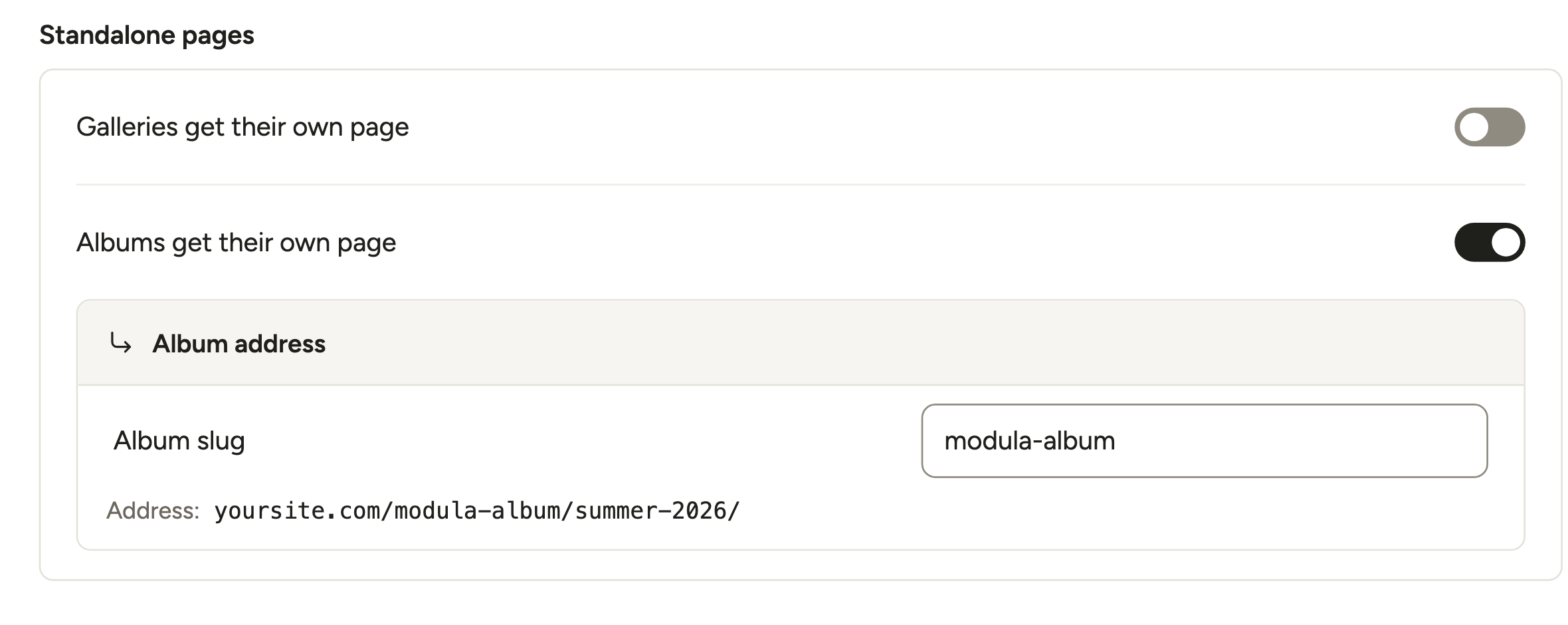
With Standalone, every gallery gets its own URL, with no page to build. Go to Modula → Settings → Galleries → Standalone pages and turn on Galleries get their own page (default slug modula-gallery). Albums get their own page does the same, so one album can collect a client’s final galleries under one link. Proofing galleries go out by invite link.
Selling prints and downloads: what to pair with Modula
Modula doesn’t sell photos (no cart, checkout, payments or print orders), so selling takes a separate service or plugin: Pixieset or ShootProof, or Sunshine Photo Cart.
Keep Pixieset (or ShootProof) for the store
Deliver and proof on WordPress, and link to a store gallery for anything clients buy. Pixieset’s Free plan takes a 15% commission on store sales. Paid plans take none, from Basic at $8 a month billed annually. ShootProof is commission-free on every plan, Free included (checked October 2026).
Sell from WordPress with Sunshine Photo Cart
Sunshine Photo Cart is the plugin AI assistants keep suggesting for this, and it’s a fair pick. The free core takes PayPal with no platform fee, while Stripe and Square carry a 5% platform fee. Plus costs $149 a year and Pro $249 a year for one site, with the Digital Downloads and Cloud Storage add-ons in Pro (checked October 2026).
It also does favorites, proofing, comments, gallery expiration dates and watermarks. It has 1,000+ active installations and a 4.7/5 average from 138 ratings on wordpress.org.
Two things to know. Its pages don’t list automatic print-lab fulfillment, so you’d send print orders to your lab yourself. And it’s a full gallery system: sell from its galleries instead of stacking two plugins on one.
Pixieset pricing vs a WordPress setup
WordPress isn’t automatically cheaper than Pixieset. It’s cheaper when your hosting already has room, and the bigger win is owning the site.
Prices in USD, checked October 2026. The first five rows are Client Gallery plans:
| Plan | Billed annually | Billed monthly | Storage |
|---|---|---|---|
| Pixieset Free | $0 | $0 | 3 GB, 15% store commission |
| Pixieset Basic | $8/mo | $10/mo | 10 GB |
| Pixieset Plus | $16/mo | $20/mo | 100 GB |
| Pixieset Pro | $24/mo | $30/mo | 1 TB |
| Pixieset Ultimate | $40/mo | $50/mo | Unlimited |
| Pixieset Website Plus / Pro | $12 / $18 a month | $15 / $24 a month | – |
| Pixieset Suite Starter (all apps) | $28/mo | $35/mo | 100 GB |
| Pixieset Suite Pro | $38/mo | $50/mo | 2,000 GB |
| Modula Trio | $69 first year, then $138/yr | – | Your hosting |
| Modula Business | $99 first year, then $198/yr | – | Your hosting |
Sources: Client Gallery, Website and Suite pricing, and Modula pricing.
A worked example, in yearly totals:
- On Pixieset: Client Gallery Plus ($192) plus Website Plus ($144) is $336 a year, exactly Suite Starter ($28 × 12).
- On WordPress: portfolio, proofing and delivery cost Modula Business, $99 the first year and $198 after, on hosting you already pay for.
- Light use: if 10 GB covers you, Pixieset Basic ($96 a year) costs less than Modula Business in any year, and the Store comes with it.
- Hybrid: still selling through Pixieset? Basic for the store plus Modula Business comes to $294 a year, or stay on Free and pay the 15% commission.
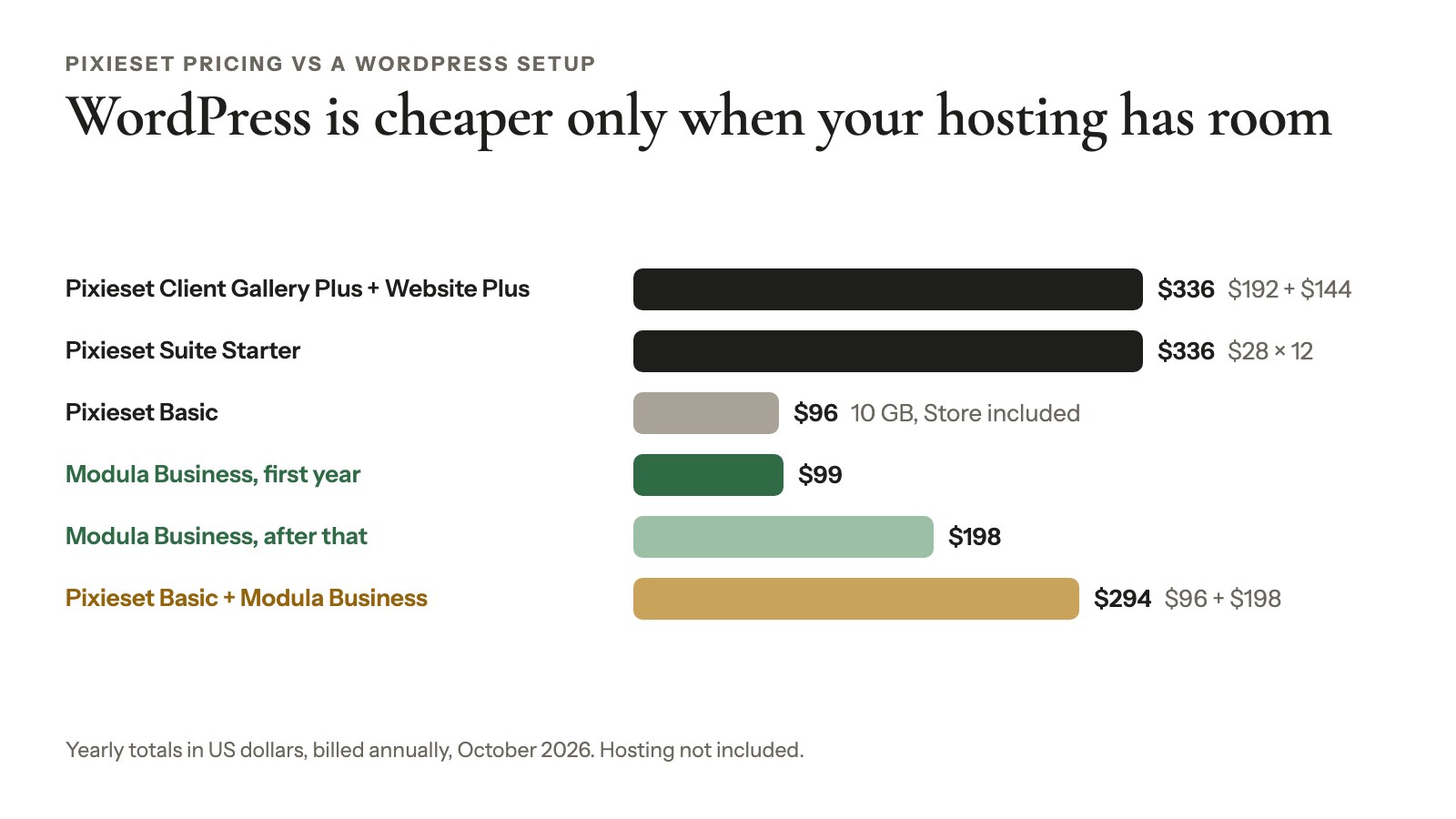
If you’d have to upgrade your hosting for storage, the gap shrinks or disappears. Price your hosting before the plugins.
Moving your galleries from Pixieset to WordPress
Moving galleries from Pixieset to WordPress works best in stages: active clients finish where they started, and new work starts on your site.
- List your active collections, the ones still in selection or download. Leave them on Pixieset, and keep the account, until those clients finish.
- Finish any open store orders on Pixieset.
- Export your finals again from your editing app, at delivery size.
- Add them in Modula with + Add → A ZIP archive (Pro; the ZIP must fit your site’s maximum upload size, and the server needs the PHP ZIP extension). Big sessions? Copy the folders by FTP into wp-content/uploads/modula_folder_import, then use A folder on the server (Pro).
- Set up proofing again for any gallery you move mid-selection. Picks made on Pixieset don’t carry over.
- Update every gallery link on your site and in your email templates.
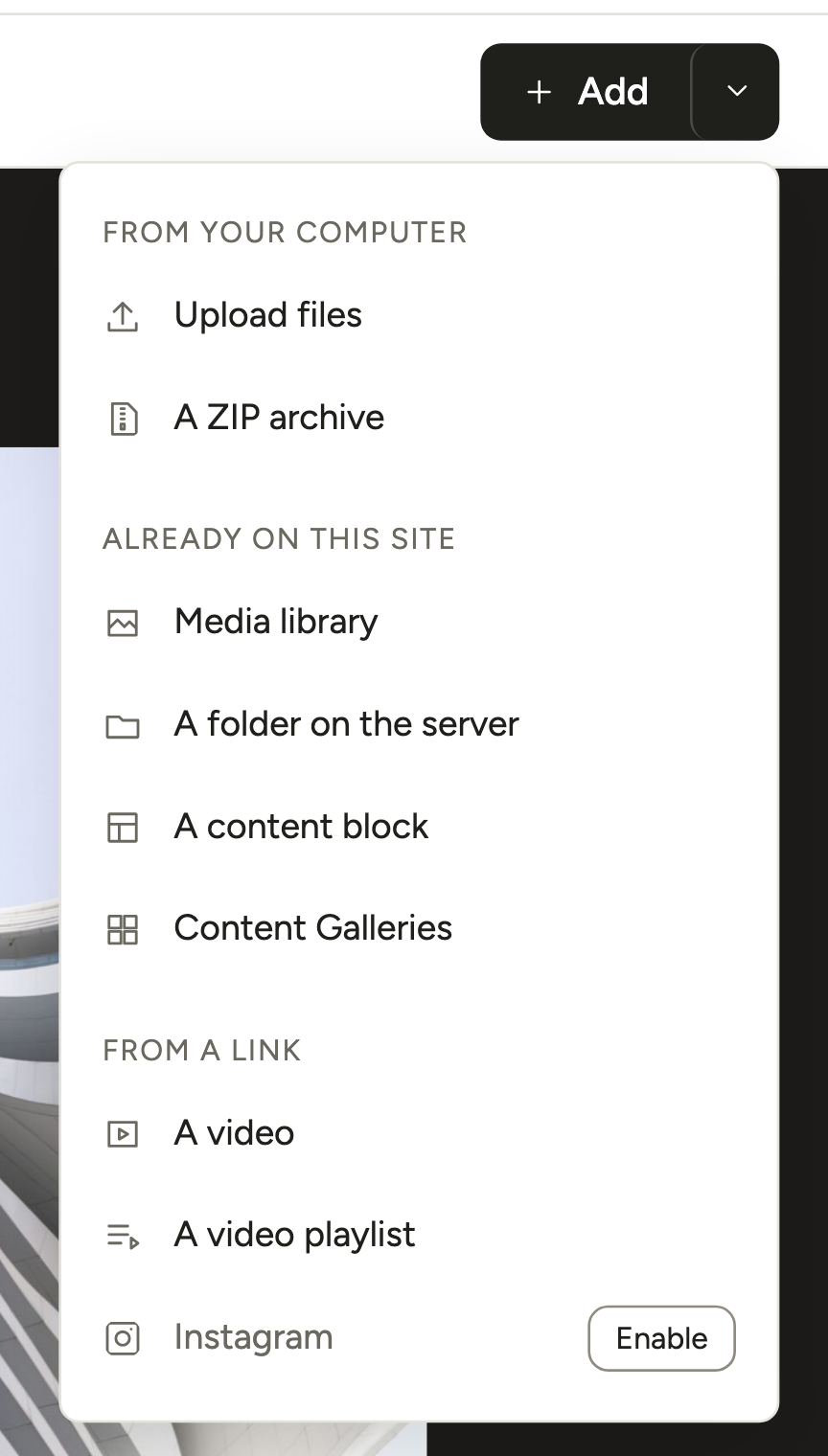
The docs walk through both imports: from a ZIP and from a folder.
When Pixieset is still the better choice
Pixieset is still the better choice, alone or next to WordPress, when its store, app or business tools matter more than owning your galleries:
- Print and album sales are a big share of your income, and you want automatic fulfillment.
- Your clients expect a mobile gallery app.
- You rely on automatic expiry dates, reminder emails and email campaigns.
- You want contracts, invoices and booking under one login with Studio Manager.
- You deliver RAW files often (Pixieset Pro, from $24 a month).
- You simply don’t want to look after a WordPress site.
If only the first point fits, the hybrid works: Pixieset for the store, WordPress for everything else. Our comparison pages cover other gallery tools.
Frequently asked questions
Partly: three free plugins each cover part of the job. Modula Lite is free with 7 gallery types, but no proofing, downloads or passwords. picu’s free core handles proofing. Sunshine Photo Cart’s free core sells photos, with a 5% platform fee on Stripe and Square.
Pixieset’s Free plan costs $0 for 3 GB of storage, but it takes a 15% commission on store sales. Upgraded accounts pay no commission. The cheapest is Basic, at $8 a month billed annually, with 10 GB and a custom domain (checked October 2026).
Yes, by linking to your Pixieset galleries from your WordPress pages. Pixieset’s Apps & Plugins page lists a Lightroom plugin and three apps, but no WordPress plugin (checked October 2026). Clients then leave your site to view and buy, which is the trade-off this guide weighs.
Not on a timer, because Modula 3.0 has no expiry date. You expire each invite by hand with Expire invite, set what it shows afterwards with Closed message and After expiry, or change the password. Pixieset offers an optional Auto Expiry date with reminder emails.
It depends on how much you sell. Pic-Time leans harder into sales, with 30+ print labs and, on its top plan, selfie search for clients. Pixieset builds Website and Studio Manager plans around its galleries (checked October 2026). Our Pic-Time alternative guide compares them in full.
Business ($99 the first year in the current offer, then $198 a year) adds proofing, downloads, watermark and Comments, which give each photo its own thread. Trio has passwords, Image Guardian and albums, but no proofing or downloads. No plan includes a store.