 Made in Europe, buy from Europe.
You can password protect a WordPress gallery or album with the Modula Password Protect extension. Visitors see your message and a password field. The photos appear once they type the right password.
Note: Password Protect is a Modula Pro extension, included in the Trio plan and above. Switch it on in Modula → Extensions (how to switch on extensions).
Password protect a gallery
- Open the gallery.
- Click Protect in the left rail.
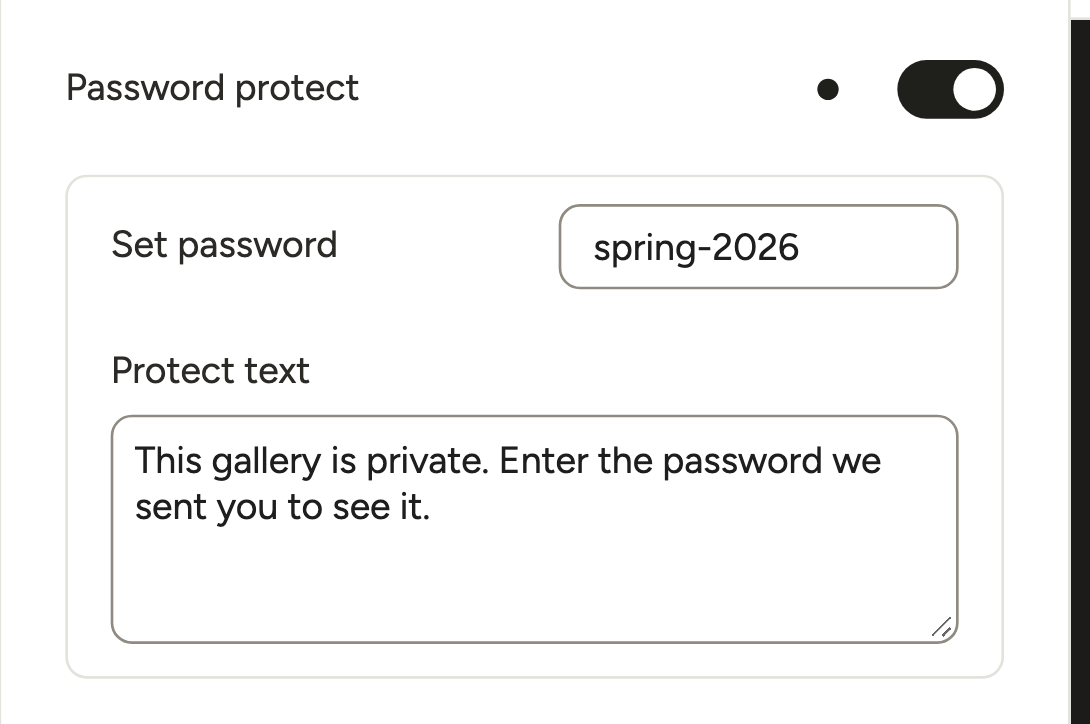
- Turn on Password protect.
- Type the password in Set password.
-
In Protect text, write the message visitors see above the password field, for example how to get the password. You can leave it empty.
- Optional: to ask for a username or an email too, go to More settings and open Pass Protect. Type it in Username. Visitors then have to type it too, next to the password.
The editor saves your changes as you go. To see the password form as your visitors do, open the page with the gallery in a private browser window.
Password protect an album
Albums can be protected the same way.
- Go to Modula → Galleries and click the Albums tab.
- Open the album.
- Click Protect in the left rail.
- Turn on Password protect.
- Type the password in Set password.
- If you want, fill in Request username or email with password and Protect text.
The album editor saves your changes as you go.
You can read more about albums in Modula Albums.
Good to know
- After typing the right password, a visitor stays unlocked in that browser for 10 days.
- If you switch off Password Protect in Modula → Extensions, Modula asks you first. Switching it off removes the password from your protected galleries and albums, so they become public.
If the password stops being asked or isn’t accepted
The cause is almost always a page cache. A page cache saves a copy of a page and sends that copy to visitors.
Modula uses WordPress’s own post password. When a visitor types the right password, WordPress saves a cookie in their browser. A cookie is a small note a website stores there, and this one has a name that starts with wp-postpass_.
A page cache that ignores this cookie sends a saved copy of the page instead of checking the password.
You may see one of these problems:
- The password works once. After that, the gallery shows to every visitor without asking, and its standalone or deeplink addresses misbehave too.
- The right password isn’t accepted.
- The password works in one browser but not in another, for example in Chrome but not in Safari on an iPhone.
To fix it, change two things in your caching plugin:
- Keep every page that shows a protected gallery or album out of the page cache. If you use Standalone, add the gallery’s standalone address too. Do this again each time you put a protected gallery on a new page.
- Add the
wp-postpass_cookie to the cookies that skip the cache. This is one setting for the whole site. - Save, clear the cache, and test the page in a private browser window.
LiteSpeed Cache
- Go to LiteSpeed Cache → Cache → Excludes.
- In Do Not Cache URIs, add the address of each page with a protected gallery, and the galleries’ standalone addresses, one per line.
- In Do Not Cache Cookies, add
wp-postpass_. - Save the settings.
- Purge the cache, which means clearing it.
FlyingPress
Add wp-postpass_ to Bypass Cache for Cookies, save, and clear the cache. With FlyingPress, this cookie exception alone is enough.
Other caching plugins or your host’s cache
Look for the same two settings in your caching plugin: pages to exclude, and cookies that skip the cache. If your host caches pages on the server, ask them to do both for you.
If the page also has a WordPress password
If the page that shows the gallery is also password protected in WordPress, remove the page’s password and keep only the gallery’s.