 Made in Europe, buy from Europe.
If your Modula update failed, the steps below help you find the cause and fix it. Updates for Modula Pro and its extensions keep your website secure and free of bugs. They also bring you the latest features.
You may see this error message, or one like it, when you try to update:
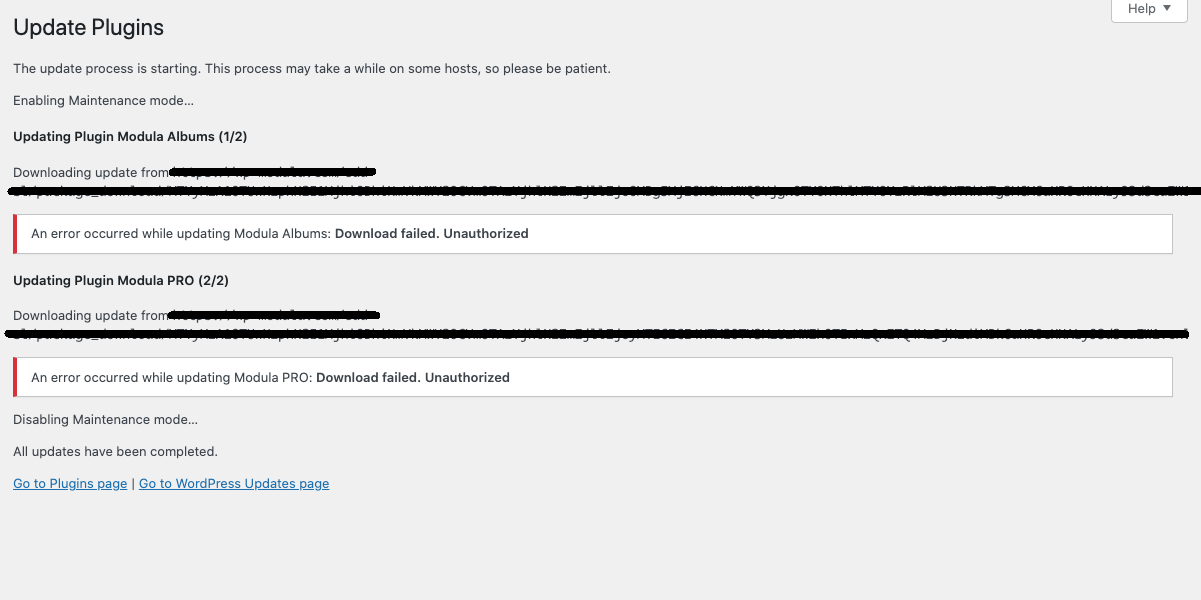
Why the update failed with ‘Download failed. Unauthorized’
This error has three possible causes. All three have to do with your license.
- Expired license: If your license has expired, you can’t update the plugin or its extensions.
- Staging site activation: A staging site is a private test copy of your website. If your license is active only there, and not on your live site, you can’t update the live site.
- Domain mismatch: Your license may not be active on the domain where you try to update. You then get the error above.
How to fix the failed update
Pick the fix that matches the cause. If you are not sure when your license ends, first check your renewal date.
Renew an expired license
If your license has expired, you renew it from your Modula account. Follow these steps.
- Visit your account and go to My Account → Dashboard.
-
Next to the expiration date, click Renew now.
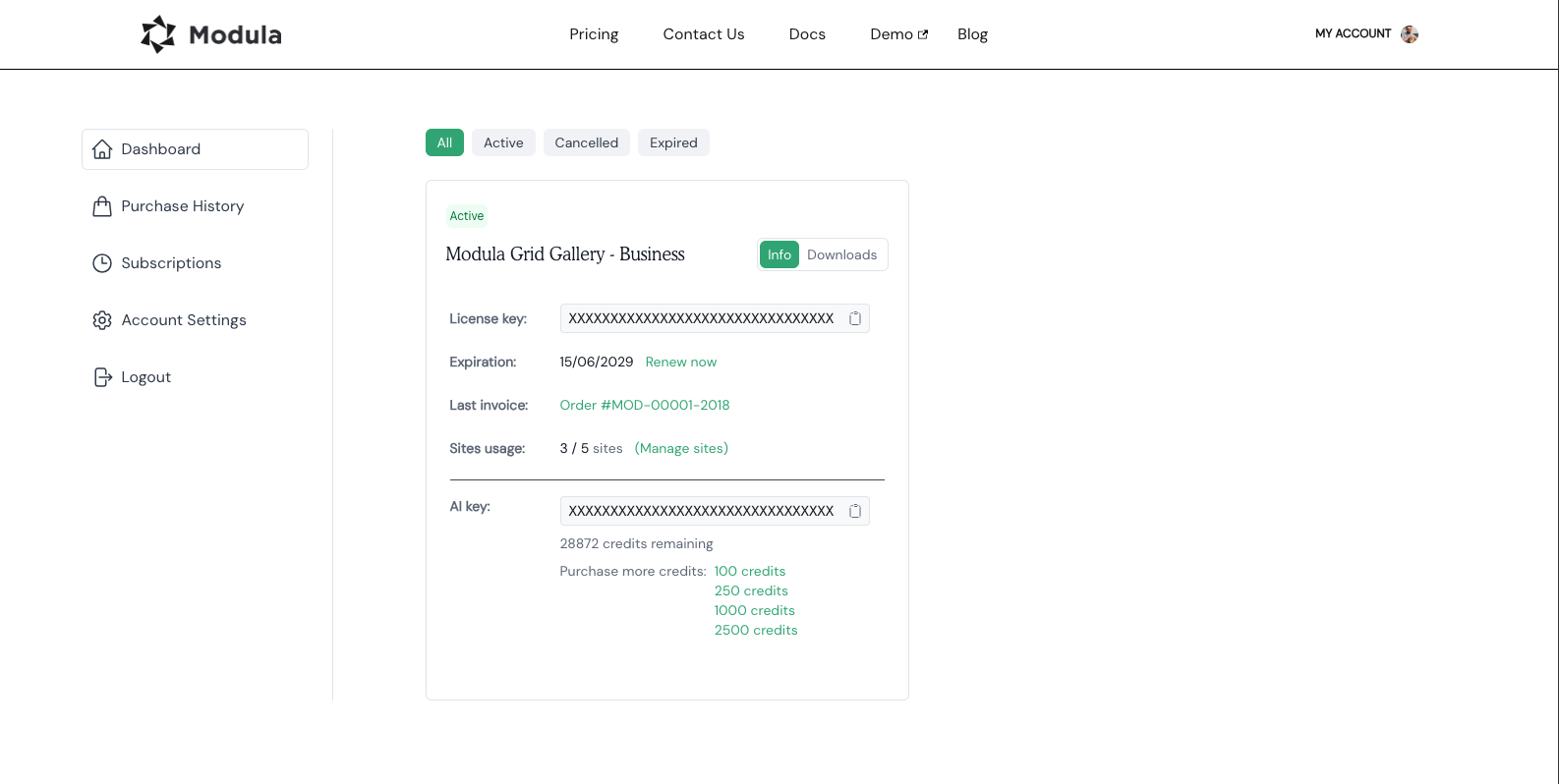
- Go to the checkout and enter your billing information.
- Complete the purchase.
Move the license to another domain
You can move your license from one domain to another. This helps when the license is active on your staging site or on an old domain.
- Visit the dashboard of your user account.
- Click Manage sites.
-
Use the Remove button to delete a domain activation.

- Reactivate the license on the new domain.
- After that, activate the license from your website’s dashboard. Updates work only after you do this.
Activate the license on the correct domain
Your license has to be active on the domain where you want to update. To activate it there, follow the steps in all you need to know about your Modula license.
Update Modula Pro and extensions by hand
If these fixes don’t solve the problem, you can update the plugins by hand. First you download the new files. Then you upload them to WordPress.
Download the latest version
- Open your Modula account.
- Go to My Account → Dashboard.
- Use the toggle to switch to Downloads.
- Download the zip files you need.
Upload and activate the files
Now add the files you downloaded to your site.
- In your WordPress dashboard, go to Plugins → Add Plugin.
- Upload the zip files you downloaded, one by one.
- Install and activate each one. You now have the new bug fixes and improvements.
Your Modula plugin and extensions are now up to date. If you still have problems, contact the Modula support team for more help.