 Made in Europe, buy from Europe.
You can manage galleries in WordPress from one list in Modula. All your galleries and albums are there. From that list you can find a gallery, open it, duplicate it or move it to the trash.
You can also copy a gallery’s shortcode. A shortcode is a short piece of text that shows the gallery on a page.
Find a gallery in the list
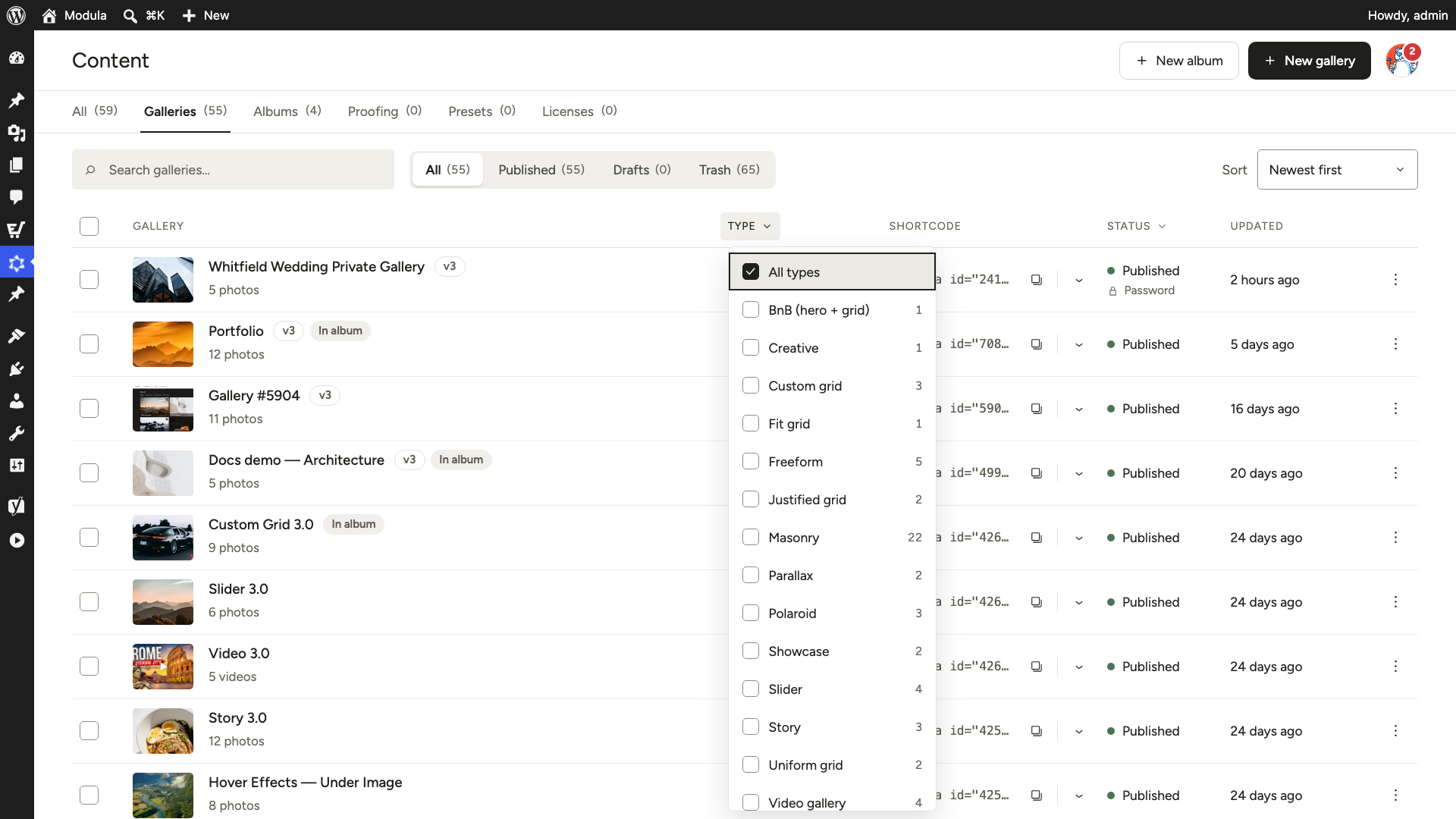
Go to Modula → Galleries. The page lists your galleries and albums together. To see only one kind, click Galleries or Albums at the top.
When the list gets long, these tools help you find what you need:
- Search galleries…: Type part of a gallery’s title, its type (for example Masonry) or its ID number. See Locate your Modula gallery ID number.
- All, Published, Drafts and Trash: These show the galleries with that status.
- Type: Click Type above the list and tick the gallery types you want to see. The number next to each type tells you how many galleries use it.
- Status: This works the same way as Type.
- Sort: This orders the list. Pick Newest first, Oldest first or A–Z.
Work with a gallery
Once you find a gallery, point at it to see what you can do with it:
- Edit: Opens the gallery in its editor. Clicking the title does the same.
- Quick Edit: Changes the title, status and slug without opening the editor. The slug is the part of the address that names the gallery.
- Duplicate: Makes a copy called “Copy of …”. The copy has the same images and settings, and its own ID and shortcode. Use it to try changes without touching the gallery on your site. You can also use it to start a new gallery from one you like.
- Bulk Editor: Opens all the gallery’s images in one table. See How to bulk edit your images.
- Trash: Moves the gallery to the trash. Open the Trash tab to restore it or delete it for good.
Note: Bulk Editor needs Modula Pro.
The copy icon next to the shortcode copies it, ready to paste into a page. See Insert Modula galleries in WordPress posts and pages.
Manage several galleries at once
You can also change many galleries in one go. Tick the box in front of each gallery. To select all of them, tick the box in the header.
The buttons Apply preset and Move to trash appear above the list. To clear the selection, untick the boxes.