 Made in Europe, buy from Europe.
You can troubleshoot Modula with the free Health Check plugin when a gallery doesn’t look or work right. The cause is often another plugin or the theme. Finding out which one helps you fix it, and tells our support team if it’s an incompatibility or a bug in Modula.
The free Health Check & Troubleshooting plugin has a Troubleshooting Mode. In this mode, all plugins are turned off and a default theme is used, but only for you. Visitors keep seeing your site as usual, so you can test without breaking anything for them.
Start with the browser console
The browser console is a panel that lists the errors on a page. It often points to the cause before you install anything.
- Open the page with the gallery.
- Open your browser’s developer tools. Press F12, or right-click the page and choose Inspect.
- Open the Console tab.
- Reload the page.
- Look for red errors. The file name next to an error shows which plugin or theme it comes from.
- Copy the errors for our support team.
If a caching or optimization plugin is involved, clear its cache and test again.
Install Health Check
Before you start, make a backup of your site. Use a backup plugin such as UpdraftPlus, or make the backup from your hosting account.
- Go to Plugins → Add Plugin.
- Search for Health Check & Troubleshooting.
- Click Install Now.
-
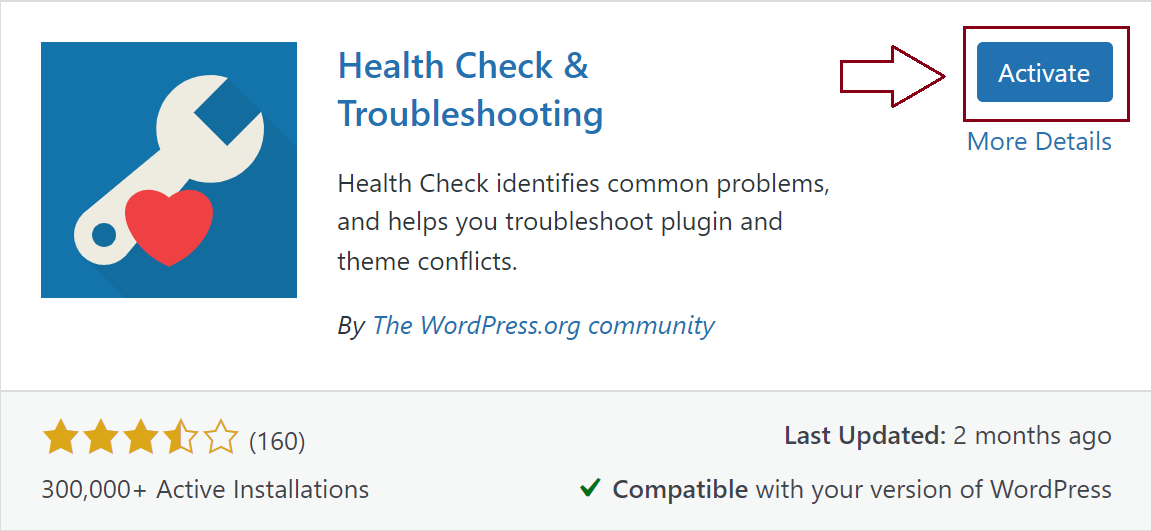
Click Activate.
Tools → Site Health also gives you an overview of your WordPress installation. It shows the issues found, recommended improvements and the tests that passed.
Test Modula in Troubleshooting Mode
With Health Check installed, you can test Modula on its own. Modula has to be turned back on for you, because the mode turns off all plugins.
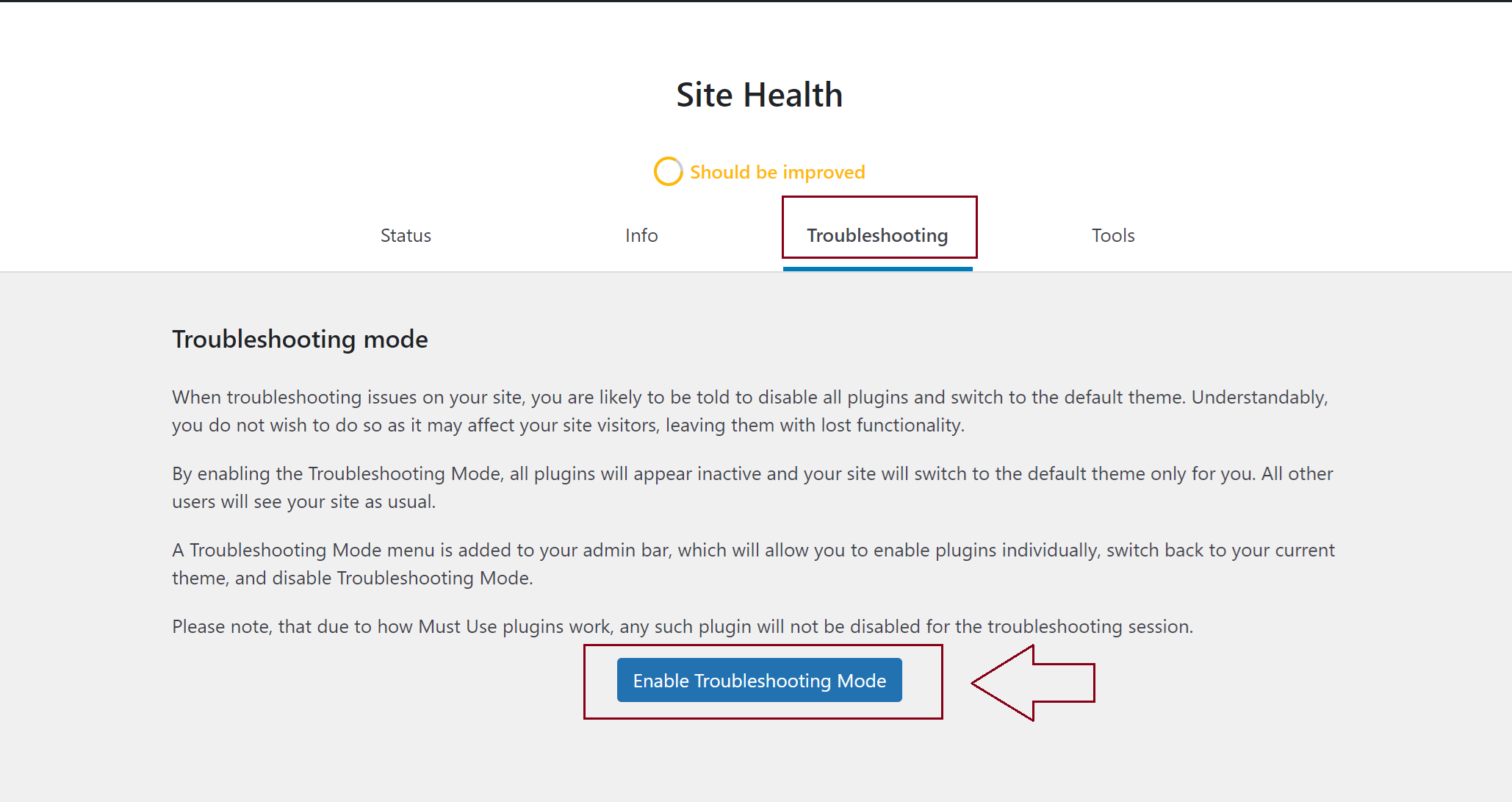
- Go to Tools → Site Health → Troubleshooting.
-
Click Enable Troubleshooting Mode.
- Go to Plugins.
- Click Enable while troubleshooting under Modula, and under Modula PRO if you use it. You can also do this from the Troubleshooting Mode menu in the admin bar.
- Open the page with the gallery and test it.
Find the plugin or theme that causes the problem
What you do next depends on the result of your test.
If the gallery works with only Modula on and a default theme, something else on your site causes the problem. Enable your plugins one by one, and test after each one. Then switch back to your theme. Stop when the problem comes back.
The last plugin or theme you enabled is the cause. Let us know which one it is, and we’ll do our best to make Modula work with it.
If the problem is still there with only Modula on, contact our support team. They may ask you to turn on the Modula Debug Log, described in Modula debug tools.
Turn off Troubleshooting Mode
When you are done, click Disable Troubleshooting Mode. You can find it in the Troubleshooting Mode menu of the admin bar, or on your Dashboard.