 Made in Europe, buy from Europe.
Modula AI credits let you optimize the images in your Modula galleries with Modula AI, which writes alt text, titles and captions for you. The plan you buy decides how many credits you get. Here is how you get credits, how you use them and how to buy more.
Note: You must activate your Modula AI license key before you use your credits. The key lets Modula recognize your credits and use them on your images.
How AI credits work
How you get your credits depends on your plan and when you bought it. Find the case that fits you.
After a new purchase
When you make a new purchase, we assign AI credits to your license key once the payment is complete.
To see them, go to My Account → Downloads on our website. There you find your Modula AI API Key and the number of credits you have.
When you upgrade your plan
When you upgrade your plan, the AI credits from your previous plan are added to your new plan. You also get any new credits that come with the upgraded plan. You keep using the credits from both plans.
When you renew your subscription
When you renew your subscription, you get the new AI credits for your renewed plan. They are added to the credits you had left from your previous subscription.
If your subscription expires
You can still use any credits you have left, even if your subscription expires and you don’t renew it. You can also buy more credits at any time, even after your subscription has expired.
If you were a premium user before Modula AI
If you were a premium user before we released Modula AI, you need to make your key first:
- Go to your account on our site.
- Open Downloads → Modula AI API Key.
- Click Generate API Key. This makes the key and gives you the correct number of credits for the plan you bought.
Activate your Modula AI key
Once you have your key, activate it in your WordPress dashboard.
- Go to Modula → Settings → AI.
- Under Smart Captions, turn on Write alt text, titles and captions for new images.
-
Paste the key into API key.
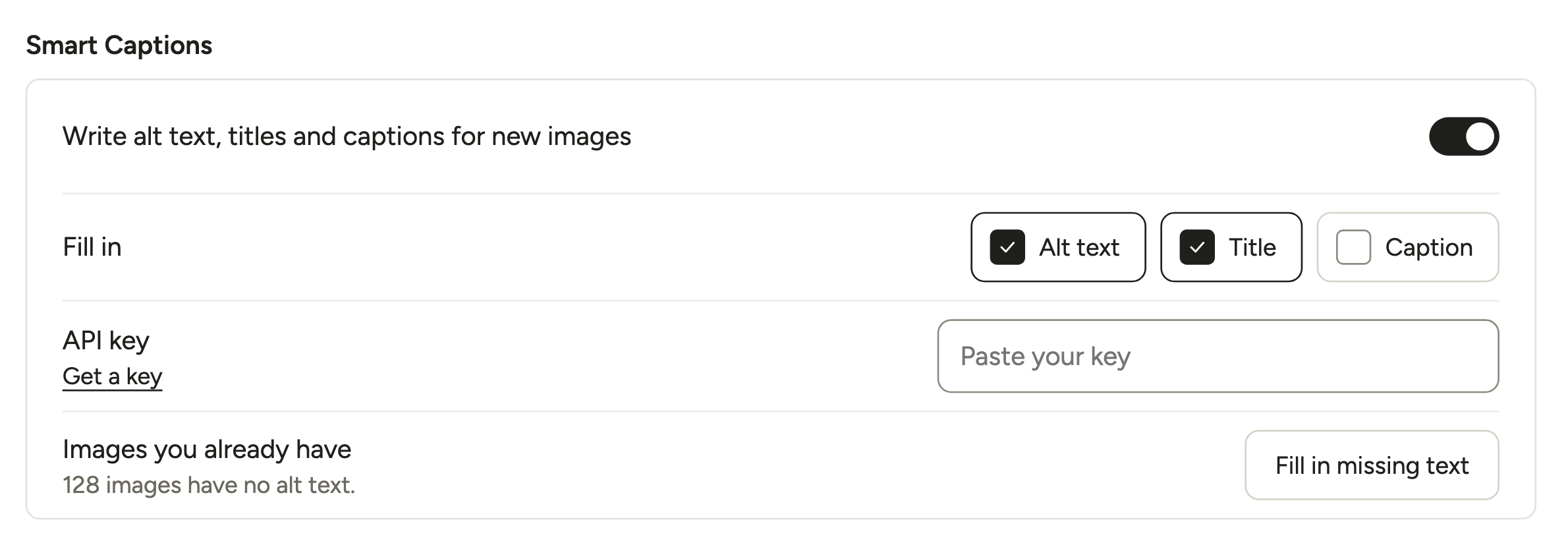
- Click Save changes.
Check how many credits you have used
You can check your credits from the same dashboard. Go to Modula → Extensions. The license card at the top shows AI credits this year. The icon next to it opens My Account, where you can buy more.

Buy more AI credits
When you run low, you can buy more credits from your account. You can do this at any time.
- Go to My Account → Downloads.
- Click Purchase More Credits.
- Pick the number of credits you want.
- Complete the purchase.
We add the credits to your account after the payment is complete.