 Made in Europe, buy from Europe.
The Roles extension lets you set gallery permissions for each user role on your site. You decide which roles can add, edit, delete or update galleries. To add or remove a permission for an existing role, you tick or clear its checkbox.
Note: You need to install this extension first. See how to install extensions on your site.
Set gallery permissions for a user role
Once the extension is installed and active, you set the permissions on the Modula Settings page.
- In your WordPress dashboard, go to Modula → Settings → Roles.
- Use the Galleries and Albums tabs to set permissions separately for galleries and albums.
-
Find the role you want to change. Each row is a WordPress role and each column is a permission. Administrators can always do everything, so they aren’t listed.
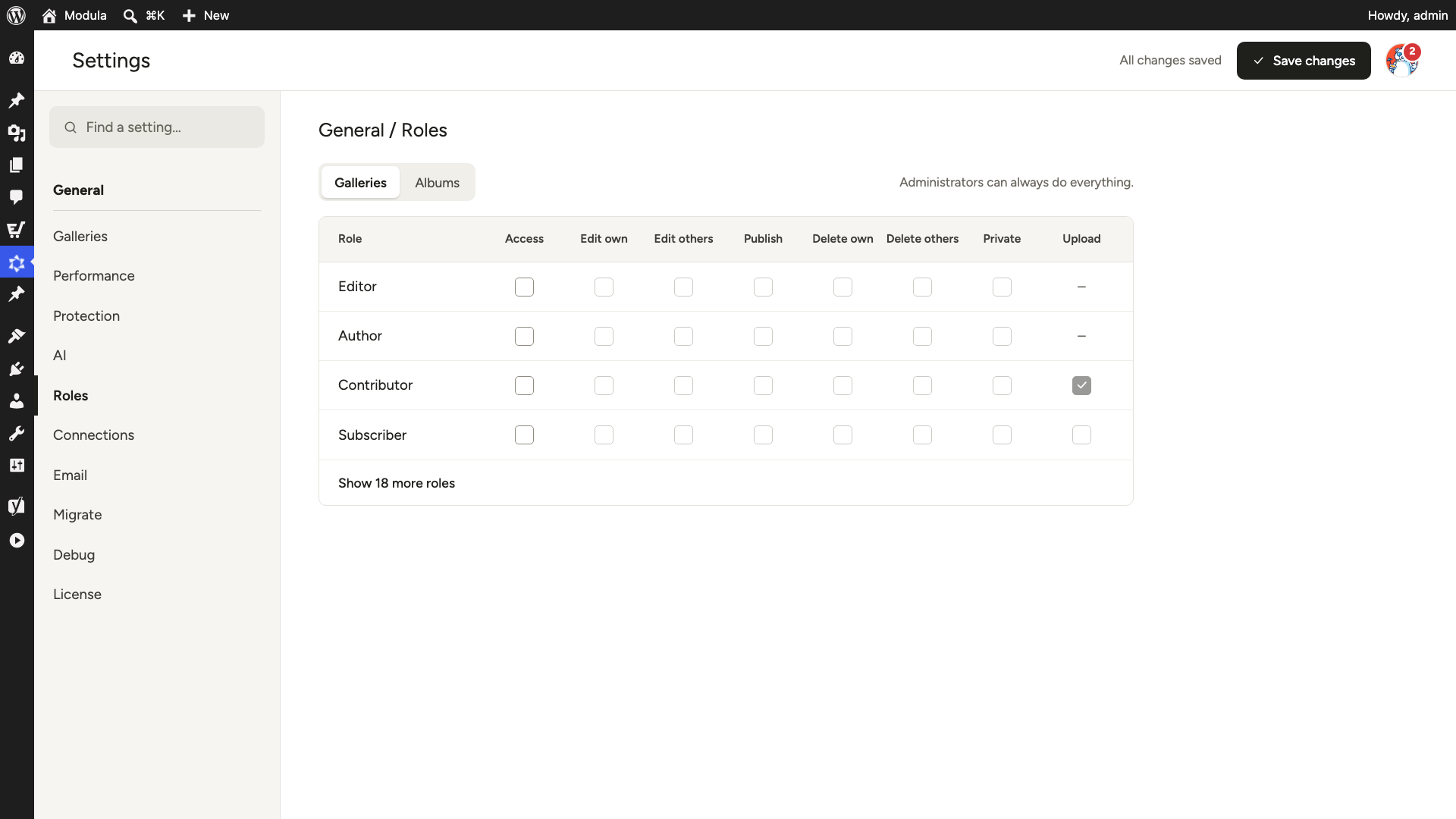
- Tick the checkbox of each permission you want to add. Clear the ones you want to remove.
- Click Save changes when you are done.
What each permission does
Each column in the table gives a role one of these rights:
- Access: Turns the role on or off. When it is off, you can’t tick the other checkboxes in that row.
- Edit own: Users can edit only the galleries they created.
- Edit others: Users can edit other users’ galleries as well as their own.
- Publish: Users can create and publish galleries.
- Delete own: Users can delete the galleries they created.
- Delete others: Users can delete all galleries, their own and others’.
- Private: Users can edit private galleries.
- Upload (galleries only): Users can upload, edit and delete files in the WordPress Media Library. A dash means the role already has this through WordPress.
The Albums tab looks the same, without the Upload column.
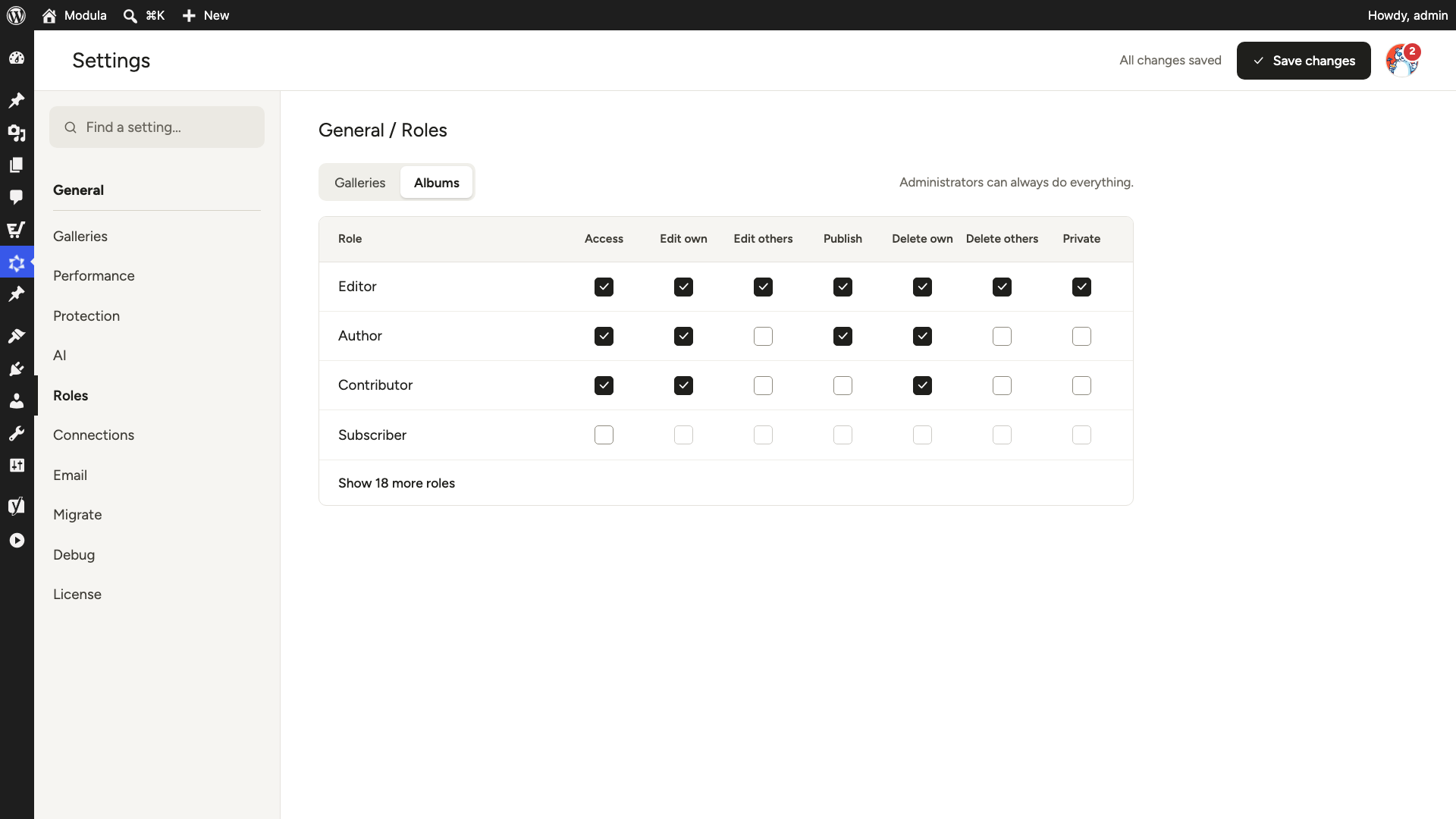
Roles added by other plugins
Your site may have roles that come from other plugins. You find them under Show … more roles, which tells you how many there are.