 Made in Europe, buy from Europe.
A responsive WordPress gallery changes its layout to fit the screen. Modula galleries adapt on their own. These settings let you choose how many columns a gallery has on tablets and phones.
You can also set the screen width where a tablet or phone layout starts. Other values can differ on small screens too.
Note: Responsive is shown for Masonry, Uniform grid, Fit grid, Justified grid, Custom grid, Polaroid, Parallax and Slider. Creative, BnB, Showcase, Story, Video gallery and Freeform galleries adapt on their own. For Freeform, the tablet and phone layouts are built from the desktop layout.
Set responsive columns for tablets and phones
- Go to Modula → Galleries and open your gallery.
- Click Layout in the left rail.
- Turn on Responsive.
- Open On phones and tablets.
- Next to Columns, click the tablet icon. Set the number of columns for tablets (2 by default).
- Click the phone icon. Set the number of columns for phones (1 by default). You can choose from 1 to 6.
- If needed, change Treat as a tablet under (1024 px by default) and Treat as a phone under (600 px by default). Screens narrower than these widths get the tablet or the phone layout.
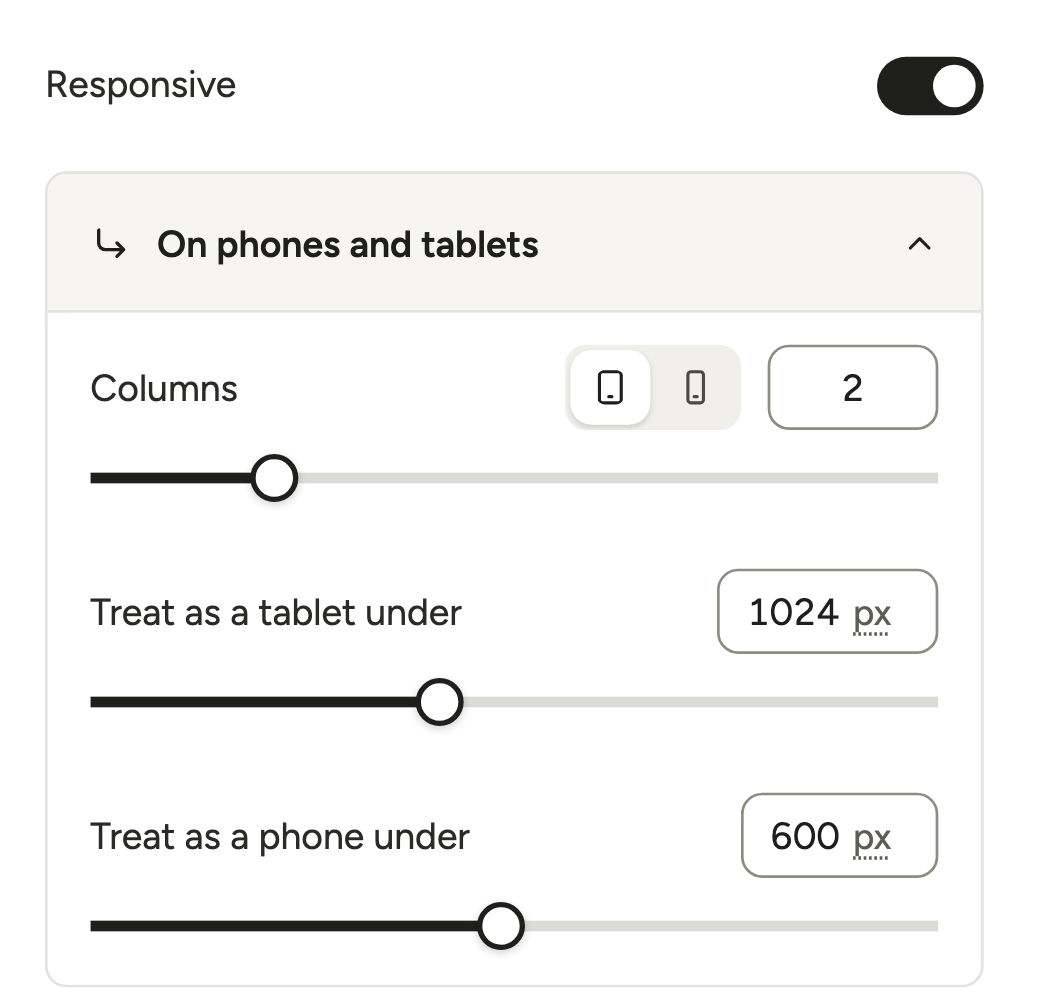
The columns you choose under Columns at the top of the section are the desktop columns.
Check the result in the preview
Use the desktop, tablet and phone buttons under the preview to see the gallery at that size.
Some settings have a value per device and show the same three icons. These settings switch to that device too. So you can change the phone Spacing, for example, while you look at the phone view.
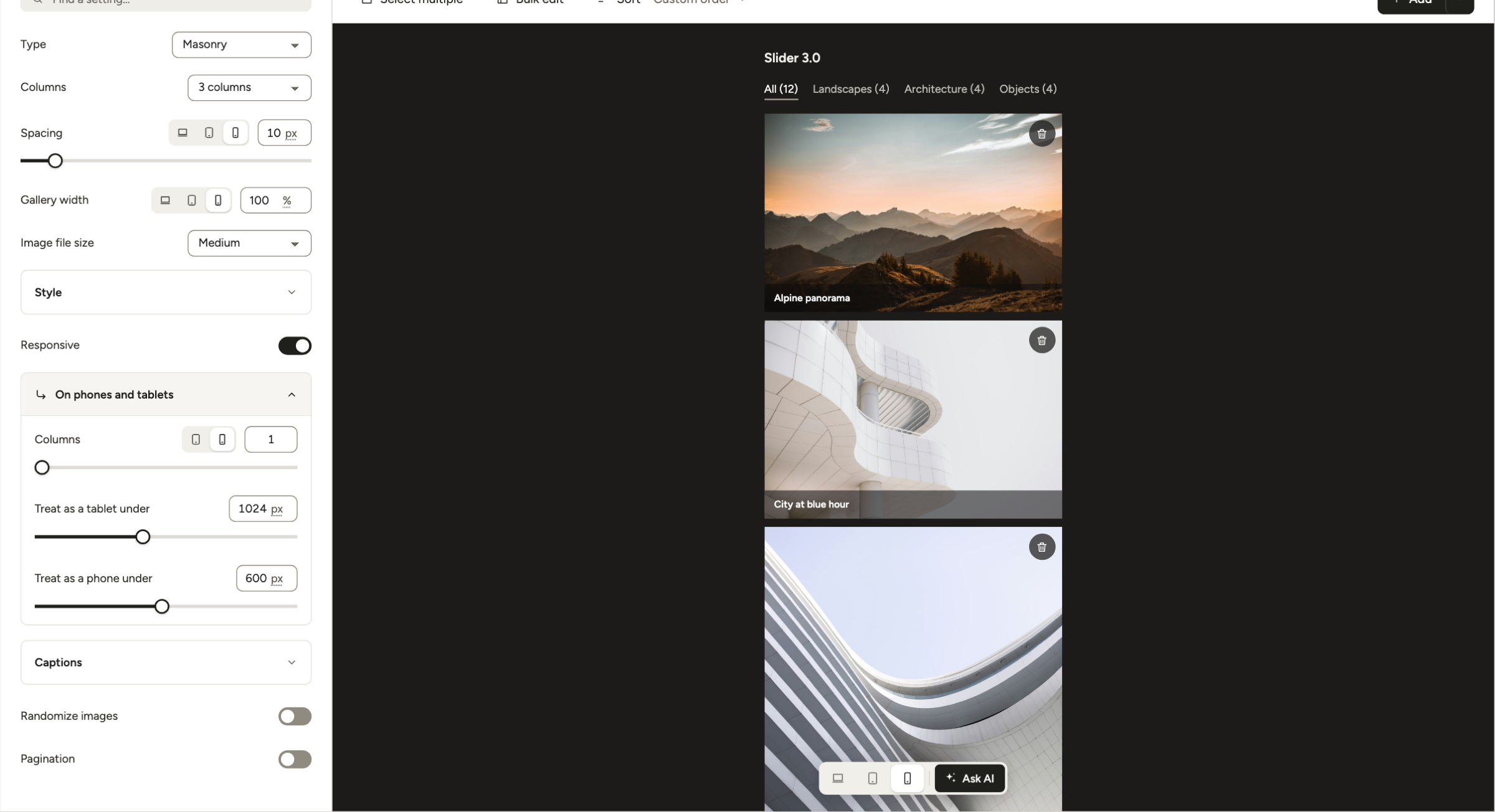
Other settings for small screens
Columns are the main change, but these settings also matter on small screens:
- Spacing and Gallery width in Layout: Click the tablet or phone icon next to them to set a separate value.
- Minimum height of a Creative gallery: Has separate values for desktop, tablet and phone.
- Slider: Find Visible at once and Advance by under On phones and tablets. They set how many slides show and how many move per click, on tablets and on phones.
- Showcase: Simplify on phones shows one photo at a time on small screens.
- Captions: The title and caption Size has a desktop and a mobile value. See captions and titles.
- Filters: Collapse on phones and Dropdown on phones keep the filter bar small. See How to Use Filters.
- Lightbox: Open lightbox on can limit the lightbox to desktop or to mobile. See the lightbox settings.
- Motion: Animate on phones turns the motion effects off on phones.