 Made in Europe, buy from Europe.
Sometimes Modula’s support team or a developer needs admin access to your site to help you. You can create a temporary admin user in WordPress for them, without risking your site’s security.
There are two ways to do this: by hand in WordPress, or with a plugin. Below you can also see how to test the access and how to remove it when the work is done.
Option 1: Create a temporary admin user by hand
This way needs no extra plugin. You add the user yourself in WordPress.
- Log in to your WordPress admin dashboard with your existing administrator username and password.
-
In the left-hand menu, click Users. The Users page opens.
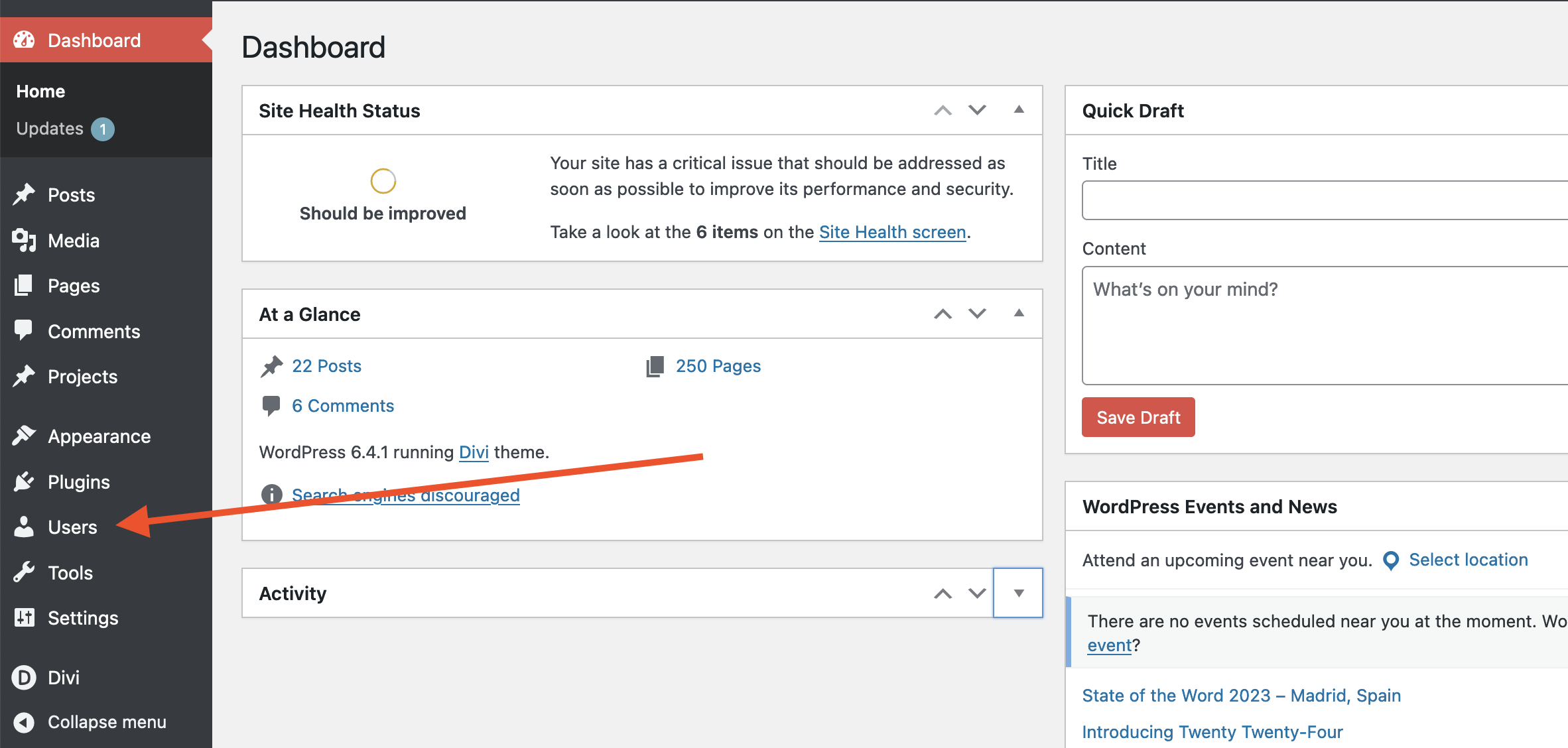
- Click Add New on the Users page.
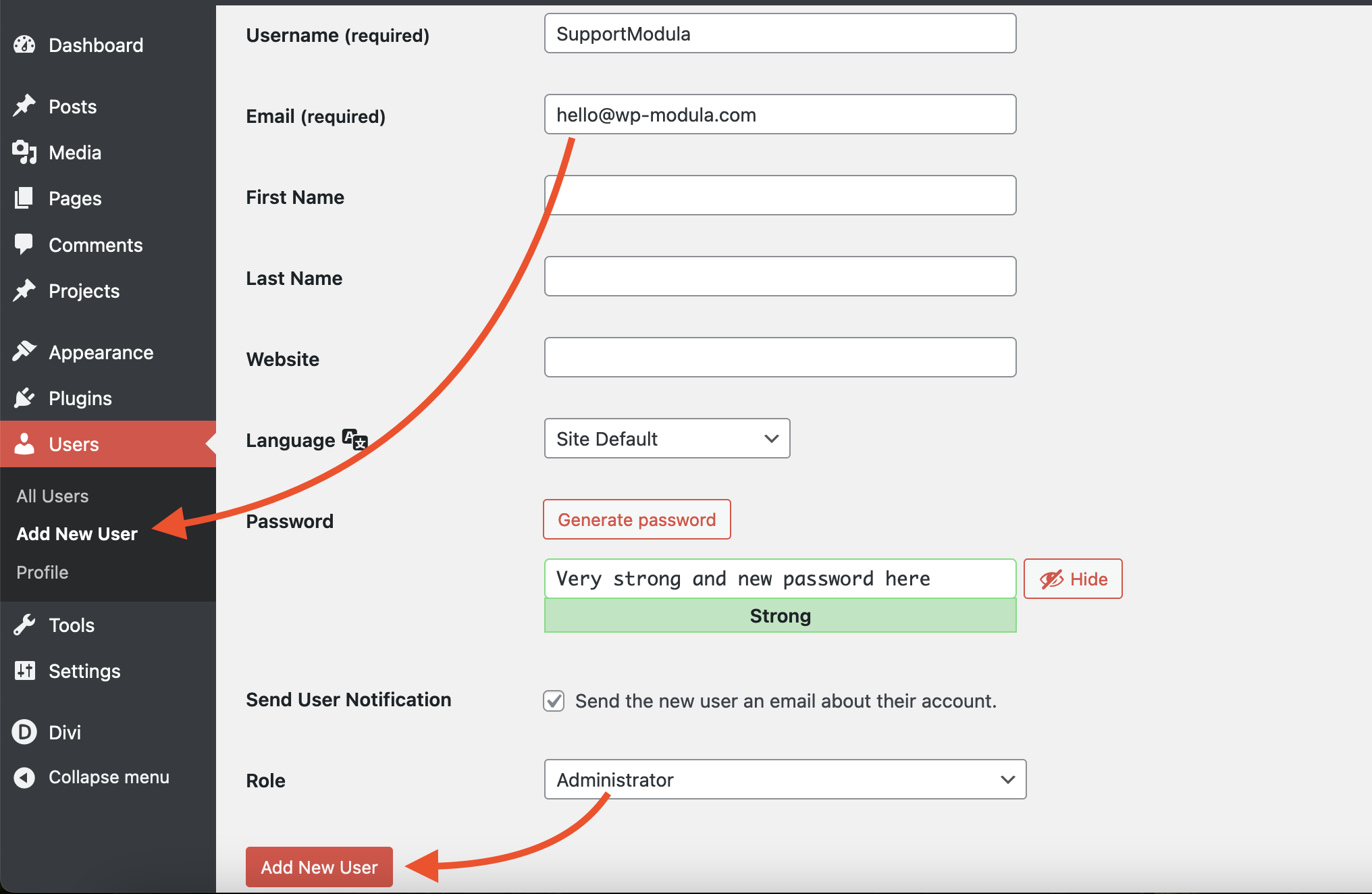
- Fill in the required user details, such as username and email.
- Set the user role to Administrator.
- Generate a strong password, or set one by hand.
- If you want, send the new user a notification.
-
Click Add New User.
Test the new user
Log out of your current admin account. Then log in with the username and password of the new temporary admin user. This shows you that the new user works as expected.
Remove the temporary admin user after use
After Modula’s support team finishes debugging (finding and fixing the problem) or helping you, remove the temporary admin user.
- Go back to the Users page in the WordPress dashboard.
- Find the temporary admin user in the list.
- Click on the user to edit their details, or hover over the user to see the Delete option.
- Scroll down to the bottom and click the Delete button.
Option 2: Use the Temporary Login Without Password plugin
This way uses a plugin to create a login link with an expiration date. You share the link with the person who needs access.
Install and activate the plugin
- Go to the Plugins section in your WordPress dashboard.
- Click Add New.
- Search for Temporary Login Without Password.
- Install and activate the plugin.
Create and share the temporary login link
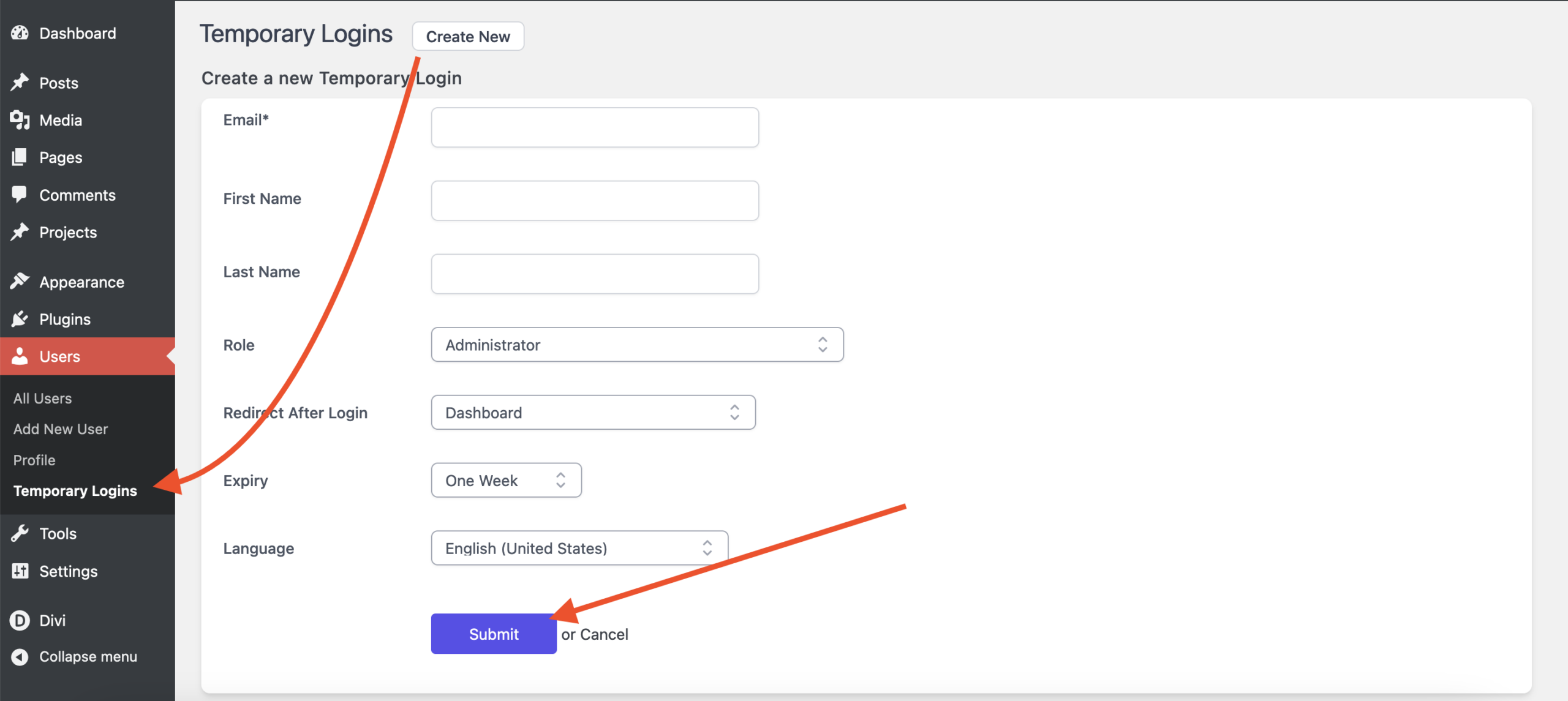
- After you activate the plugin, go to the Users page.
- Click Temporary Logins.
- Click the Create new button.
- Enter the email address and name of the new user.
- Set the expiration date for the temporary login link.
- Choose Administrator as the user role for the temporary login.
-
Click Submit. The plugin creates a temporary login link.
- Share the link with the person who needs access.
Note: Choose the method that fits your needs. With either one, remember to remove the temporary user once the task is complete.
If you are giving access so that our team can help you, see Getting support for Modula. To check for plugin problems first, read Troubleshooting and Debugging with Health Check Plugin.