 Made in Europe, buy from Europe.
You can find your Modula gallery ID in a few places. Every gallery and album has an ID number, and it is the number in its shortcode. A shortcode is a short piece of text that shows a gallery on a page.
You need the ID to show the gallery on a page. You also need it to style one gallery with CSS without touching the others. CSS is the code that controls how a page looks.
Find the gallery ID
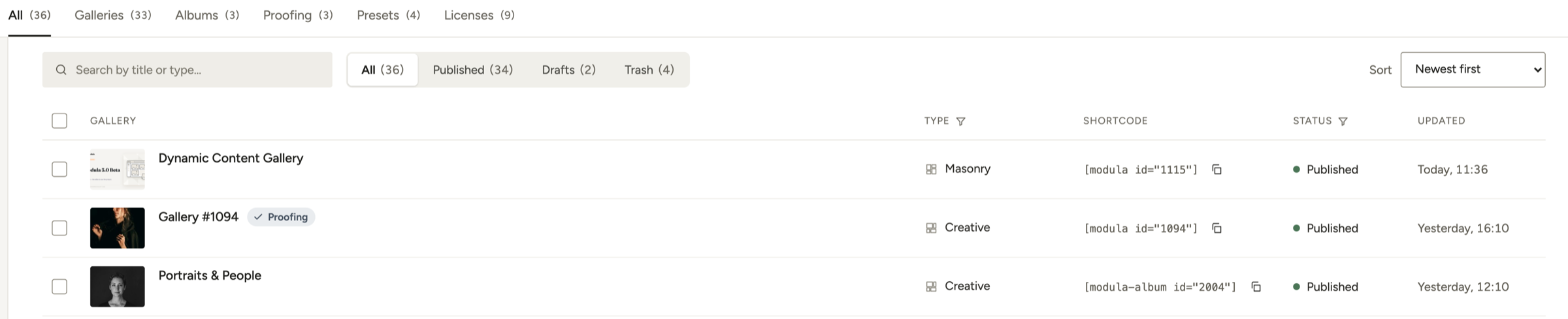
The ID is the number in the shortcode. In [modula id="1094"], the ID is 1094. You can see it in these places:
-
In Modula → Galleries, look in the Shortcode column of each gallery. To find a gallery when you know its ID, type the number in the search box above the list.
-
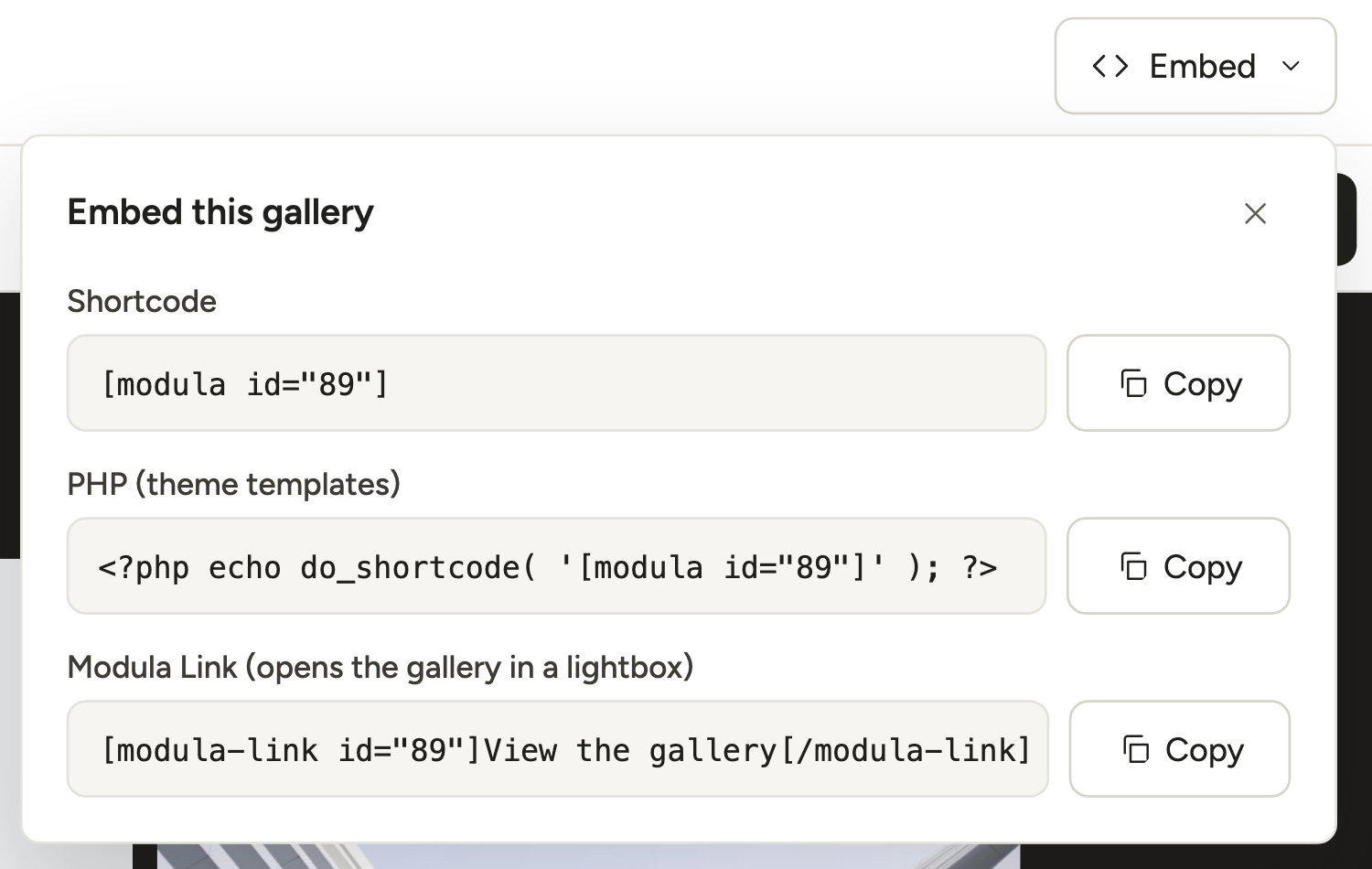
In the gallery editor, look under Embed at the top right.
-
In your browser’s address bar while you edit the gallery, look for the number after
post=. For example:post.php?post=1094&action=edit.
Find the album ID
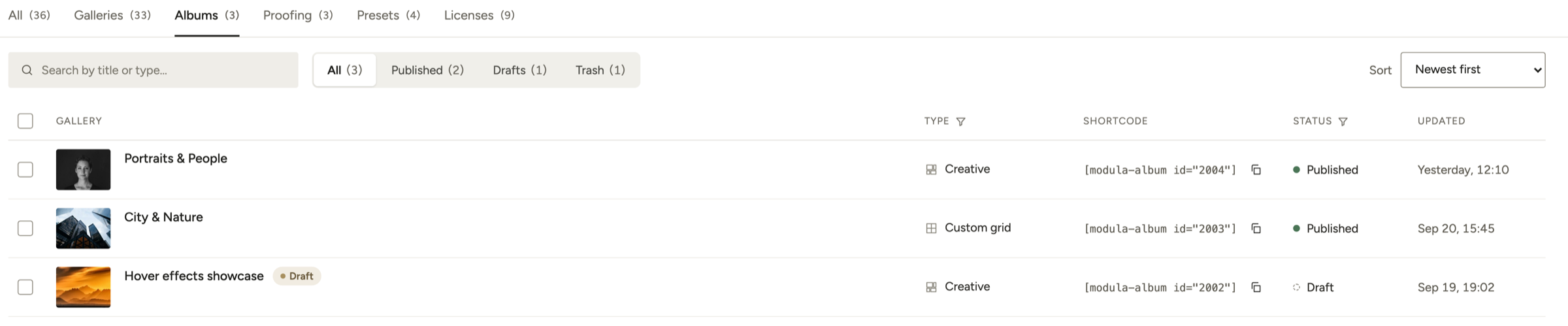
Albums work the same way. Open the Albums tab of the list. The Shortcode column shows [modula-album id="2004"], so that album’s ID is 2004.
Use the gallery ID in custom CSS
To change one gallery only, start your CSS with the ID of that gallery’s wrapper. The wrapper is the outer box around the gallery. Use #modula- and the ID, for example #modula-1094.
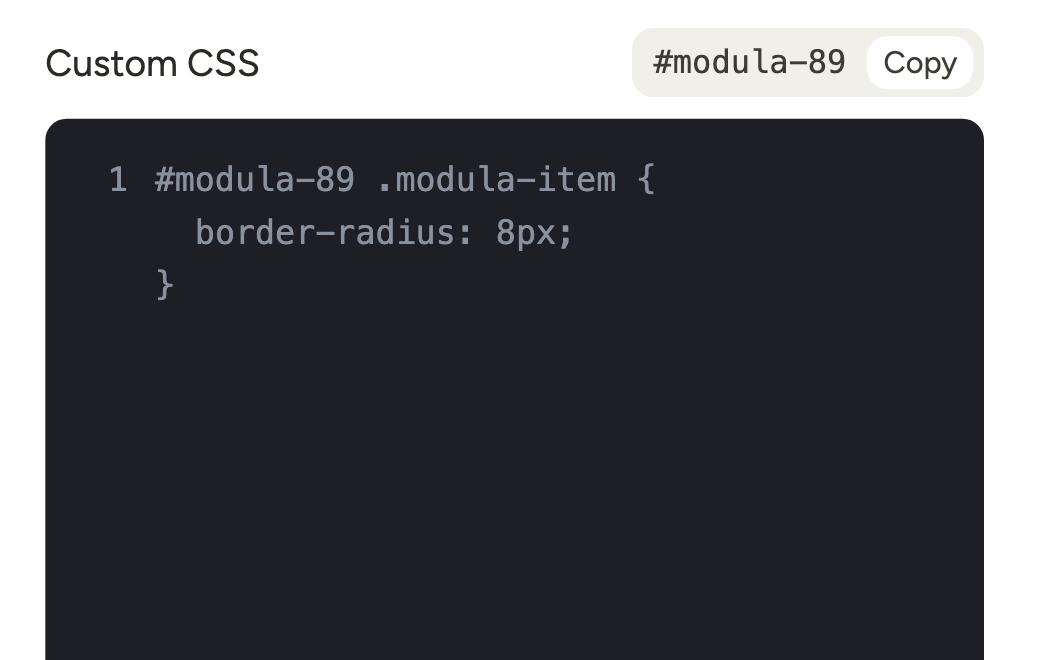
For example, this rounds the corners of the images in one gallery:
#modula-1094 .modula-item { border-radius: 8px; }In the gallery editor you don’t have to type the prefix. Open the CSS section. The gallery’s selector is shown above the Custom CSS box with a Copy button.
A selector is the part of a CSS rule that says what the rule changes. Start each rule with that selector, so it only changes this gallery.
For more examples, see Custom CSS for Modula galleries and the other Modula styling tutorials.