 Made in Europe, buy from Europe.
You can add Media Library images straight to a Modula gallery, without opening the gallery. This saves you time when the images are already on your site. It works in both views of the library, grid and list.
Create your gallery first
You need a gallery to add the images to. If you don’t have one yet, follow Create your first gallery.
Add Media Library images in the grid view
-
In your WordPress dashboard, go to Media → Library.
-
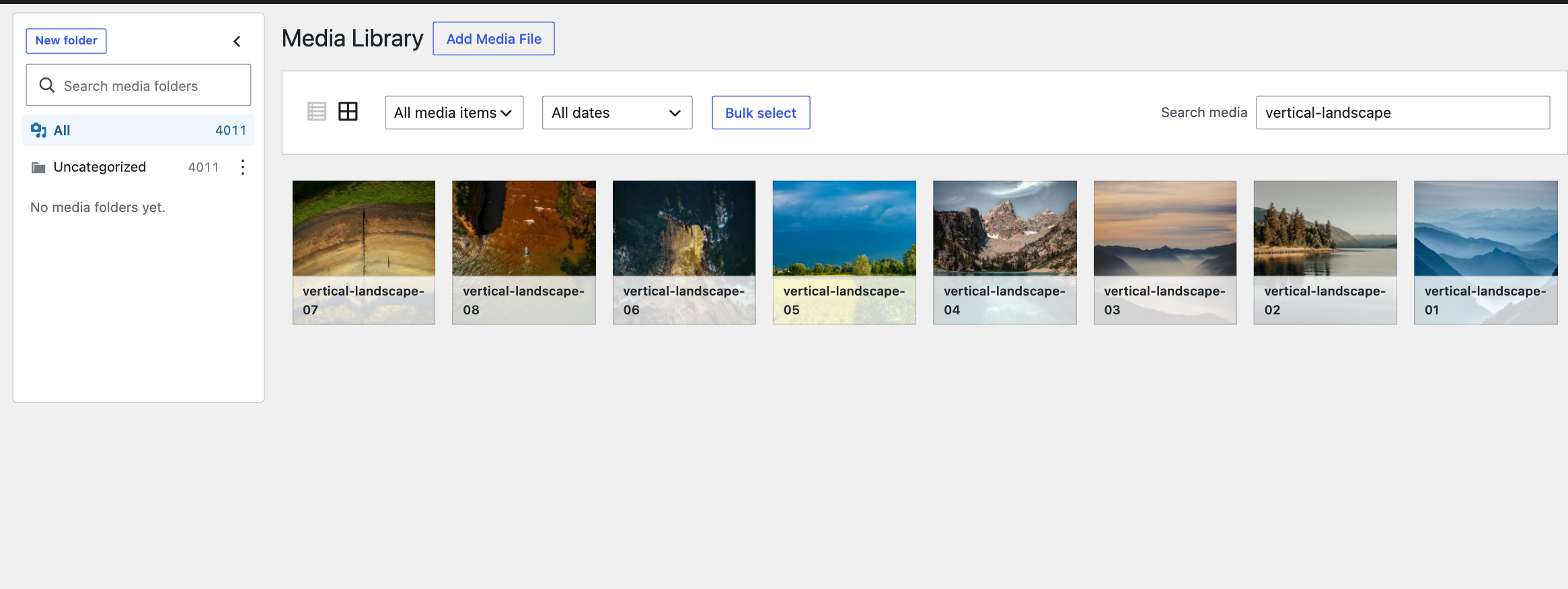
Click Bulk select.
-
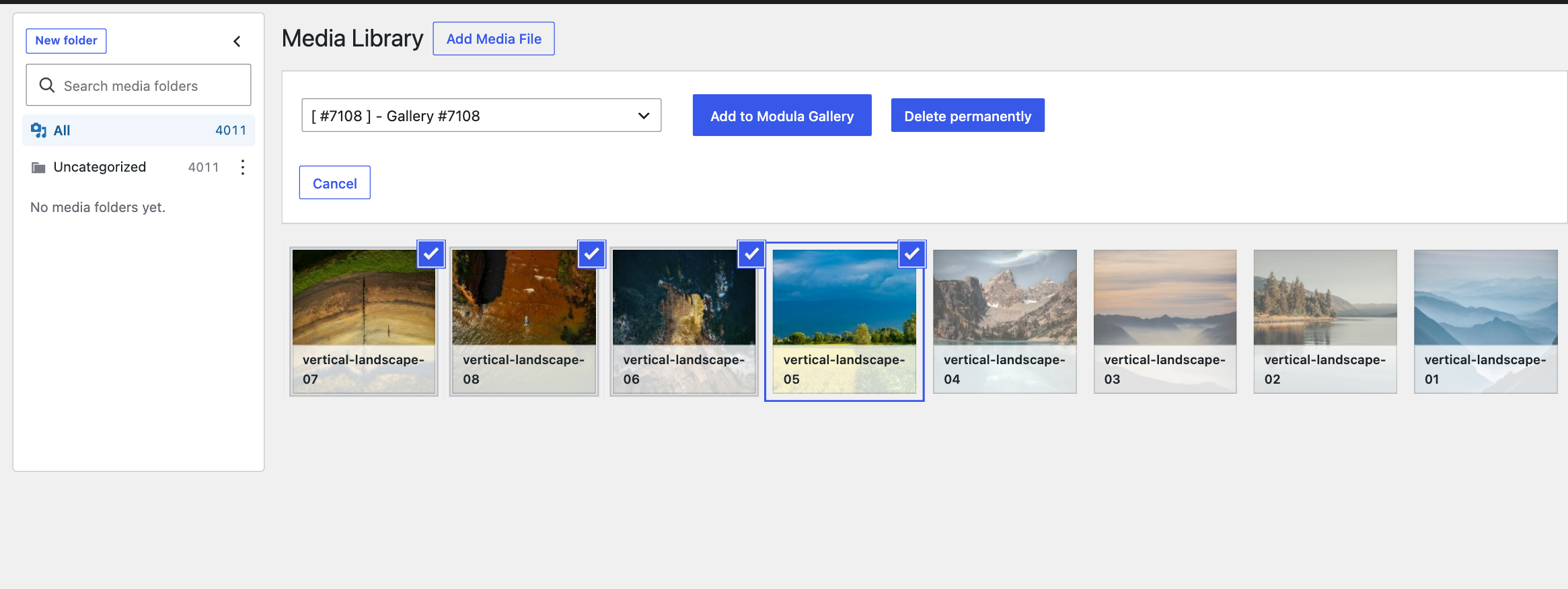
Click the images you want to add to your gallery.
-
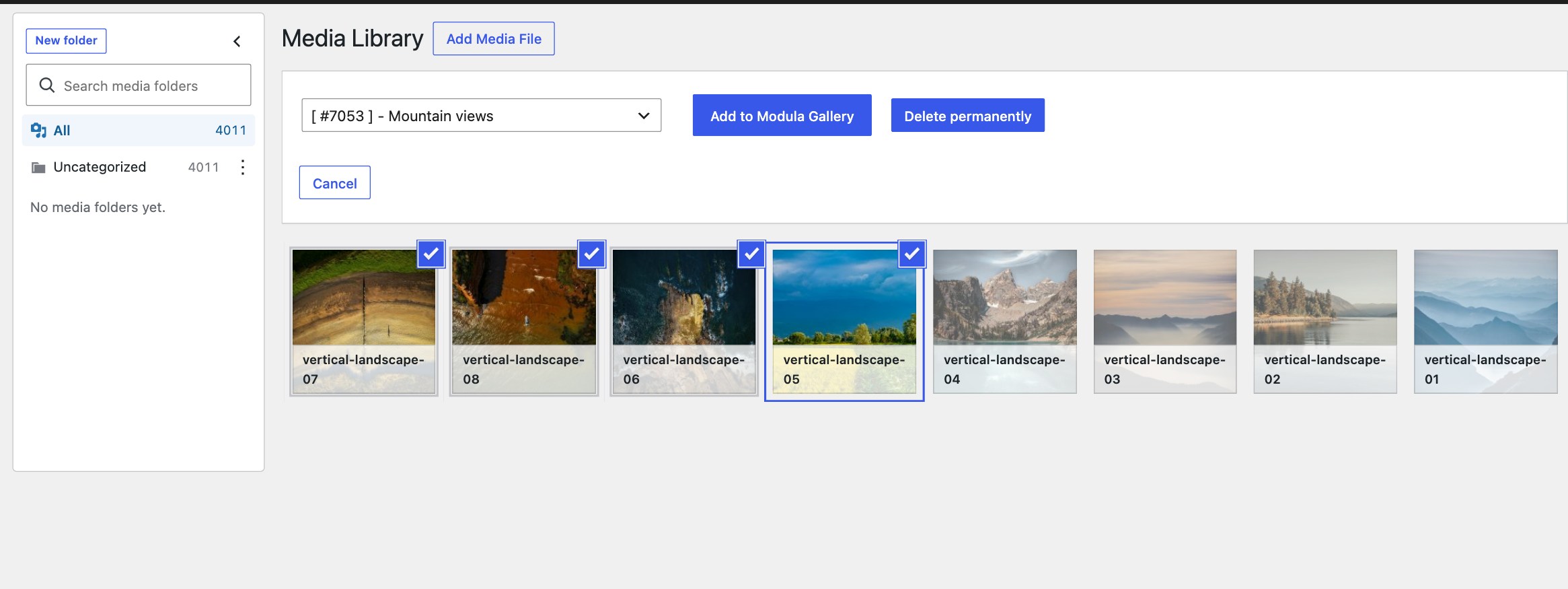
Choose the gallery in the list at the top.
-
Click Add to Modula Gallery.
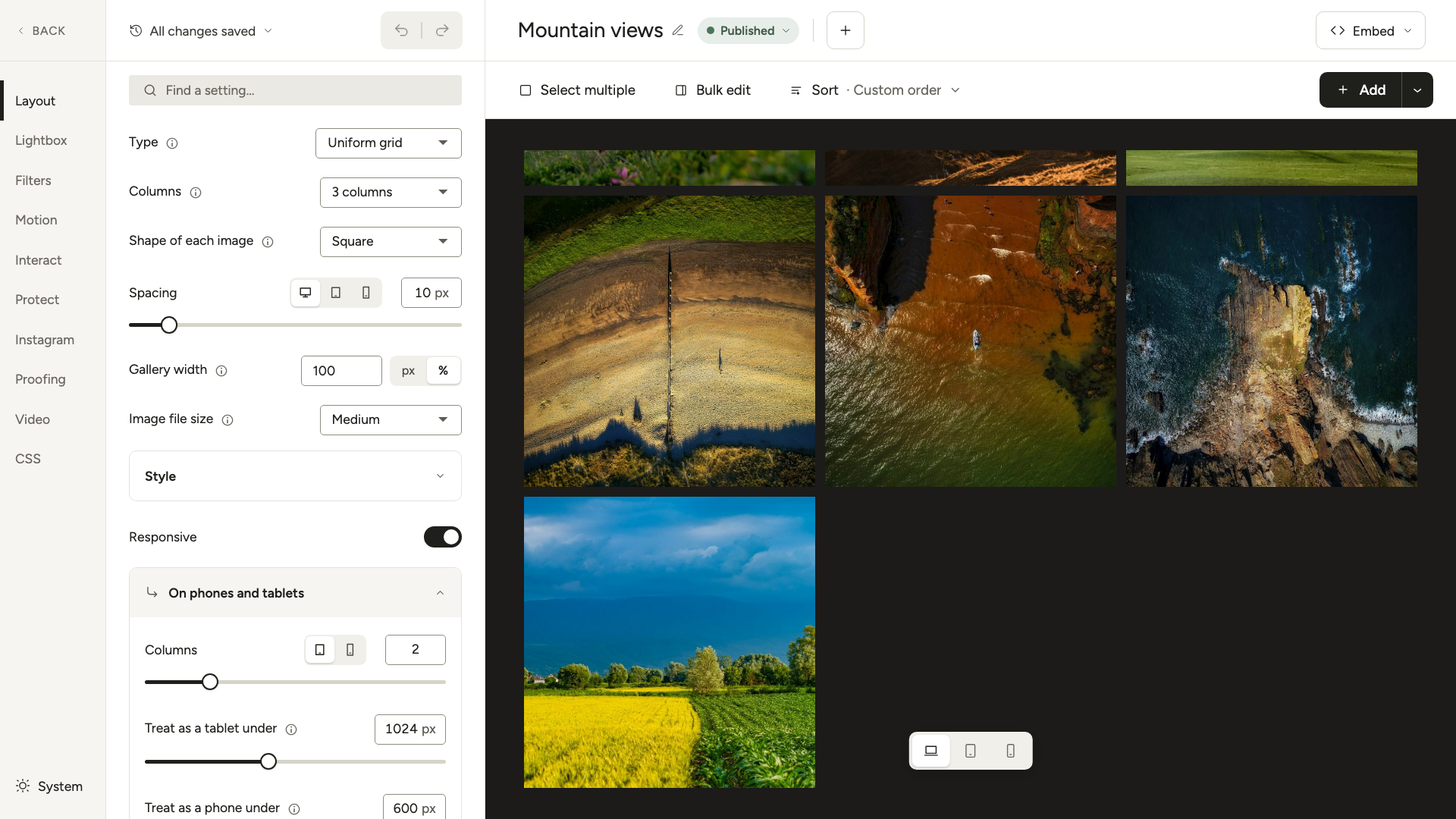
The images are now in the gallery you chose:
Note: Only images are added to the gallery. Other files in your Media Library, such as PDFs or ZIP files, are skipped.
Add Media Library images in the list view
If you prefer the list view, the steps are a little different.
-
In your WordPress dashboard, go to Media → Library and switch to the list view.
-
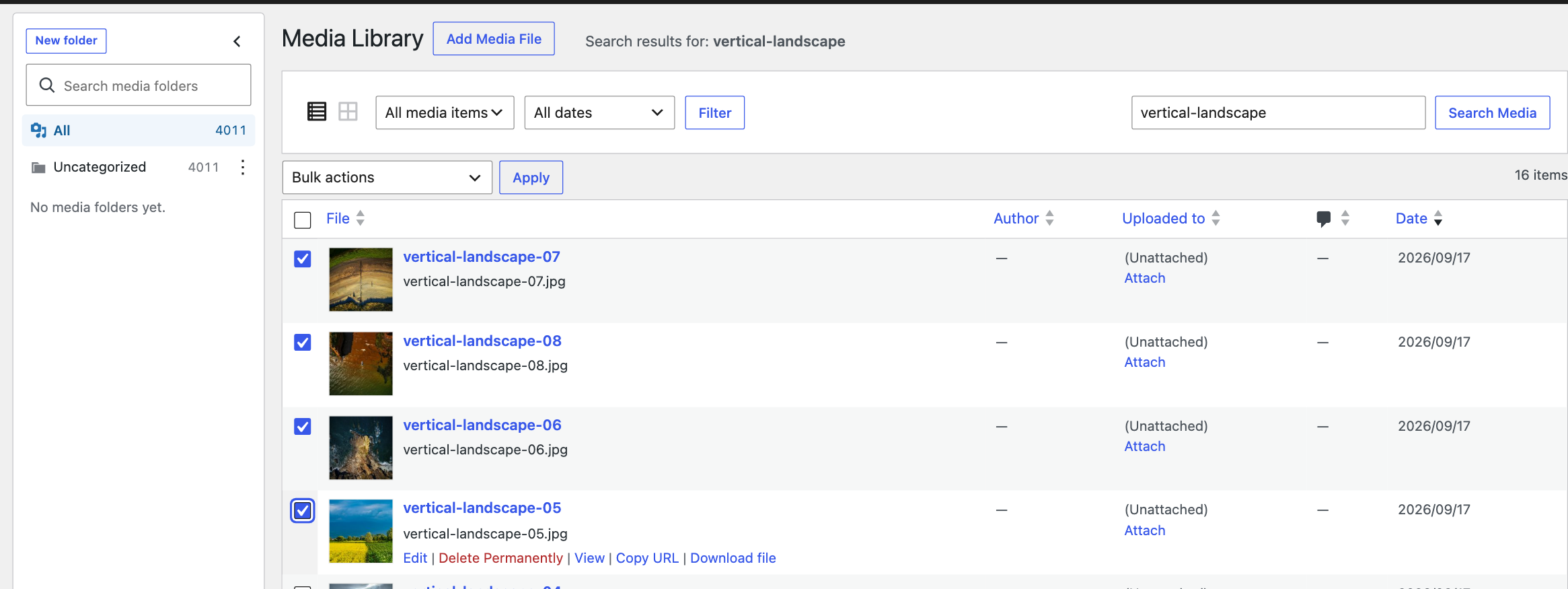
Tick the images you want to add to your gallery.
-
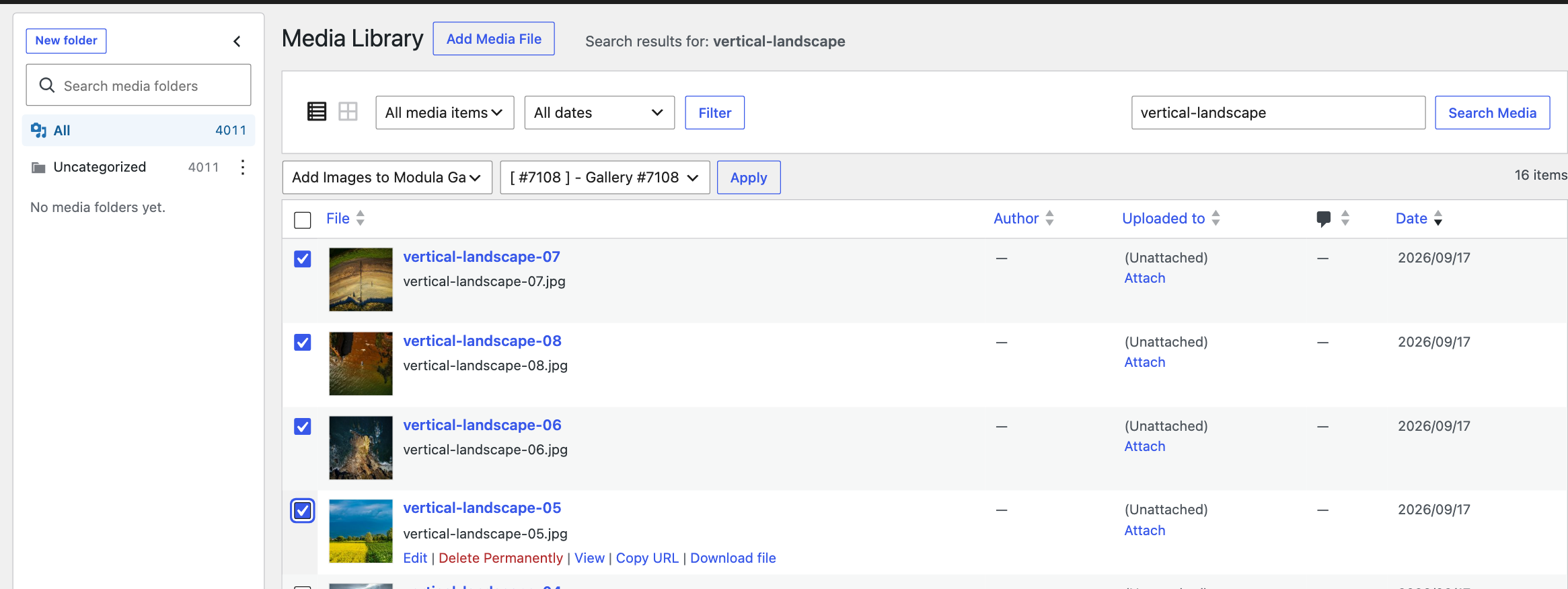
Open Bulk actions and choose Add Images to Modula Gallery.
-
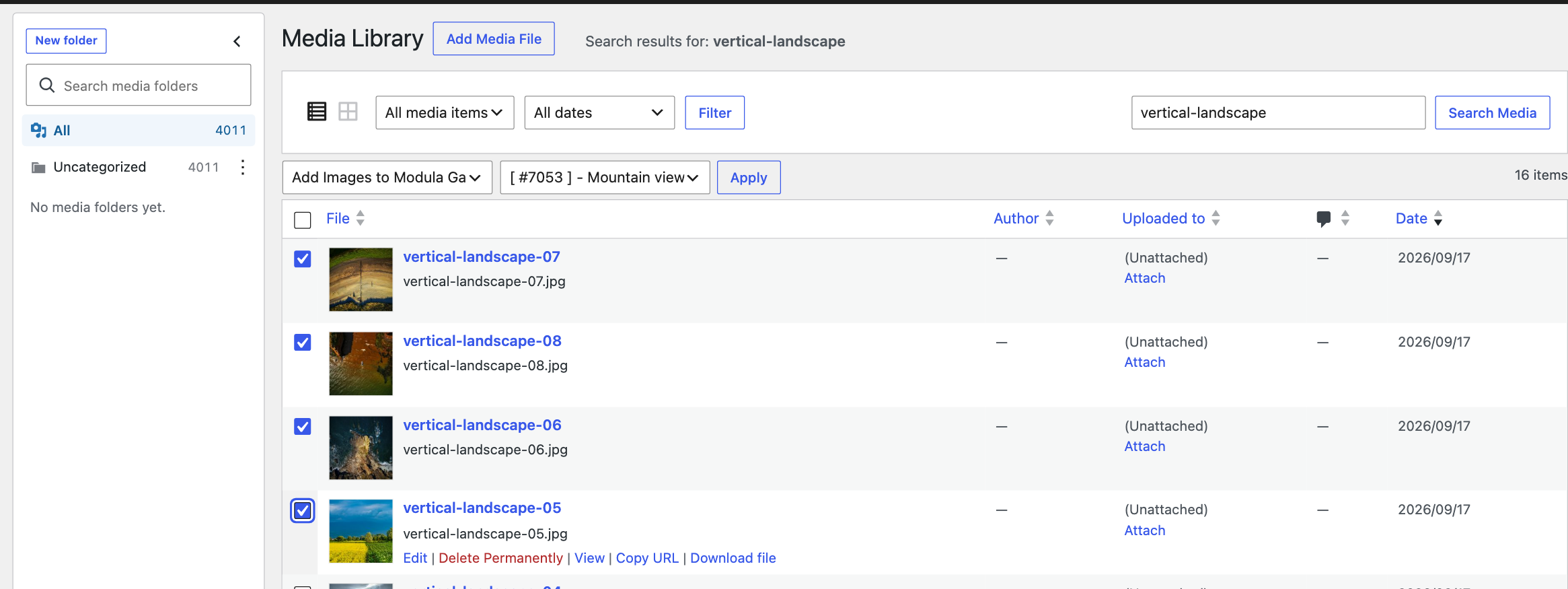
Choose your gallery in the list next to it.
-
Click Apply.
After you add the images
Your gallery now has the new images. You can sort the images in your gallery or insert the gallery in a post or page.