 Made in Europe, buy from Europe.
You can add comments to WordPress gallery images with the Comments extension in Modula. Visitors open an image in the lightbox, click the Comments button and write their comment next to the image. The lightbox is the window that shows an image on top of the page.
Note: Comments is part of Modula Pro, included in the Business plan. Turn it on in Modula → Extensions (see how to install extensions). Comments appear in the lightbox, so the gallery has to open images in the lightbox.
Turn on comments for a gallery
You turn on comments one gallery at a time. Follow these steps in the gallery editor:
- Go to Modula → Galleries and open the gallery.
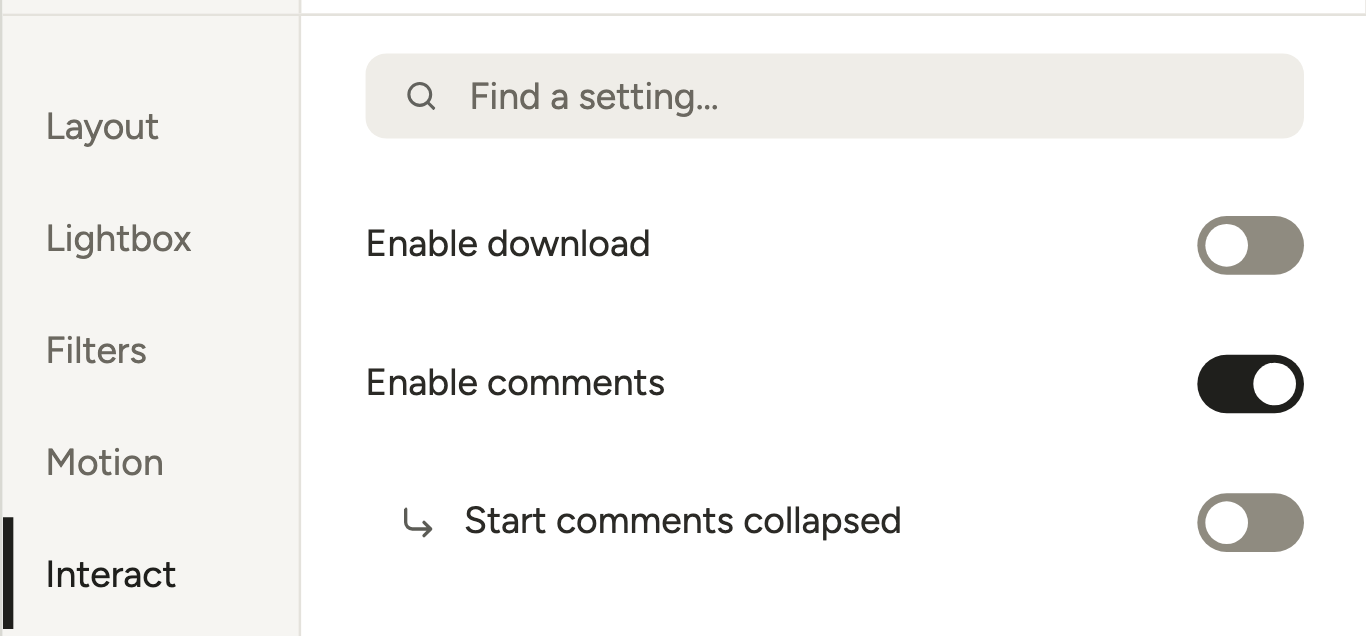
- Click Interact.
- Switch on Enable comments.
-
Turn on Start comments collapsed if the comments panel should stay closed until a visitor clicks the Comments button. When it is off, the panel is open when the lightbox opens.
The Comments button in the lightbox
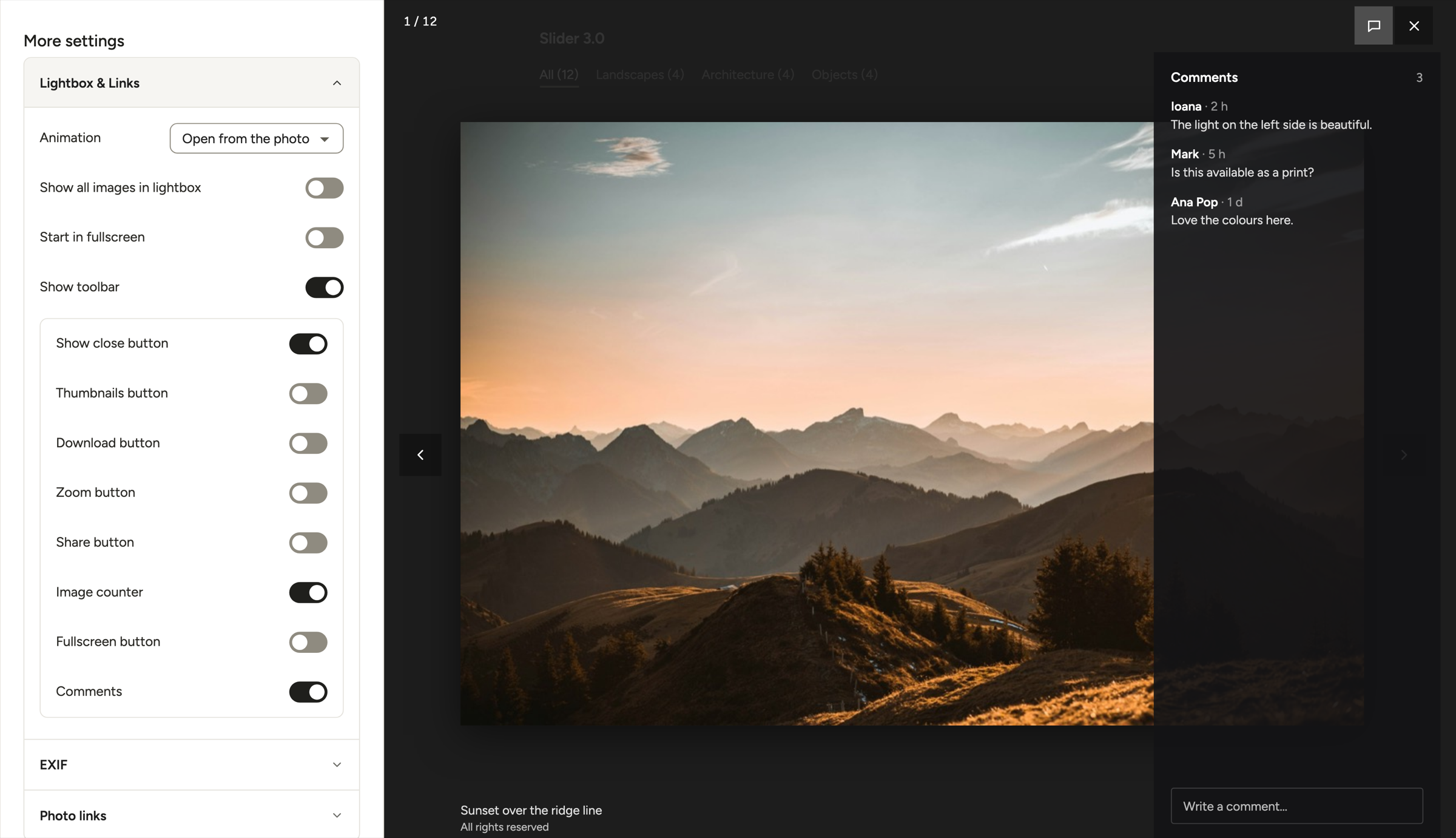
The Comments button in the lightbox toolbar opens and closes the comments panel. It’s on by default. Once comments are on, you find it in Lightbox → More settings → Lightbox & Links, with the other toolbar buttons.
If you turn it off, or turn off Show toolbar, the comments panel stays open. Visitors can’t hide it.
How visitors comment on an image
With comments turned on, this is what a visitor does:
- The visitor clicks an image to open it in the lightbox.
- If the panel is closed, they click the Comments button. The panel shows the comments already posted on that image.
- They type in Write a comment….
- They fill in Name and Email. Logged-in users skip the name and email.
- They click Post comment.
With threaded comments on, they can also reply to a comment.
Each comment belongs to the image it was posted on, so every image has its own conversation.
See and moderate gallery comments
Gallery comments are regular WordPress comments. You moderate them in Comments and control them with your WordPress discussion settings.
- Go to Comments in your WordPress dashboard.
- To see only gallery comments, choose Modula Comments in the comment type filter.
- To see the comments of one gallery, use the gallery filter next to it (All Galleries).
The Modula Image Comment column shows the image each comment was posted on. You can approve, reply, mark as spam or trash these comments, as you do with any WordPress comment.

Modula also adds a notification when a new comment arrives or when one waits for your approval. The notification has a link to that gallery’s comments.
WordPress settings that apply to gallery comments
Gallery comments follow the settings in Settings → Discussion. These are the ones that matter:
- Comment author must fill out name and email: Visitors who aren’t logged in must give a name and an email.
- Users must be registered and logged in to comment: Only logged-in users can comment. This helps against spam.
- Enable threaded (nested) comments: Lets visitors reply to a comment.
- Break comments into pages: When this is on, the panel loads the number of top level comments per page you set. A button loads more. When it is off, the panel loads up to 100 comments at a time, the most WordPress allows.
- Comment must be manually approved: Every comment waits for your approval before it shows.
- Comment author must have a previously approved comment: Holds only the first comment of each person.
- Show Avatars, Maximum Rating and Default Avatar: These set whether comments show a profile picture and which ratings (G, PG, R, X) are allowed. They also set the picture used for people without one.