Modula Albums is a Modula Pro extension that lets you group multiple galleries into a single, organized collection. Instead of embedding individual galleries one by one, you can present them together as an album — each gallery appearing as a clickable cover image that opens the full gallery in a lightbox or redirects to a custom URL.
Modula Albums now also supports multi-level structures, meaning you can nest sub-albums inside albums, alongside galleries. This makes it easier to organize large collections into an easy-to-navigate structure.
Where can I buy the extension?
The Albums extension is included in the Trio plan and above. You can see all available plans at https://wp-modula.com/pricing/.
How can the extension be installed?
Follow the general extension installation guide at https://wp-modula.com/kb/install-extensions/.
How to add an album
-
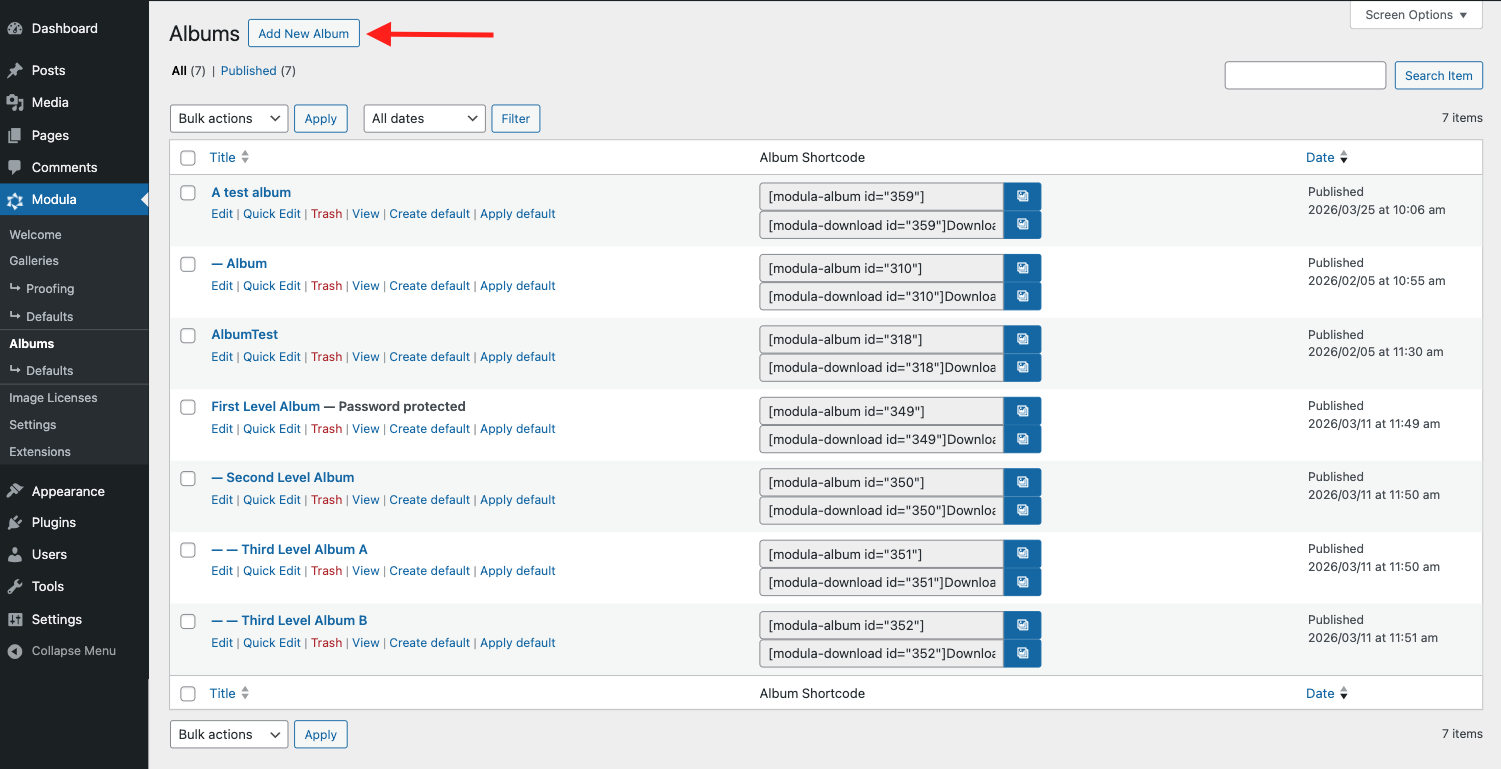
Go to your WordPress dashboard > Modula > Albums > Add new album.
-
Add a title for your album.
-
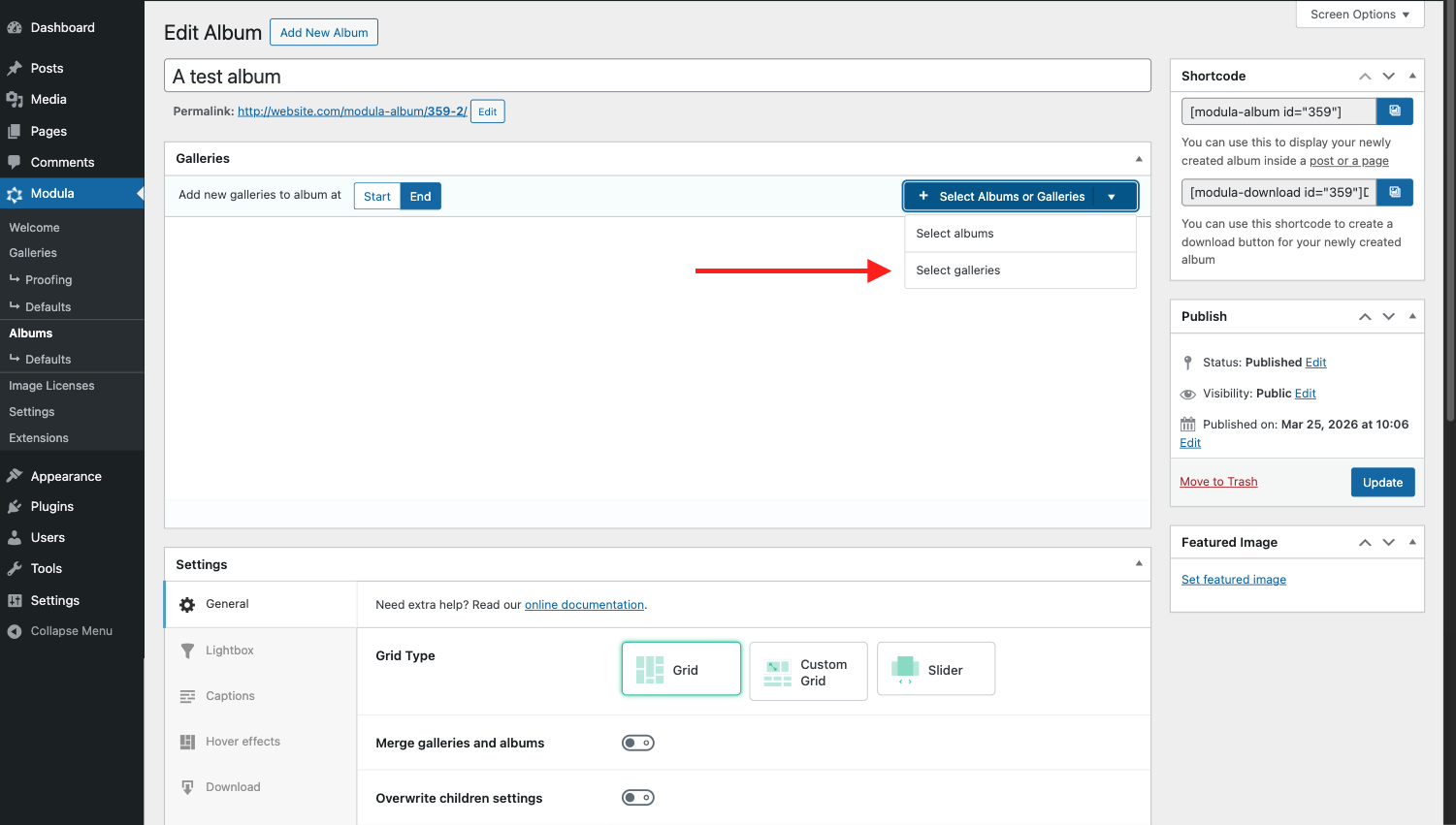
Click “Select Albums or Galleries” > “Select Galleries” to open the gallery picker. Choose one or more galleries and click “Insert Galleries”.
-
Optionally, you can also add sub-albums to your album (see the Multi-level Albums section below).
-
To display the album on a page, go to Pages > Add New, add a block, and choose “Modula Albums” from the block list. Select your album and publish the page.
-
Another option would be to use the Modula Album shortcode directly on your page. Each album has a unique ID that can be used to embed it anywhere via shortcode:
[modula-album id=”YOUR_ALBUM_ID”]
To find the album ID, open the album in the editor and check the URL in your browser — the number after “post=” is the ID.
Multi-level albums
Albums can now contain both galleries and other albums (sub-albums), allowing you to build nested structures that reflect how your content is organized. For example:
Portfolio (album)
├── 2024 Projects (sub-album)
│ ├── Weddings (gallery)
│ └── Commercial (gallery)
└── 2025 Projects (sub-album)
└── Editorial (gallery)
When visitors browse an album that contains sub-albums, they can navigate down into each sub-album and then into the individual galleries. You can also enable sibling album navigation, which adds links to move between albums at the same hierarchy level without going back to the parent.
You can choose between a separate view (where albums and sub-albums can be used as a navigation tool), and a combined view (where albums and galleries are displayed together in the same grid).
General Settings
These settings control the overall layout and behavior of the album.
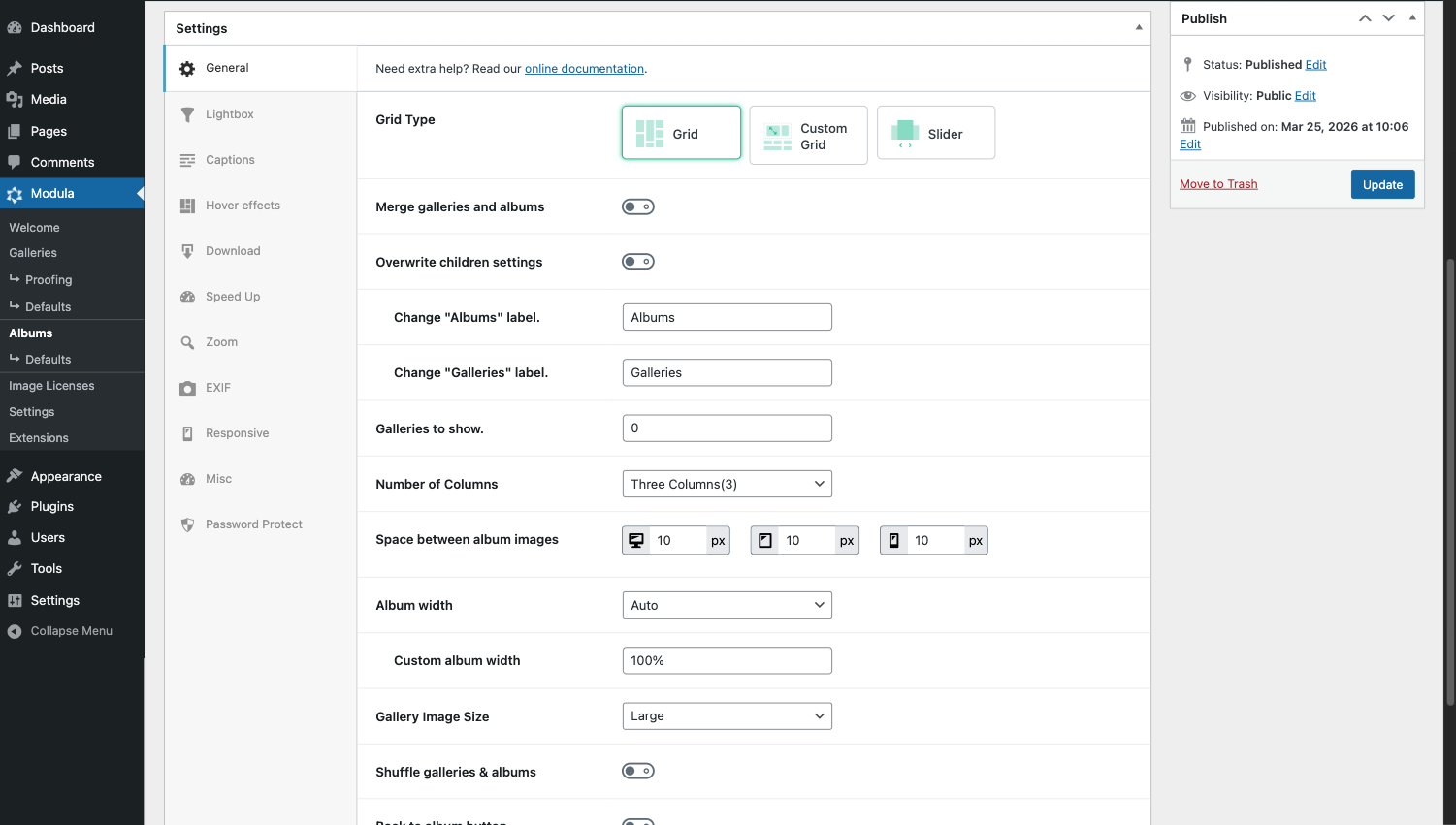
– Grid Type
Choose how the album covers are arranged. Options are:
1. Grid: Galleries are displayed in a fixed number of equal columns.
2. Custom Grid: Drag and drop the cover images to set their individual sizes, similar to the Modula gallery Custom Grid layout.
3. Slider: Galleries and sub-albums are displayed in a horizontal slider.
– Merge galleries and albums: Display the galleries and sub-albums you selected in a combined view.
– Overwrite children settings: Control the labels used for galleries and sub-albums when shown separately.
– Number of Columns: Control the number of columns used to display cover images in the Grid type listing.
– Space Between Album Images: A slider that controls the gap (in pixels) between cover images in the album grid.
– Gallery Image Size: Controls the size of the cover image used for each gallery or sub-album.
– Album Width: Sets the total width of the album on the page. Can be defined in pixels or as a percentage.
– Shuffle Galleries: When enabled, the order of cover images is randomized on every page load.
– Back to Album Button: When the lightbox is disabled and galleries open via URL, enabling this option adds a visible “Back to album” button on the gallery page so visitors can return to the album.
– Albums navigation position: Control where to show the navigation links for your albums.
Individual Gallery/Sub-album settings
Each gallery or sub-album has its own cover image settings. To access them, go to the album editor and click on a gallery’s edit icon (top-left corner).
– Title: The label displayed on the gallery cover in the album.
– Caption: A short description shown on the cover.
– Alt Text: Alternative text for the cover image, used for accessibility and SEO.
– Cover Image: The specific image used as the gallery’s cover. If none is set, the first image in the gallery is used automatically.
– Shuffle Cover on Page Load: When enabled, a random image from the gallery is chosen as the cover each time the page loads.
– Custom URL: When the lightbox is turned off, clicking the gallery cover redirects visitors to this URL instead of opening the gallery.
Lightbox Settings
When the lightbox is enabled, clicking a gallery cover opens all its images in a lightbox view. The following options control how that viewer behaves.
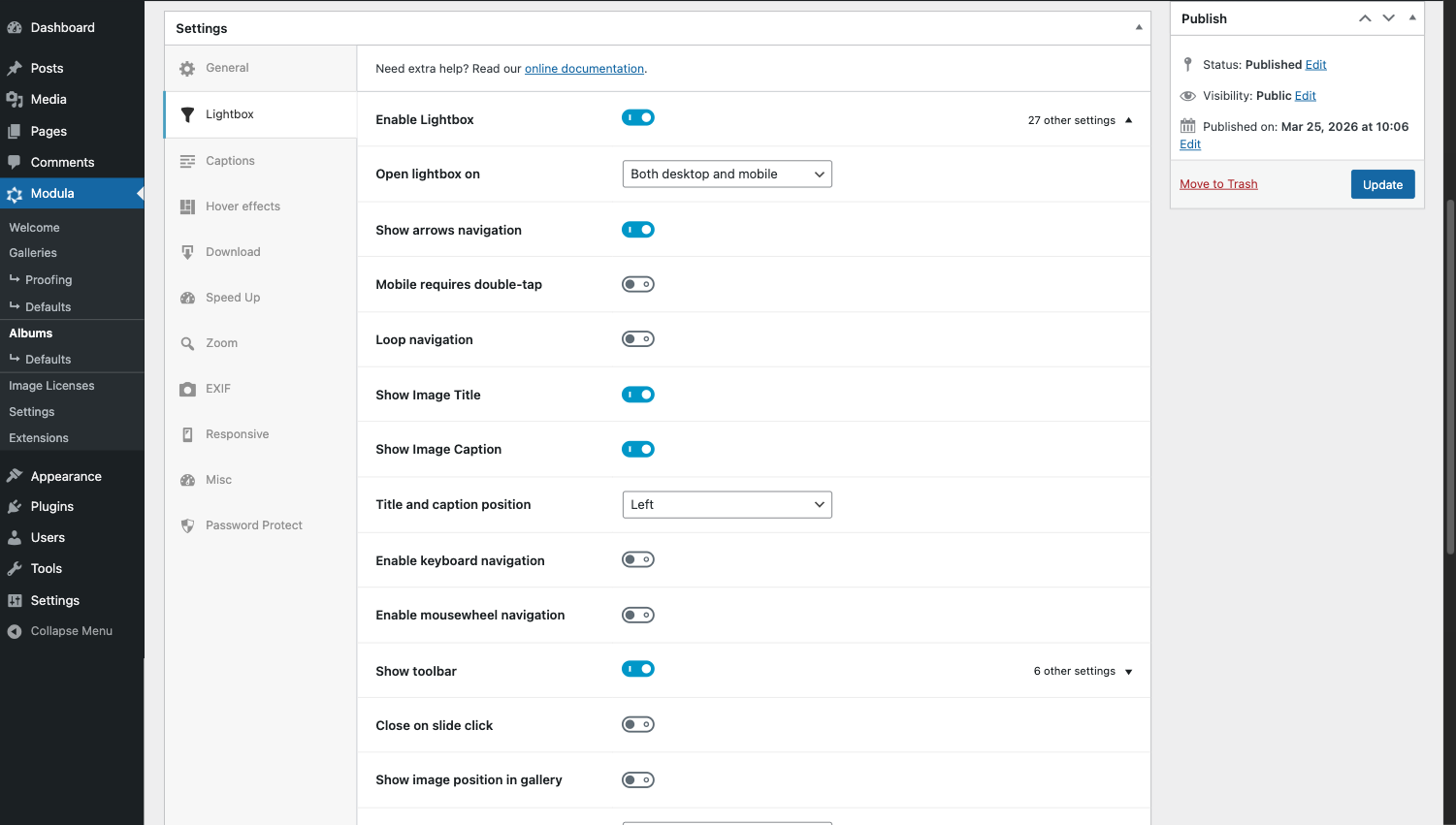
– Open lightbox on: Select on which device the lightbox will open.
– Show Arrows Navigation: Displays left/right arrows for moving between images.
– Mobile Requires Double-Tap: On mobile, requires a double-tap to interact with the lightbox.
– Loop Navigation: After the last image, loops back to the first.
– Show Image Title: Displays the image name below the image inside the lightbox.
– Show Image Caption: Displays the image description below the image inside the lightbox.
– Title and Caption Position: Align the title and caption to the left, center, or right.
– Enable Keyboard Navigation: Allows using the arrow keys to move between images.
– Enable Mousewheel Navigation: Allows scrolling through images with the mouse wheel.
– Show Toolbar: Enable the toolbar with options in the lightbox.
– Close on Slide Click: Clicking directly on an image closes the lightbox.
– Allow Panning/Swiping: Enables touch swipe and pan gestures on mobile.
– Show Image Position in Gallery: Shows the current image number out of the total (e.g., 3 / 12).
– Open/Close Animation: The animation style when the lightbox appears or disappears. Options: Fade, Zoom, Zoom-in-out, None.
– Transition Effect: The animation between images. Options: Fade, Slide, Crossfade, Classic.
– Enable Autoplay: Images advance automatically. Set the Time Between Slides to control the delay (in milliseconds).
– Show Thumbnails: Displays a thumbnail strip alongside the lightbox.
– Thumbnails Position: Choose left, right, or bottom for the thumbnail strip.
– Download Button: Adds a download button in the top-right corner of the lightbox.
– Share Button: Adds a share button with links to LinkedIn, WhatsApp, Pinterest, Twitter, Facebook, and Email.
– Zoom Button: Adds a zoom-in button inside the lightbox.
– Copy Caption on Double Tap: Double-tapping copies the image caption to the clipboard.
– Lightbox Background Color: Sets a custom background color for the lightbox overlay.
If you turn the lightbox off, clicking a gallery cover will instead open a URL. The destination is determined by the following priority:
1. The Custom URL set in the gallery’s cover image settings (if one is provided).
2. The gallery’s standalone page URL (if the Standalone feature is enabled in Modula > Settings).
Caption Settings
Controls the appearance of titles and captions shown on album cover images.
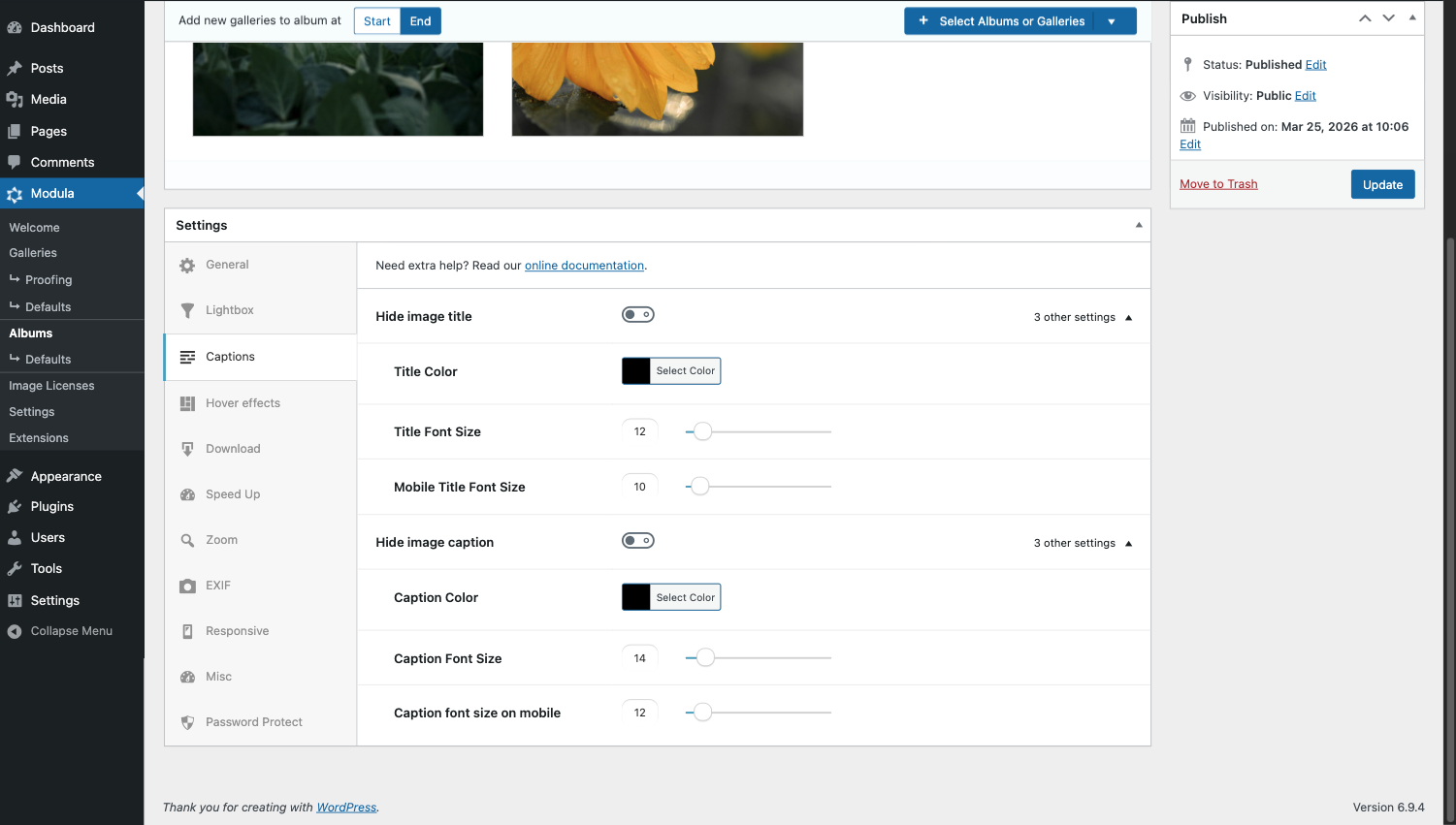
– Hide Image Title: Hides the title from all covers in the album. When visible, you can set:
– Title Color
– Title Font Size
– Mobile Title Font Size
– Hide Image Caption: Hides the caption from all covers. When visible, you can set:
– Caption Color
– Caption Font Size
– Caption Font Size on Mobile
For a demo with both the title and caption turned on click here.
Hover Effects
These settings control what happens visually when a visitor hovers over a gallery cover.
Note: Hover effects are not visible on touchscreen devices, as there is no hover state on mobile.
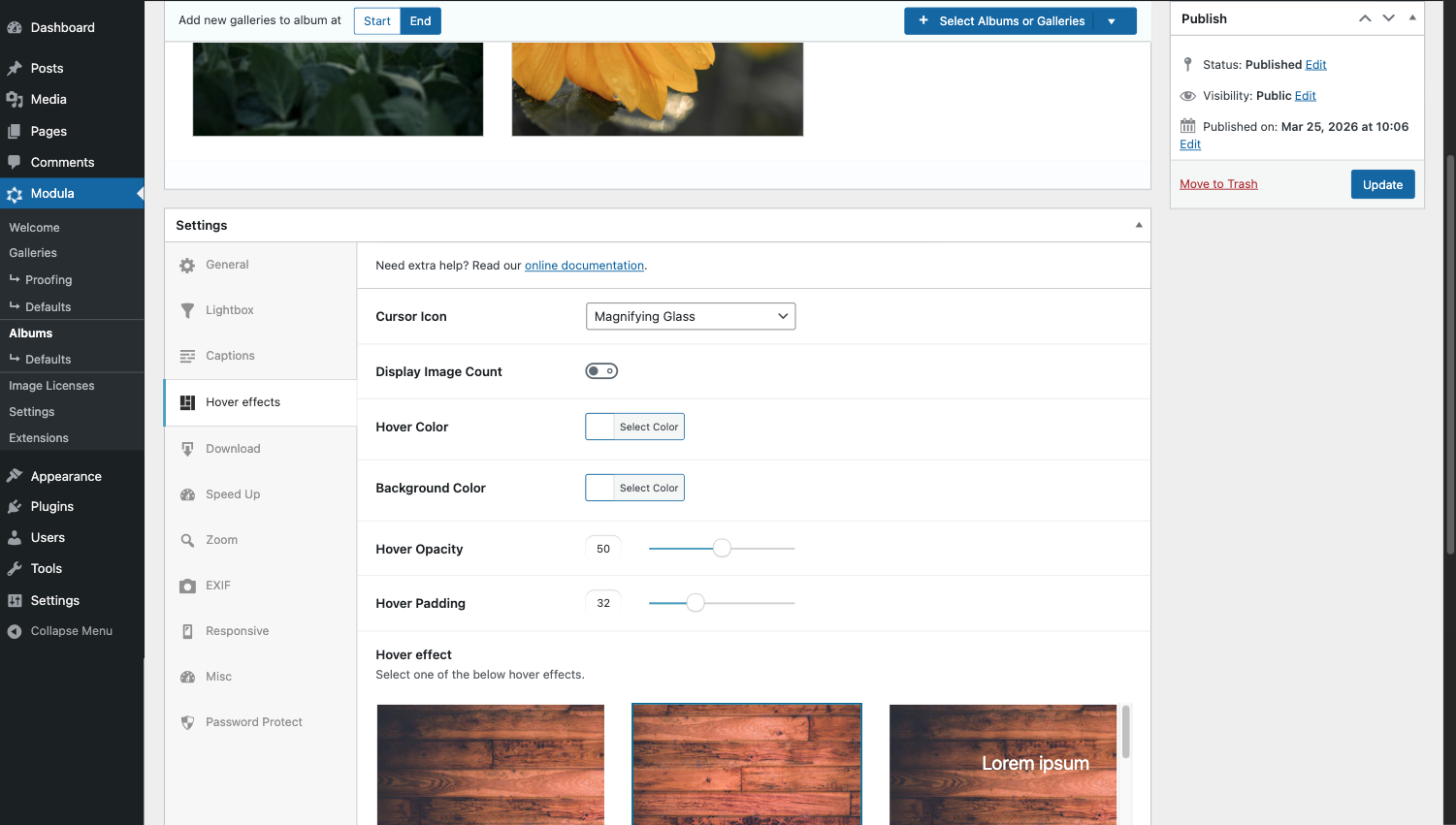
– Cursor Icon: The cursor style shown when hovering. Options include Pointer, Magnifying Glass, Loading, Cell, Crosshair, Resize 1, Resize 2, and Custom (upload your own icon).
– Display Image Count: Shows the number of images in each gallery next to its title. You can also set:
– Image Count Color
– Image Count Font Size
– Hover Color: The background overlay color shown on hover.
– Hover Opacity: Controls the opacity of the cover image (not the overlay) on hover.
– Hover Padding: Adjusts the internal padding of the hover effect overlay.
– Background Color: The color of the hover effect background.
– Hover Effect: Choose from over 40 animation styles that apply to the cover image on hover. Effects interact with the title, caption, and social icon elements.
Download
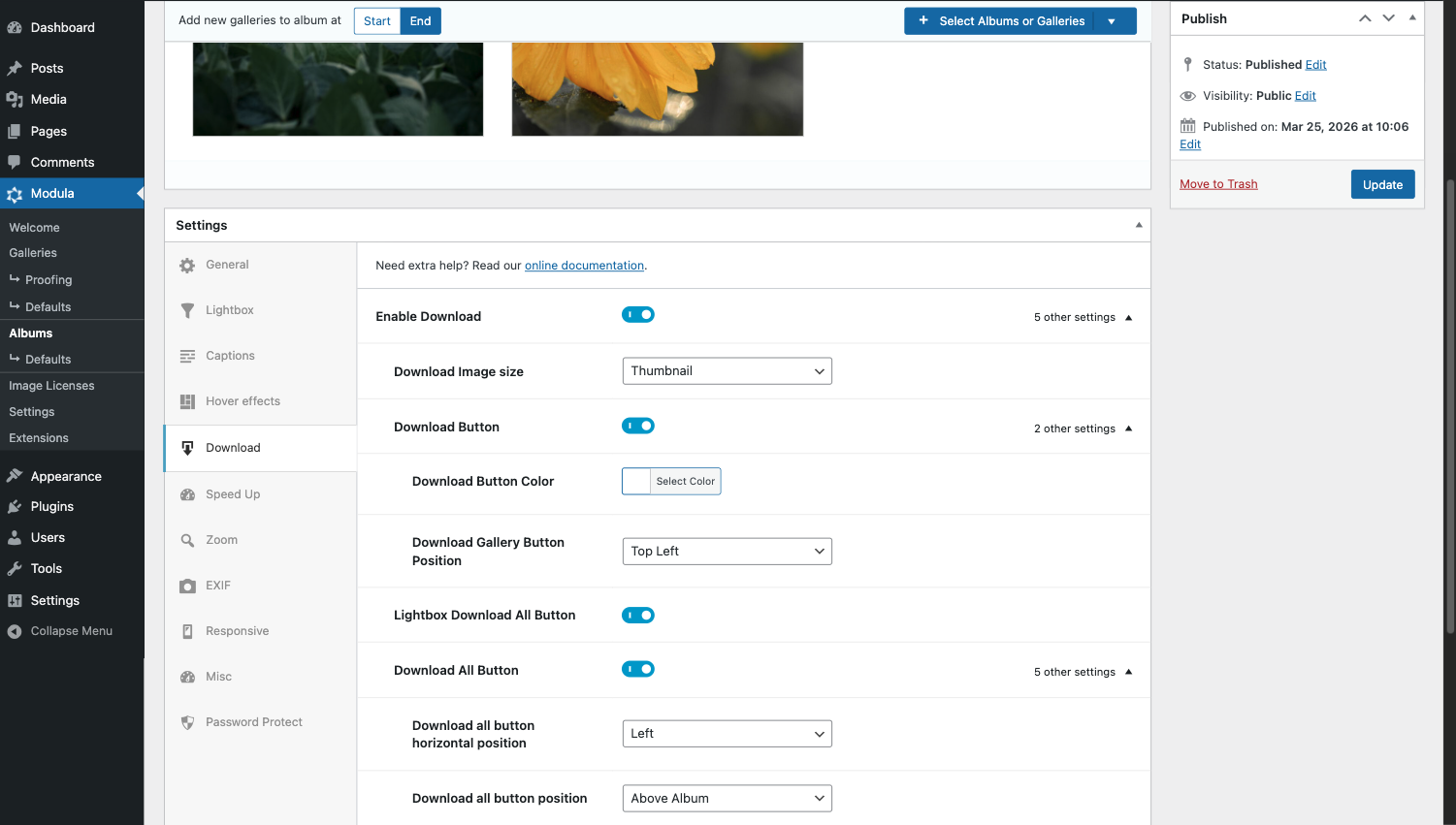
– Enable Download: Allows users to download the images from your album.
– Download Image size: Control the size of the image when it is downloaded.
– Download Button: Add a download button for the images.
– Download Button Color: Set the color for the download button.
– Download Gallery Button Position: Select where the download button will be shown.
– Lightbox Download All Button: Enable the download all option for the album.
– Download All Button: Enable the configuration options for the download all button.
– Download all button horizontal position: Control where this button will be shown on the horizontal direction.
– Download all button position: Set if the button should be shown above, below or both locations for the album.
– Download all button label: Set the label of the button.
– Download all icon: Enable an icon for the button.
– Download all icon color: Select the color used for the icon.
– Custom ZIP Name: set the name of ZIP file that contains all album images.
Speed Up
Enable the lazy load option for your album.
Zoom
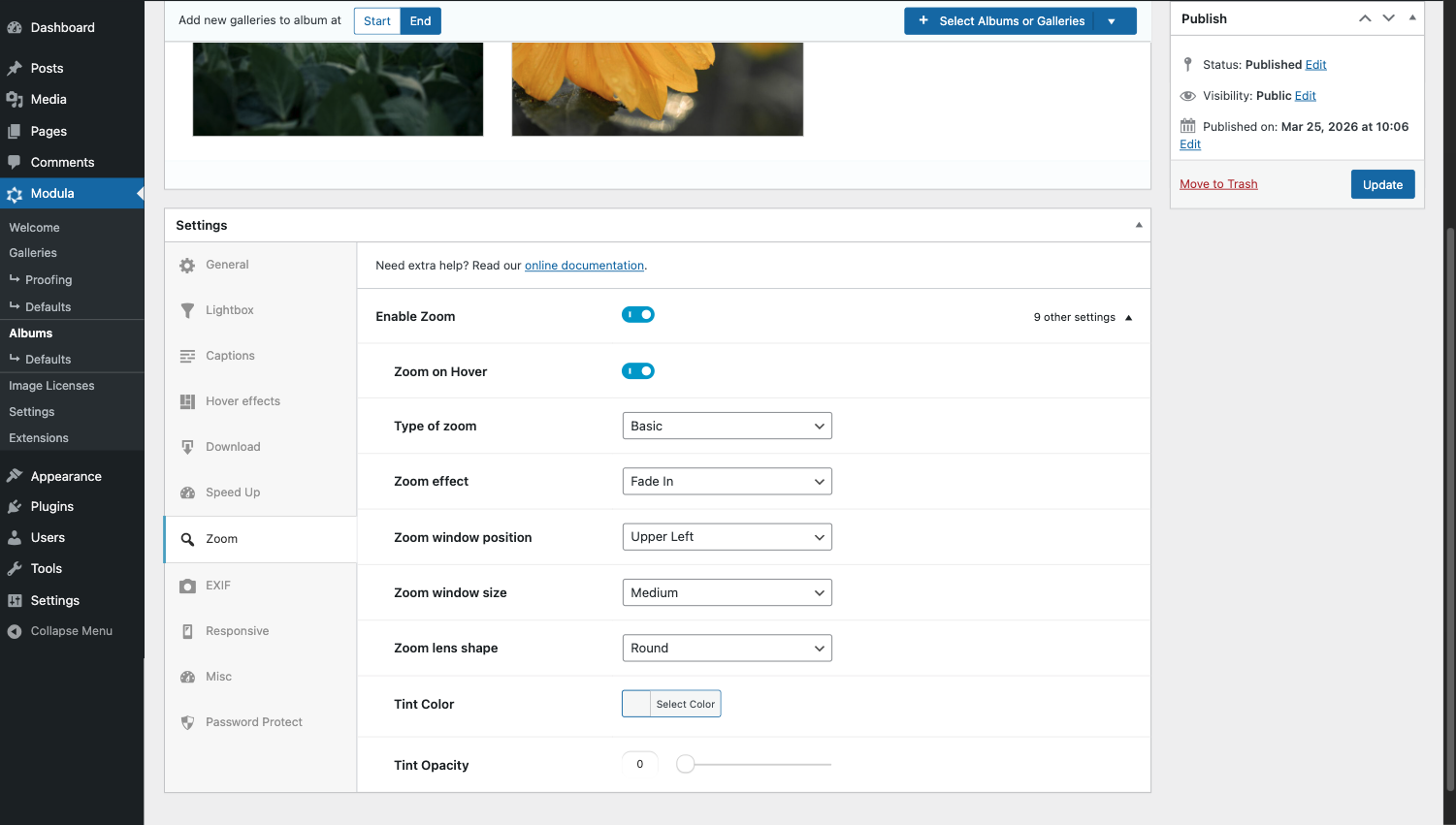
– Enable Zoom: Enable the zoom options for your album.
– Zoom on Hover: Enable automatic zoom when hovering the image.
– Type of Zoom: Select between a basic zoom, inner zoom, or lens.
– Zoom effect: Control the effect used when triggering zoom.
– Zoom window position: Set where the zoomed-in window will appear.
– Zoom window size: Set the size of the zoom window.
– Zoom lens shape: Select between a round or square lens.
– Tint color: Set the tint color when zoom is applied.
– Tint opacity: Set the opacity of the tint.
EXIF
Select how EXIF data is handled in the album, choose between “Take gallery settings”, “Display EXIF data”, “Hide EXIF data”.
Responsive
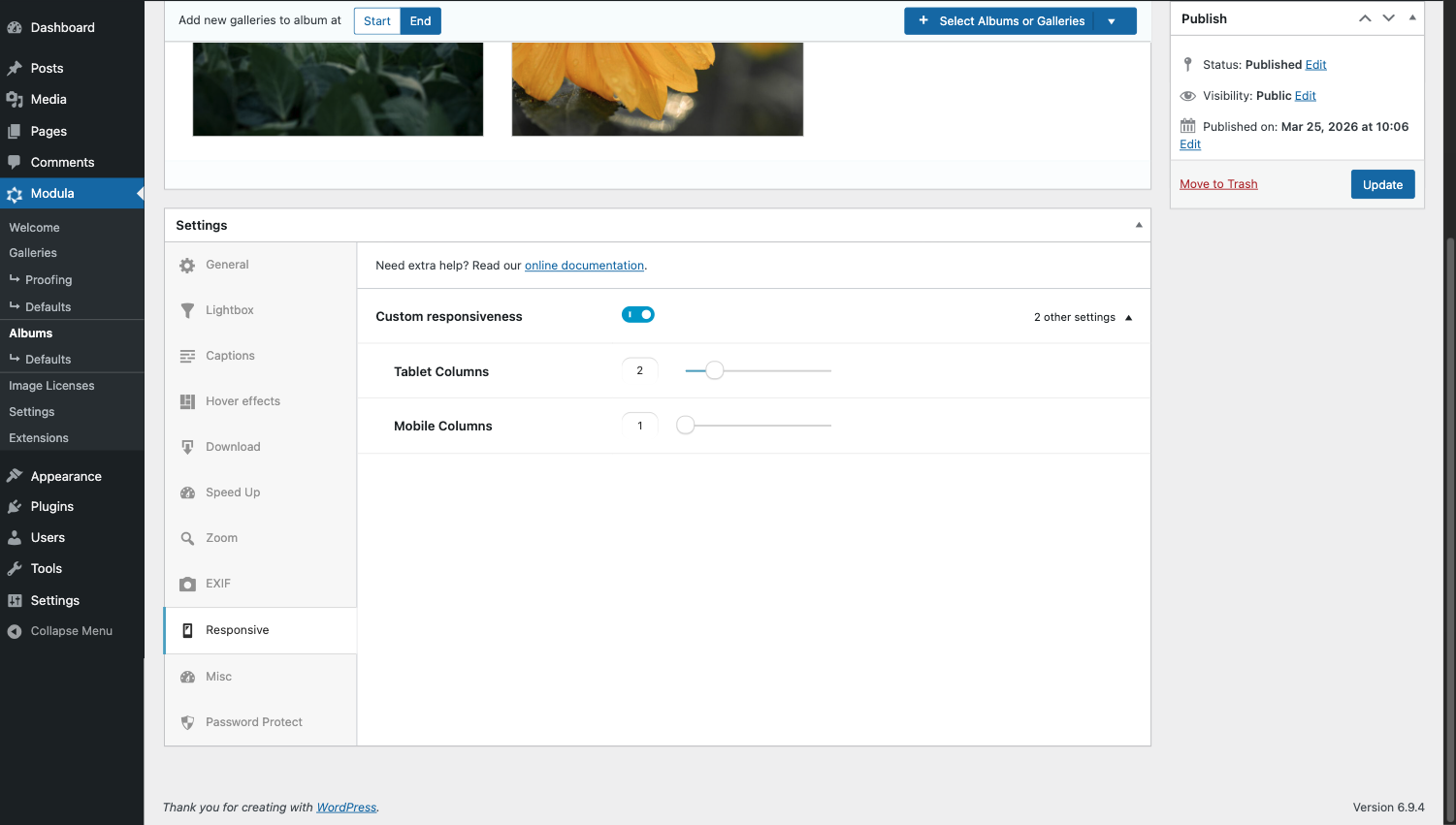
Enable “Custom Responsiveness” to set a different number of columns for the album on tablet and mobile screen sizes, independently from the desktop layout. This ensures the album looks good across all devices.
Password Protect
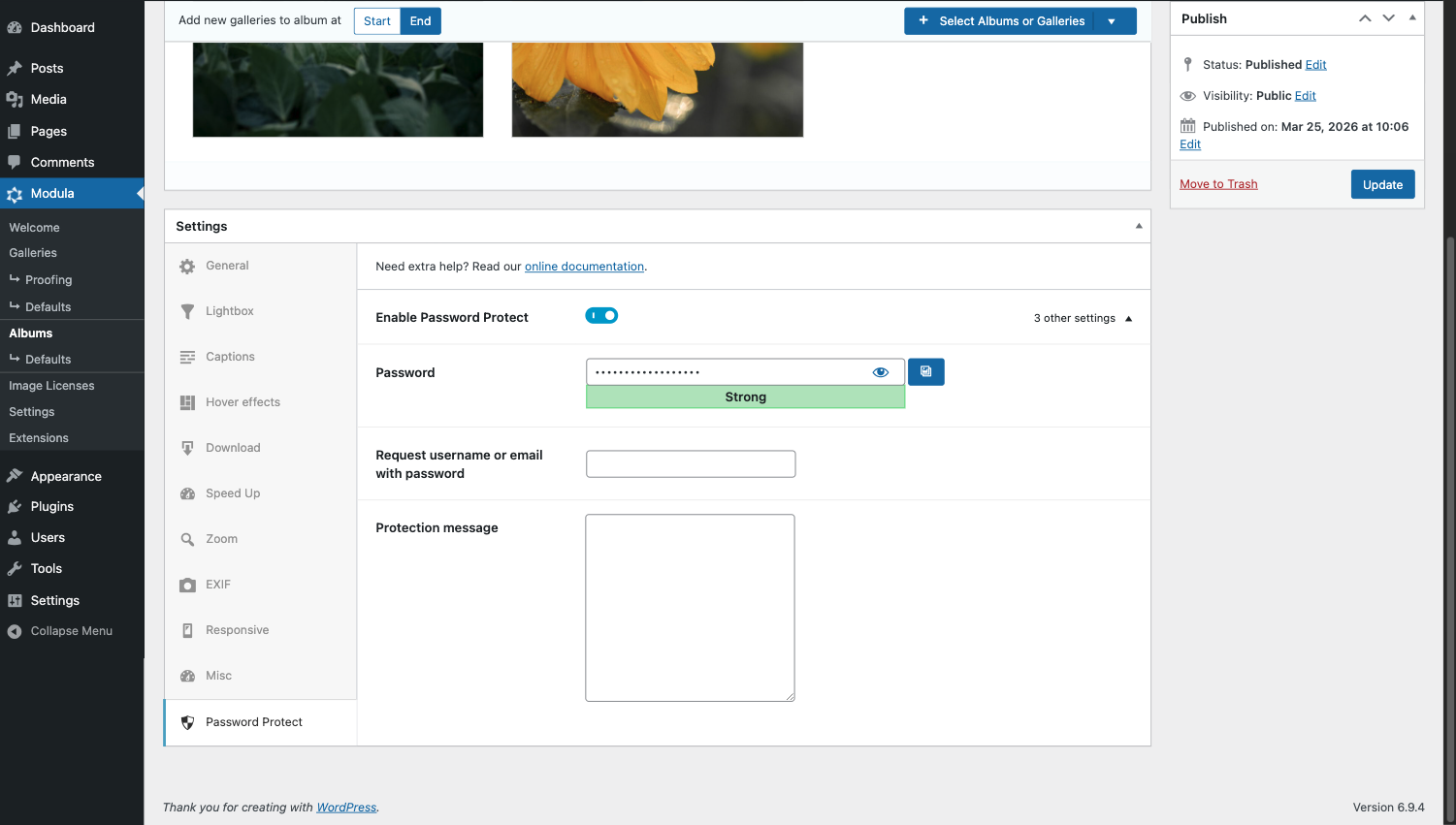
Enable Password Protect: enable the password protection feature for your album.