All of Modula’s site-wide settings are on one page: Modula → Settings. Each group of settings has its own section. A search box finds any setting by name, and one button saves your changes.
Open the Settings page
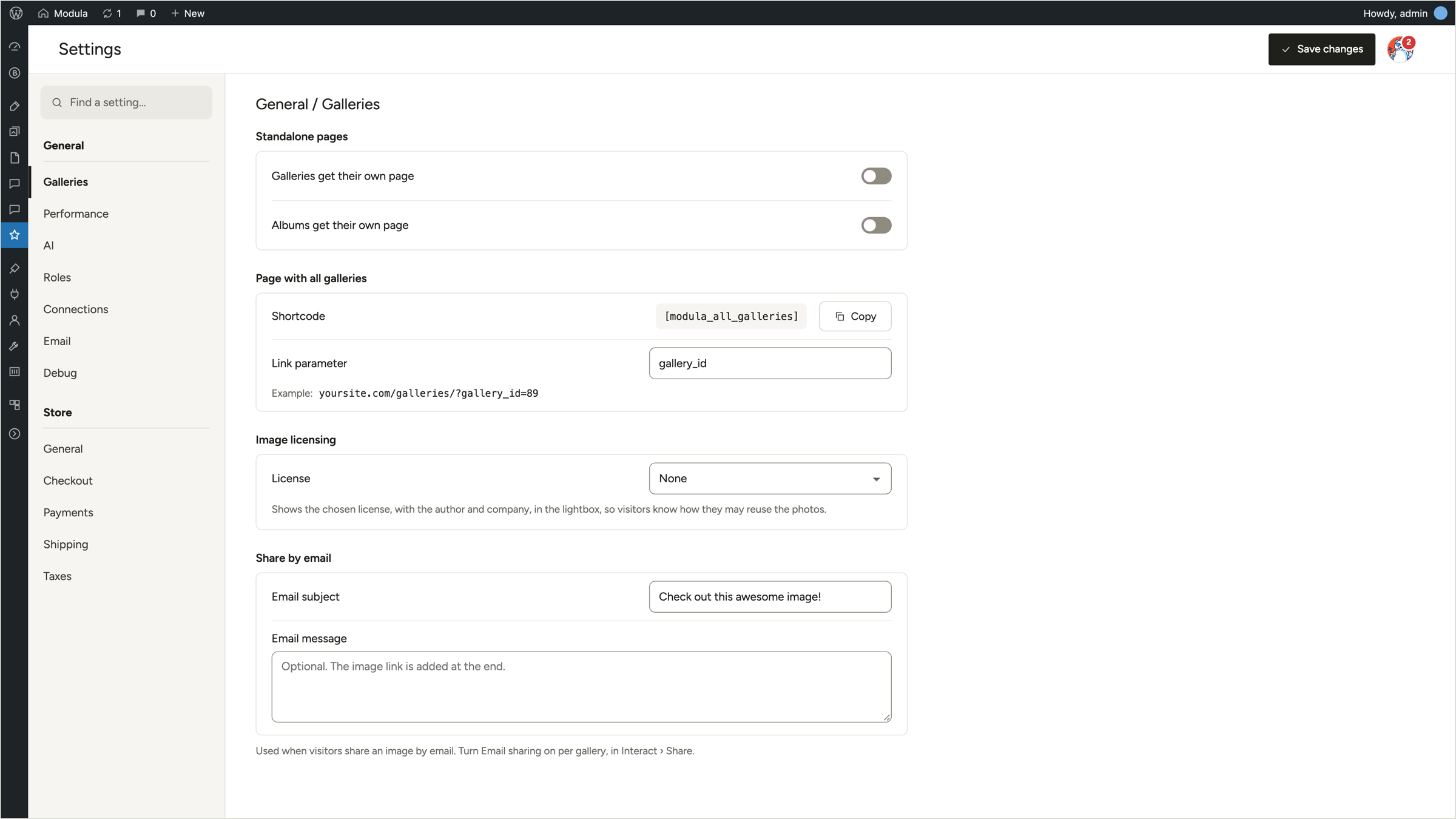
In your WordPress dashboard, go to Modula → Settings. The sections are listed on the left, under General.
The section you open shows on the right. Its group and name are at the top, for example General / Galleries.
What each section holds
Each section keeps the settings for one part of Modula. These are the sections under General:
- Galleries: Holds standalone pages for galleries and albums, the
[[modula_all_galleries]]shortcode and its link parameter, and image licensing. It also holds the subject and message visitors use when they share an image by email. A shortcode is a short tag that WordPress swaps for content. - Performance: Holds image compression from Modula Speed Up. It isn’t available on a local site, which is a site that runs on your own computer.
- AI: Holds Smart Captions from Modula AI, and AI assistants such as Claude, ChatGPT or Cursor.
- Roles: Sets who can work with galleries and albums.
- Connections: Holds your Instagram, YouTube and Vimeo accounts.
- Email: Sets the emails sent by Image Proofing.
- Debug: Holds the Modula Debug Log.
Depending on the extensions you use, the list can also show two more sections:
- Protection: Holds the watermark and Image Guardian for the whole site.
- Migrate: Shows up only when there are galleries to import.
Your license is on the license card at the top of Modula → Extensions (how to activate it).
Find a setting on the page
You don’t have to open each section to find a setting. Search for it instead.
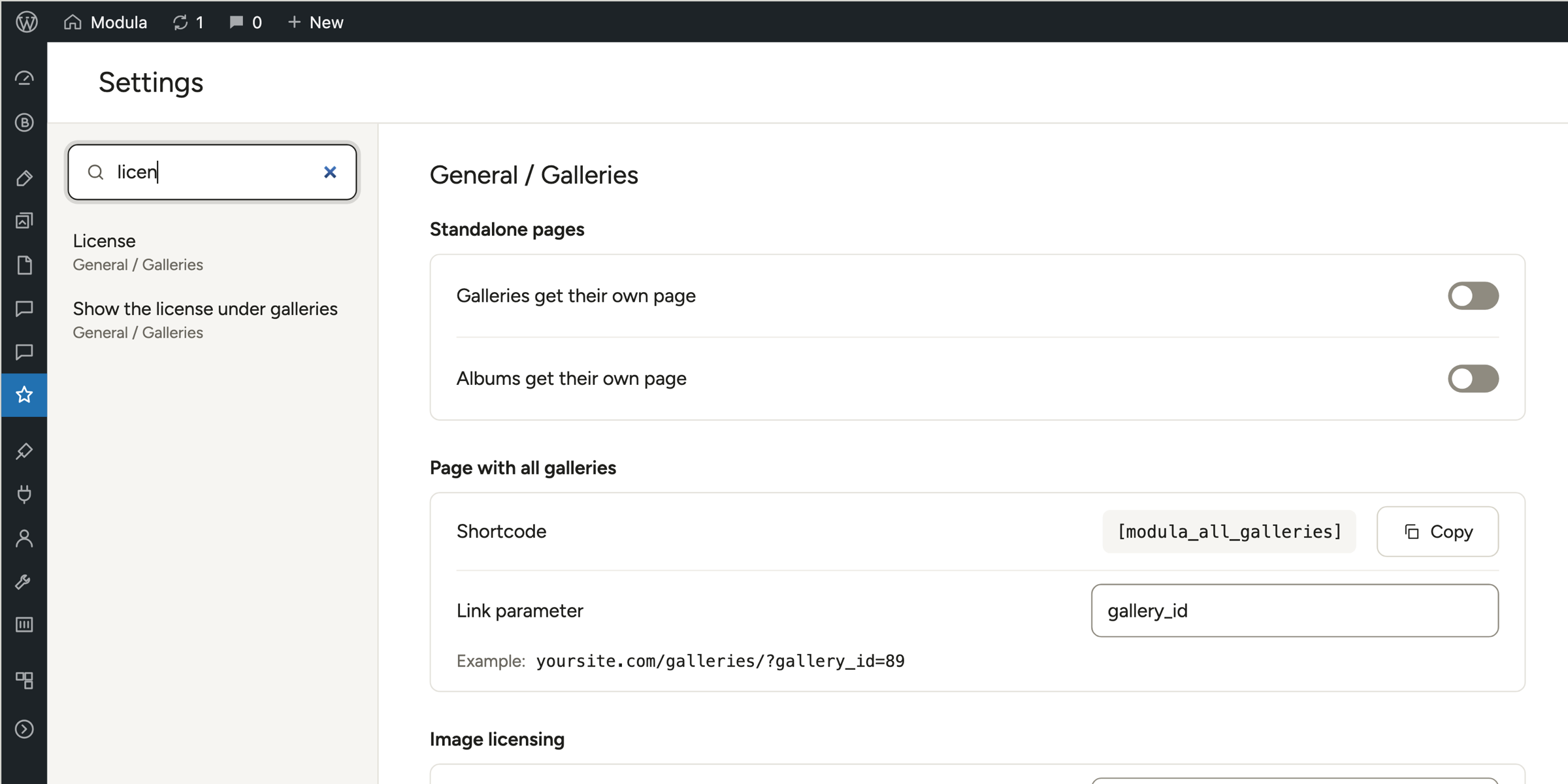
- Type in Find a setting… at the top of the sidebar. Each result shows the setting and where it is, for example General / Galleries.
- Click a result to go straight to it.
Save your changes
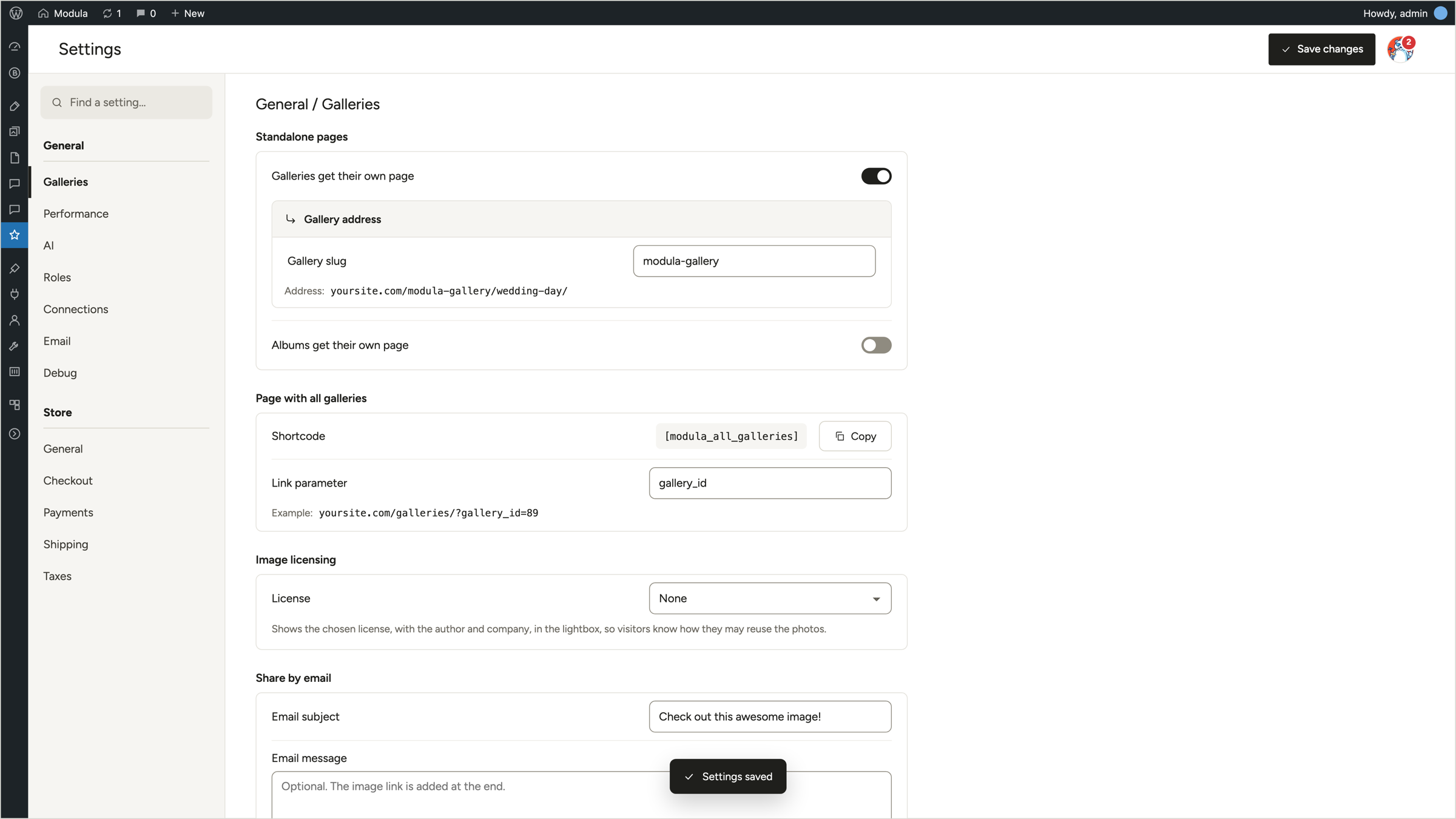
After you change something, click Save changes at the top right. The button shows Saving…. Then a short Settings saved message appears at the bottom of the page.
Note: AI assistant connections and the license card don’t wait for Save changes. Connecting, disconnecting and activating a key take effect right away.