You can add Modula galleries to the Divi Builder with the Modula Gallery module, so you can place your galleries in any Divi layout. It works with the Divi theme and with the Divi Builder plugin, in the free Modula plugin too.
For albums and Modula Link, use the shortcode in a Code module. A shortcode is a short piece of text that shows a gallery on a page.
Add a gallery with the Modula Gallery module
- Create your gallery and publish it. Only published galleries show up in the module. If you need help, see Create your first gallery.
- Open the page with the Divi Builder.
- In a row, click the gray + to add a module.
- Type Modula in the search field.
- Choose Modula Gallery.
- In the module settings, open Modula Gallery on the Content tab.
- Pick your gallery in Select Gallery. The builder shows a preview of the gallery.
- Save the module and the page.
The gallery looks and works the same as with the Modula block or shortcode. Its layout, captions, lightbox and effects all come from the gallery’s own settings, so change them in Modula. The module doesn’t have Divi’s spacing, border or animation options.
Note: The builder only shows a preview. Check hover effects and the lightbox on the published page.
Add albums and Modula Link with shortcodes
There’s no Divi module for albums or Modula Link. But Divi runs shortcodes in its Code and Text modules, so you can use them there.
-
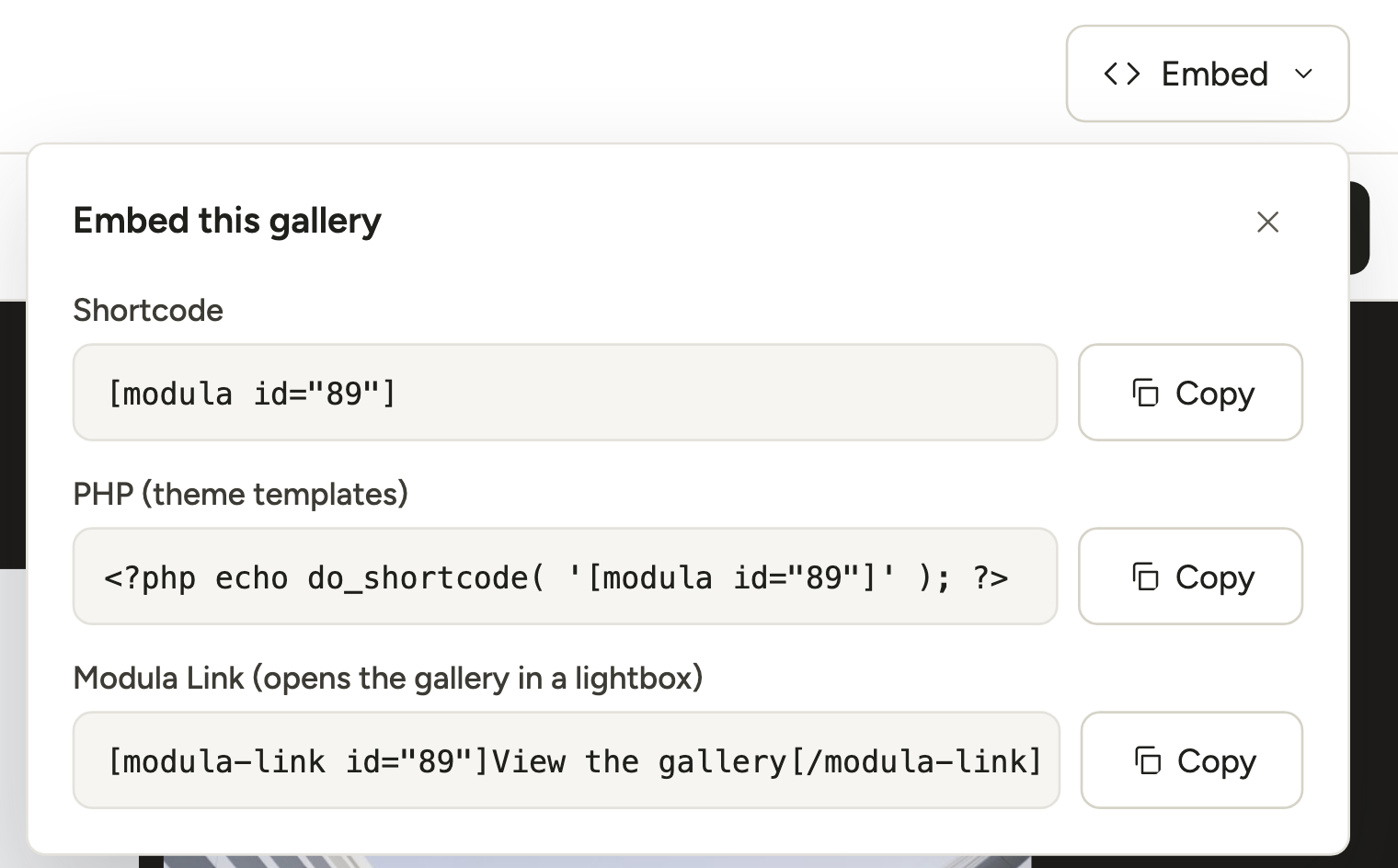
Copy the code. For a gallery, open it in the new gallery editor and click Embed at the top right. It has the Shortcode and the Modula Link (opens the gallery in a lightbox) code, each with a Copy button.
The shortcodes of your galleries and albums are also in the Shortcode column of Modula → Galleries.
- In the Divi Builder, add a Code module.
- Paste the code.
- Save the module and the page.
The codes look like this. Use your own IDs.
- Album:
[modula-album id="12"]. Needs Modula Pro with the Albums extension turned on (Trio and Business plans). - Modula Link:
[modula-link id="89"]View the gallery[/modula-link]. Needs Modula Pro. The text between the tags is what visitors click. - Gallery:
[modula id="89"], if you prefer the shortcode to the module.
More ways to show galleries are in Insert Modula galleries in WordPress posts and pages.