
This guide will walk you through the various methods to upgrade your Modula Pro license to a higher tier, whether you’re on the Starter plan and looking to move up to Trio or Business.
We offer multiple avenues for your convenience: from your Modula account page, via a direct URL, or through your WordPress dashboard.
Method 1: Upgrade Through Your Modula Account
-
Access Your Account
Start by visiting your Modula user account page. You can do this by clicking here.
-
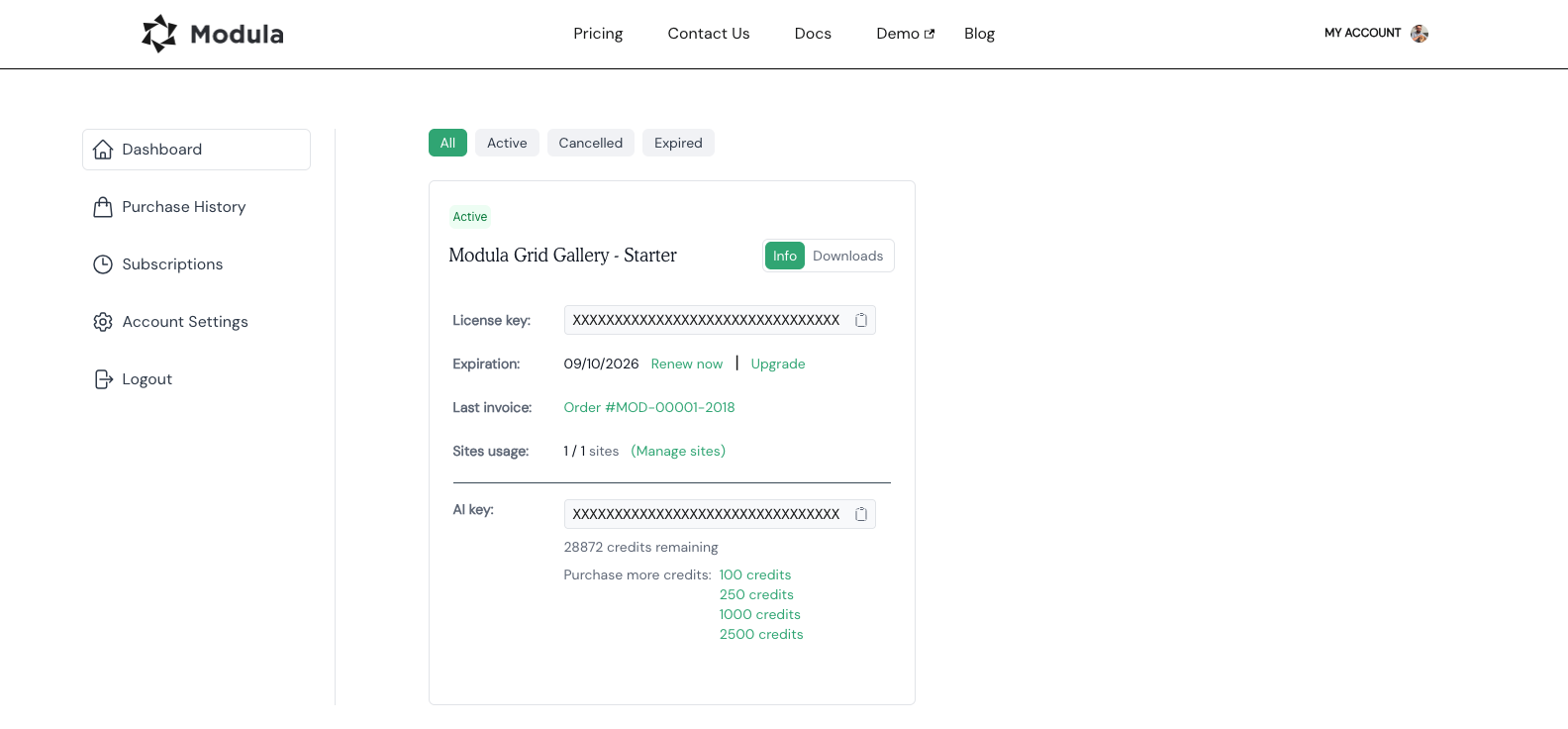
Click the Upgrade link
Once you’re in your account, you’ll find your user dashboard and the “Upgrade” link next to the “Renew now” link.
-
Select Upgrade plan
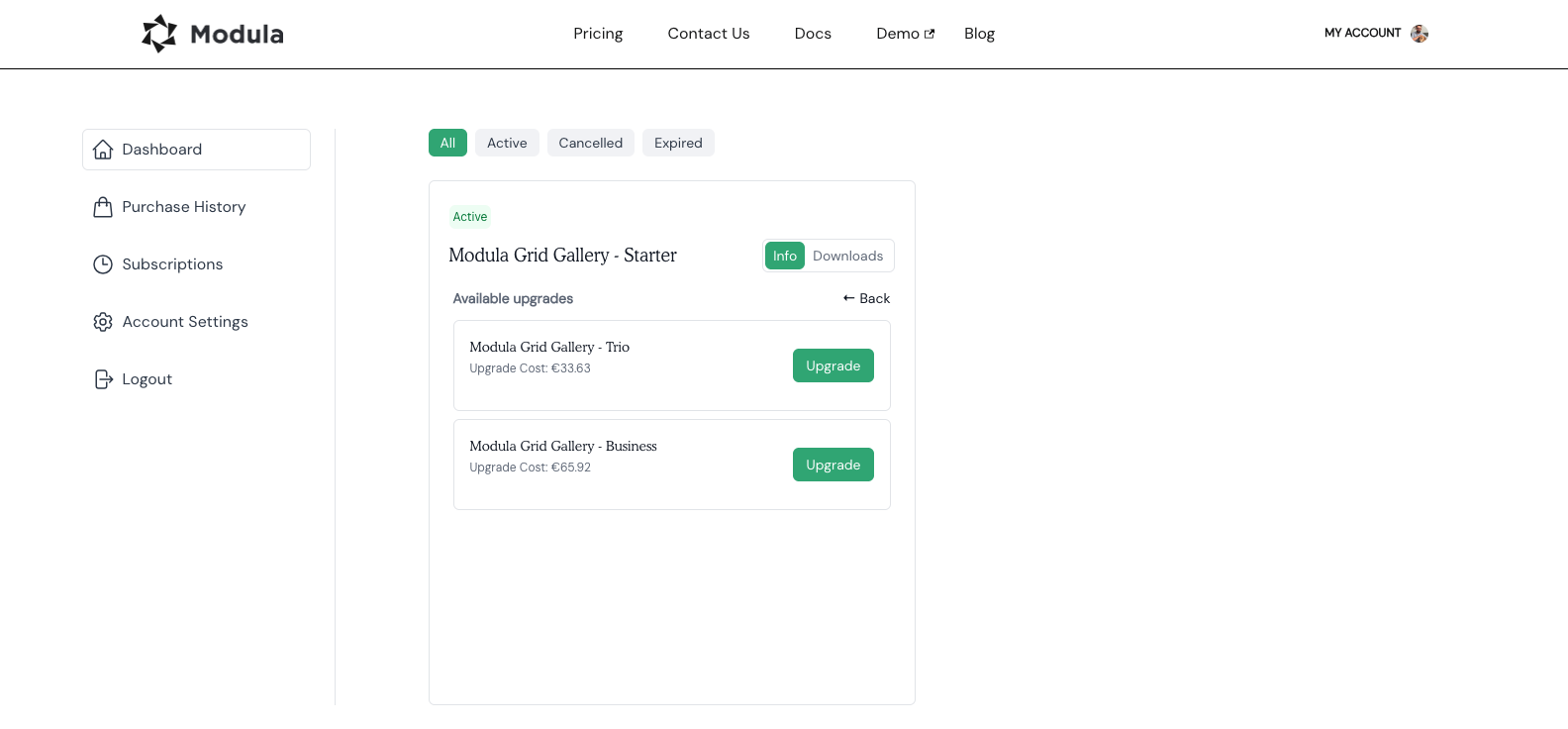
In the following tab, you will see the available upgrade possibilities and their respective prices.
-
Checkout
Click “Upgrade” for the plan you desire. This will take you to the checkout page, where you can complete your purchase. You will see the upgrade added to your cart.
-
Complete the Purchase
Follow the checkout process to complete your upgrade.
Please note that downgrades are not currently supported. If you wish to switch to a lower-tier plan, you must wait for your subscription to expire and then purchase the desired plan.
Method 2: Upgrade Using a URL
-
Access the URL
Another method for upgrading is to use a specific URL: wp-modula.com/pricing/?license=your_license_key. Make sure to replace ‘your_license_key’ with your Modula license key.
-
Paste the URL
Copy the modified URL and paste it into your browser’s address bar. Hit Enter, and you will be directed to the pricing page displaying your available upgrade options.
-
Pay the Difference
With this method, you’ll only pay the price difference between your current plan and the plan you wish to upgrade to.
Method 3: Upgrade Through Your WordPress Dashboard
-
Access Your WordPress Dashboard
Log in to your WordPress admin panel.
-
Navigate to Modula
In the WordPress dashboard, go to “Modula.”
-
Access Extensions
Click on “Extensions” within the Modula menu.
-
Select Upgrade
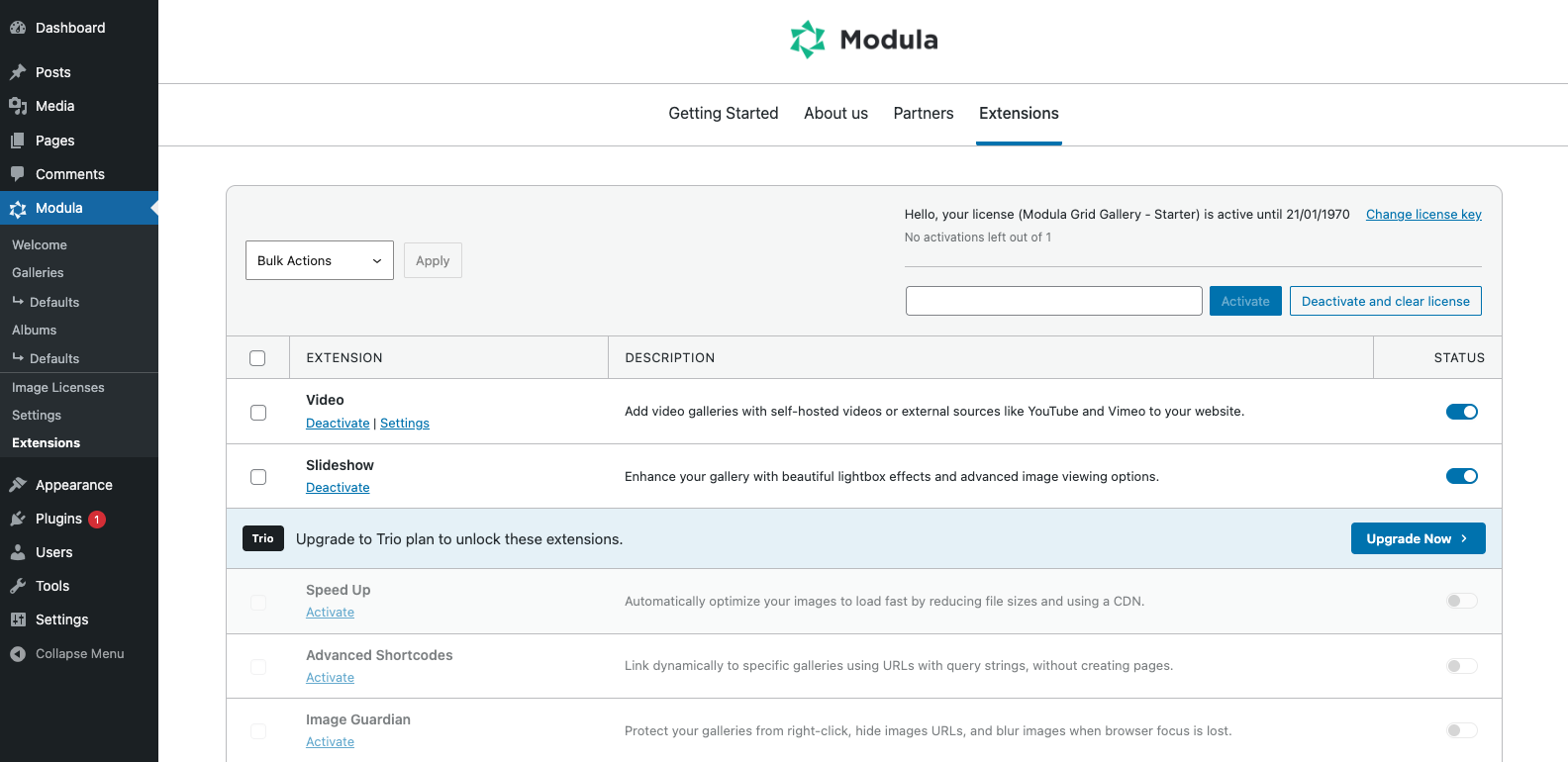
If your current plan can be upgraded (Starter or Trio), you’ll see the extensions you can upgrade to. Click the “Upgrade now” button under the extension you wish to have access to.
-
Complete the Upgrade
Once you click “Upgrade now”, you will be automatically redirected to a pricing list displaying your upgrade options. Choose the desired plan, click “Upgrade,” and follow the necessary steps to complete your purchase.
Now, you have multiple options to seamlessly upgrade your Modula Pro license to enjoy the enhanced features and capabilities offered by our higher-tier plans.
We hope this guide has made the upgrade process clear and convenient for you. If you encounter any issues or have questions, feel free to reach out to our support team for assistance.